
本文流程:
1.安裝插件→2.引入Echarts→3.創建圖表→4.修改樣式→5.接入數據
一.安裝插件
方法一:npm安裝Echarts
npm install echarts -S

方法二:cnpm安裝Echarts
1.首先我們需要安裝cnpm

npm install -g cnpm --registry=https://registry.npm.taobao.org

2.然後

cnpm install echarts -S
二.引入Echarts
方法一:全局引入
打開main.js文件引入Echarts
import echarts from 'echarts'

然後將echart添加到vue的原型上,這樣就可以全局使用了

Vue.prototype.$echarts = echarts
方法二:局部引入
全局引入會將所有的echarts圖表打包,導致體積過大,所以我覺得最好還是按需要來局部引入,比如我們需要引入一個柱狀圖
// 引入基本模板
let echarts = require('echarts/lib/echarts')
// 引入柱狀圖組件
require('echarts/lib/chart/bar')
// 引入提示框和title組件
require('echarts/lib/component/tooltip')
require('echarts/lib/component/title')
這裏require直接從 node_modules 中查找文件位置進行引入
三.創建圖表
當你安裝完插件和在頁面裏面引入圖表之後,那麼恭喜你可以創建圖表了~
第一步:你首先得創造一個圖表的容器,寬高必須是行內樣式,單位必須是px
<template>
       <div id="myChart" :style="{width: '1000px', height: '600px'}"></div>
</template>
注意:這樣會出現一個問題,因為由於必須固定好寬高,你縮小屏幕的時候,圖表不會隨之適應的縮小,刷新頁面才能適應,解決方法的實現請接着往下看
第二步:繪製圖表,這裏我們要注意,echarts初始化應在鈎子函數mounted()中,掛載之後調用
<script>
        export default {
             data() {
                    return {

                   }
              },
             //鈎子函數
             mounted(){
                   this.draw();
             },
             methods: {
                   draw(){
                       // 初始化echarts實例
                        let myChart = this.$echarts.init(document.getElementById('myChart'))
                       // 繪製圖表
                       var option = {
                            //此處佔用篇幅過大,先省略等下會進行解釋
                       }
                       //防止越界,重繪canvas
                       window.onresize = myChart.resize;
                       myChart.setOption(option);//設置option
                   }
              }
         }
</script>
解釋:
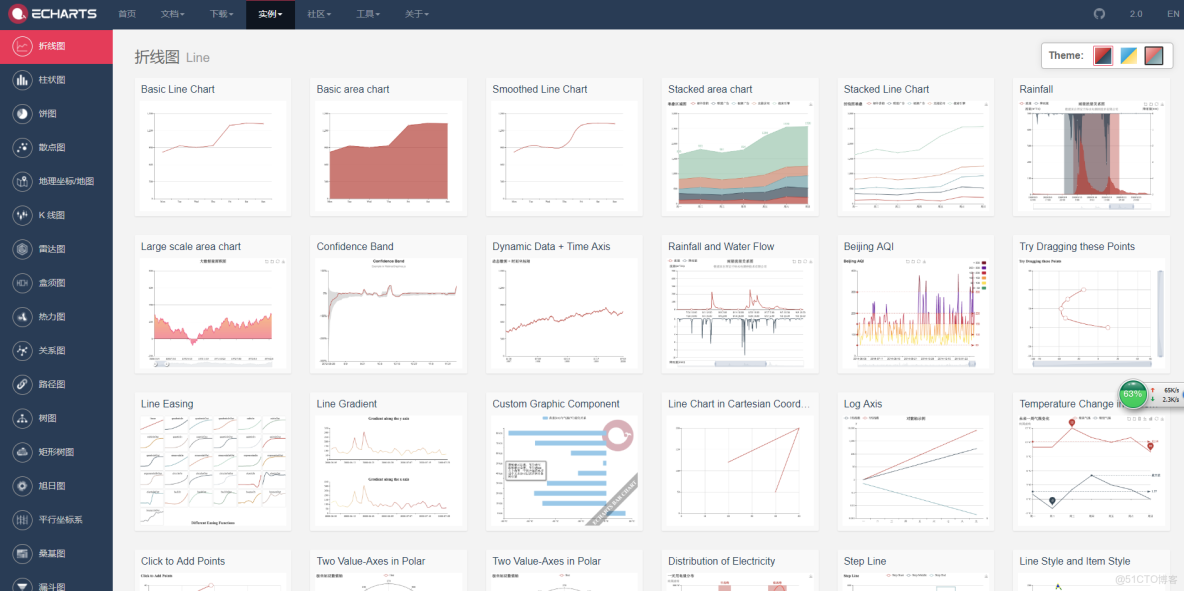
第一點:省略處為繪製圖表的代碼,首先,你打開Echarts官網,找到實例,選取你項目裏面需要用到的圖表模板(樣式差不多就行,下文會教你如何修改圖表樣式),點進去,然後你可以看到左側的代碼,把option = {}括號裏面的內容放置到我上方省略的代碼處,運行,你頁面即可以看到你所需要的圖表;
第二點:下方代碼防止越界,重匯canvas處,即為可以解決掉屏幕縮小,圖表不會隨之適應的縮小的方法,原理為當瀏覽器發生resize事件的時候,讓其觸發echart的resize事件,重繪canvas
//防止越界,重繪canvas
window.onresize = myChart.resize;
myChart.setOption(option);//設置option
四.修改樣式
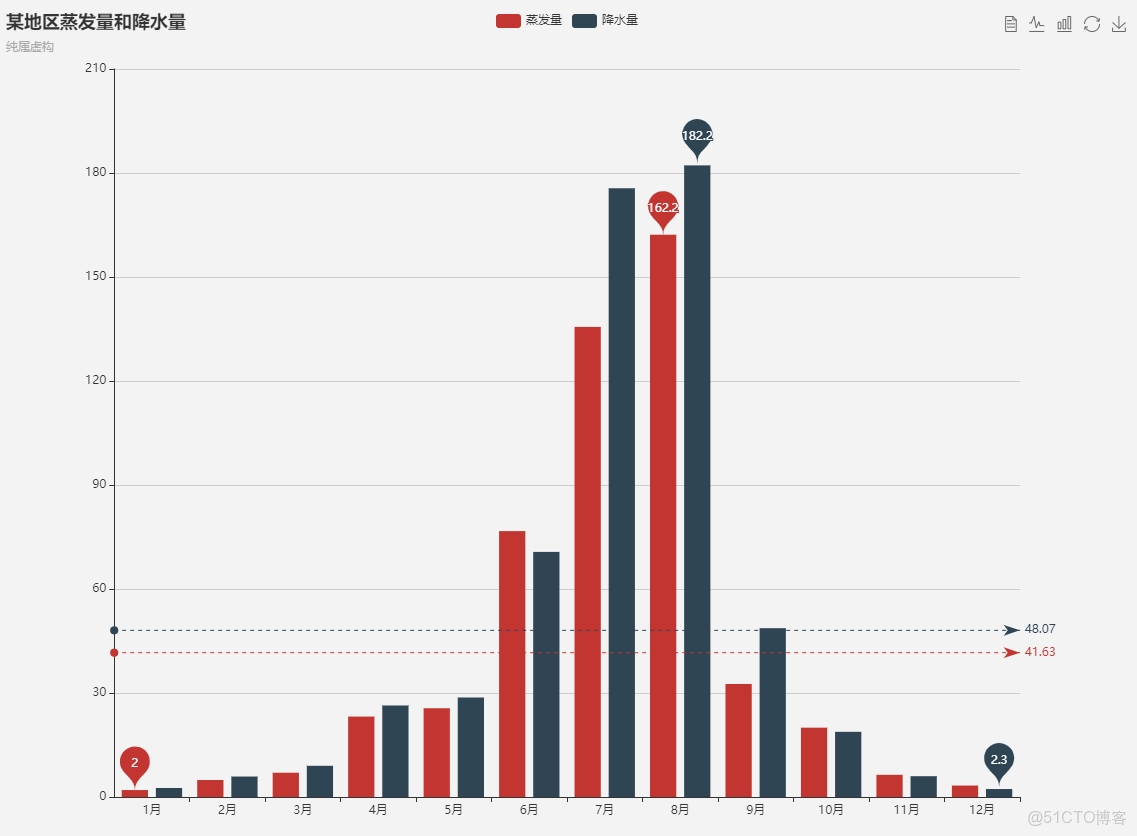
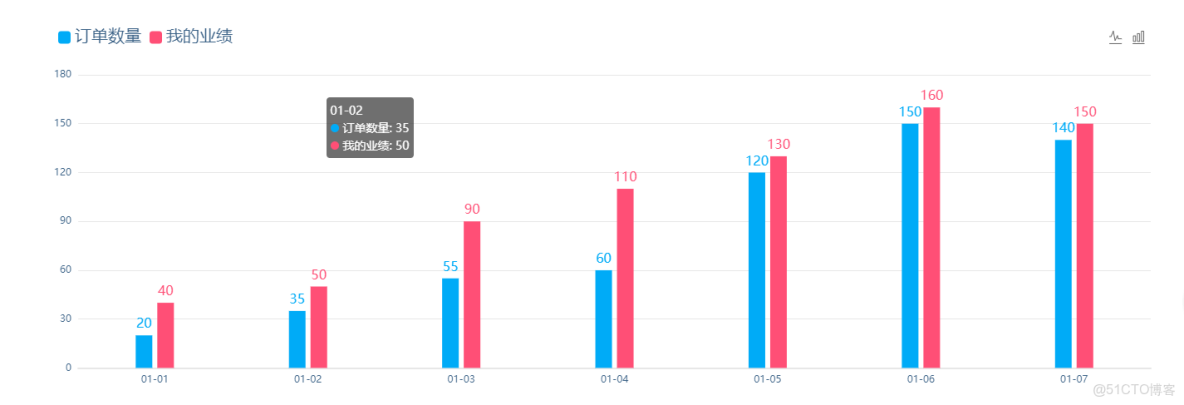
當你創建完圖表之後,你會發現你的圖表和UI給的樣式差距太大,這樣寫肯定是不能過關的,所以你得修改圖表樣式,現在我從圖表的左上角説到右下角,如何去更改圖表樣式,首先先上兩張圖表的差異圖:
圖一為Echarts未修改過的柱形圖:
圖二為修改樣式之後的柱形圖:
樣式修改方法:
1.左上角圖例處:
//圖例
legend: {
      data: ['降水量'],//與series的name對應
       left: '75%',//圖例的離左邊位置,可以用像素,可以用百分比,也可以用center,right等
       top: 12px,//圖例離頂部的位置
       itemWidth: 10,//圖例圖標的寬
       itemHeight: 10,//圖例圖標的高
       textStyle: {
             color: '#878787',//文字的具體的顏色
        }
},
2.右上角切換圖形處:
toolbox: {
       show : true,//顯示
       feature : {
              magicType : {show: true, type: ['line', 'bar']},
       },//柱形圖和折線圖切換
       right: '6%',//離右邊的距離
},

3.中部圖表X軸修改:

//x軸
xAxis: {
        type: 'category',
        data: ['1月', '2月', '3月', '4月', '5月'],//x軸的數據
        splitLine: {show: false},//去除網格分割線
        // splitArea: {show: true},//保留網格區域
        axisLine: {//座標線
               lineStyle: {
                     type: 'solid',
                     color: '#d8d8d8',//軸線的顏色
                     width:'1'//座標線的寬度
               }
        },
        axisTick: {//刻度
              show: false//不顯示刻度線
        },
        axisLabel: {
              textStyle: {
                    color: '#878787',//座標值的具體的顏色
              }
        },
        splitLine: {
              show: false//去掉分割線
        },
 },
4.中部圖表Y軸修改:
yAxis: {
      name: '單位:次',//軸的名字,默認位置在y軸上方顯示,也可不寫
      max: 30,//最大刻度
      type: 'value',
      axisLine: {//線
              show: false
      },
      axisTick: {//刻度
              show: false
      },
      axisLabel: {
              textStyle: {
                     color: '#878787',//座標值得具體的顏色
              }
      },
      minInterval: 5,//標值的最小間隔
      splitLine: {
              lineStyle: {
                      color: ['#f6f6f6'],//分割線的顏色
              }
      }
},

5.柱狀圖形修改:

series: [{
       name: '數量',//每組數據的名字,與圖例對應
       data: [200, 300, 400, 350, 100],//數據
       type: 'bar',//柱狀圖
       itemStyle: {
            normal: {
                 color: '#FD6B71',//設置柱子顏色
                 abel: {
                        show: true,//柱子上顯示值
                        position: 'top',//值在柱子上方顯示
                         textStyle: {
                                color: '#FD6B71'//值得顏色
                         }
                  }
             }
        },
        barWidth: 15//設置柱子寬度,單位為px
 }],

 好吧!整體代碼我也發一份,當你安裝好插件和全局引入後,你可以用以下代碼進行測試有沒有成功,代碼如下:

<template>
       <div class="MyAchievement">
            <div class="MyAchievement-echart">
                   <div class="echart-title">我的業績</div>
                   <div class="echart-content">
                        <div id="myChart" :style="{width: '1500px', height: '460px'}"></div>
                   </div>
            </div>
       </div>
</template>

<script>
export default {
    data() {
        return {

        }
    },
    mounted(){
        this.drawLine();
    },
    methods: {
        drawLine(){
            var myChart = this.$echarts.init(document.getElementById('myChart'));//獲取容器元素
            var option = {
                tooltip : {
                    trigger: 'axis'
                },
                grid: {
                    left: '6%',
                    right: '6%',
                    bottom: '6%',
                    containLabel: true
                },
                legend: {
                    data:['訂單數量','我的業績'],
                    left: '6%',
                    top: 'top',
                    itemWidth: 15,//圖例圖標的寬
                    itemHeight: 15,//圖例圖標的高
                    textStyle: {
                        color: '#3a6186',
                        fontSize:20,
                    }
                },
                toolbox: {
                    show : true,
                    feature : {
                        magicType : {show: true, type: ['line', 'bar']},
                    },
                    right: '6%',
                },
                calculable : true,
                xAxis : [
                    {
                        type : 'category',
                        data : ['01-01','01-02','01-03','01-04','01-05','01-06','01-07'],
                        splitLine: {show: false},//去除網格分割線
                        axisTick: {//刻度
                            show: false//不顯示刻度線
                        },
                        axisLine: {//座標線
                            lineStyle: {
                                type: 'solid',
                                color: '#e7e7e7',//軸線的顏色
                                width:'2'//座標線的寬度
                            }
                        },
                        axisLabel: {
                            textStyle: {
                                color: '#3a6186',//座標值的具體的顏色
                            }
                        },
                        splitLine: {
                            show: false//去掉分割線
                        },
                    }
                ],
                yAxis : [
                    {
                        type : 'value',
                        axisLine: {//線
                            show: false
                        },
                        axisTick: {//刻度
                            show: false
                        },
                        axisLabel: {
                            textStyle: {
                                color: '#3a6186',//座標值的具體的顏色
                            }
                        },
                        splitLine: {
                            lineStyle: {
                                color: ['#e7e7e7'],//分割線的顏色
                            }
                        }
                    }
                ],
                series : [
                    {
                        name:'訂單數量',
                        type:'bar',
                        barWidth: 20,
                        data:[20, 35, 55, 60, 120, 150, 140],
                        itemStyle: {
                            normal: {
                                color: '#00abf7',//設置柱子顏色
                                label: {
                                    show: true,//柱子上顯示值
                                    position: 'top',//值在柱子上方顯示
                                    textStyle: {
                                        color: '#00abf7',//值的顏色
                                        fontSize:16,
                                    }
                                }
                            }
                        },
                    },
                    {
                        name:'我的業績',
                        type:'bar',
                        barWidth: 20,
                        data:[40, 50, 90, 110, 130, 160, 150],
                        itemStyle: {
                            normal: {
                                color: '#ff4f76',//設置柱子顏色
                                label: {
                                    show: true,//柱子上顯示值
                                    position: 'top',//值在柱子上方顯示
                                    textStyle: {
                                        color: '#ff4f76',//值的顏色
                                        fontSize:16,
                                    }
                                }
                            }
                        },
                    }
                ]
            };
            //防止越界,重繪canvas
            window.onresize = myChart.resize;
            myChart.setOption(option);//設置option
        }
    }
}
</script>

<style lang="scss" scoped>
        .MyAchievement{
          display: flex;
          flex-direction: column;
          padding:0px 90px;
        }
        .MyAchievement .MyAchievement-echart{
            width: 100%;
            height: 570px;
            border-radius: 10px;
            border:1px solid #d3d9e9;
            box-shadow: 4px 6px 10px -2px #d3d9e9;
            background-color: #fff;
            display: flex;
            flex-direction: column;
        }
        .MyAchievement-echart .echart-title{
            width: 100%;
            height: 70px;
            background-color: #00abf7;
            border-top-left-radius: 10px;
            border-top-right-radius: 10px;
            font-size: 26px;
            color: #fff;
            text-align: center;
            line-height: 75px;
        }
        .MyAchievement-echart .echart-content{
            width: 100%;
            height: 500px;
            display: flex;
            // align-items: center;
            justify-content: center;
        }
        .echart-content #myChart{
            margin-top: 35px;
        }
</style>
五.接入數據
就比如上方柱形圖,數據為data: [200, 300, 400, 350, 100],我們通過調用接口,把接口數據替換掉之前寫死的數據即可,比如:
axios({
       method:'POST',
       url:this.API.drawline,
}).then(response => {
       //獲取數據
       this.draw= response.data;
       //把原先寫死的數據替換為接口數據即可
       //......
}).catch(err => {
       console.log(err);
})