
本節詳細介紹Windows Phone控件的Panorama控件和Pivot控件,並進行了分析比較。。。
Windows phone 7的基本控件,前面屏幕方向與常用控件【WP7學習札記之六】已經學習過,現在繼續學習Panorama控件和Pivot控件。
Part I Panorama控件
全景體驗是本機 Windows Phone 外觀的一部分。與旨在適合手機屏幕邊界的標準應用程序不同,全景應用程序通過使用超出屏幕邊界的長水平畫布提供了一個查看控件、數據和服務的獨特方式。 這些固有的動態視圖使用分層動畫和內容,以便各層以不同的速度流暢地平移,類似於視差效果。
Panorama 控件,該控件本質上是一個較長的水平畫布。一個名為 PanoramaItem
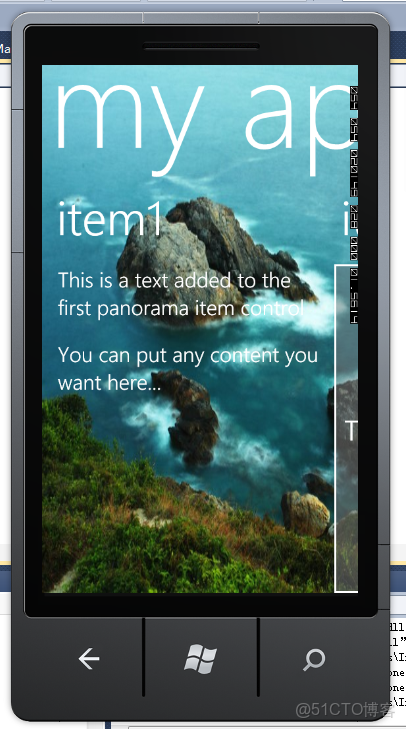
Panorama 控件是用於全景應用程序的基礎控件,該控件包含三個不同的層。每個層都包含在用作 Panorama 控件的佈局根的 Grid控件中。
- 背景
- 標題
- 項 顯示 PanoramaItem
下面給出一個代碼示例,PanoramaPage1.xaml代碼如下:


View Code
<phone:PhoneApplicationPage
x:Class="PanoranaAndPivotControls.PanoramaPage1"
    xmlns="http://schemas.microsoft.com/winfx/2006/xaml/presentation"
    xmlns:x="http://schemas.microsoft.com/winfx/2006/xaml"
    xmlns:phone="clr-namespace:Microsoft.Phone.Controls;assembly=Microsoft.Phone"
    xmlns:shell="clr-namespace:Microsoft.Phone.Shell;assembly=Microsoft.Phone"
    xmlns:controls="clr-namespace:Microsoft.Phone.Controls;assembly=Microsoft.Phone.Controls"
    xmlns:d="http://schemas.microsoft.com/expression/blend/2008"
    xmlns:mc="http://schemas.openxmlformats.org/markup-compatibility/2006"
    xmlns:sys="clr-namespace:System;assembly=mscorlib"
    mc:Ignorable="d" d:DesignWidth="480" d:DesignHeight="800"
    FontFamily="{StaticResource PhoneFontFamilyNormal}"
    FontSize="{StaticResource PhoneFontSizeNormal}"
    Foreground="{StaticResource PhoneForegroundBrush}"
    SupportedOrientations="Portrait"  Orientation="Portrait"
    shell:SystemTray.IsVisible="False">

<!--LayoutRoot contains the root grid where all other page content is placed-->
<Grid x:Name="LayoutRoot">
<controls:Panorama Title="my application">
<controls:Panorama.Background>
<ImageBrush ImageSource="/Images/1.jpg"/>
</controls:Panorama.Background>
<!--Panorama item one-->
<controls:PanoramaItem Header="item1">
<Grid>
<!--This code creates two TextBlock controls and places them in a StackPanel control.-->
<StackPanel>
<TextBlock
Text="This is a text added to the first panorama item control"
                    Style="{StaticResource PhoneTextLargeStyle}"
                    TextWrapping="Wrap"/>
<TextBlock Text=" "/>
<TextBlock
Text="You can put any content you want here..."
                    Style="{StaticResource PhoneTextLargeStyle}"
                    TextWrapping="Wrap"/>
</StackPanel>
</Grid>

</controls:PanoramaItem>

<!--Panorama item two-->
<controls:PanoramaItem Header="item2" Orientation="Horizontal" >
<!--Assigns a border to the PanoramaItem control and background for the content section.-->
<Grid>
<Border
BorderBrush="{StaticResource PhoneForegroundBrush}"
                BorderThickness="{StaticResource PhoneBorderThickness}"
                Background="#80808080">

<TextBlock
Text="This content is very wide and can be panned horizontally."
                    Style="{StaticResource PhoneTextExtraLargeStyle}"
                    HorizontalAlignment="Center"
                    VerticalAlignment="Center" >
</TextBlock>

</Border>
</Grid>

</controls:PanoramaItem>
<controls:PanoramaItem Header="item3" Orientation="Horizontal" >
<!--This code adds a series of string text values.-->
<Grid>
<ListBox FontSize="{StaticResource PhoneFontSizeLarge}">
<sys:String>This</sys:String>
<sys:String>item</sys:String>
<sys:String>has</sys:String>
<sys:String>a</sys:String>
<sys:String>short</sys:String>
<sys:String>list</sys:String>
<sys:String>of</sys:String>
<sys:String>strings</sys:String>
<sys:String>that</sys:String>
<sys:String>you</sys:String>
<sys:String>can</sys:String>
<sys:String>scroll</sys:String>
<sys:String>up</sys:String>
<sys:String>and</sys:String>
<sys:String>down</sys:String>
<sys:String>and</sys:String>
<sys:String>back</sys:String>
<sys:String>again.</sys:String>
</ListBox>
</Grid>

</controls:PanoramaItem>
</controls:Panorama>
</Grid>

<!--Panorama-based applications should not show an ApplicationBar-->

</phone:PhoneApplicationPage>
PanoramaPage1.xaml.cs代碼如下:


View Code
using System;
using System.Collections.Generic;
using System.Linq;
using System.Net;
using System.Windows;
using System.Windows.Controls;
using System.Windows.Documents;
using System.Windows.Input;
using System.Windows.Media;
using System.Windows.Media.Animation;
using System.Windows.Shapes;
using Microsoft.Phone.Controls;

namespace PanoranaAndPivotControls
{
public partial class PanoramaPage1 : PhoneApplicationPage
    {
public PanoramaPage1()
        {
            InitializeComponent();
        }
    }
}
效果如下:
Part II. Pivot控件
Windows Phone Pivot 應用程序提供一種管理視圖或頁面的快速方法。該方法可以用於篩選大型數據集、查看多個數據集或切換應用程序視圖。例如,在頁面上從左向右輕拂或平移可前進到下一頁內容。
Pivot 控件,該控件本質上是次要控件的容器,稱為 PivotItem 控件。PivotItem
Pivot 控件是用於 Pivot 應用程序的基礎控件,該控件包含兩個不同的層。每個層都包含在用作 Pivot 控件的佈局根的 Grid控件中。
- 標題列表元素 該元素負責顯示 Pivot 項的標題。
- Pivot 項提出者 顯示集合中單個 PivotItem 控件的 ItemsPresenter
下面給出一個代碼示例,PivotPage1.xaml代碼如下:


View Code
<phone:PhoneApplicationPage
x:Class="PanoranaAndPivotControls.PivotPage1"
    xmlns="http://schemas.microsoft.com/winfx/2006/xaml/presentation"
    xmlns:x="http://schemas.microsoft.com/winfx/2006/xaml"
    xmlns:phone="clr-namespace:Microsoft.Phone.Controls;assembly=Microsoft.Phone"
    xmlns:shell="clr-namespace:Microsoft.Phone.Shell;assembly=Microsoft.Phone"
    xmlns:controls="clr-namespace:Microsoft.Phone.Controls;assembly=Microsoft.Phone.Controls"
    xmlns:d="http://schemas.microsoft.com/expression/blend/2008"
    xmlns:mc="http://schemas.openxmlformats.org/markup-compatibility/2006"
    xmlns:sys="clr-namespace:System;assembly=mscorlib"
    mc:Ignorable="d" d:DesignWidth="480" d:DesignHeight="768"
    FontFamily="{StaticResource PhoneFontFamilyNormal}"
    FontSize="{StaticResource PhoneFontSizeNormal}"
    Foreground="{StaticResource PhoneForegroundBrush}"
    SupportedOrientations="Portrait"  Orientation="Portrait"
    shell:SystemTray.IsVisible="True">

<!--LayoutRoot is the root grid where all page content is placed-->
<Grid x:Name="LayoutRoot" Background="Transparent">
<!--Pivot Control-->
<controls:Pivot Title="MY APPLICATION">
<!--Pivot item one-->
<controls:PivotItem Header="item1">
<Grid>
<!--Added TextBlock control with formatted text.-->
<TextBlock  TextWrapping="Wrap" Style="{StaticResource PhoneTextLargeStyle}">
<Run>This is a simple sample for the pivot control adding text.</Run>
<LineBreak/>
<LineBreak/>
<Run>You can put any content you want here...</Run>
</TextBlock>
</Grid>
</controls:PivotItem>

<!--Pivot item two-->
<controls:PivotItem Header="item2">
<!--Added background image and text content.-->
<Border
BorderBrush="{StaticResource PhoneForegroundBrush}"
        BorderThickness="{StaticResource PhoneBorderThickness}">
<Grid>
<Image
Source="/Images/1.jpg"
                    Stretch="UniformToFill"/>
<TextBlock
Text="Here is some generic content to take up space."
                    TextWrapping="Wrap"
                    Style="{StaticResource PhoneTextExtraLargeStyle}" />
</Grid>
</Border>

</controls:PivotItem>
<!--Pivot item three-->
<controls:PivotItem Header="item3">
<!--This code adds a series of string text values.-->
<Grid>
<ListBox FontSize="{StaticResource PhoneFontSizeLarge}">
<sys:String>This</sys:String>
<sys:String>item</sys:String>
<sys:String>has</sys:String>
<sys:String>a</sys:String>
<sys:String>short</sys:String>
<sys:String>list</sys:String>
<sys:String>of</sys:String>
<sys:String>strings</sys:String>
<sys:String>that</sys:String>
<sys:String>you</sys:String>
<sys:String>can</sys:String>
<sys:String>scroll</sys:String>
<sys:String>up</sys:String>
<sys:String>and</sys:String>
<sys:String>down</sys:String>
<sys:String>and</sys:String>
<sys:String>back</sys:String>
<sys:String>again.</sys:String>
</ListBox>
</Grid>

</controls:PivotItem>
</controls:Pivot>
</Grid>

<!--Sample code showing usage of ApplicationBar-->
<!--<phone:PhoneApplicationPage.ApplicationBar>
        <shell:ApplicationBar IsVisible="True" IsMenuEnabled="True">
            <shell:ApplicationBarIconButton x:Name="appbar_button1" IconUri="/Images/appbar_button1.png" Text="Button 1"/>
            <shell:ApplicationBarIconButton x:Name="appbar_button2" IconUri="/Images/appbar_button2.png" Text="Button 2"/>
            <shell:ApplicationBar.MenuItems>
                <shell:ApplicationBarMenuItem x:Name="menuItem1" Text="MenuItem 1"/>
                <shell:ApplicationBarMenuItem x:Name="menuItem2" Text="MenuItem 2"/>
            </shell:ApplicationBar.MenuItems>
        </shell:ApplicationBar>
    </phone:PhoneApplicationPage.ApplicationBar>-->

</phone:PhoneApplicationPage>
PivotPage1.xaml.cs代碼如下:


View Code
using System;
using System.Collections.Generic;
using System.Linq;
using System.Net;
using System.Windows;
using System.Windows.Controls;
using System.Windows.Documents;
using System.Windows.Input;
using System.Windows.Media;
using System.Windows.Media.Animation;
using System.Windows.Shapes;
using Microsoft.Phone.Controls;

namespace PanoranaAndPivotControls
{
public partial class PivotPage1 : PhoneApplicationPage
    {
public PivotPage1()
        {
            InitializeComponent();
        }
    }
}
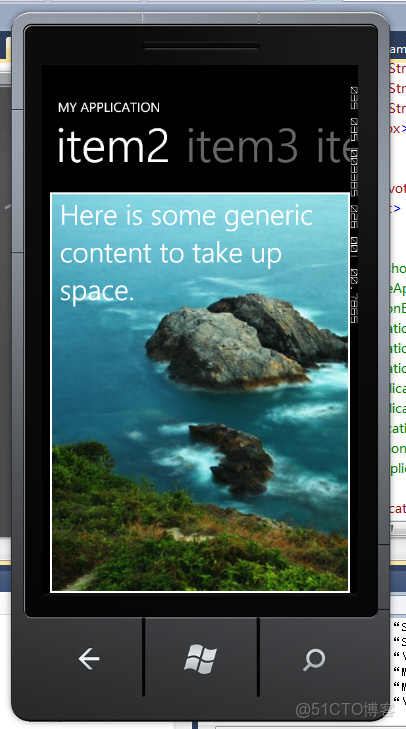
效果如下:
Part III Panorama VS Pivot
Panorama:
■更豐富的用户體驗
■item可以設置屏幕方向為水平,支持多於一屏的顯示
■可以使用任意大小的背景圖,Panorama會自動縮放成合適的大小
■建議不要使用Application Bar
Pivot:
■支持更多數量的items,建議不要超過7個,Panorama建議不要超過4個
■能使用更多的空間來顯示數據
■更加容易的使用代碼來控制,例如SelectedIndex和SelectItem可以用於Pivot,但不能用於Panorama
■可以使用Application Bar
有關Panorama和Pivot的更多信息,請關注MS的官方文檔,地址為:Panorama(http://msdn.microsoft.com/zh-cn/library/ff941092(v=vs.92).aspx)、 Pivot(http://msdn.microsoft.com/zh-cn/library/ff941123(v=vs.92).aspx)
