


Buildah 是一個專注於構建 OCI 鏡像的工具,Buildah CLI 工具使用底層 OCI 技術實現(例如 containers/image 和 containers/storage)。
<!--more-->
OCI 三劍客包括:
- 專注於鏡像構建的 Buildah
- 專注於鏡像和容器管理的 Podman
- 專注於鏡像操作和管理(尤其是涉及遠程倉庫的操作)的 Skopeo
這三者一起形成了一個 Dockerless 的容器生態,支持構建、管理、推送和操作鏡像和容器,且不依賴 Docker 守護進程。
注意:三者之間功能是有一定重複的,特別是 Buildah 和 Podman,不過各自專注點不同,建議合理搭配使用。
Buildah 和 Podman 的關係説明見官方文檔: buildah-and-podman-relationship
1. 什麼是 Buildah?
Buildah 是一個專注於構建 OCI 鏡像的工具,Buildah CLI 工具使用底層 OCI 技術實現(例如 containers/image 和 containers/storage)。
官方描述原文:
A tool that facilitates building OCI images.the Buildah command line tool (CLI) and the underlying OCI based technologies (e.g. containers/image and containers/storage)
Buildah CLI 工具則基於這些項目實現了構建、移動、管理鏡像的功能:
containers/imageproject provides mechanisms to copy (push, pull), inspect, and sign container imagescontainers/storageproject provides mechanisms for storing filesystem layers, container images, and containers
那麼問題來了:構建鏡像已經有 Docker 了為什麼還需要 Buildah?
Buildah 是無守護進程以及可以 rootless 運行的,相比於 docker 更加輕量級。
如果使用 Buildah 來代替 Docker 鏡像構建能力,由於可以無守護進程以及可以 rootless 運行,因此即使在容器中使用也非常方便,對於 Devops 來説是一個很好的選擇。
即:相較於現有的構建工具, Buildah 更輕量級,做到了 Dockerless 和 Rootless。
2. 安裝 Buildah
官方文檔:buildah#install.md
Buildah 為各大發行版都提供了對應的 Package,可以方便的通過 yum、apt-get、dnf 等等工具安裝,當然也可以通過源碼編譯安裝。
推薦使用發行版自帶的包管理工具安裝:
# CentOS
sudo yum -y install buildah

# Ubuntu 20.10 and newer
sudo apt-get -y update
sudo apt-get -y install buildah

# Fedora
sudo dnf -y install buildah
Demo 用的 Ubuntu22.04
sudo apt-get -y update
sudo apt-get -y install buildah
查看 Buildah 版本
ps:系統版本比較低,所以安裝的 buildah 也比較舊
root@builder-ubuntu:~# buildah version
Version:         1.23.1
Go Version:      go1.17
Image Spec:      1.0.1
Runtime Spec:    1.0.2-dev
CNI Spec:        0.4.0
libcni Version:
image Version:   5.16.0
Git Commit:
Built:           Thu Jan  1 08:00:00 1970
OS/Arch:         linux/amd64
BuildPlatform:   linux/amd64
3. 基礎功能
使用命令式構建鏡像
Buildah 相對於 Dockerfile 提供了強大的命令式構建方式,將 Dockerfile 指令變成一條一條的命令,為我們構建鏡像提供了新的選擇:
# 拉取鏡像,類似 Dockerfile 中的 FROM
container=$(buildah from nginx)
# 類似 Dockerfile 中的 RUN
buildah run $container -- bash -c 'echo "hello world" > /usr/share/nginx/html/index.html'
# 提交保存鏡像
buildah commit $container nginx-hello
輸出如下:
[root@builder ~]# container=$(buildah from nginx)
[root@builder ~]# buildah run $container -- bash -c 'echo "hello world" > /usr/share/nginx/html/index.html'
[root@builder ~]# buildah commit $container nginx-hello
Getting image source signatures
Copying blob c0f1022b22a9 skipped: already exists
Copying blob fc00b055de35 skipped: already exists
Copying blob 2c3a053d7b67 skipped: already exists
Copying blob b060cc3bd13c skipped: already exists
Copying blob 8aa4787aa17a skipped: already exists
Copying blob c28e0f7d0cc5 skipped: already exists
Copying blob d32d820bcf1c skipped: already exists
Copying blob c6a7a8084917 done   |
Copying config 19de2f1f4a done   |
Writing manifest to image destination
19de2f1f4afc6e0ff9da11e9dfb988619f4bcd1d388ea4c18413ab574487a0d4
查看到剛才構建的鏡像
[root@builder ~]# buildah images
REPOSITORY                          TAG       IMAGE ID       CREATED          SIZE
localhost/nginx-hello               latest    19de2f1f4afc   22 seconds ago   196 MB
通過 Dockerfile 構建鏡像
當然,Buildah 也支持通過 Dockerfile 構建鏡像,這個應該是比較常見的用法。
準備一個 Dockerfile
FROM nginx
RUN echo "Hello World" > /usr/share/nginx/html/index.html
EXPOSE 80
使用 buildah 構建鏡像
buildah build -t nginx-hello2 .輸出如下
[root@builder ~]# buildah build -t nginx-hello2 .
STEP 1/3: FROM nginx
STEP 2/3: RUN echo "Hello World" > /usr/share/nginx/html/index.html
STEP 3/3: EXPOSE 80
COMMIT nginx-hello2
Getting image source signatures
Copying blob c0f1022b22a9 skipped: already exists
Copying blob fc00b055de35 skipped: already exists
Copying blob 2c3a053d7b67 skipped: already exists
Copying blob b060cc3bd13c skipped: already exists
Copying blob 8aa4787aa17a skipped: already exists
Copying blob c28e0f7d0cc5 skipped: already exists
Copying blob d32d820bcf1c skipped: already exists
Copying blob eec64f0b2723 done   |
Copying config 1b63bdb270 done   |
Writing manifest to image destination
--> 1b63bdb270c1
Successfully tagged localhost/nginx-hello2:latest
1b63bdb270c1066520a5ae37dcea3d5c3b9c5e9af581e76bf1287f9f79f77f03
用法和 Docker build 基本一致,遷移的話也沒有太多學習成本。
4. 配置文件
同為 OCI 三劍客,Podman 、Buildah 配置文件也是通用的。
您可以在以下目錄中找到默認的 Podman 、Buildah 的配置文件:
- 全局配置文件:
/etc/containers/ - 用户配置文件:
~/.config/containers/
ps:會優先使用用户配置文件,若沒有則使用全局配置文件。
即:不同用户都可以單獨指定自己的配置文件
在/etc/containers 目錄下,包括多種配置文件:
- storage.conf:存儲相關配置
- registries.conf:鏡像倉庫相關配置
- policy.json:容器簽名驗證相關配置
- auth.json:鏡像倉庫的認證信息,執行 login 命令後會將 token 存到該文件
- ...
各個文件的具體配置可以參考:Podman&Buildah 配置文件説明
作為使用者,主要關係 registries.conf 配置,因此重點分析。
vi /etc/containers/registries.conf完整內容
/etc/containers/registries.conf 完整內容如下:
unqualified-search-registries = ["registry.access.redhat.com", "registry.redhat.io", "docker.io"]

# 配置為 Docker.io 倉庫的鏡像源
[[registry]]
prefix = "docker.io"
location = "registry-1.docker.io"

# 為 Docker.io 配置鏡像源
[[registry.mirror]]
location = "mirror.gcr.io"

[[registry.mirror]]
location = "mirror2.gcr.io"


# 配置為私有倉庫 10.10.10.49:5000 的鏡像源
[[registry]]
prefix = "10.10.10.49:5000"
location = "10.10.10.49:5000"
insecure = true

# 配置私有倉庫鏡像源
[[registry.mirror]]
location = "mirror.gcr.io"


short-name-mode = "permissive
大致可以分為以下幾部分:
- 默認鏡像倉庫
- 為鏡像倉庫配置 Insecure、Mirror 等
- shortName 處理模式
不同倉庫配置使用 [[registry]] 塊進行區分。
注意:下面這樣的配置是 V1 版本,已經廢棄了,雖然還可以使用,但是不推薦。
[registries.search]
registries = ['registry1.com', 'registry2.com']

[registries.insecure]
registries = ['registry3.com']

[registries.block]
registries = ['registry.untrusted.com', 'registry.unsafe.com']
參數解釋
官方文檔:containers-registries.conf.5.md
unqualified-search-registries
unqualified-search-registries 是一個配置項,用來指定當拉取一個 沒有指定完整路徑(即不包含域名和路徑) 的鏡像時,應該嘗試哪些倉庫(註冊表)。這通常適用於 “沒有指定鏡像倉庫” 的情況。
unqualified-search-registries = ["registry.access.redhat.com", "registry.redhat.io", "docker.io"]一句話描述:在拉取沒有指定完整路徑(即不包含域名和路徑) 的鏡像時,應該嘗試哪些倉庫(註冊表)。
short-name-mode
short-name-mode 選項定義瞭如何處理不帶倉庫路徑的鏡像名(例如,golang:1.20)。有三種模式:
- disabled:不允許使用短名稱,必須指定完整的倉庫路徑。
- permissive(默認):允許使用短名稱,並嘗試按順序從配置的註冊表列表中查找鏡像。
- full:只有在倉庫名稱為完整名稱時才能拉取鏡像。
默認值就可以了,不用改。
short-name-mode = "permissiveprefix
Registry 塊下的 prefix 用於匹配在拉取鏡像時會用那個 Registry 塊裏的配置,只會使用最長匹配的 Registry 塊。
假設有下面這樣的配置,包含兩個 Registry 塊
[[registry]]
prefix = "docker.io"

[[registry]]
prefix = "docker.io.example.com"當我們拉取鏡像docker.io.example.com/library/busybox:latest 時,根據鏡像完整命令中解析得到一個域名,然後和我們的配置文件中的 prefix 進行匹配,最終會匹配到第二個 Registry 塊,這樣就會使用該 Registry 塊中的配置。
一句話描述:一般填寫 Registry 地址即可,但是需要按照 *.example.com 格式,或者就是指定 location。
location
Registry 塊中的 location 用於指定最終拉取鏡像時訪問的地址。
我們在拉取鏡像時指定的是 docker.io/library/busybox:1.36,但是最終會去 registry-1.docker.io 這個地址拉取。
對於 docker.io 來説,就需要以下配置文件:
[[registry]]
prefix = "docker.io"
location = "registry-1.docker.io"
還有就是 prefix 不是*.example.com 格式時,也必須指定 location,內容和 prefix 一致就行。
一句話描述:用於指定真正拉取鏡像的地址,例如 registry-1.docker.io,或者當 prefix 不是*.example.com 格式時,也必須指定 location,內容和 prefix 一致就行。
insecure
registry 塊下的 Insecure 參數比較常見,就是配置使用 http 訪問該倉庫,一般自建私有倉庫會用到該配置。
# 配置為私有倉庫 10.10.10.49:5000 的鏡像源
[[registry]]
prefix = "10.10.10.49:5000"
location = "10.10.10.49:5000"
insecure = true
blocked
官方解釋是這樣的: If true, pulling images with matching names is forbidden.
默認是 false,配置為 true 之後就不能衝對應 Prefix 指定的鏡像倉庫中拉取鏡像了。
# 配置為私有倉庫 10.10.10.49:5000 的鏡像源
[[registry]]
prefix = "10.10.10.49:5000"
blocked = false一句話描述:用於關閉某些禁止使用的倉庫。
mirror
對於部分無法拉取或拉取慢的倉庫,可以配置 mirror 倉庫。
# 配置 Docker 的鏡像源
[[registry]]
prefix = "docker.io"
location = "registry-1.docker.io"

[[registry.mirror]]
location = "docker.m.daocloud.io"
registry.mirror 塊放在那個 Registry 塊下面就是為哪個倉庫配置的 Mirror。
參考配置文件
以下就是一個比較常用的配置文件 Demo,包括了 location、mirror、insecure 等配置,增加其他鏡像倉庫時可以做參考。
unqualified-search-registries = ["docker.io"]
short-name-mode = "permissive"

# 配置 Docker 的鏡像源
[[registry]]
prefix = "docker.io"
location = "registry-1.docker.io"

[[registry.mirror]]
location = "docker.m.daocloud.io"

# 配置為私有倉庫 "172.20.150.222" 的鏡像源
[[registry]]
prefix = "172.20.150.222"
location = "172.20.150.222"
insecure = true
5. 進階用法
這裏主要分享一些進階的用法,包括:
- 多階段構建
- 多架構鏡像構建
- CI 環境中使用 Buildah
多階段構建
多階段構建是一種優化鏡像大小的常用手段,通過將程序編譯環境和運行環境分開來降低最終鏡像大小。
用一個簡單的 Go 程序演示一下多階段構建。
main.go
使用 net/http 啓動一個 http 服務。
// main.go
package main

import (
        "fmt"
        "log"
        "net/http"
)

func handler(w http.ResponseWriter, r *http.Request) {
        fmt.Fprintf(w, "Hello, World!")
}

func main() {
        http.HandleFunc("/", handler)
        log.Fatal(http.ListenAndServe(":8080", nil))
}
Dockerfile
多階段構建核心其實是 Dockerfile,可以看到當前 Dockerfile 有兩個 FROM 語句,分別對應到編譯階段和運行階段。
- 編譯階段:使用 golang:1.20-alpine 作為基礎鏡像,保證 Go 程序可以正常編譯
- 運行階段:因為 Go 程序編譯後二進制可以直接運行,不在依賴 Go 環境了,因此直接使用 alpine 作為基礎鏡像,減少最終鏡像的體積
# Stage 1: Build stage (builder)
FROM golang:1.20-alpine as builder

# Set the Current Working Directory inside the container
WORKDIR /app

# Copy the source code into the container
COPY . .

# Build the Go binary
RUN CGO_ENABLED=0 go build main.go

# Stage 2: Runtime stage
FROM alpine:latest

# Install the necessary libraries to run the binary (if any)
RUN apk --no-cache add ca-certificates

# Set the Current Working Directory inside the container
WORKDIR /root/

# Copy the compiled binary from the builder stage
COPY --from=builder /app/main .

# Expose port 8080
EXPOSE 8080

# Run the Go application
CMD ["./main"]
構建
buildah build -t server:v0.0.1 .輸出如下:
[root@builder ~]# buildah build -t server:v0.0.1 .
[1/2] STEP 1/4: FROM golang:1.20-alpine AS builder
[1/2] STEP 2/4: WORKDIR /app
[1/2] STEP 3/4: COPY . .
[1/2] STEP 4/4: RUN CGO_ENABLED=0 go build main.go
[2/2] STEP 1/6: FROM alpine:latest
Resolved "alpine" as an alias (/etc/containers/registries.conf.d/000-shortnames.conf)
Trying to pull docker.io/library/alpine:latest...
Getting image source signatures
Copying blob 38a8310d387e done   |
Copying config 4048db5d36 done   |
Writing manifest to image destination
[2/2] STEP 2/6: RUN apk --no-cache add ca-certificates
fetch https://dl-cdn.alpinelinux.org/alpine/v3.21/main/x86_64/APKINDEX.tar.gz
fetch https://dl-cdn.alpinelinux.org/alpine/v3.21/community/x86_64/APKINDEX.tar.gz
(1/1) Installing ca-certificates (20241010-r0)
Executing busybox-1.37.0-r8.trigger
Executing ca-certificates-20241010-r0.trigger
OK: 7 MiB in 16 packages
[2/2] STEP 3/6: WORKDIR /root/
[2/2] STEP 4/6: COPY --from=builder /app/main .
[2/2] STEP 5/6: EXPOSE 8080
[2/2] STEP 6/6: CMD ["./main"]
[2/2] COMMIT server:v0.0.1
Getting image source signatures
Copying blob 3e01818d79cd skipped: already exists
Copying blob 529cb79624ea done   |
Copying config 8d0a6344f5 done   |
Writing manifest to image destination
--> 8d0a6344f55c
Successfully tagged localhost/server:v0.0.1
8d0a6344f55c0611c94b23f2571adb0ba1ce98ee1d5009c79fd656fd42247c1b
多架構鏡像構建
很多應用程序和服務都需要在不同架構的機器上運行,如 amd64 和 arm64,但我們不可能為每一個架構都準備一台專門的機器。
之前主要用的是 Docker Buildx,不過 Buildah 也是支持多架構構建的。
ps:當然了,都要藉助 qemu
安裝 qemu-user-static
buildah 使用 qemu 來模擬不同架構。
首先需要確保你的系統上安裝了 qemu。
ps:經過測試,如果你的 Dockerfile 中沒有 RUN 命令去執行某些操作其實不需要 qemu 也能正常構建多架構鏡像。
直接包管理工具安裝:
# Ubuntu
sudo apt-get install qemu-user-static
# Fedora
sudo dnf install qemu-user-static
構建並推送多架構鏡像
和 Docker buildx 一樣,Buildah 也通過 --platform 參數來指定要構建的架構。
不過 Buildah 沒有 --push 參數,不能在構建完成後自動生成 manifest 並推送,因此需要手動創建一個 manifest 並將構建的鏡像和 manifest 綁定並手段推送到最終鏡像倉庫。
整體流程大致分為三步:
-
1)創建 Manifest
- 這裏創建的 manifest 其實是一個鏡像,會出現在 buildah images 列表裏
- 名稱推薦使用完整鏡像名,例如:172.20.150.222/lixd/nginx-hello:v0.0.2,不過用別的也不影響
-
2)構建多架構鏡像
- 注意要使用 --manifest 代替 --tag 參數,讓鏡像和 manifest 綁定
-
3)推送 Manifest 和 Image 到鏡像倉庫
- Push 時需要指定 Manifest 名稱,同時還要指定完整的 Registry 路徑
- 如果 manifest 用的就是完整鏡像名,這裏二者就是一樣的
Command 如下:
PUSH_WAY=172.20.150.222/lixd/nginx-hello:v0.0.2

# 創建 manifest
buildah manifest create ${PUSH_WAY}

# 構建
buildah build --manifest ${PUSH_WAY} --platform linux/amd64,linux/arm64 .

# 推送
buildah manifest push ${PUSH_WAY} --all "docker://${PUSH_WAY}"
定義了一個簡單的腳本來實現構建多架構鏡像,build.sh 完整內容如下:
# Set the required variables
export REGISTRY="172.20.150.222"
export REPOSITORY="lixd"
export IMAGE_NAME="server"
export IMAGE_TAG="v0.0.1"
export BUILD_PATH="."

# Platforms to build for
export PLATFORMS="linux/amd64,linux/arm64"

PUSH_WAY="${REGISTRY}/${REPOSITORY}/${IMAGE_NAME}:${IMAGE_TAG}"
MANIFEST_NAME=$PUSH_WAY
echo $PUSH_WAY

# Create a multi-architecture manifest
### Infact,this command can be ignore,when build will creates manifest list if it does not exist
buildah manifest create ${MANIFEST_NAME}

# Build the container for all platform
### Note: When more than one platform,use manifest to instead of tag flag.
buildah build \
--manifest ${MANIFEST_NAME} \
--platform ${PLATFORMS} \
${BUILD_PATH}

# Push the full manifest, with both CPU Architectures
### If Push To Docker Hub or Gitlab Registry,need add flag:--format v2s2,Default Is oci
buildah manifest push --all \
  ${MANIFEST_NAME} \
  "docker://${PUSH_WAY}"
就以上一步的 Go Demo 編譯生成一個多架構鏡像:
bash build.sh輸出如下:
root@builder-ubuntu:~/multistage# bash build.sh
172.20.150.222/lixd/server:v0.0.1
e6ba6ec459a1fd7303c19242ab0d85c7c23af8cb156ce348928e2a4135327f15
# amd64
[linux/amd64] STEP 1/4: FROM golang:1.20-alpine AS builder
[linux/amd64] STEP 2/4: WORKDIR /app
[linux/amd64] STEP 3/4: COPY . .
[linux/amd64] STEP 4/4: RUN CGO_ENABLED=0 go build main.go
[linux/amd64] STEP 1/6: FROM alpine:latest
[linux/amd64] STEP 2/6: RUN apk --no-cache add ca-certificates
[linux/amd64] STEP 3/6: WORKDIR /root/
[linux/amd64] STEP 4/6: COPY --from=builder /app/main .
[linux/amd64] STEP 5/6: EXPOSE 8080
[linux/amd64] STEP 6/6: CMD ["./main"]
# arm64
[linux/arm64] [1/2] STEP 1/4: FROM golang:1.20-alpine AS builder
[linux/arm64] [1/2] STEP 2/4: WORKDIR /app
[linux/arm64] [1/2] STEP 3/4: COPY . .
[linux/arm64] [1/2] STEP 4/4: RUN CGO_ENABLED=0 go build main.go
[linux/amd64] [2/2] STEP 1/6: FROM alpine:latest
[linux/arm64] [2/2] STEP 3/6: WORKDIR /root/
[linux/arm64] [2/2] STEP 4/6: COPY --from=builder /app/main .
[linux/arm64] [2/2] STEP 5/6: EXPOSE 8080
[linux/arm64] [2/2] STEP 6/6: CMD ["./main"]
[linux/arm64] [2/2] COMMIT
# push
Getting image source signatures
Copying blob 977340364f39 skipped: already exists
Copying blob d8b4b7adc1e8 done
Copying config d97c60d03e done
Writing manifest to image destination
Storing signatures
--> d97c60d03e8
d97c60d03e822bb29c02c6b5c2c51b0f47871e52bc8c210c1e6324863797ce64
Getting image list signatures
Copying 4 of 4 images in list
Writing manifest list to image destination
...
CI 系統中使用
這裏以 Github Action 為例,演示如何使用 Buildah 構建多架構鏡像。
源碼:lixd/github-action-lab
Dockerfile 和 main.go 和之前一樣,就不貼了,感興趣的同學可以調整 Github 查看~
Workflow.yaml
Workflow 就是最終執行的 Pipeline,分為幾個步驟:
- 1)啓動運行環境,這裏是 ubuntu-20.04
- 2)Clone 代碼
- 3)安裝 QEMU
- 4)Buildah 構建多架構鏡像
- 5)推送到鏡像倉庫
name: Build and Push Multi-Arch Image

on:
  push:

env:
  IMAGE_NAME: test-multi-arch
  IMAGE_TAG: latest
  IMAGE_REGISTRY: docker.io
  IMAGE_NAMESPACE: lixd96

jobs:
  build:
    name: Build and Push Multi-Architecture Image
    runs-on: ubuntu-20.04

    steps:
      # Checkout the repository
      - name: Checkout repository
        uses: actions/checkout@v2

      # Set up QEMU for cross-platform builds
      - name: Set up QEMU for multi-arch support
        uses: docker/setup-qemu-action@v1

      # Build the Docker image using Buildah
      - name: Build multi-architecture image
        id: build-image
        uses: redhat-actions/buildah-build@v2
        with:
          image: ${{ env.IMAGE_NAME }}
          tags: ${{ env.IMAGE_TAG }}
          archs: amd64,ppc64le,s390x,arm64  # Specify the architectures for multi-arch support
          dockerfiles: |
            ./Dockerfile

      # Push the built image to the specified container registry
      - name: Push image to registry
        id: push-to-registry
        uses: redhat-actions/push-to-registry@v2
        with:
          image: ${{ steps.build-image.outputs.image }}
          tags: ${{ steps.build-image.outputs.tags }}
          registry: ${{ env.IMAGE_REGISTRY }}/${{ env.IMAGE_NAMESPACE }}
          username: ${{ secrets.REGISTRY_USERNAME }}  # Secure registry username
          password: ${{ secrets.REGISTRY_PASSWORD }}  # Secure registry password

      # Print the image URL after the image has been pushed
      - name: Print pushed image URL
        run: echo "Image pushed to ${{ steps.push-to-registry.outputs.registry-paths }}"
驗證
提交代碼後,Workflow 會自動運行,到 Dockerhub 查看鏡像是否成功推送:
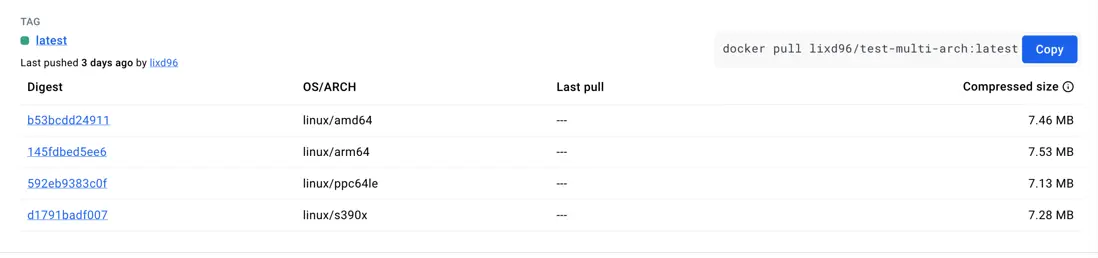
可以看到,指定的 4 個架構都成功構建並推送過來了。
6.小結
Buildah 提供了一種靈活且高效的鏡像構建方式,無需 Docker 依賴,且支持 rootless 安全模式,適用於各種 DevOps 和 CI/CD 環境。它支持命令式和 Dockerfile 構建方式,還能進行多階段構建和多架構鏡像構建。
【Kubernetes 系列】持續更新中,搜索公眾號【探索雲原生】訂閲,閲讀更多文章。

