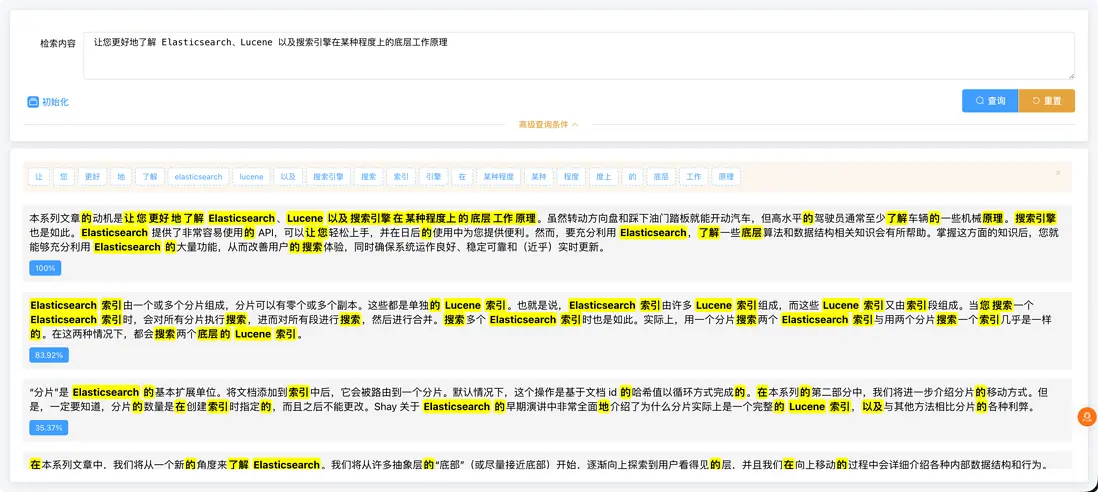

週五臨近下班,原本打算摸摸魚,結果產品經理來個新需求。領導覺得 AI 服務器報價太貴,想先做個“低成本替代方案”來演示一下分析效果。於是,需求會議就開了。其中有一塊功能是 “檢索內容高亮顯示並展示匹配度”,產品經理説這可以考慮用 Elasticsearch 實現。行吧,需求是他提的,代碼自然就得咱來寫了。那就開幹吧 💪
一、啓動 Elasticsearch 服務(Docker 簡單搞定)
這裏用的是 Elasticsearch 8.xx,主要是考慮我們項目還在用 JDK 8。
1. docker
docker run \
  -d \
  --privileged=true \
  --name elasticsearch \
  -p 9200:9200 \
  -p 9300:9300 \
  -e "ES_JAVA_OPTS=-Xms1024m -Xmx2048m" \
  -e "discovery.type=single-node" \
  -e "ELASTIC_PASSWORD=elastic" \
  -e "xpack.security.enabled=true" \
  -e TZ=Asia/Shanghai \
  -v /etc/localtime:/etc/localtime:ro \
  -v /home/bugshare/elasticsearch/config/elasticsearch.yml:/usr/share/elasticsearch/config/elasticsearch.yml:ro \
  -v /home/bugshare/elasticsearch/data:/usr/share/elasticsearch/data \
  -v /home/bugshare/elasticsearch/plugins:/usr/share/elasticsearch/plugins \
  elasticsearch:8.19.6
2. 配置文件
# elasticsearch.yml
cluster.name: "docker-cluster"
network.host: 0.0.0.0

http.cors.enabled: true
http.cors.allow-origin: "*"

http.cors.allow-headers: Authorization
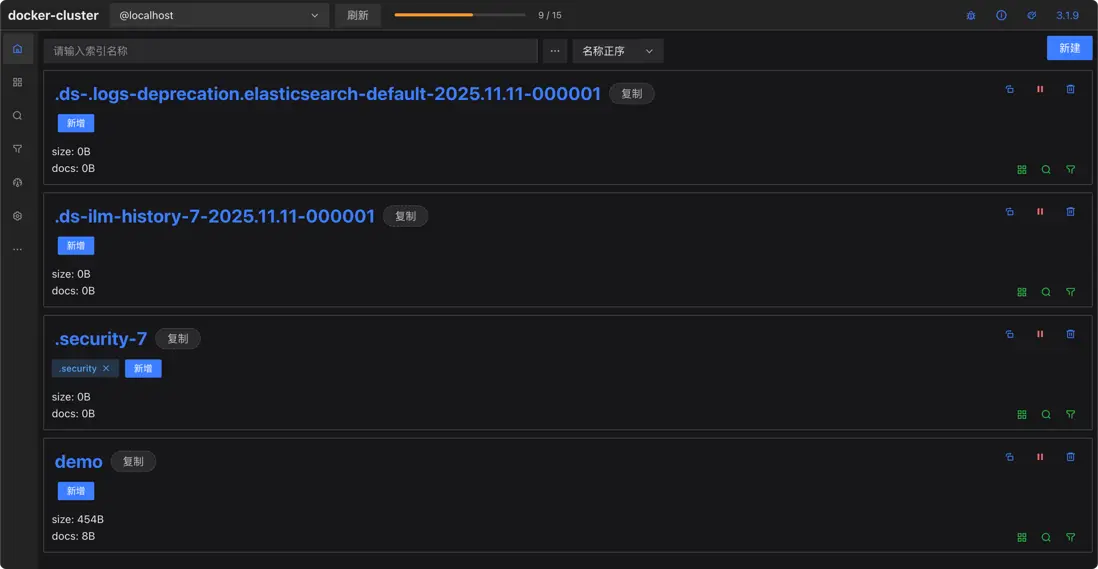
驗證下是否啓動成功:瀏覽器訪問 http://127.0.0.1:9200,用户名密碼:elastic / elastic,推薦裝個瀏覽器插件 es-client 來操作更方便。
二、Java 集成 Elasticsearch
官方提供的 Java API 用起來有點繁瑣,於是我去找了兩個現成的封裝框架:
- Easy-ES
- BBoss-Elasticsearch
下面是我整理的一份對比(AI 協助分析 👇):
詳細對比表格
| 維度 | Easy-ES | BBoss-Elasticsearch |
|---|---|---|
| 核心定位 | 極簡 ORM,對標 MyBatis-Plus | 企業級 ES 客户端 & 數據同步框架 |
| 設計理念 | 用對象操作 ES,屏蔽複雜性 | 簡化但不屏蔽,保留靈活控制 |
| 學習曲線 | 非常平緩(MyBatis-Plus 用户零上手成本) | 中等,需要理解 DSL 構建 |
| 查詢 DSL | 自動生成 | 可手寫,靈活度高 |
| ORM 支持 | 強 | 基礎支持 |
| 數據同步 | 無 | 內置高性能數據同步 |
| 代碼侵入性 | 較高(依賴註解) | 較低(註解可選) |
| 性能 | 簡單查詢快,複雜查詢略遜 | 高性能,生產驗證完善 |
| 文檔 & 社區 | 中文文檔完善 | 文檔詳盡,維護積極 |
| 適用場景 | 快速原型、輕量搜索 | 企業級複雜查詢、數據同步 |
我個人更偏愛能寫 DSL 的方案,於是選擇了 BBoss。
三、Spring Boot 整合 BBoss
1. 引入依賴
// build.gradle
implementation 'com.bbossgroups.plugins:bboss-elasticsearch-spring-boot-starter:7.5.3'
2. 配置文件
spring:
  elasticsearch:
    bboss:
      elasticUser: elastic
      elasticPassword: elastic
      elasticsearch:
        rest:
          hostNames: 127.0.0.1:9200
3. 定義映射文件(resources/esmapper/demo.xml)
// resources/esmapper/demo.xml
<properties>
  <!-- 創建Indice -->
  <property name="createDemoIndice">
    <![CDATA[
        {
        "settings": {
          "number_of_shards": 6,
          "index.refresh_interval": "5s"
        },
        "mappings": {
          "properties": {
            "demoId":{
              "type": "text"
            },
            "contentBody": {
              "type": "text"
            }
          }
        }
        }
    ]]>
  </property>

  <!-- 高亮查詢 -->
  <property name="testHighlightSearch" cacheDsl="false">
    <![CDATA[
        {
        "query": {
          "bool": {
            "must": [
              {
                "match" : {
                  "contentBody" : {
                    "query" : #[condition]
                  }
                }
              }
            ]
          }
        },
        "size":1000,
        "highlight": {
          "pre_tags": [
            "<mark class='mark'>"
          ],
          "post_tags": [
            "</mark>"
          ],
          "fields": {
            "*": {}
          },
          "fragment_size": 2147483647
        }
        }
    ]]>
  </property>
</properties>
四、代碼部分
1. 實體類
// Demo.java
@Data
@ToString(callSuper = true)
@EqualsAndHashCode(callSuper = true)
public class Demo extends ESBaseData {
    // Set the document identity field
    @ESId(readSet = true, persistent = false)
    private String demoId;
    private String contentBody;
}
2. 控制器
// DemoController.java
@Slf4j
@RestController
@RequestMapping("/es")
public class ElasticSearchController {

    @Autowired
    private BBossESStarter bbossESStarter;

    private static final String MAP_PATH = "esmapper/elasticsearch.xml";

    @GetMapping("/init")
    public ResponseWrapper<Boolean, ?> init() {
        this.dropAndCreateAndGetIndice();
        this.addDocuments();
        return new ResponseWrapper<>().success().setMessage("初始化成功!");
    }

    @GetMapping("/dropAndCreateAndGetIndice")
    public void dropAndCreateAndGetIndice() {
        ClientInterface clientUtil = this.bbossESStarter.getConfigRestClient(MAP_PATH);
        boolean exist = clientUtil.existIndice("demo");
        log.info("exist: {}", exist);
        if (exist) {
            String r = clientUtil.dropIndice("demo");
            log.debug("r: {}", r);
        }
        // Create index demo
        clientUtil.createIndiceMapping("demo", "createDemoIndice");
        String demoIndice = clientUtil.getIndice("demo");
        log.debug("demoIndice: {}", demoIndice);
    }

      @GetMapping("/addDocuments")
    public void addDocuments() {
        ClientInterface clientUtil = this.bbossESStarter.getRestClient();
        List<String> contents = ListUtil.of(
                "在本系列文章中,我們將從一個新的角度來了解 Elasticsearch。",
            "本系列文章的動機是讓您更好地瞭解 Elasticsearch、Lucene 以及搜索引擎的底層工作原理。",
            "我們先從基礎索引結構開始,也就是倒排索引……",
            "倒排索引將 term 映射到包含相應項的文檔……",
            "通過查找所有項及其出現次數……",
            "Elasticsearch 索引由一個或多個分片組成……",
            "“分片”是 Elasticsearch 的基本擴展單位……",
            "Elasticsearch 有一個“事務日誌”,其中附加了要編制索引的文檔……"
        );
        for (int i = 0; i < contents.size(); i++) {
            Demo demo = new Demo();
            demo.setDemoId(Convert.toStr(i + 1));
            demo.setContentBody(contents.get(i));
            String response = clientUtil.addDocument("demo", demo, "refresh=true");
                log.debug("response: {}", response);
        }
    }

    @GetMapping("/highlightSearch")
    public List<Map<String, Object>> highlightSearch(@RequestParam String content) {
        List<Map<String, Object>> list = new ArrayList<>();
        ClientInterface clientUtil = ElasticSearchHelper.getConfigRestClientUtil(MAP_PATH);
        Map<String, Object> params = new HashMap<>();
        params.put("condition", content);
        ESDatas<Demo> esDatas = clientUtil.searchList(
                                      "demo/_search",
                        "testHighlightSearch",
                        params,
                        Demo.class
        );
        log.debug("esDatas: {}", esDatas);
        // 獲取總記錄數
        long totalSize = esDatas.getTotalSize();
        log.debug("totalSize: {}", totalSize);
        // 獲取結果對象列表,最多返回1000條記錄
        List<Demo> demos = esDatas.getDatas();
        log.debug("demos: {}", demos);
        // maxScore
        RestResponse restResponse = (RestResponse) esDatas.getRestResponse();
        Double maxScore = restResponse.getSearchHits().getMaxScore();
        log.debug("maxScore: {}", maxScore);
        for (int i = 0; demos != null && i < demos.size(); i++) {
            Demo demo = demos.get(i);
            Double score = demo.getScore();
            // 記錄中匹配上檢索條件的所有字段的高亮內容
            Map<String, List<Object>> highLights = demo.getHighlight();
                log.debug("highLights: {}", highLights);
            Iterator<Map.Entry<String, List<Object>>> entries = highLights.entrySet().iterator();
            while (entries.hasNext()) {
                Map.Entry<String, List<Object>> entry = entries.next();
                String fieldName = entry.getKey();
                List<Object> fieldHighLightSegments = entry.getValue();
                for (Object highLightSegment : fieldHighLightSegments) {
                    list.add(
                            MapUtil.builder(new HashMap<String, Object>())
                                    .put("highlight", highLightSegment)
                                    .put("score", NumberUtil.formatPercent(NumberUtil.div(score, maxScore), 2))
                                    .build()
                    );
                }
            }
        }
        return list;
    }
}
前端部分就略過了,主要看效果:
匹配度 = 當前得分 / 最大得分
五、中文分詞支持(IK Analyzer)
發現中文沒分詞,默認是按單個字匹配。驗證下:
POST /demo/_analyze
{
  "field": "contentbody",
  "text": "搜索引擎"
}
果然,默認沒有中文分詞。
1. 安裝 analysis-ik 插件
# 進入docker容器
docker exec -it elasticsearch bash
# 注意跟es版本一致,不要高於es版本
elasticsearch-plugin install https://get.infini.cloud/elasticsearch/analysis-ik/8.19.6
# 重啓
exit
docker restart elasticsearch
# 驗證
docker exec -it elasticsearch bash
elasticsearch-plugin list
2. 修改索引映射:
// resources/esmapper/demo.xml
<properties>
  <property name="createDemoIndice">
    ...
    "contentBody": {
      "type": "text",
      "analyzer": "ik_max_word",
      "search_analyzer": "ik_max_word"
    }
        ...
  </property>

  <property name="testHighlightSearch" cacheDsl="false">
    ...
    "match" : {
      "contentBody" : {
        "query" : #[condition],
        "analyzer": "ik_max_word"
      }
    }
    ...
  </property>

  <!-- 分詞查詢 -->
  <property name="analyzeQuery" cacheDsl="false">
    <![CDATA[
      {
        ##"analyzer": "standard",
        "analyzer": "ik_max_word",
        "text": #[condition]
      }
    ]]>
  </property>
</properties>
3. 控制器代碼
@GetMapping("/analyze")
public String analyze(@RequestParam String content) {
    ClientInterface clientUtil = ElasticSearchHelper.getConfigRestClientUtil(MAP_PATH);

    String result = clientUtil.executeHttp("demo/_analyze",
            "analyzeQuery",
            MapUtil.of("condition", content),
            ClientInterface.HTTP_POST
    );
    System.out.println("result: " + result);
    return result;
}
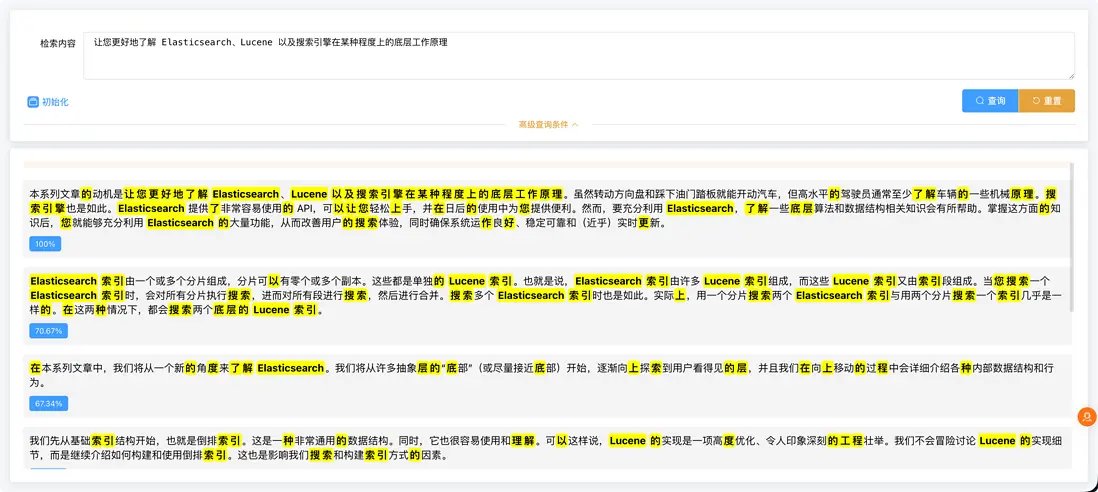
重啓項目、重新初始化數據,再搜索一下,完美分詞 ✅
六、效果展示
至此,一個小巧的 Elasticsearch 高亮搜索 + 匹配度演示 Demo 就完成了。
下週領導要看效果?沒問題,穩妥得很 😎