

本文是對《可視化拖拽組件庫一些技術要點原理分析》[1]的補充。上一篇文章主要講解了以下幾個功能點:
1.編輯器2.自定義組件3.拖拽4.刪除組件、調整圖層層級5.放大縮小6.撤消、重做7.組件屬性設置8.吸附9.預覽、保存代碼10.綁定事件11.綁定動畫12.導入 PSD13.手機模式
現在這篇文章會在此基礎上再補充 4 個功能點,分別是:
•拖拽旋轉•複製粘貼剪切•數據交互•發佈
和上篇文章一樣,我已經將新功能的代碼更新到了 github:
•github 項目地址[2]•在線預覽[3]
友善提醒:建議結合源碼一起閲讀,效果更好(這個 DEMO 使用的是 Vue 技術棧)。
14. 拖拽旋轉
在寫上一篇文章時,原來的 DEMO 已經可以支持旋轉功能了。但是這個旋轉功能還有很多不完善的地方:
1.不支持拖拽旋轉。2.旋轉後的放大縮小不正確。3.旋轉後的自動吸附不正確。4.旋轉後八個可伸縮點的光標不正確。
這一小節,我們將逐一解決這四個問題。
拖拽旋轉
拖拽旋轉需要使用 Math.atan2()[4] 函數。
Math.atan2() 返回從原點(0,0)到(x,y)點的線段與x軸正方向之間的平面角度(弧度值),也就是Math.atan2(y,x)。Math.atan2(y,x)中的y和x都是相對於圓點(0,0)的距離。
簡單的説就是以組件中心點為原點 (centerX,centerY),用户按下鼠標時的座標設為 (startX,startY),鼠標移動時的座標設為 (curX,curY)。旋轉角度可以通過 (startX,startY) 和 (curX,curY) 計算得出。
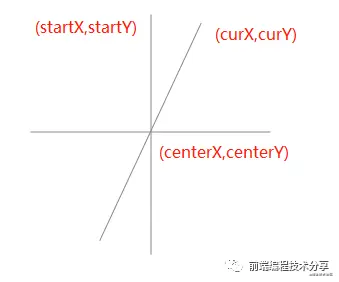
那我們如何得到從點 (startX,startY) 到點 (curX,curY) 之間的旋轉角度呢?
第一步,鼠標點擊時的座標設為 (startX,startY):
const startY = e.clientY
const startX = e.clientX第二步,算出組件中心點:
// 獲取組件中心點位置
const rect = this.$el.getBoundingClientRect()
const centerX = rect.left + rect.width / 2
const centerY = rect.top + rect.height / 2第三步,按住鼠標移動時的座標設為 (curX,curY):
const curX = moveEvent.clientX
const curY = moveEvent.clientY第四步,分別算出 (startX,startY) 和 (curX,curY) 對應的角度,再將它們相減得出旋轉的角度。另外,還需要注意的就是 Math.atan2() 方法的返回值是一個弧度,因此還需要將弧度轉化為角度。所以完整的代碼為:
// 旋轉前的角度
const rotateDegreeBefore = Math.atan2(startY - centerY, startX - centerX) / (Math.PI / 180)
// 旋轉後的角度
const rotateDegreeAfter = Math.atan2(curY - centerY, curX - centerX) / (Math.PI / 180)
// 獲取旋轉的角度值, startRotate 為初始角度值
pos.rotate = startRotate + rotateDegreeAfter - rotateDegreeBefore
放大縮小
組件旋轉後的放大縮小會有 BUG。

從上圖可以看到,放大縮小時會發生移位。另外伸縮的方向和我們拖動的方向也不對。造成這一 BUG 的原因是:當初設計放大縮小功能沒有考慮到旋轉的場景。所以無論旋轉多少角度,放大縮小仍然是按沒旋轉時計算的。
下面再看一個具體的示例:
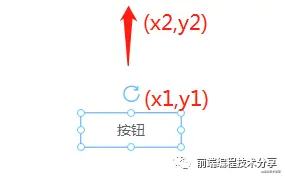
從上圖可以看出,在沒有旋轉時,按住頂點往上拖動,只需用 y2 - y1 就可以得出拖動距離 s。這時將組件原來的高度加上 s 就能得出新的高度,同時將組件的 top、left 屬性更新。
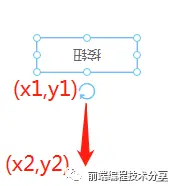
現在旋轉 180 度,如果這時拖住頂點往下拖動,我們期待的結果是組件高度增加。但這時計算的方式和原來沒旋轉時是一樣的,所以結果和我們期待的相反,組件的高度將會變小(如果不理解這個現象,可以想像一下沒有旋轉的那張圖,按住頂點往下拖動)。
如何解決這個問題呢?我從 github 上的一個項目 snapping-demo[5] 找到了解決方案:將放大縮小和旋轉角度關聯起來。
解決方案
下面是一個已旋轉一定角度的矩形,假設現在拖動它左上方的點進行拉伸。
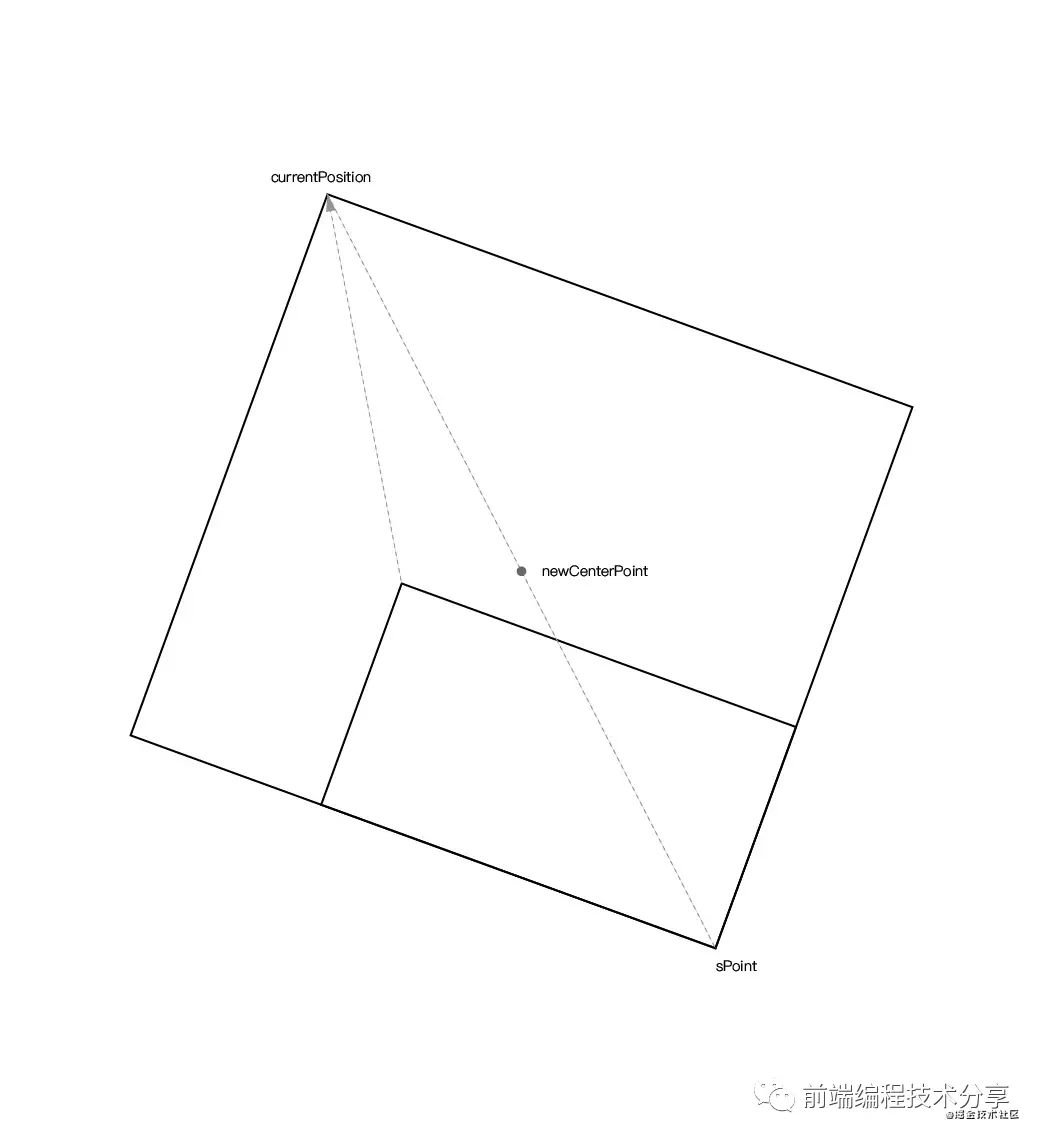
現在我們將一步步分析如何得出拉伸後的組件的正確大小和位移。
第一步,按下鼠標時通過組件的座標(無論旋轉多少度,組件的 top left 屬性不變)和大小算出組件中心點:
const center = {
    x: style.left + style.width / 2,
    y: style.top + style.height / 2,
}第二步,用當前點擊座標和組件中心點算出當前點擊座標的對稱點座標:
// 獲取畫布位移信息
const editorRectInfo = document.querySelector('#editor').getBoundingClientRect()

// 當前點擊座標
const curPoint = {
    x: e.clientX - editorRectInfo.left,
    y: e.clientY - editorRectInfo.top,
}

// 獲取對稱點的座標
const symmetricPoint = {
    x: center.x - (curPoint.x - center.x),
    y: center.y - (curPoint.y - center.y),
}第三步,摁住組件左上角進行拉伸時,通過當前鼠標實時座標和對稱點計算出新的組件中心點:
const curPositon = {
    x: moveEvent.clientX - editorRectInfo.left,
    y: moveEvent.clientY - editorRectInfo.top,
}

const newCenterPoint = getCenterPoint(curPositon, symmetricPoint)

// 求兩點之間的中點座標
function getCenterPoint(p1, p2) {
    return {
        x: p1.x + ((p2.x - p1.x) / 2),
        y: p1.y + ((p2.y - p1.y) / 2),
    }
}
由於組件處於旋轉狀態,即使你知道了拉伸時移動的 xy 距離,也不能直接對組件進行計算。否則就會出現 BUG,移位或者放大縮小方向不正確。因此,我們需要在組件未旋轉的情況下對其進行計算。
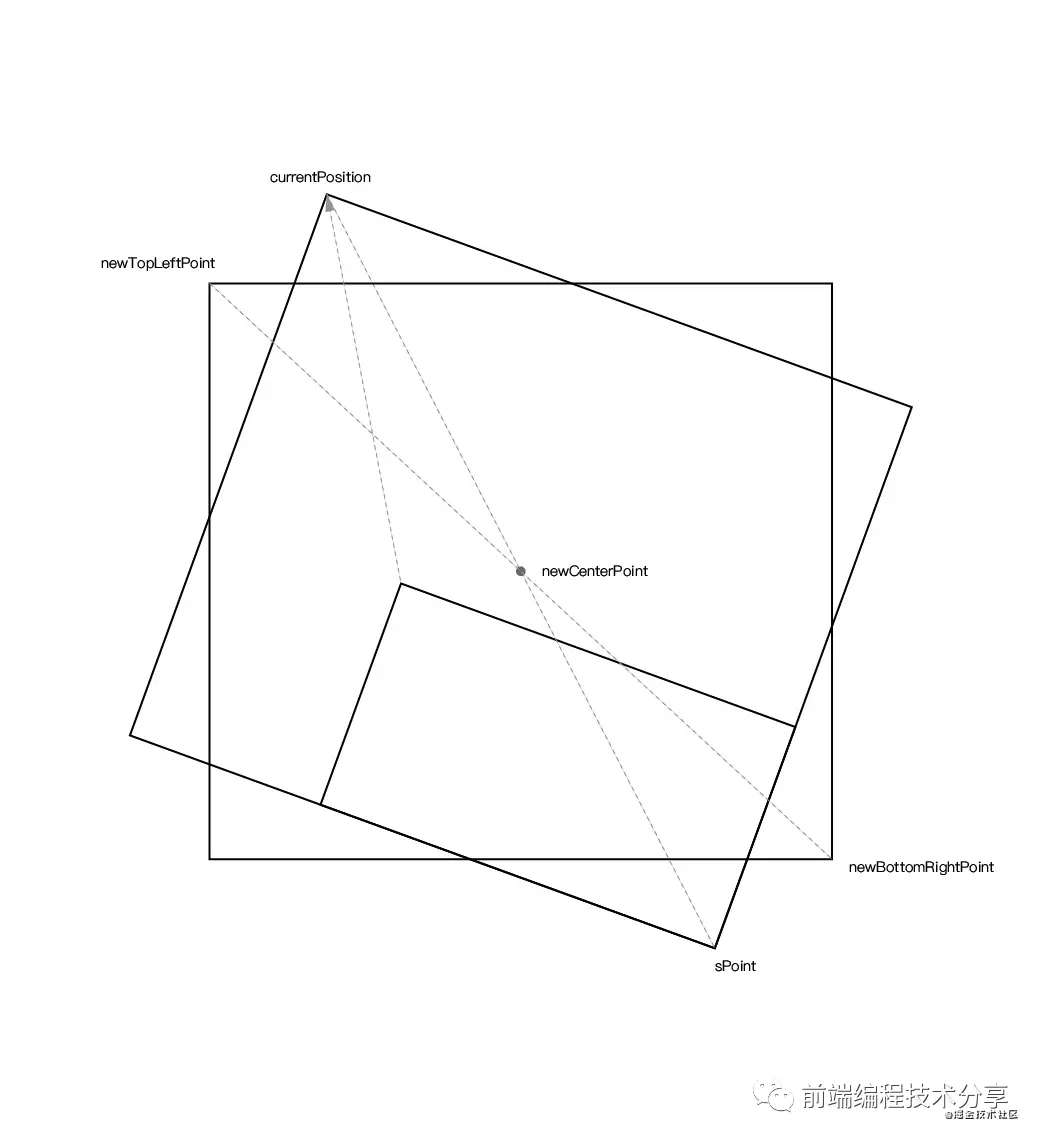
第四步,根據已知的旋轉角度、新的組件中心點、當前鼠標實時座標可以算出當前鼠標實時座標 currentPosition 在未旋轉時的座標 newTopLeftPoint。同時也能根據已知的旋轉角度、新的組件中心點、對稱點算出組件對稱點 sPoint 在未旋轉時的座標 newBottomRightPoint。
對應的計算公式如下:
/**
 * 計算根據圓心旋轉後的點的座標
 * @param   {Object}  point  旋轉前的點座標
 * @param   {Object}  center 旋轉中心
 * @param   {Number}  rotate 旋轉的角度
 * @return  {Object}         旋轉後的座標
 * https://www.zhihu.com/question/67425734/answer/252724399 旋轉矩陣公式
 */
export function calculateRotatedPointCoordinate(point, center, rotate) {
    /**
     * 旋轉公式:
     *  點a(x, y)
     *  旋轉中心c(x, y)
     *  旋轉後點n(x, y)
     *  旋轉角度θ                tan ??
     * nx = cosθ * (ax - cx) - sinθ * (ay - cy) + cx
     * ny = sinθ * (ax - cx) + cosθ * (ay - cy) + cy
     */

    return {
        x: (point.x - center.x) * Math.cos(angleToRadian(rotate)) - (point.y - center.y) * Math.sin(angleToRadian(rotate)) + center.x,
        y: (point.x - center.x) * Math.sin(angleToRadian(rotate)) + (point.y - center.y) * Math.cos(angleToRadian(rotate)) + center.y,
    }
}
上面的公式涉及到線性代數中旋轉矩陣的知識,對於一個沒上過大學的人來説,實在太難了。還好我從知乎上的一個回答[6]中找到了這一公式的推理過程,下面是回答的原文:
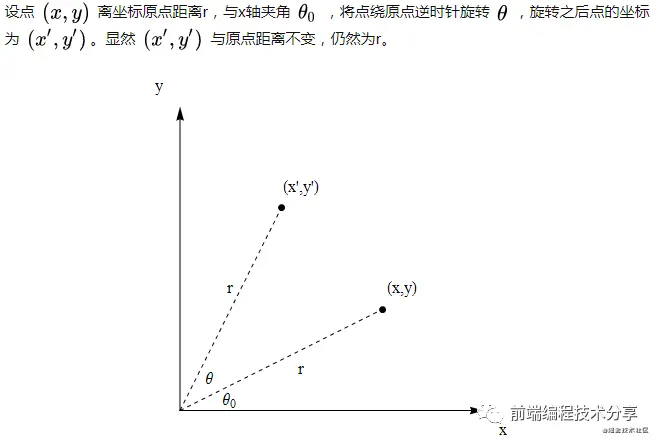
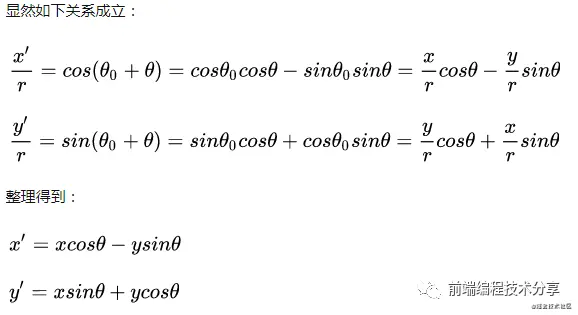
通過以上幾個計算值,就可以得到組件新的位移值 top left 以及新的組件大小。對應的完整代碼如下:
function calculateLeftTop(style, curPositon, pointInfo) {
    const { symmetricPoint } = pointInfo
    const newCenterPoint = getCenterPoint(curPositon, symmetricPoint)
    const newTopLeftPoint = calculateRotatedPointCoordinate(curPositon, newCenterPoint, -style.rotate)
    const newBottomRightPoint = calculateRotatedPointCoordinate(symmetricPoint, newCenterPoint, -style.rotate)

    const newWidth = newBottomRightPoint.x - newTopLeftPoint.x
    const newHeight = newBottomRightPoint.y - newTopLeftPoint.y
    if (newWidth > 0 && newHeight > 0) {
        style.width = Math.round(newWidth)
        style.height = Math.round(newHeight)
        style.left = Math.round(newTopLeftPoint.x)
        style.top = Math.round(newTopLeftPoint.y)
    }
}
現在再來看一下旋轉後的放大縮小:
自動吸附

自動吸附是根據組件的四個屬性 top left width height 計算的,在將組件進行旋轉後,這些屬性的值是不會變的。所以無論組件旋轉多少度,吸附時仍然按未旋轉時計算。這樣就會有一個問題,雖然實際上組件的 top left width height 屬性沒有變化。但在外觀上卻發生了變化。下面是兩個同樣的組件:一個沒旋轉,一個旋轉了 45 度。
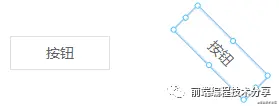
可以看出來旋轉後按鈕的 height 屬性和我們從外觀上看到的高度是不一樣的,所以在這種情況下就出現了吸附不正確的 BUG。

解決方案

如何解決這個問題?我們需要拿組件旋轉後的大小及位移來做吸附對比。也就是説不要拿組件實際的屬性來對比,而是拿我們看到的大小和位移做對比。
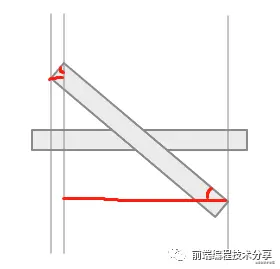
從上圖可以看出,旋轉後的組件在 x 軸上的投射長度為兩條紅線長度之和。這兩條紅線的長度可以通過正弦和餘弦算出,左邊的紅線用正弦計算,右邊的紅線用餘弦計算:
const newWidth = style.width * cos(style.rotate) + style.height * sin(style.rotate)同理,高度也是一樣:
const newHeight = style.height * cos(style.rotate) + style.width * sin(style.rotate)新的寬度和高度有了,再根據組件原有的 top left 屬性,可以得出組件旋轉後新的 top left 屬性。下面附上完整代碼:
translateComponentStyle(style) {
    style = { ...style }
    if (style.rotate != 0) {
        const newWidth = style.width * cos(style.rotate) + style.height * sin(style.rotate)
        const diffX = (style.width - newWidth) / 2
        style.left += diffX
        style.right = style.left + newWidth

        const newHeight = style.height * cos(style.rotate) + style.width * sin(style.rotate)
        const diffY = (newHeight - style.height) / 2
        style.top -= diffY
        style.bottom = style.top + newHeight

        style.width = newWidth
        style.height = newHeight
    } else {
        style.bottom = style.top + style.height
        style.right = style.left + style.width
    }

    return style
}
經過修復後,吸附也可以正常顯示了。
光標
光標和可拖動的方向不對,是因為八個點的光標是固定設置的,沒有隨着角度變化而變化。
解決方案
由於 360 / 8 = 45,所以可以為每一個方向分配 45 度的範圍,每個範圍對應一個光標。同時為每個方向設置一個初始角度,也就是未旋轉時組件每個方向對應的角度。
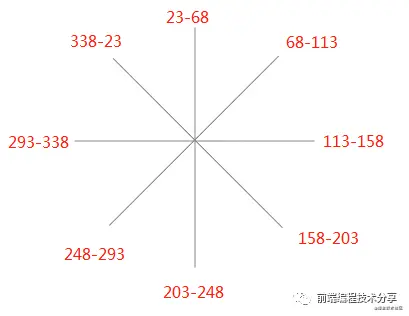
pointList: ['lt', 't', 'rt', 'r', 'rb', 'b', 'lb', 'l'], // 八個方向
initialAngle: { // 每個點對應的初始角度
    lt: 0,
    t: 45,
    rt: 90,
    r: 135,
    rb: 180,
    b: 225,
    lb: 270,
    l: 315,
},
angleToCursor: [ // 每個範圍的角度對應的光標
    { start: 338, end: 23, cursor: 'nw' },
    { start: 23, end: 68, cursor: 'n' },
    { start: 68, end: 113, cursor: 'ne' },
    { start: 113, end: 158, cursor: 'e' },
    { start: 158, end: 203, cursor: 'se' },
    { start: 203, end: 248, cursor: 's' },
    { start: 248, end: 293, cursor: 'sw' },
    { start: 293, end: 338, cursor: 'w' },
],
cursors: {},
計算方式也很簡單:
1.假設現在組件已旋轉了一定的角度 a。2.遍歷八個方向,用每個方向的初始角度 + a 得出現在的角度 b。3.遍歷 angleToCursor 數組,看看 b 在哪一個範圍中,然後將對應的光標返回。
經常上面三個步驟就可以計算出組件旋轉後正確的光標方向。具體的代碼如下:
getCursor() {
  const { angleToCursor, initialAngle, pointList, curComponent } = this
  const rotate = (curComponent.style.rotate + 360) % 360 // 防止角度有負數,所以 + 360
  const result = {}
  let lastMatchIndex = -1 // 從上一個命中的角度的索引開始匹配下一個,降低時間複雜度
  pointList.forEach(point => {
      const angle = (initialAngle[point] + rotate) % 360
      const len = angleToCursor.length
      let i = 0
      while (i < len) {
          lastMatchIndex = (lastMatchIndex + 1) % len
          const angleLimit = angleToCursor[lastMatchIndex]
          if (angle < 23 || angle >= 338) {
              result[point] = 'nw-resize'
              break
          }

          if (angleLimit.start <= angle && angle < angleLimit.end) {
              result[point] = angleLimit.cursor + '-resize'
              break
          }
      }
  })

  return result
},
從上面的動圖可以看出來,現在八個方向上的光標是可以正確顯示的。
15. 複製粘貼剪切
相對於拖拽旋轉功能,複製粘貼就比較簡單了。
const ctrlKey = 17, vKey = 86, cKey = 67, xKey = 88
let isCtrlDown = false

window.onkeydown = (e) => {
    if (e.keyCode == ctrlKey) {
        isCtrlDown = true
    } else if (isCtrlDown && e.keyCode == cKey) {
        this.$store.commit('copy')
    } else if (isCtrlDown && e.keyCode == vKey) {
        this.$store.commit('paste')
    } else if (isCtrlDown && e.keyCode == xKey) {
        this.$store.commit('cut')
    }
}

window.onkeyup = (e) => {
    if (e.keyCode == ctrlKey) {
        isCtrlDown = false
    }
}
監聽用户的按鍵操作,在按下特定按鍵時觸發對應的操作。
複製操作
在 vuex 中使用 copyData 來表示複製的數據。當用户按下 ctrl + c 時,將當前組件數據深拷貝到 copyData。
copy(state) {
    state.copyData = {
        data: deepCopy(state.curComponent),
        index: state.curComponentIndex,
    }
},
同時需要將當前組件在組件數據中的索引記錄起來,在剪切中要用到。
粘貼操作
paste(state, isMouse) {
    if (!state.copyData) {
        toast('請選擇組件')
        return
    }

    const data = state.copyData.data

    if (isMouse) {
        data.style.top = state.menuTop
        data.style.left = state.menuLeft
    } else {
        data.style.top += 10
        data.style.left += 10
    }

    data.id = generateID()
    store.commit('addComponent', { component: data })
    store.commit('recordSnapshot')
    state.copyData = null
},
粘貼時,如果是按鍵操作 ctrl+v。則將組件的 top left 屬性加 10,以免和原來的組件重疊在一起。如果是使用鼠標右鍵執行粘貼操作,則將複製的組件放到鼠標點擊處。
剪切操作
cut({ copyData }) {
    if (copyData) {
        store.commit('addComponent', { component: copyData.data, index: copyData.index })
    }

    store.commit('copy')
    store.commit('deleteComponent')
},
剪切操作本質上還是複製,只不過在執行復制後,需要將當前組件刪除。為了避免用户執行剪切操作後,不執行粘貼操作,而是繼續執行剪切。這時就需要將原先剪切的數據進行恢復。所以複製數據中記錄的索引就起作用了,可以通過索引將原來的數據恢復到原來的位置中。
右鍵操作
右鍵操作和按鍵操作是一樣的,一個功能兩種觸發途徑。
<li @click="copy" v-show="curComponent">複製</li>
<li @click="paste">粘貼</li>
<li @click="cut" v-show="curComponent">剪切</li>

cut() {
    this.$store.commit('cut')
},

copy() {
    this.$store.commit('copy')
},

paste() {
    this.$store.commit('paste', true)
},
16. 數據交互
方式一
提前寫好一系列 ajax 請求API,點擊組件時按需選擇 API,選好 API 再填參數。例如下面這個組件,就展示瞭如何使用 ajax 請求向後台交互:
<template>
    <div>{{ propValue.data }}</div>
</template>

<script>
export default {
    // propValue: {
    //     api: {
    //             request: a,
    //             params,
    //      },
    //     data: null
    // }
    props: {
        propValue: {
            type: Object,
            default: () => {},
        },
    },
    created() {
        this.propValue.api.request(this.propValue.api.params).then(res => {
            this.propValue.data = res.data
        })
    },
}
</script>
方式二
方式二適合純展示的組件,例如有一個報警組件,可以根據後台傳來的數據顯示對應的顏色。在編輯頁面的時候,可以通過 ajax 向後台請求頁面能夠使用的 websocket 數據:
const data = ['status', 'text'...]然後再為不同的組件添加上不同的屬性。例如有 a 組件,它綁定的屬性為 status。
// 組件能接收的數據
props: {
    propValue: {
        type: String,
    },
    element: {
        type: Object,
    },
    wsKey: {
        type: String,
        default: '',
    },
},
在組件中通過 wsKey 獲取這個綁定的屬性。等頁面發佈後或者預覽時,通過 weboscket 向後台請求全局數據放在 vuex 上。組件就可以通過 wsKey 訪問數據了。
<template>
    <div>{{ wsData[wsKey] }}</div>
</template>

<script>
import { mapState } from 'vuex'

export default {
    props: {
        propValue: {
            type: String,
        },
        element: {
            type: Object,
        },
        wsKey: {
            type: String,
            default: '',
        },
    },
    computed: mapState([
        'wsData',
    ]),
</script>
和後台交互的方式有很多種,不僅僅包括上面兩種,我在這裏僅提供一些思路,以供參考。
17. 發佈
頁面發佈有兩種方式:一是將組件數據渲染為一個單獨的 HTML 頁面;二是從本項目中抽取出一個最小運行時 runtime 作為一個單獨的項目。
這裏説一下第二種方式,本項目中的最小運行時其實就是預覽頁面加上自定義組件。將這些代碼提取出來作為一個項目單獨打包。發佈頁面時將組件數據以 JSON 的格式傳給服務端,同時為每個頁面生成一個唯一 ID。
假設現在有三個頁面,發佈頁面生成的 ID 為 a、b、c。訪問頁面時只需要把 ID 帶上,這樣就可以根據 ID 獲取每個頁面對應的組件數據。
www.test.com/?id=a
www.test.com/?id=c
www.test.com/?id=b
按需加載
如果自定義組件過大,例如有數十個甚至上百個。這時可以將自定義組件用 import 的方式導入,做到按需加載,減少首屏渲染時間:
import Vue from 'vue'

const components = [
    'Picture',
    'VText',
    'VButton',
]

components.forEach(key => {
    Vue.component(key, () => import(`@/custom-component/${key}`))
})
按版本發佈
自定義組件有可能會有更新的情況。例如原來的組件使用了大半年,現在有功能變更,為了不影響原來的頁面。建議在發佈時帶上組件的版本號:
- v-text
  - v1.vue
  - v2.vue
例如 v-text 組件有兩個版本,在左側組件列表區使用時就可以帶上版本號:
{
  component: 'v-text',
  version: 'v1'
  ...
}
這樣導入組件時就可以根據組件版本號進行導入:
import Vue from 'vue'
import componentList from '@/custom-component/component-list`

componentList.forEach(component => {
    Vue.component(component.name, () => import(`@/custom-component/${component.name}/${component.version}`))
})
參考資料
•Math[7]•通過Math.atan2 計算角度[8]•為什麼矩陣能用來表示角的旋轉?[9]•snapping-demo[10]•vue-next-drag[11]
References
[1] 《可視化拖拽組件庫一些技術要點原理分析》: _https://juejin.cn/post/690850...
[2] github 項目地址: _https://github.com/woai3c/vis...
[3] 在線預覽: _https://woai3c.github.io/visu...
[4] Math.atan2(): _https://developer.mozilla.org...\_Objects/Math/atan2_
[5] snapping-demo: _https://github.com/shenhudong...
[6] 回答: _https://www.zhihu.com/questio...
[7] Math: _https://developer.mozilla.org...\_Objects/Math_
[8] 通過Math.atan2 計算角度: _https://www.jianshu.com/p/981...
[9] 為什麼矩陣能用來表示角的旋轉?: _https://www.zhihu.com/questio...
[10] snapping-demo: _https://github.com/shenhudong...
[11] vue-next-drag: _https://github.com/lycHub/vue...
