
一、簡介
共享元素轉場是一種界面切換時對相同或者相似的兩個元素做的一種位置和大小匹配的過渡動畫效果,也稱一鏡到底動效。
一鏡到底的動效有多種實現方式,在實際開發過程中,應根據具體場景選擇合適的方法進行實現。
以下是不同實現方式的對比:
|
一鏡到底實現方式
|
特點
|
適用場景
|
|
不新建容器直接變化原容器
|
不發生路由跳轉,需要在一個組件中實現展開及關閉兩種狀態的佈局,展開後組件層級不變。
|
適用於轉場開銷小的簡單場景,如點開頁面無需加載大量數據及組件。
|
|
新建容器並跨容器遷移組件
|
通過使用NodeController,將組件從一個容器遷移到另一個容器,在開始遷移時,需要根據前後兩個佈局的位置大小等信息對組件添加位移及縮放,確保遷移開始時組件能夠對齊初始佈局,避免出現視覺上的跳變現象。之後再添加動畫將位移及縮放等屬性復位,實現組件從初始佈局到目標佈局的一鏡到底過渡效果。
|
適用於新建對象開銷大的場景,如視頻直播組件點擊轉為全屏等。
|
|
使用geometryTransition共享元素轉場
|
利用系統能力,轉場前後兩個組件調用geometryTransition接口綁定同一id,同時將轉場邏輯置於animateTo動畫閉包內,這樣系統側會自動為二者添加一鏡到底的過渡效果。
|
系統將調整綁定的兩個組件的寬高及位置至相同值,並切換二者的透明度,以實現一鏡到底過渡效果。因此,為了實現流暢的動畫效果,需要確保對綁定geometryTransition的節點添加寬高動畫不會有跳變。此方式適用於創建新節點開銷小的場景。
|
二、不新建容器並直接變化原容器
該方法不新建容器,通過在已有容器上增刪組件觸發transition,搭配組件屬性動畫實現一鏡到底效果。
對於同一個容器展開,容器內兄弟組件消失或者出現的場景,可通過對同一個容器展開前後進行寬高位置變化並配置屬性動畫,對兄弟組件配置出現消失轉場動畫實現一鏡到底效果。基本步驟為:
- 構建需要展開的頁面,並通過狀態變量構建好普通狀態和展開狀態的界面。
- 將需要展開的頁面展開,通過狀態變量控制兄弟組件消失或出現,並通過綁定出現消失轉場實現兄弟組件轉場效果。
以點擊卡片後顯示卡片內容詳情場景為例:
效果圖
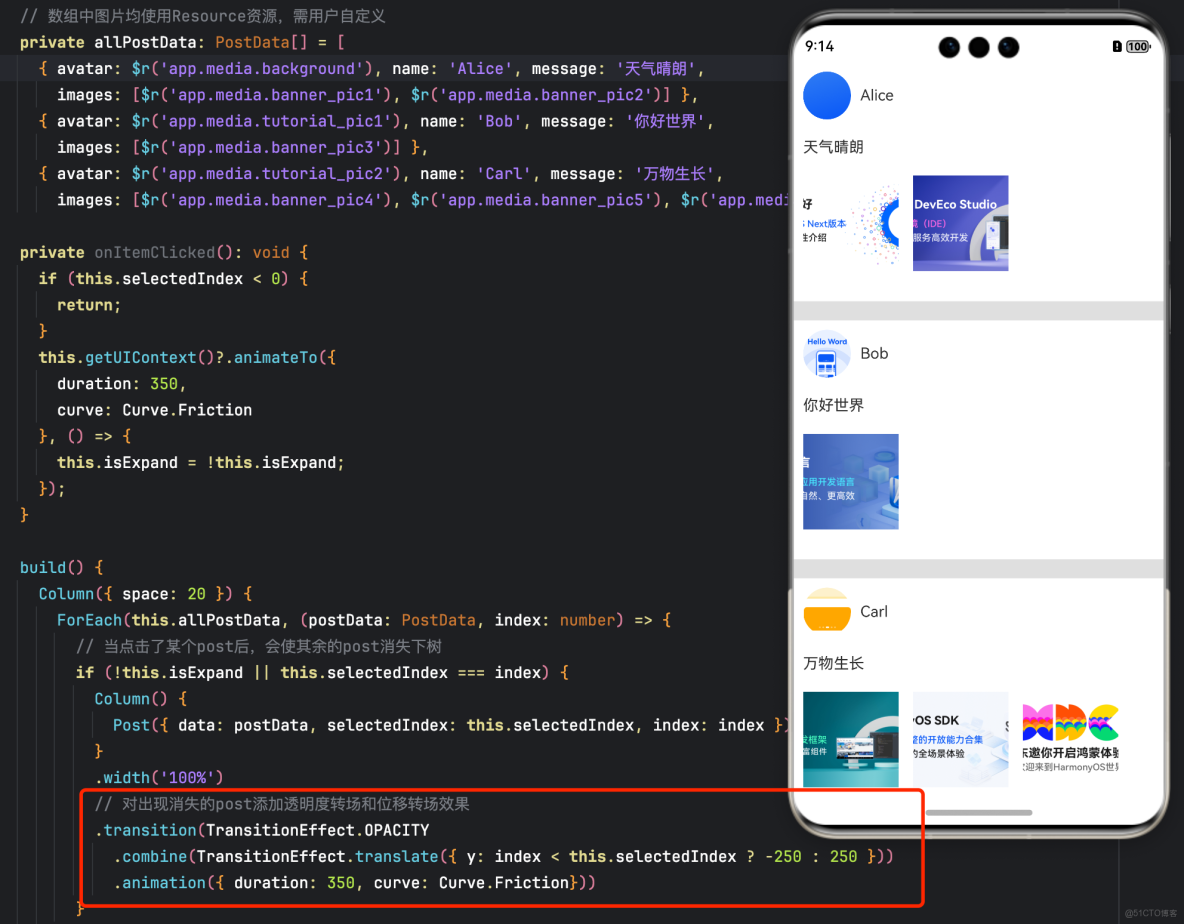
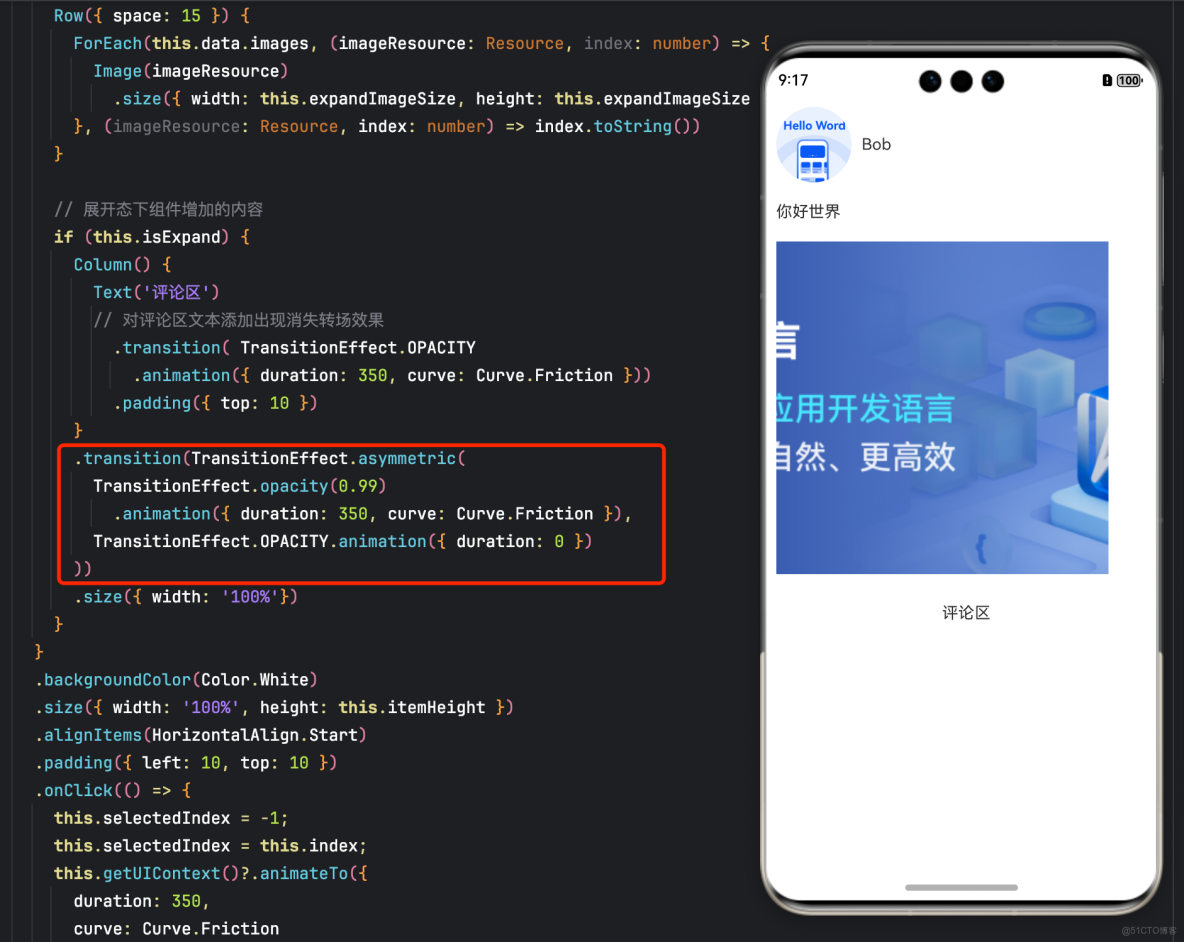
示例代碼
class PostData {
  // 圖片使用Resource資源,需用户自定義
  avatar: Resource = $r('app.media.background');
  name: string = '';
  message: string = '';
  images: Resource[] = [];
}

@Entry
@Component
struct ExpandGroupDemo {
  @State isExpand: boolean = false;
  @State @Watch('onItemClicked') selectedIndex: number = -1;

  // 數組中圖片均使用Resource資源,需用户自定義
  private allPostData: PostData[] = [
    { avatar: $r('app.media.background'), name: 'Alice', message: '天氣晴朗',
      images: [$r('app.media.banner_pic1'), $r('app.media.banner_pic2')] },
    { avatar: $r('app.media.tutorial_pic1'), name: 'Bob', message: '你好世界',
      images: [$r('app.media.banner_pic3')] },
    { avatar: $r('app.media.tutorial_pic2'), name: 'Carl', message: '萬物生長',
      images: [$r('app.media.banner_pic4'), $r('app.media.banner_pic5'), $r('app.media.banner_pic0')] }];

  private onItemClicked(): void {
    if (this.selectedIndex < 0) {
      return;
    }
    this.getUIContext()?.animateTo({
      duration: 350,
      curve: Curve.Friction
    }, () => {
      this.isExpand = !this.isExpand;
    });
  }

  build() {
    Column({ space: 20 }) {
      ForEach(this.allPostData, (postData: PostData, index: number) => {
        // 當點擊了某個post後,會使其餘的post消失下樹
        if (!this.isExpand || this.selectedIndex === index) {
          Column() {
            Post({ data: postData, selectedIndex: this.selectedIndex, index: index })
          }
          .width('100%')
          // 對出現消失的post添加透明度轉場和位移轉場效果
          .transition(TransitionEffect.OPACITY
            .combine(TransitionEffect.translate({ y: index < this.selectedIndex ? -250 : 250 }))
            .animation({ duration: 350, curve: Curve.Friction}))
        }
      }, (postData: PostData, index: number) => index.toString())
    }
    .size({ width: '100%', height: '100%' })
    .backgroundColor('#40808080')
  }
}

@Component
export default struct  Post {
  @Link selectedIndex: number;

  @Prop data: PostData;
  @Prop index: number;

  @State itemHeight: number = 250;
  @State isExpand: boolean = false;
  @State expandImageSize: number = 100;
  @State avatarSize: number = 50;

  build() {
    Column({ space: 20 }) {
      Row({ space: 10 }) {
        Image(this.data.avatar)
          .size({ width: this.avatarSize, height: this.avatarSize })
          .borderRadius(this.avatarSize / 2)
          .clip(true)

        Text(this.data.name)
      }
      .justifyContent(FlexAlign.Start)

      Text(this.data.message)

      Row({ space: 15 }) {
        ForEach(this.data.images, (imageResource: Resource, index: number) => {
          Image(imageResource)
            .size({ width: this.expandImageSize, height: this.expandImageSize })
        }, (imageResource: Resource, index: number) => index.toString())
      }

      // 展開態下組件增加的內容
      if (this.isExpand) {
        Column() {
          Text('評論區')
          // 對評論區文本添加出現消失轉場效果
            .transition( TransitionEffect.OPACITY
              .animation({ duration: 350, curve: Curve.Friction }))
            .padding({ top: 10 })
        }
        .transition(TransitionEffect.asymmetric(
          TransitionEffect.opacity(0.99)
            .animation({ duration: 350, curve: Curve.Friction }),
          TransitionEffect.OPACITY.animation({ duration: 0 })
        ))
        .size({ width: '100%'})
      }
    }
    .backgroundColor(Color.White)
    .size({ width: '100%', height: this.itemHeight })
    .alignItems(HorizontalAlign.Start)
    .padding({ left: 10, top: 10 })
    .onClick(() => {
      this.selectedIndex = -1;
      this.selectedIndex = this.index;
      this.getUIContext()?.animateTo({
        duration: 350,
        curve: Curve.Friction
      }, () => {
        // 對展開的post做寬高動畫,並對頭像尺寸和圖片尺寸加動畫
        this.isExpand = !this.isExpand;
        this.itemHeight = this.isExpand ? 780 : 250;
        this.avatarSize = this.isExpand ? 75: 50;
        this.expandImageSize = (this.isExpand && this.data.images.length > 0)
          ? (360 - (this.data.images.length + 1) * 15) / this.data.images.length : 100;
      })
    })
  }
}
三、新建容器並跨容器遷移組件
通過NodeContainer自定義佔位節點,利用NodeController實現組件的跨節點遷移,配合屬性動畫給組件的遷移過程賦予一鏡到底效果。這種一鏡到底的實現方式可以結合多種轉場方式使用,如導航轉場(Navigation)、半模態轉場(bindSheet)等。
3.1 結合Stack使用
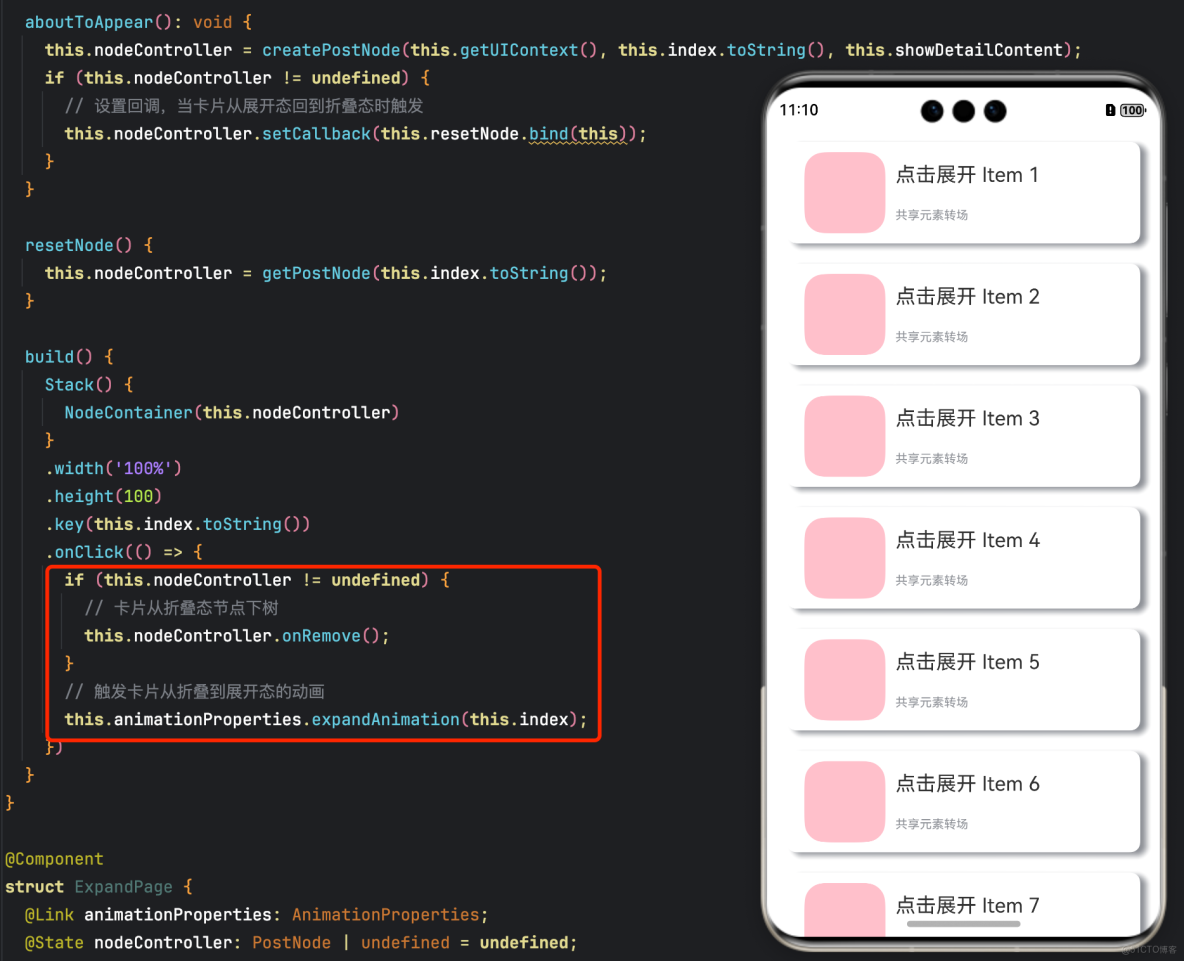
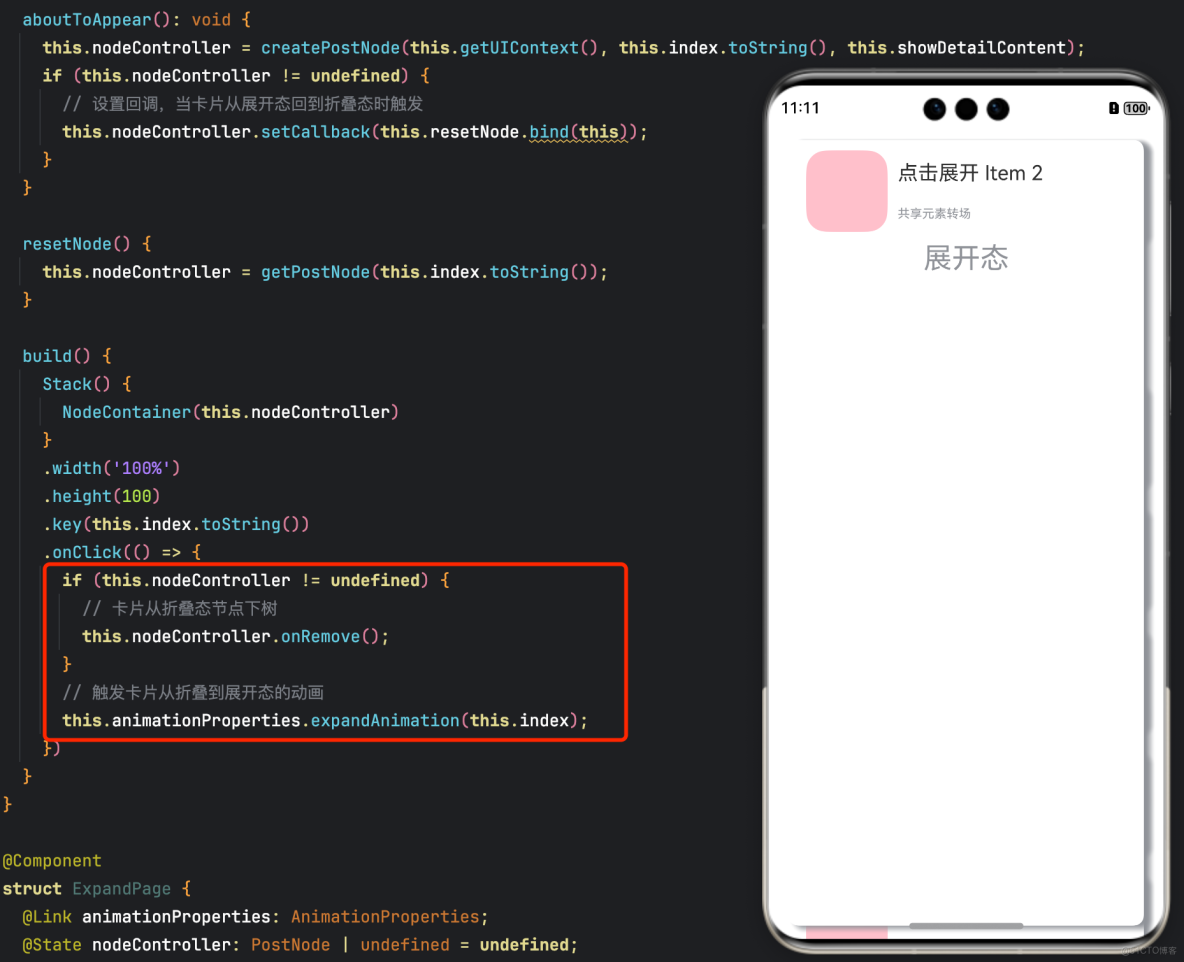
可以利用Stack內後定義組件在最上方的特性控制組件在跨節點遷移後位z序最高,以展開收起卡片的場景為例,實現步驟為:
- 展開卡片時,獲取節點A的位置信息,將其中的組件遷移到與節點A位置一致的節點B處,節點B的層級高於節點A。
- 對節點B添加屬性動畫,使之展開並運動到展開後的位置,完成一鏡到底的動畫效果。
- 收起卡片時,對節點B添加屬性動畫,使之收起並運動到收起時的位置,即節點A的位置,實現一鏡到底的動畫效果。
- 在動畫結束時利用回調將節點B中的組件遷移回節點A處。
示例效果圖
3.2 結合Navigation使用
可以利用Navigation的自定義導航轉場動畫能力(customNavContentTransition)實現一鏡到底動效。共享元素轉場期間,組件由消失頁面遷移至出現頁面。
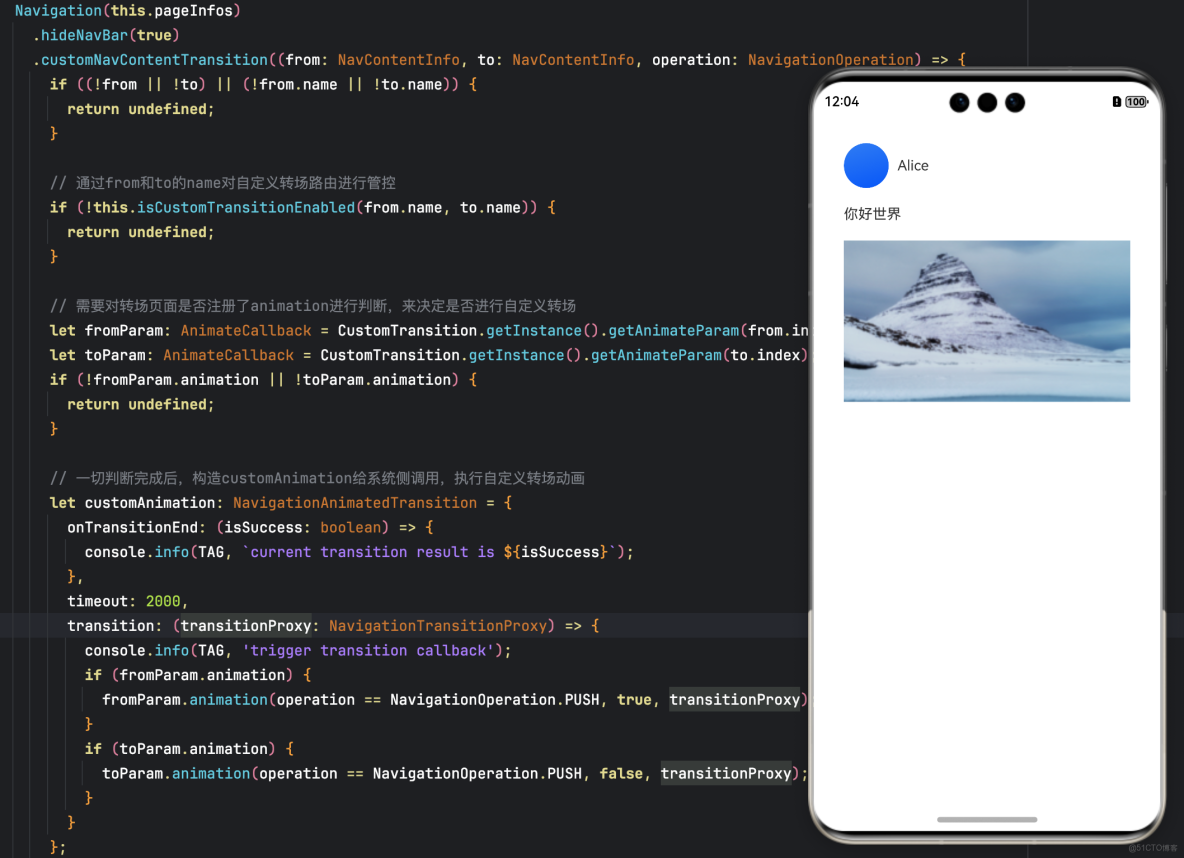
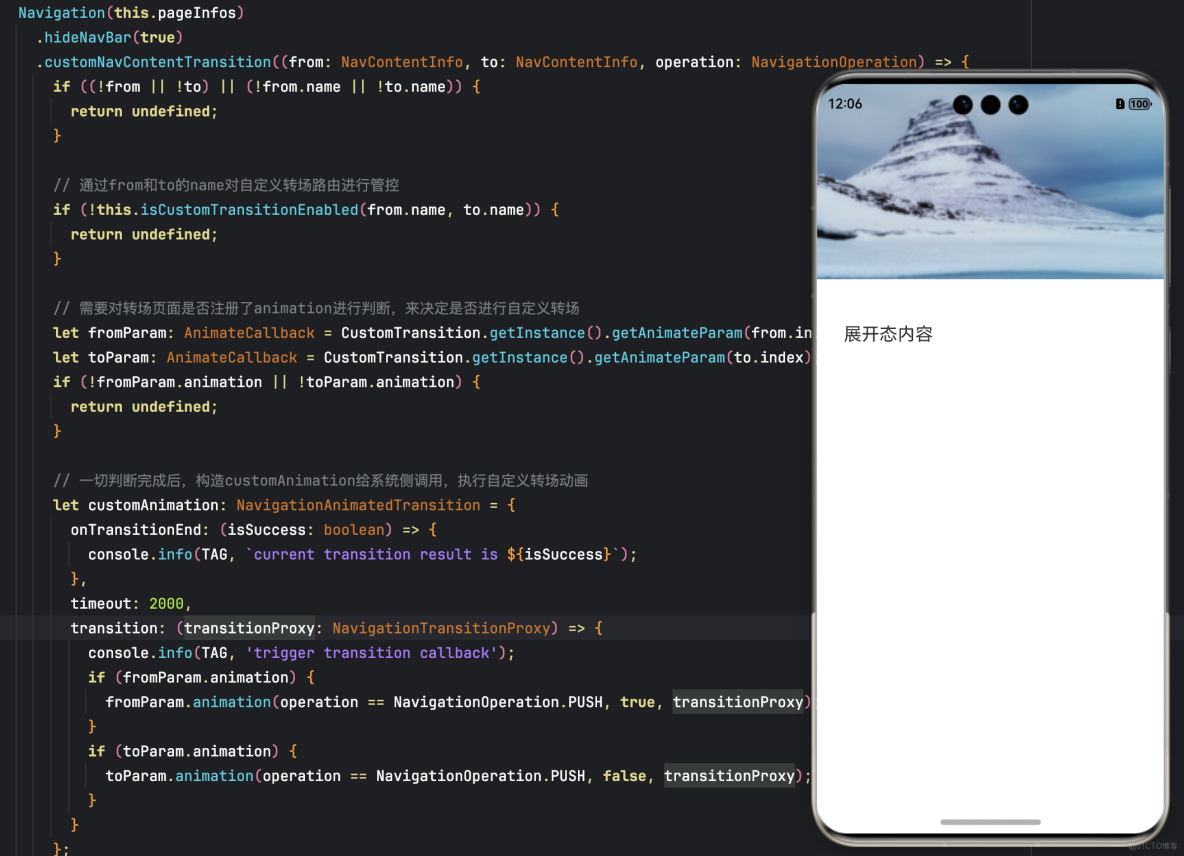
以展開收起縮略圖的場景為例,實現步驟為:
- 通過customNavContentTransition配置PageOne與PageTwo的自定義導航轉場動畫。
- 自定義的共享元素轉場效果由屬性動畫實現,具體實現方式為抓取頁面內組件相對窗口的位置信息從而正確匹配組件在PageOne與PageTwo的位置、縮放等,即動畫開始和結束的屬性信息。
- 點擊縮略圖後共享元素組件從PageOne被遷移至PageTwo,隨後觸發由PageOne至PageTwo的自定義轉場動畫,即PageTwo的共享元素組件從原來的縮略圖狀態做動畫到全屏狀態。
- 由全屏狀態返回到縮略圖時,觸發由PageTwo至PageOne的自定義轉場動畫,即PageTwo的共享元素組件從全屏狀態做動畫到原PageOne的縮略圖狀態,轉場結束後共享元素組件從PageTwo被遷移回PageOne。
customNavContentTransition簡介
支持設備Phone | PC/2in1 | Tablet | TV | Wearable
customNavContentTransition(delegate:(from: NavContentInfo, to: NavContentInfo, operation: NavigationOperation) => NavigationAnimatedTransition | undefined)自定義轉場動畫回調。
元服務API: 從API version 12開始,該接口支持在元服務中使用。
系統能力: SystemCapability.ArkUI.ArkUI.Full
參數:
|
參數名
|
類型
|
必填
|
説明
|
|
from
|
NavContentInfo
|
是
|
退場Destination的頁面。
|
|
to
|
NavContentInfo
|
是
|
進場Destination的頁面。
|
|
operation
|
NavigationOperation
|
是
|
轉場類型。
|
返回值:
|
類型
|
説明
|
|
NavigationAnimatedTransition | undefined
|
NavigationAnimatedTransition:自定義轉場動畫協議。
undefined: 返回未定義,執行默認轉場動效。
|
效果圖
示例代碼結構
├──entry/src/main/ets                 // 代碼區
│  ├──CustomTransition
│  │  ├──AnimationProperties.ets      // 一鏡到底轉場動畫封裝
│  │  └──CustomNavigationUtils.ets    // Navigation自定義轉場動畫配置
│  ├──entryability
│  │  └──EntryAbility.ets             // 程序入口類
│  ├──NodeContainer
│  │  └──CustomComponent.ets          // 自定義佔位節點
│  ├──pages
│  │  ├──Index.ets                    // 導航頁面
│  │  ├──PageOne.ets                  // 縮略圖頁面
│  │  └──PageTwo.ets                  // 全屏展開頁面
│  └──utils
│     ├──ComponentAttrUtils.ets       // 組件位置獲取
│     └──WindowUtils.ets              // 窗口信息
└──entry/src/main/resources           // 資源文件
CustomNavigationUtils.ets代碼
// 配置Navigation自定義轉場動畫
export interface AnimateCallback {
  animation: ((isPush: boolean, isExit: boolean, transitionProxy: NavigationTransitionProxy) => void | undefined)
    | undefined;
  timeout: (number | undefined) | undefined;
}

const customTransitionMap: Map<number, AnimateCallback> = new Map();

export class CustomTransition {
  private constructor() {};

  static delegate = new CustomTransition();

  static getInstance() {
    return CustomTransition.delegate;
  }

  // 註冊頁面的動畫回調,name是註冊頁面的動畫的回調
  // animationCallback是需要執行的動畫內容,timeout是轉場結束的超時時間
  registerNavParam(
    name: number,
    animationCallback: (operation: boolean, isExit: boolean, transitionProxy: NavigationTransitionProxy) => void,
    timeout: number): void {
    if (customTransitionMap.has(name)) {
      let param = customTransitionMap.get(name);
      if (param != undefined) {
        param.animation = animationCallback;
        param.timeout = timeout;
        return;
      }
    }
    let params: AnimateCallback = { timeout: timeout, animation: animationCallback };
    customTransitionMap.set(name, params);
  }

  unRegisterNavParam(name: number): void {
    customTransitionMap.delete(name);
  }

  getAnimateParam(name: number): AnimateCallback {
    let result: AnimateCallback = {
      animation: customTransitionMap.get(name)?.animation,
      timeout: customTransitionMap.get(name)?.timeout,
    };
    return result;
  }
}
ComponentAttrUtils.ets代碼
// 獲取組件相對窗口的位置
import { componentUtils, UIContext } from '@kit.ArkUI';
import { JSON } from '@kit.ArkTS';

export class ComponentAttrUtils {
  // 根據組件的id獲取組件的位置信息
  public static getRectInfoById(context: UIContext, id: string): RectInfoInPx {
    if (!context || !id) {
      throw Error('object is empty');
    }
    let componentInfo: componentUtils.ComponentInfo = context.getComponentUtils().getRectangleById(id);

    if (!componentInfo) {
      throw Error('object is empty');
    }

    let rstRect: RectInfoInPx = new RectInfoInPx();
    const widthScaleGap = componentInfo.size.width * (1 - componentInfo.scale.x) / 2;
    const heightScaleGap = componentInfo.size.height * (1 - componentInfo.scale.y) / 2;
    rstRect.left = componentInfo.translate.x + componentInfo.windowOffset.x + widthScaleGap;
    rstRect.top = componentInfo.translate.y + componentInfo.windowOffset.y + heightScaleGap;
    rstRect.right =
      componentInfo.translate.x + componentInfo.windowOffset.x + componentInfo.size.width - widthScaleGap;
    rstRect.bottom =
      componentInfo.translate.y + componentInfo.windowOffset.y + componentInfo.size.height - heightScaleGap;
    rstRect.width = rstRect.right - rstRect.left;
    rstRect.height = rstRect.bottom - rstRect.top;
    return {
      left: rstRect.left,
      right: rstRect.right,
      top: rstRect.top,
      bottom: rstRect.bottom,
      width: rstRect.width,
      height: rstRect.height
    }
  }
}

export class RectInfoInPx {
  left: number = 0;
  top: number = 0;
  right: number = 0;
  bottom: number = 0;
  width: number = 0;
  height: number = 0;
}

export class RectJson {
  $rect: Array<number> = [];
}
WindowUtils.ets代碼
// WindowUtils.ets
// 窗口信息
import { window } from '@kit.ArkUI';

export class WindowUtils {
  public static window: window.Window;
  public static windowWidth_px: number;
  public static windowHeight_px: number;
  public static topAvoidAreaHeight_px: number;
  public static navigationIndicatorHeight_px: number;
}
CustomComponent.ets代碼
// CustomComponent.ets
// 自定義佔位節點,跨容器遷移能力
import { BuilderNode, FrameNode, NodeController } from '@kit.ArkUI';

@Builder
function CardBuilder() {
  // 圖片使用Resource資源,需用户自定義
  Image($r("app.media.card"))
    .width('100%')
    .id('card')
}

export class MyNodeController extends NodeController {
  private CardNode: BuilderNode<[]> | null = null;
  private wrapBuilder: WrappedBuilder<[]> = wrapBuilder(CardBuilder);
  private needCreate: boolean = false;
  private isRemove: boolean = false;

  constructor(create: boolean) {
    super();
    this.needCreate = create;
  }

  makeNode(uiContext: UIContext): FrameNode | null {
    if(this.isRemove == true){
      return null;
    }
    if (this.needCreate && this.CardNode == null) {
      this.CardNode = new BuilderNode(uiContext);
      this.CardNode.build(this.wrapBuilder)
    }
    if (this.CardNode == null) {
      return null;
    }
    return this.CardNode!.getFrameNode()!;
  }

  getNode(): BuilderNode<[]> | null {
    return this.CardNode;
  }

  setNode(node: BuilderNode<[]> | null) {
    this.CardNode = node;
    this.rebuild();
  }

  onRemove() {
    this.isRemove = true;
    this.rebuild();
    this.isRemove = false;
  }

  init(uiContext: UIContext) {
    this.CardNode = new BuilderNode(uiContext);
    this.CardNode.build(this.wrapBuilder)
  }
}

let myNode: MyNodeController | undefined;

export const createMyNode =
  (uiContext: UIContext) => {
    myNode = new MyNodeController(false);
    myNode.init(uiContext);
  }

export const getMyNode = (): MyNodeController | undefined => {
  return myNode;
}
AnimationProperties.ets代碼
// AnimationProperties.ets
// 一鏡到底轉場動畫封裝
import { curves, UIContext } from '@kit.ArkUI';
import { RectInfoInPx } from '../utils/ComponentAttrUtils';
import { WindowUtils } from '../utils/WindowUtils';
import { MyNodeController } from '../NodeContainer/CustomComponent';

const TAG: string = 'AnimationProperties';

const DEVICE_BORDER_RADIUS: number = 34;

// 將自定義一鏡到底轉場動畫進行封裝,其他界面也需要做自定義一鏡到底轉場的話,可以直接複用,減少工作量
@Observed
export class AnimationProperties {
  public navDestinationBgColor: ResourceColor = Color.Transparent;
  public translateX: number = 0;
  public translateY: number = 0;
  public scaleValue: number = 1;
  public clipWidth: Dimension = 0;
  public clipHeight: Dimension = 0;
  public radius: number = 0;
  public positionValue: number = 0;
  public showDetailContent: boolean = false;
  private uiContext: UIContext;

  constructor(uiContext: UIContext) {
    this.uiContext = uiContext
  }

  public doAnimation(cardItemInfo_px: RectInfoInPx, isPush: boolean, isExit: boolean,
                     transitionProxy: NavigationTransitionProxy, extraTranslateValue: number, prePageOnFinish: (index: MyNodeController) => void, myNodeController: MyNodeController | undefined): void {
    // 首先計算卡片的寬高與窗口寬高的比例
    let widthScaleRatio = cardItemInfo_px.width / WindowUtils.windowWidth_px;
    let heightScaleRatio = cardItemInfo_px.height / WindowUtils.windowHeight_px;
    let isUseWidthScale = widthScaleRatio > heightScaleRatio;
    let initScale: number = isUseWidthScale ? widthScaleRatio : heightScaleRatio;

    let initTranslateX: number = 0;
    let initTranslateY: number = 0;
    let initClipWidth: Dimension = 0;
    let initClipHeight: Dimension = 0;
    // 使得PageTwo卡片向上擴到狀態欄
    let initPositionValue: number = -this.uiContext.px2vp(WindowUtils.topAvoidAreaHeight_px + extraTranslateValue);

    if (isUseWidthScale) {
      initTranslateX = this.uiContext.px2vp(cardItemInfo_px.left - (WindowUtils.windowWidth_px - cardItemInfo_px.width) / 2);
      initClipWidth = '100%';
      initClipHeight = this.uiContext.px2vp((cardItemInfo_px.height) / initScale);
      initTranslateY = this.uiContext.px2vp(cardItemInfo_px.top - ((this.uiContext.vp2px(initClipHeight) - this.uiContext.vp2px(initClipHeight) * initScale) / 2));
    } else {
      initTranslateY = this.uiContext.px2vp(cardItemInfo_px.top - (WindowUtils.windowHeight_px - cardItemInfo_px.height) / 2);
      initClipHeight = '100%';
      initClipWidth = this.uiContext.px2vp((cardItemInfo_px.width) / initScale);
      initTranslateX = this.uiContext.px2vp(cardItemInfo_px.left - (WindowUtils.windowWidth_px / 2 - cardItemInfo_px.width / 2));
    }

    // 轉場動畫開始前通過計算scale、translate、position和clip height & width,確定節點遷移前後位置一致
    console.info(TAG, 'initScale: ' + initScale + ' initTranslateX ' + initTranslateX +
    ' initTranslateY ' + initTranslateY + ' initClipWidth ' + initClipWidth +
    ' initClipHeight ' + initClipHeight + ' initPositionValue ' + initPositionValue);
    // 轉場至新頁面
    if (isPush && !isExit) {
      this.scaleValue = initScale;
      this.translateX = initTranslateX;
      this.clipWidth = initClipWidth;
      this.clipHeight = initClipHeight;
      this.translateY = initTranslateY;
      this.positionValue = initPositionValue;

      this.uiContext?.animateTo({
        curve: curves.interpolatingSpring(0, 1, 328, 36),
        onFinish: () => {
          if (transitionProxy) {
            transitionProxy.finishTransition();
          }
        }
      }, () => {
        this.scaleValue = 1.0;
        this.translateX = 0;
        this.translateY = 0;
        this.clipWidth = '100%';
        this.clipHeight = '100%';
        // 頁面圓角與系統圓角一致
        this.radius = DEVICE_BORDER_RADIUS;
        this.showDetailContent = true;
      })

      this.uiContext?.animateTo({
        duration: 100,
        curve: Curve.Sharp,
      }, () => {
        // 頁面由透明逐漸變為設置背景色
        this.navDestinationBgColor = '#00ffffff';
      })

      // 返回舊頁面
    } else if (!isPush && isExit) {

      this.uiContext?.animateTo({
        duration: 350,
        curve: Curve.EaseInOut,
        onFinish: () => {
          if (transitionProxy) {
            transitionProxy.finishTransition();
          }
          prePageOnFinish(myNodeController);
          // 自定義節點從PageTwo下樹
          if (myNodeController != undefined) {
            (myNodeController as MyNodeController).onRemove();
          }
        }
      }, () => {
        this.scaleValue = initScale;
        this.translateX = initTranslateX;
        this.translateY = initTranslateY;
        this.radius = 0;
        this.clipWidth = initClipWidth;
        this.clipHeight = initClipHeight;
        this.showDetailContent = false;
      })

      this.uiContext?.animateTo({
        duration: 200,
        delay: 150,
        curve: Curve.Friction,
      }, () => {
        this.navDestinationBgColor = Color.Transparent;
      })
    }
  }
}
PageOne.ets代碼
// PageOne.ets
import { CustomTransition } from '../CustomTransition/CustomNavigationUtils';
import { MyNodeController, createMyNode, getMyNode } from '../NodeContainer/CustomComponent';
import { ComponentAttrUtils, RectInfoInPx } from '../utils/ComponentAttrUtils';
import { WindowUtils } from '../utils/WindowUtils';

@Builder
export function PageOneBuilder() {
  PageOne();
}

@Component
export struct PageOne {
  private pageInfos: NavPathStack = new NavPathStack();
  private pageId: number = -1;
  @State myNodeController: MyNodeController | undefined = new MyNodeController(false);

  aboutToAppear(): void {
    let node = getMyNode();
    if (node == undefined) {
      // 新建自定義節點
      createMyNode(this.getUIContext());
    }
    this.myNodeController = getMyNode();
  }

  private doFinishTransition(): void {
    // PageTwo結束轉場時將節點從PageTwo遷移回PageOne
    this.myNodeController = getMyNode();
  }

  private registerCustomTransition(): void {
    // 註冊自定義動畫協議
    CustomTransition.getInstance().registerNavParam(this.pageId,
      (isPush: boolean, isExit: boolean, transitionProxy: NavigationTransitionProxy) => {}, 500);
  }

  private onCardClicked(): void {
    let cardItemInfo: RectInfoInPx =
      ComponentAttrUtils.getRectInfoById(WindowUtils.window.getUIContext(), 'card');
    let param: Record<string, Object> = {};
    param['cardItemInfo'] = cardItemInfo;
    param['doDefaultTransition'] = (myController: MyNodeController) => {
      this.doFinishTransition()
    };
    this.pageInfos.pushPath({ name: 'PageTwo', param: param });
    // 自定義節點從PageOne下樹
    if (this.myNodeController != undefined) {
      (this.myNodeController as MyNodeController).onRemove();
    }
  }

  build() {
    NavDestination() {
      Stack() {
        Column({ space: 20 }) {
          Row({ space: 10 }) {
            // 圖片使用Resource資源,需用户自定義
            Image($r("app.media.avatar"))
              .size({ width: 50, height: 50 })
              .borderRadius(25)
              .clip(true)

            Text('Alice')
          }
          .justifyContent(FlexAlign.Start)

          Text('你好世界')

          NodeContainer(this.myNodeController)
            .size({ width: 320, height: 250 })
            .onClick(() => {
              this.onCardClicked()
            })
        }
        .alignItems(HorizontalAlign.Start)
        .margin(30)
      }
    }
    .onReady((context: NavDestinationContext) => {
      this.pageInfos = context.pathStack;
      this.pageId = this.pageInfos.getAllPathName().length - 1;
      this.registerCustomTransition();
    })
    .onDisAppear(() => {
      CustomTransition.getInstance().unRegisterNavParam(this.pageId);
      // 自定義節點從PageOne下樹
      if (this.myNodeController != undefined) {
        (this.myNodeController as MyNodeController).onRemove();
      }
    })
  }
}
PageTwo.ets代碼
// PageTwo.ets
import { CustomTransition } from '../CustomTransition/CustomNavigationUtils';
import { AnimationProperties } from '../CustomTransition/AnimationProperties';
import { RectInfoInPx } from '../utils/ComponentAttrUtils';
import { getMyNode, MyNodeController } from '../NodeContainer/CustomComponent';

@Builder
export function PageTwoBuilder() {
  PageTwo();
}

@Component
export struct PageTwo {
  @State pageInfos: NavPathStack = new NavPathStack();
  @State animationProperties: AnimationProperties = new AnimationProperties(this.getUIContext());
  @State myNodeController: MyNodeController | undefined = new MyNodeController(false);

  private pageId: number = -1;

  private shouldDoDefaultTransition: boolean = false;
  private prePageDoFinishTransition: () => void = () => {};
  private cardItemInfo: RectInfoInPx = new RectInfoInPx();

  @StorageProp('windowSizeChanged') @Watch('unRegisterNavParam') windowSizeChangedTime: number = 0;
  @StorageProp('onConfigurationUpdate') @Watch('unRegisterNavParam') onConfigurationUpdateTime: number = 0;

  aboutToAppear(): void {
    // 遷移自定義節點至當前頁面
    this.myNodeController = getMyNode();
  }

  private unRegisterNavParam(): void {
    this.shouldDoDefaultTransition = true;
  }

  private onBackPressed(): boolean {
    if (this.shouldDoDefaultTransition) {
      CustomTransition.getInstance().unRegisterNavParam(this.pageId);
      this.pageInfos.pop();
      this.prePageDoFinishTransition();
      this.shouldDoDefaultTransition = false;
      return true;
    }
    this.pageInfos.pop();
    return true;
  }

  build() {
    NavDestination() {
      // Stack需要設置alignContent為TopStart,否則在高度變化過程中,截圖和內容都會隨高度重新佈局位置
      Stack({ alignContent: Alignment.TopStart }) {
        Stack({ alignContent: Alignment.TopStart }) {
          Column({space: 20}) {
            NodeContainer(this.myNodeController)
            if (this.animationProperties.showDetailContent)
              Text('展開態內容')
                .fontSize(20)
                .transition(TransitionEffect.OPACITY)
                .margin(30)
          }
          .alignItems(HorizontalAlign.Start)
        }
        .position({ y: this.animationProperties.positionValue })
      }
      .scale({ x: this.animationProperties.scaleValue, y: this.animationProperties.scaleValue })
      .translate({ x: this.animationProperties.translateX, y: this.animationProperties.translateY })
      .width(this.animationProperties.clipWidth)
      .height(this.animationProperties.clipHeight)
      .borderRadius(this.animationProperties.radius)
      // expandSafeArea使得Stack做沉浸式效果,向上擴到狀態欄,向下擴到導航條
      .expandSafeArea([SafeAreaType.SYSTEM])
      // 對高度進行裁切
      .clip(true)
    }
    .backgroundColor(this.animationProperties.navDestinationBgColor)
    .hideTitleBar(true)
    .onReady((context: NavDestinationContext) => {
      this.pageInfos = context.pathStack;
      this.pageId = this.pageInfos.getAllPathName().length - 1;
      let param = context.pathInfo?.param as Record<string, Object>;
      this.prePageDoFinishTransition = param['doDefaultTransition'] as () => void;
      this.cardItemInfo = param['cardItemInfo'] as RectInfoInPx;
      CustomTransition.getInstance().registerNavParam(this.pageId,
        (isPush: boolean, isExit: boolean, transitionProxy: NavigationTransitionProxy) => {
          this.animationProperties.doAnimation(
            this.cardItemInfo, isPush, isExit, transitionProxy, 0,
            this.prePageDoFinishTransition, this.myNodeController);
        }, 500);
    })
    .onBackPressed(() => {
      return this.onBackPressed();
    })
    .onDisAppear(() => {
      CustomTransition.getInstance().unRegisterNavParam(this.pageId);
    })
  }
}
route_map.json
// 工程配置文件module.json5中配置 {"routerMap": "$profile:route_map"}
// route_map.json
{
  "routerMap": [
    {
      "name": "PageOne",
      "pageSourceFile": "src/main/ets/pages/PageOne.ets",
      "buildFunction": "PageOneBuilder"
    },
    {
      "name": "PageTwo",
      "pageSourceFile": "src/main/ets/pages/PageTwo.ets",
      "buildFunction": "PageTwoBuilder"
    }
  ]
}
EntryAbility.ets代碼
// EntryAbility.ets
// 程序入口處的onWindowStageCreate增加對窗口寬高等的抓取

import { AbilityConstant, UIAbility, Want } from '@kit.AbilityKit';
import { hilog } from '@kit.PerformanceAnalysisKit';
import { display, window } from '@kit.ArkUI';
import { WindowUtils } from '../utils/WindowUtils';

const TAG: string = 'EntryAbility';

export default class EntryAbility extends UIAbility {
  private currentBreakPoint: string = '';

  onCreate(want: Want, launchParam: AbilityConstant.LaunchParam): void {
    hilog.info(0x0000, 'testTag', '%{public}s', 'Ability onCreate');
  }

  onDestroy(): void {
    hilog.info(0x0000, 'testTag', '%{public}s', 'Ability onDestroy');
  }

  onWindowStageCreate(windowStage: window.WindowStage): void {
    // Main window is created, set main page for this ability
    hilog.info(0x0000, 'testTag', '%{public}s', 'Ability onWindowStageCreate');

    // 獲取窗口寬高
    WindowUtils.window = windowStage.getMainWindowSync();
    WindowUtils.windowWidth_px = WindowUtils.window.getWindowProperties().windowRect.width;
    WindowUtils.windowHeight_px = WindowUtils.window.getWindowProperties().windowRect.height;

    this.updateBreakpoint(WindowUtils.windowWidth_px);

    // 獲取上方避讓區(狀態欄等)高度
    let avoidArea = WindowUtils.window.getWindowAvoidArea(window.AvoidAreaType.TYPE_SYSTEM);
    WindowUtils.topAvoidAreaHeight_px = avoidArea.topRect.height;

    // 獲取導航條高度
    let navigationArea = WindowUtils.window.getWindowAvoidArea(window.AvoidAreaType.TYPE_NAVIGATION_INDICATOR);
    WindowUtils.navigationIndicatorHeight_px = navigationArea.bottomRect.height;

    hilog.info(0x0000, TAG, 'the width is ' + WindowUtils.windowWidth_px + '  ' + WindowUtils.windowHeight_px + '  ' +
    WindowUtils.topAvoidAreaHeight_px + '  ' + WindowUtils.navigationIndicatorHeight_px);

    // 監聽窗口尺寸、狀態欄高度及導航條高度的變化並更新
    try {
      WindowUtils.window.on('windowSizeChange', (data) => {
        hilog.info(0x0000, TAG, 'on windowSizeChange, the width is ' + data.width + ', the height is ' + data.height);
        WindowUtils.windowWidth_px = data.width;
        WindowUtils.windowHeight_px = data.height;
        this.updateBreakpoint(data.width);
        AppStorage.setOrCreate('windowSizeChanged', Date.now())
      })

      WindowUtils.window.on('avoidAreaChange', (data) => {
        if (data.type == window.AvoidAreaType.TYPE_SYSTEM) {
          let topRectHeight = data.area.topRect.height;
          hilog.info(0x0000, TAG, 'on avoidAreaChange, the top avoid area height is ' + topRectHeight);
          WindowUtils.topAvoidAreaHeight_px = topRectHeight;
        } else if (data.type == window.AvoidAreaType.TYPE_NAVIGATION_INDICATOR) {
          let bottomRectHeight = data.area.bottomRect.height;
          hilog.info(0x0000, TAG, 'on avoidAreaChange, the navigation indicator height is ' + bottomRectHeight);
          WindowUtils.navigationIndicatorHeight_px = bottomRectHeight;
        }
      })
    } catch (exception) {
      hilog.error(0x0000, TAG, `register failed. code: ${exception.code}, message: ${exception.message}`);
    }

    windowStage.loadContent('pages/Index', (err) => {
      if (err.code) {
        hilog.error(0x0000, 'testTag', 'Failed to load the content. Cause: %{public}s', JSON.stringify(err) ?? '');
        return;
      }
      hilog.info(0x0000, 'testTag', 'Succeeded in loading the content.');
    });
  }

  updateBreakpoint(width: number) {
    let windowWidthVp = width / (display.getDefaultDisplaySync().densityDPI / 160);
    let newBreakPoint: string = '';
    if (windowWidthVp < 400) {
      newBreakPoint = 'xs';
    } else if (windowWidthVp < 600) {
      newBreakPoint = 'sm';
    } else if (windowWidthVp < 800) {
      newBreakPoint = 'md';
    } else {
      newBreakPoint = 'lg';
    }
    if (this.currentBreakPoint !== newBreakPoint) {
      this.currentBreakPoint = newBreakPoint;
      // 使用狀態變量記錄當前斷點值
      AppStorage.setOrCreate('currentBreakpoint', this.currentBreakPoint);
    }
  }

  onWindowStageDestroy(): void {
    // Main window is destroyed, release UI related resources
    hilog.info(0x0000, 'testTag', '%{public}s', 'Ability onWindowStageDestroy');
  }

  onForeground(): void {
    // Ability has brought to foreground
    hilog.info(0x0000, 'testTag', '%{public}s', 'Ability onForeground');
  }

  onBackground(): void {
    // Ability has back to background
    hilog.info(0x0000, 'testTag', '%{public}s', 'Ability onBackground');
  }
}
Index.ets代碼
// Index.ets
import { AnimateCallback, CustomTransition } from '../CustomTransition/CustomNavigationUtils';

const TAG: string = 'Index';

@Entry
@Component
struct Index {
  private pageInfos: NavPathStack = new NavPathStack();
  // 允許進行自定義轉場的頁面名稱
  private allowedCustomTransitionFromPageName: string[] = ['PageOne'];
  private allowedCustomTransitionToPageName: string[] = ['PageTwo'];

  aboutToAppear(): void {
    this.pageInfos.pushPath({ name: 'PageOne' });
  }

  private isCustomTransitionEnabled(fromName: string, toName: string): boolean {
    // 點擊和返回均需要進行自定義轉場,因此需要分別判斷
    if ((this.allowedCustomTransitionFromPageName.includes(fromName)
      && this.allowedCustomTransitionToPageName.includes(toName))
      || (this.allowedCustomTransitionFromPageName.includes(toName)
        && this.allowedCustomTransitionToPageName.includes(fromName))) {
      return true;
    }
    return false;
  }

  build() {
    Navigation(this.pageInfos)
      .hideNavBar(true)
      .customNavContentTransition((from: NavContentInfo, to: NavContentInfo, operation: NavigationOperation) => {
        if ((!from || !to) || (!from.name || !to.name)) {
          return undefined;
        }

        // 通過from和to的name對自定義轉場路由進行管控
        if (!this.isCustomTransitionEnabled(from.name, to.name)) {
          return undefined;
        }

        // 需要對轉場頁面是否註冊了animation進行判斷,來決定是否進行自定義轉場
        let fromParam: AnimateCallback = CustomTransition.getInstance().getAnimateParam(from.index);
        let toParam: AnimateCallback = CustomTransition.getInstance().getAnimateParam(to.index);
        if (!fromParam.animation || !toParam.animation) {
          return undefined;
        }

        // 一切判斷完成後,構造customAnimation給系統側調用,執行自定義轉場動畫
        let customAnimation: NavigationAnimatedTransition = {
          onTransitionEnd: (isSuccess: boolean) => {
            console.info(TAG, `current transition result is ${isSuccess}`);
          },
          timeout: 2000,
          transition: (transitionProxy: NavigationTransitionProxy) => {
            console.info(TAG, 'trigger transition callback');
            if (fromParam.animation) {
              fromParam.animation(operation == NavigationOperation.PUSH, true, transitionProxy);
            }
            if (toParam.animation) {
              toParam.animation(operation == NavigationOperation.PUSH, false, transitionProxy);
            }
          }
        };
        return customAnimation;
      })
  }
}
四、結合BindSheet使用
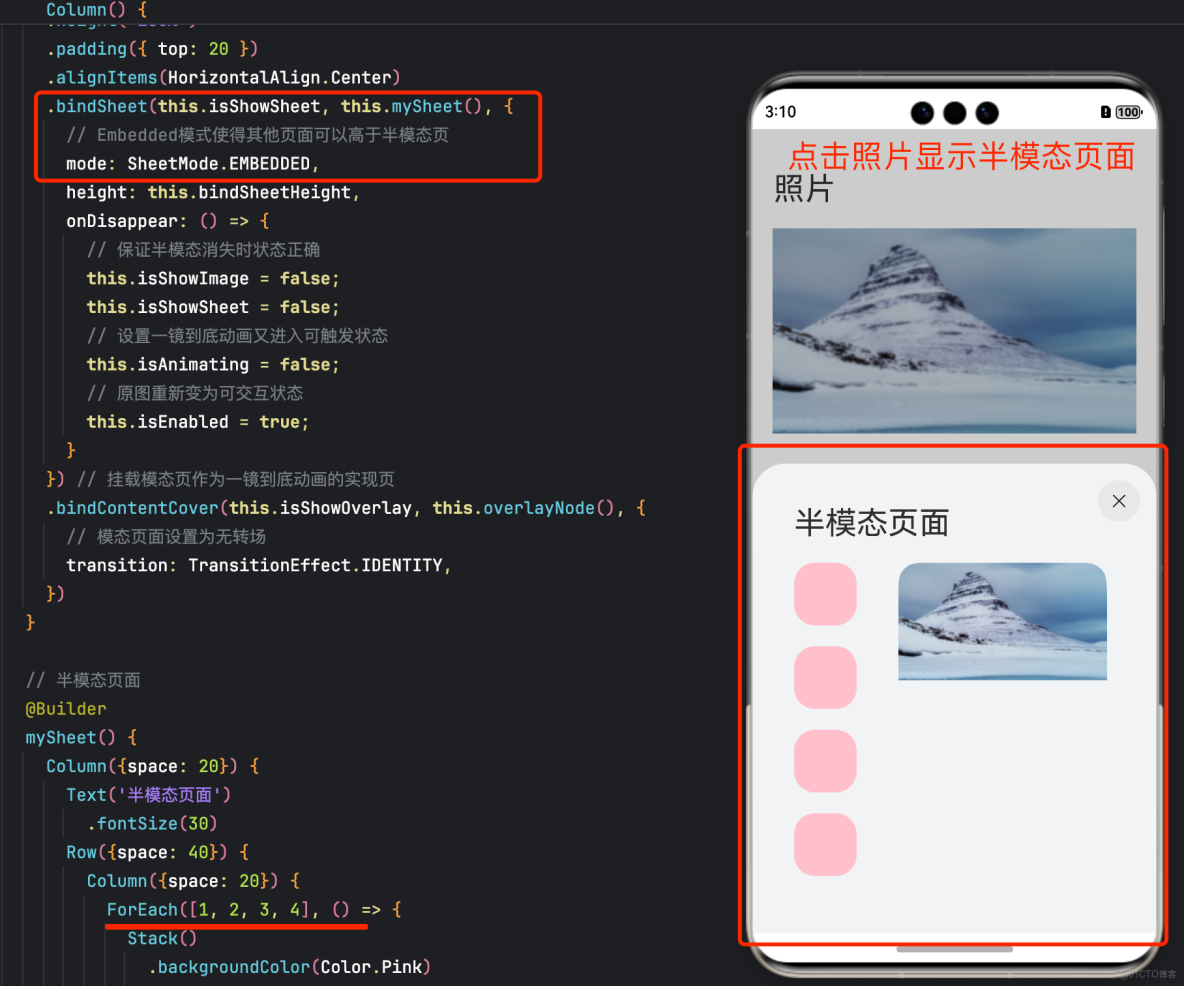
想實現半模態轉場(bindSheet)的同時,組件從初始界面做一鏡到底動畫到半模態頁面的效果,可以使用這樣的設計思路。將SheetOptions中的mode設置為SheetMode.EMBEDDED,該模式下新起的頁面可以覆蓋在半模態彈窗上,頁面返回後該半模態依舊存在,半模態面板內容不丟失。在半模態轉場的同時設置一全模態轉場(bindContentCover)頁面無轉場出現,該頁面僅有需要做共享元素轉場的組件,通過屬性動畫,展示組件從初始界面至半模態頁面的一鏡到底動效,並在動畫結束時關閉頁面,並將該組件遷移至半模態頁面。
以點擊圖片展開半模態頁的場景為例,實現步驟為:
- 在初始界面掛載半模態轉場和全模態轉場兩個頁面,半模態頁按需佈局,全模態頁面僅放置一鏡到底動效需要的組件,抓取佈局信息,使其初始位置為初始界面圖片的位置。點擊初始界面圖片時,同時觸發半模態和全模態頁面出現,因設置為SheetMode.EMBEDDED模式,此時全模態頁面層級最高。
- 設置不可見的佔位圖片置於半模態頁上,作為一鏡到底動效結束時圖片的終止位置。利用佈局回調監聽該佔位圖片佈局完成的時候,此時執行回調抓取佔位圖片的位置信息,隨後全模態頁面上的圖片利用屬性動畫開始進行共享元素轉場。
- 全模態頁面的動畫結束時觸發結束回調,關閉全模態頁面,將共享元素圖片的節點遷移至半模態頁面,替換佔位圖片。
- 需注意,半模態頁面的彈起高度不同,其頁面起始位置也有所不同,而全模態則是全屏顯示,兩者存在一高度差,做一鏡到底動畫時,需要計算差值並進行修正,具體可見demo。
- 還可以配合一鏡到底動畫,給初始界面圖片也增加一個從透明到出現的動畫,使得動效更為流暢。
示例效果圖
示例代碼結構
├──entry/src/main/ets                 // 代碼區
│  ├──entryability
│  │  └──EntryAbility.ets             // 程序入口類
│  ├──NodeContainer
│  │  └──CustomComponent.ets          // 自定義佔位節點
│  ├──pages
│  │  └──Index.ets                    // 進行共享元素轉場的主頁面
│  └──utils
│     ├──ComponentAttrUtils.ets       // 組件位置獲取
│     └──WindowUtils.ets              // 窗口信息
└──entry/src/main/resources           // 資源文件
CustomComponent.ets代碼
// CustomComponent.ets
// 自定義佔位節點,跨容器遷移能力
import { BuilderNode, FrameNode, NodeController } from '@kit.ArkUI';

@Builder
function CardBuilder() {
  // 圖片使用Resource資源,需用户自定義
  Image($r("app.media.flower"))
    // 避免第一次加載圖片時圖片閃爍
    .syncLoad(true)
}

export class MyNodeController extends NodeController {
  private CardNode: BuilderNode<[]> | null = null;
  private wrapBuilder: WrappedBuilder<[]> = wrapBuilder(CardBuilder);
  private needCreate: boolean = false;
  private isRemove: boolean = false;

  constructor(create: boolean) {
    super();
    this.needCreate = create;
  }

  makeNode(uiContext: UIContext): FrameNode | null {
    if(this.isRemove == true){
      return null;
    }
    if (this.needCreate && this.CardNode == null) {
      this.CardNode = new BuilderNode(uiContext);
      this.CardNode.build(this.wrapBuilder)
    }
    if (this.CardNode == null) {
      return null;
    }
    return this.CardNode!.getFrameNode()!;
  }

  getNode(): BuilderNode<[]> | null {
    return this.CardNode;
  }

  setNode(node: BuilderNode<[]> | null) {
    this.CardNode = node;
    this.rebuild();
  }

  onRemove() {
    this.isRemove = true;
    this.rebuild();
    this.isRemove = false;
  }

  init(uiContext: UIContext) {
    this.CardNode = new BuilderNode(uiContext);
    this.CardNode.build(this.wrapBuilder)
  }
}

let myNode: MyNodeController | undefined;

export const createMyNode =
  (uiContext: UIContext) => {
    myNode = new MyNodeController(false);
    myNode.init(uiContext);
  }

export const getMyNode = (): MyNodeController | undefined => {
  return myNode;
}
ComponentAttrUtils.ets
// ComponentAttrUtils.ets
// 獲取組件相對窗口的位置
import { componentUtils, UIContext } from '@kit.ArkUI';
import { JSON } from '@kit.ArkTS';

export class ComponentAttrUtils {
  // 根據組件的id獲取組件的位置信息
  public static getRectInfoById(context: UIContext, id: string): RectInfoInPx {
    if (!context || !id) {
      throw Error('object is empty');
    }
    let componentInfo: componentUtils.ComponentInfo = context.getComponentUtils().getRectangleById(id);

    if (!componentInfo) {
      throw Error('object is empty');
    }

    let rstRect: RectInfoInPx = new RectInfoInPx();
    const widthScaleGap = componentInfo.size.width * (1 - componentInfo.scale.x) / 2;
    const heightScaleGap = componentInfo.size.height * (1 - componentInfo.scale.y) / 2;
    rstRect.left = componentInfo.translate.x + componentInfo.windowOffset.x + widthScaleGap;
    rstRect.top = componentInfo.translate.y + componentInfo.windowOffset.y + heightScaleGap;
    rstRect.right =
      componentInfo.translate.x + componentInfo.windowOffset.x + componentInfo.size.width - widthScaleGap;
    rstRect.bottom =
      componentInfo.translate.y + componentInfo.windowOffset.y + componentInfo.size.height - heightScaleGap;
    rstRect.width = rstRect.right - rstRect.left;
    rstRect.height = rstRect.bottom - rstRect.top;
    return {
      left: rstRect.left,
      right: rstRect.right,
      top: rstRect.top,
      bottom: rstRect.bottom,
      width: rstRect.width,
      height: rstRect.height
    }
  }
}

export class RectInfoInPx {
  left: number = 0;
  top: number = 0;
  right: number = 0;
  bottom: number = 0;
  width: number = 0;
  height: number = 0;
}

export class RectJson {
  $rect: Array<number> = [];
}
index.ets代碼
// index.ets
import { MyNodeController, createMyNode, getMyNode } from '../NodeContainer/CustomComponent';
import { ComponentAttrUtils, RectInfoInPx } from '../utils/ComponentAttrUtils';
import { WindowUtils } from '../utils/WindowUtils';
import { inspector } from '@kit.ArkUI'

class AnimationInfo {
  scale: number = 0;
  translateX: number = 0;
  translateY: number = 0;
  clipWidth: Dimension = 0;
  clipHeight: Dimension = 0;
}

@Entry
@Component
struct Index {
  @State isShowSheet: boolean = false;
  @State isShowImage: boolean = false;
  @State isShowOverlay: boolean = false;
  @State isAnimating: boolean = false;
  @State isEnabled: boolean = true;

  @State scaleValue: number = 0;
  @State translateX: number = 0;
  @State translateY: number = 0;
  @State clipWidth: Dimension = 0;
  @State clipHeight: Dimension = 0;
  @State radius: number = 0;
  // 原圖的透明度
  @State opacityDegree: number = 1;

  // 抓取照片原位置信息
  private originInfo: AnimationInfo = new AnimationInfo;
  // 抓取照片在半模態頁上位置信息
  private targetInfo: AnimationInfo = new AnimationInfo;
  // 半模態高度
  private bindSheetHeight: number = 450;
  // 半模態上圖片圓角
  private sheetRadius: number = 20;

  // 設置半模態上圖片的佈局監聽
  listener:inspector.ComponentObserver = this.getUIContext().getUIInspector().createComponentObserver('target');
  aboutToAppear(): void {
    // 設置半模態上圖片的佈局完成回調
    let onLayoutComplete:()=>void=():void=>{
      // 目標圖片佈局完成時抓取佈局信息
      this.targetInfo = this.calculateData('target');
      // 僅半模態正確佈局且此時無動畫時觸發一鏡到底動畫
      if (this.targetInfo.scale != 0 && this.targetInfo.clipWidth != 0 && this.targetInfo.clipHeight != 0 && !this.isAnimating) {
        this.isAnimating = true;
        // 用於一鏡到底的模態頁的屬性動畫
        this.getUIContext()?.animateTo({
          duration: 1000,
          curve: Curve.Friction,
          onFinish: () => {
            // 模態轉場頁(overlay)上的自定義節點下樹
            this.isShowOverlay = false;
            // 半模態上的自定義節點上樹,由此完成節點遷移
            this.isShowImage = true;
          }
        }, () => {
          this.scaleValue = this.targetInfo.scale;
          this.translateX = this.targetInfo.translateX;
          this.clipWidth = this.targetInfo.clipWidth;
          this.clipHeight = this.targetInfo.clipHeight;
          // 修正因半模態高度和縮放導致的高度差
          this.translateY = this.targetInfo.translateY +
            (this.getUIContext().px2vp(WindowUtils.windowHeight_px) - this.bindSheetHeight
              - this.getUIContext().px2vp(WindowUtils.navigationIndicatorHeight_px) - this.getUIContext().px2vp(WindowUtils.topAvoidAreaHeight_px));
          // 修正因縮放導致的圓角差異
          this.radius = this.sheetRadius / this.scaleValue
        })
        // 原圖從透明到出現的動畫
        this.getUIContext()?.animateTo({
          duration: 2000,
          curve: Curve.Friction,
        }, () => {
          this.opacityDegree = 1;
        })
      }
    }
    // 打開佈局監聽
    this.listener.on('layout', onLayoutComplete)
  }

  // 獲取對應id的組件相對窗口左上角的屬性
  calculateData(id: string): AnimationInfo {
    let itemInfo: RectInfoInPx =
      ComponentAttrUtils.getRectInfoById(WindowUtils.window.getUIContext(), id);
    // 首先計算圖片的寬高與窗口寬高的比例
    let widthScaleRatio = itemInfo.width / WindowUtils.windowWidth_px;
    let heightScaleRatio = itemInfo.height / WindowUtils.windowHeight_px;
    let isUseWidthScale = widthScaleRatio > heightScaleRatio;
    let itemScale: number = isUseWidthScale ? widthScaleRatio : heightScaleRatio;
    let itemTranslateX: number = 0;
    let itemClipWidth: Dimension = 0;
    let itemClipHeight: Dimension = 0;
    let itemTranslateY: number = 0;

    if (isUseWidthScale) {
      itemTranslateX = this.getUIContext().px2vp(itemInfo.left - (WindowUtils.windowWidth_px - itemInfo.width) / 2);
      itemClipWidth = '100%';
      itemClipHeight = this.getUIContext().px2vp((itemInfo.height) / itemScale);
      itemTranslateY = this.getUIContext().px2vp(itemInfo.top - ((this.getUIContext().vp2px(itemClipHeight) - this.getUIContext().vp2px(itemClipHeight) * itemScale) / 2));
    } else {
      itemTranslateY = this.getUIContext().px2vp(itemInfo.top - (WindowUtils.windowHeight_px - itemInfo.height) / 2);
      itemClipHeight = '100%';
      itemClipWidth = this.getUIContext().px2vp((itemInfo.width) / itemScale);
      itemTranslateX = this.getUIContext().px2vp(itemInfo.left - (WindowUtils.windowWidth_px / 2 - itemInfo.width / 2));
    }

    return {
      scale: itemScale,
      translateX: itemTranslateX ,
      translateY: itemTranslateY,
      clipWidth: itemClipWidth,
      clipHeight: itemClipHeight,
    }
  }

  // 照片頁
  build() {
    Column() {
      Text('照片')
        .textAlign(TextAlign.Start)
        .width('100%')
        .fontSize(30)
        .padding(20)
      // 圖片使用Resource資源,需用户自定義
      Image($r("app.media.flower"))
        .opacity(this.opacityDegree)
        .width('90%')
        .id('origin')// 掛載半模態頁
        .enabled(this.isEnabled)
        .onClick(() => {
          // 獲取原始圖像的位置信息,將模態頁上圖片移動縮放至該位置
          this.originInfo = this.calculateData('origin');
          this.scaleValue = this.originInfo.scale;
          this.translateX = this.originInfo.translateX;
          this.translateY = this.originInfo.translateY;
          this.clipWidth = this.originInfo.clipWidth;
          this.clipHeight = this.originInfo.clipHeight;
          this.radius = 0;
          this.opacityDegree = 0;
          // 啓動半模態頁和模態頁
          this.isShowSheet = true;
          this.isShowOverlay = true;
          // 設置原圖為不可交互抗打斷
          this.isEnabled = false;
        })
    }
    .width('100%')
    .height('100%')
    .padding({ top: 20 })
    .alignItems(HorizontalAlign.Center)
    .bindSheet(this.isShowSheet, this.mySheet(), {
      // Embedded模式使得其他頁面可以高於半模態頁
      mode: SheetMode.EMBEDDED,
      height: this.bindSheetHeight,
      onDisappear: () => {
        // 保證半模態消失時狀態正確
        this.isShowImage = false;
        this.isShowSheet = false;
        // 設置一鏡到底動畫又進入可觸發狀態
        this.isAnimating = false;
        // 原圖重新變為可交互狀態
        this.isEnabled = true;
      }
    }) // 掛載模態頁作為一鏡到底動畫的實現頁
    .bindContentCover(this.isShowOverlay, this.overlayNode(), {
      // 模態頁面設置為無轉場
      transition: TransitionEffect.IDENTITY,
    })
  }

  // 半模態頁面
  @Builder
  mySheet() {
    Column({space: 20}) {
      Text('半模態頁面')
        .fontSize(30)
      Row({space: 40}) {
        Column({space: 20}) {
          ForEach([1, 2, 3, 4], () => {
            Stack()
              .backgroundColor(Color.Pink)
              .borderRadius(20)
              .width(60)
              .height(60)
          })
        }
        Column() {
          if (this.isShowImage) {
            // 半模態頁面的自定義圖片節點
            ImageNode()
          }
          else {
            // 抓取佈局和佔位用,實際不顯示
            // 圖片使用Resource資源,需用户自定義
            Image($r("app.media.flower"))
              .visibility(Visibility.Hidden)
          }
        }
        .height(300)
        .width(200)
        .borderRadius(20)
        .clip(true)
        .id('target')
      }
      .alignItems(VerticalAlign.Top)
    }
    .alignItems(HorizontalAlign.Start)
    .height('100%')
    .width('100%')
    .margin(40)
  }

  @Builder
  overlayNode() {
    // Stack需要設置alignContent為TopStart,否則在高度變化過程中,截圖和內容都會隨高度重新佈局位置
    Stack({ alignContent: Alignment.TopStart }) {
      ImageNode()
    }
    .scale({ x: this.scaleValue, y: this.scaleValue, centerX: undefined, centerY: undefined})
    .translate({ x: this.translateX, y: this.translateY })
    .width(this.clipWidth)
    .height(this.clipHeight)
    .borderRadius(this.radius)
    .clip(true)
  }
}

@Component
struct ImageNode {
  @State myNodeController: MyNodeController | undefined = new MyNodeController(false);

  aboutToAppear(): void {
    // 獲取自定義節點
    let node = getMyNode();
    if (node == undefined) {
      // 新建自定義節點
      createMyNode(this.getUIContext());
    }
    this.myNodeController = getMyNode();
  }

  aboutToDisappear(): void {
    if (this.myNodeController != undefined) {
      // 節點下樹
      this.myNodeController.onRemove();
    }
  }
  build() {
    NodeContainer(this.myNodeController)
  }
}
五、使用geometryTransition共享元素轉場
geometryTransition用於組件內隱式共享元素轉場,在視圖狀態切換過程中提供絲滑的上下文繼承過渡體驗。
geometryTransition的使用方式為對需要添加一鏡到底動效的兩個組件使用geometryTransition接口綁定同一id,這樣在其中一個組件消失同時另一個組件創建出現的時候,系統會對二者添加一鏡到底動效。
geometryTransition綁定兩個對象的實現方式使得geometryTransition區別於其他方法,最適合用於兩個不同對象之間完成一鏡到底。
5.1 geometryTransition的簡單使用
對於同一個頁面中的兩個元素的一鏡到底效果,geometryTransition接口的簡單使用示例如下:效果圖
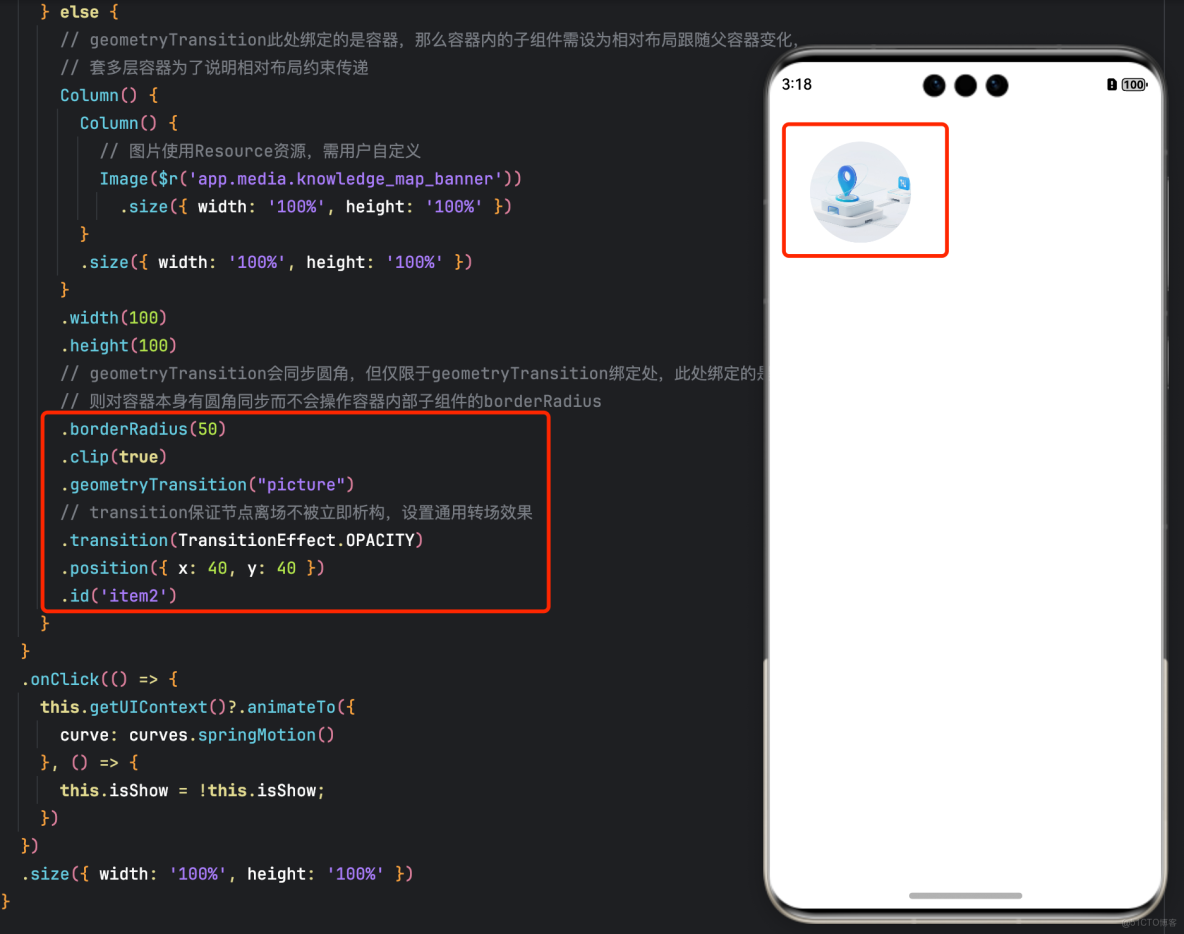
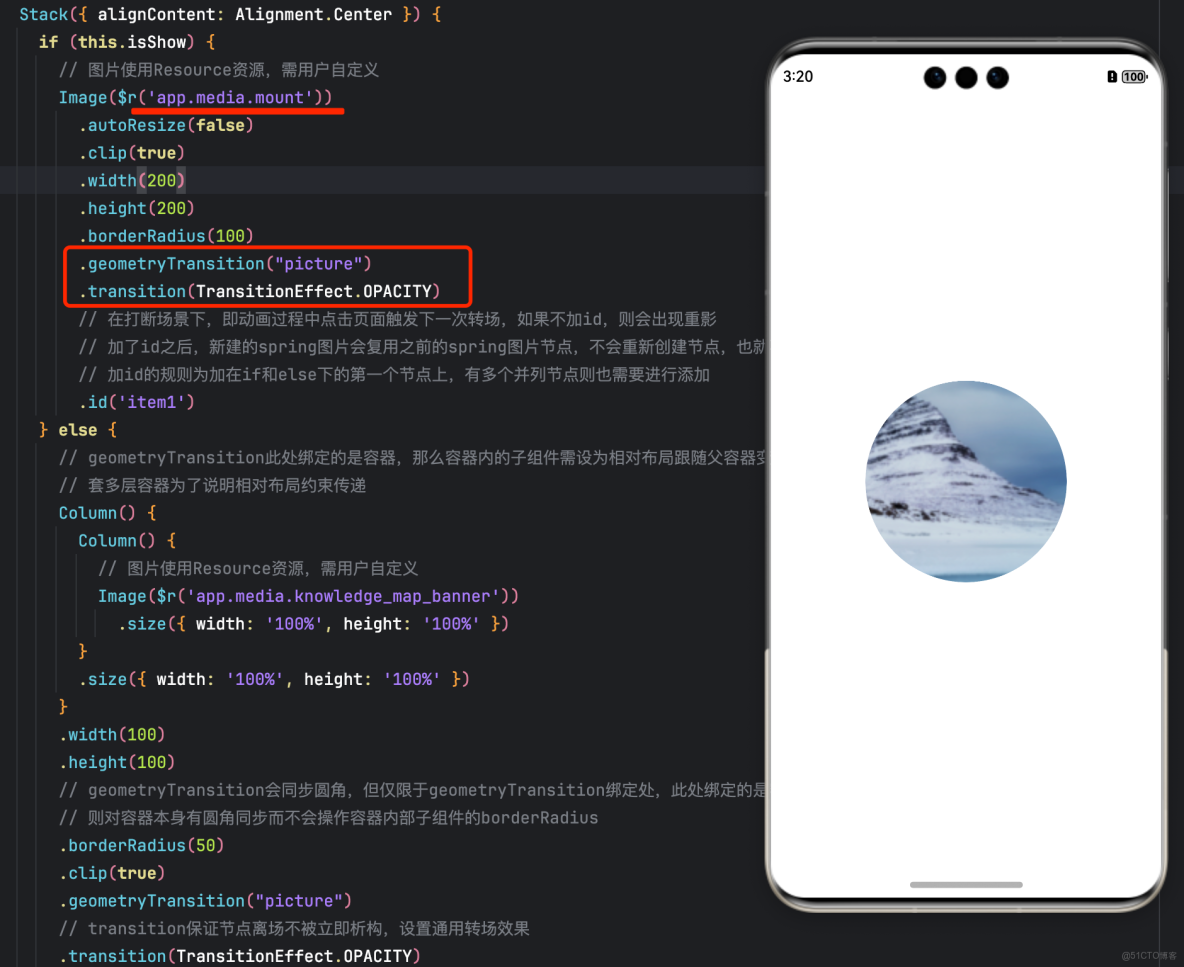
IfElseGeometryTransition.ets代碼
import { curves } from '@kit.ArkUI';

@Entry
@Component
struct IfElseGeometryTransition {
  @State isShow: boolean = false;

  build() {
    Stack({ alignContent: Alignment.Center }) {
      if (this.isShow) {
        // 圖片使用Resource資源,需用户自定義
        Image($r('app.media.spring'))
          .autoResize(false)
          .clip(true)
          .width(200)
          .height(200)
          .borderRadius(100)
          .geometryTransition("picture")
          .transition(TransitionEffect.OPACITY)
          // 在打斷場景下,即動畫過程中點擊頁面觸發下一次轉場,如果不加id,則會出現重影
          // 加了id之後,新建的spring圖片會複用之前的spring圖片節點,不會重新創建節點,也就不會有重影問題
          // 加id的規則為加在if和else下的第一個節點上,有多個並列節點則也需要進行添加
          .id('item1')
      } else {
        // geometryTransition此處綁定的是容器,那麼容器內的子組件需設為相對佈局跟隨父容器變化,
        // 套多層容器為了説明相對佈局約束傳遞
        Column() {
          Column() {
            // 圖片使用Resource資源,需用户自定義
            Image($r('app.media.sky'))
              .size({ width: '100%', height: '100%' })
          }
          .size({ width: '100%', height: '100%' })
        }
        .width(100)
        .height(100)
        // geometryTransition會同步圓角,但僅限於geometryTransition綁定處,此處綁定的是容器
        // 則對容器本身有圓角同步而不會操作容器內部子組件的borderRadius
        .borderRadius(50)
        .clip(true)
        .geometryTransition("picture")
        // transition保證節點離場不被立即析構,設置通用轉場效果
        .transition(TransitionEffect.OPACITY)
        .position({ x: 40, y: 40 })
        .id('item2')
      }
    }
    .onClick(() => {
      this.getUIContext()?.animateTo({
        curve: curves.springMotion()
      }, () => {
        this.isShow = !this.isShow;
      })
    })
    .size({ width: '100%', height: '100%' })
  }
}
5.2 geometryTransition結合模態轉場使用
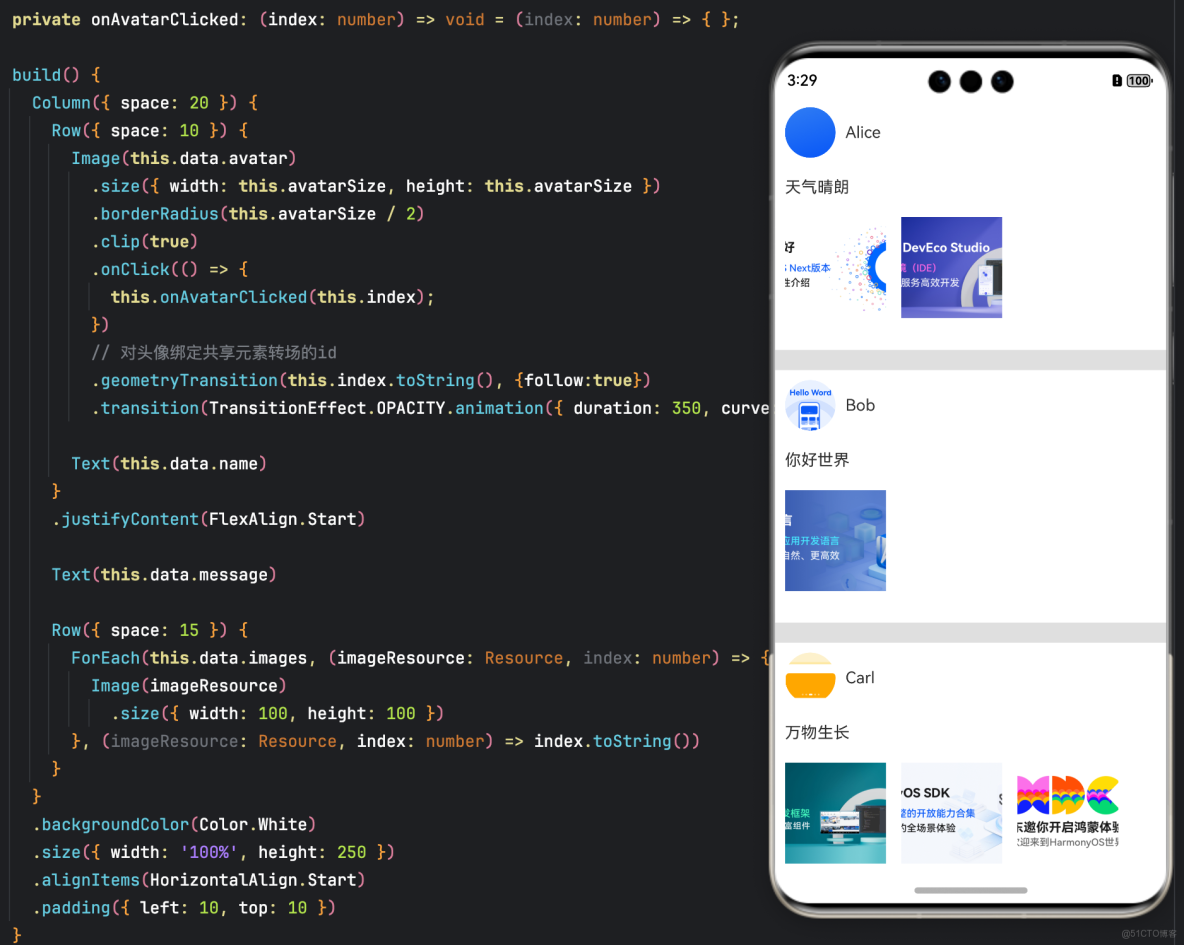
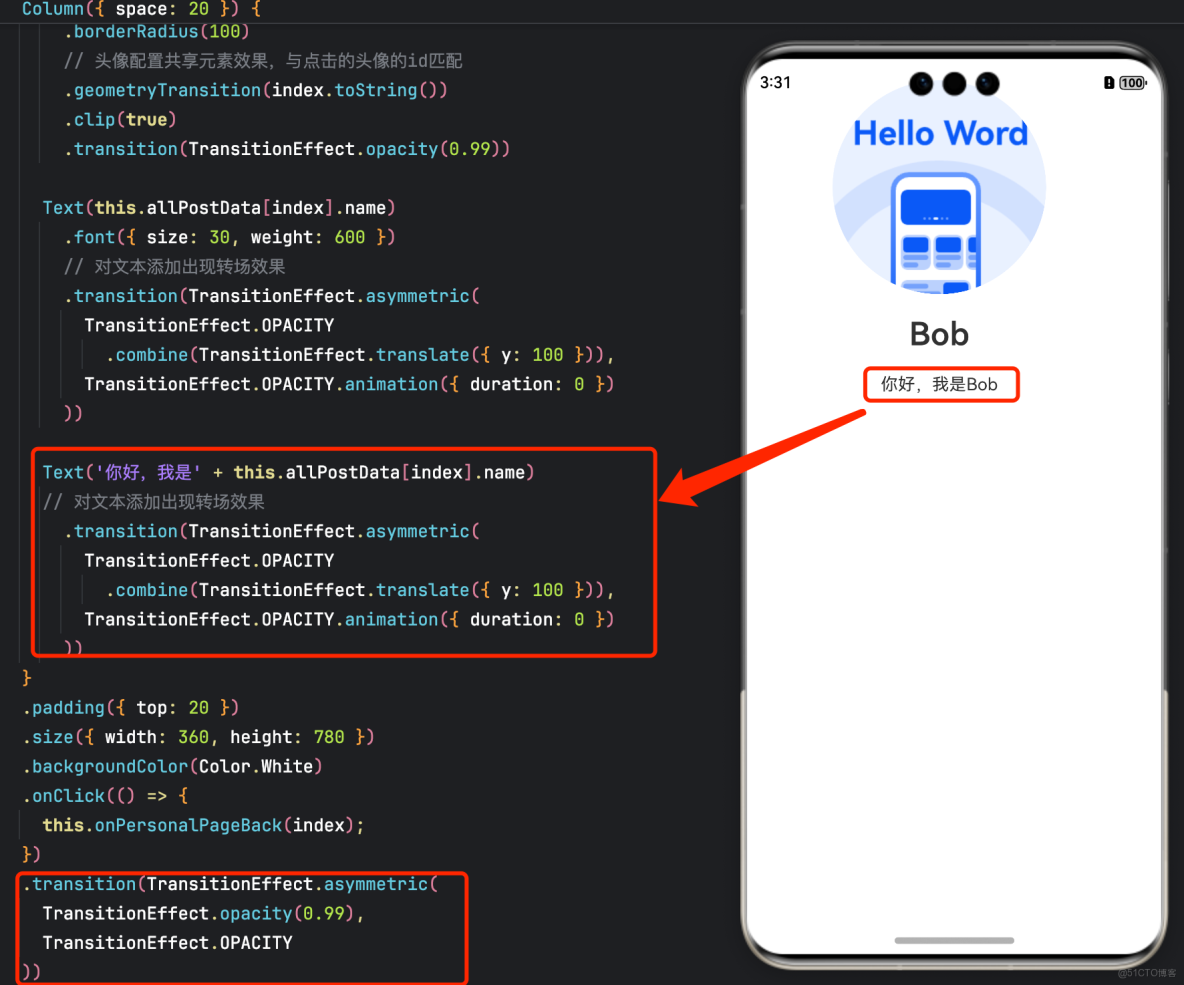
更多的場景中,需要對一個頁面的元素與另一個頁面的元素添加一鏡到底動效。可以通過geometryTransition搭配模態轉場接口實現。以點擊頭像彈出個人信息頁的demo為例:
效果為點擊主頁的頭像後,彈出模態頁面顯示個人信息,並且兩個頁面之間的頭像做一鏡到底動效點擊頭像前的頁面
點擊頭像後的頁面
示例代碼
class PostData {
  // 圖片使用Resource資源,需用户自定義
  avatar: Resource = $r('app.media.mount');
  name: string = '';
  message: string = '';
  images: Resource[] = [];
}

@Entry
@Component
struct GeometryTransitionDemo2 {
  @State isPersonalPageShow: boolean = false;
  @State selectedIndex: number = 0;
  @State alphaValue: number = 1;

  // 數組中圖片均使用Resource資源,需用户自定義
  private allPostData: PostData[] = [
    { avatar: $r('app.media.background'), name: 'Alice', message: '天氣晴朗',
      images: [$r('app.media.banner_pic1'), $r('app.media.banner_pic2')] },
    { avatar: $r('app.media.tutorial_pic1'), name: 'Bob', message: '你好世界',
      images: [$r('app.media.banner_pic3')] },
    { avatar: $r('app.media.tutorial_pic2'), name: 'Carl', message: '萬物生長',
      images: [$r('app.media.banner_pic4'), $r('app.media.banner_pic5'), $r('app.media.banner_pic0')] }];


  private onAvatarClicked(index: number): void {
    this.selectedIndex = index;
    this.getUIContext()?.animateTo({
      duration: 350,
      curve: Curve.Friction
    }, () => {
      this.isPersonalPageShow = !this.isPersonalPageShow;
      this.alphaValue = 0;
    });
  }

  private onPersonalPageBack(index: number): void {
    this.getUIContext()?.animateTo({
      duration: 350,
      curve: Curve.Friction
    }, () => {
      this.isPersonalPageShow = !this.isPersonalPageShow;
      this.alphaValue = 1;
    });
  }

  @Builder
  PersonalPageBuilder(index: number) {
    Column({ space: 20 }) {
      Image(this.allPostData[index].avatar)
        .size({ width: 200, height: 200 })
        .borderRadius(100)
        // 頭像配置共享元素效果,與點擊的頭像的id匹配
        .geometryTransition(index.toString())
        .clip(true)
        .transition(TransitionEffect.opacity(0.99))

      Text(this.allPostData[index].name)
        .font({ size: 30, weight: 600 })
        // 對文本添加出現轉場效果
        .transition(TransitionEffect.asymmetric(
          TransitionEffect.OPACITY
            .combine(TransitionEffect.translate({ y: 100 })),
          TransitionEffect.OPACITY.animation({ duration: 0 })
        ))

      Text('你好,我是' + this.allPostData[index].name)
      // 對文本添加出現轉場效果
        .transition(TransitionEffect.asymmetric(
          TransitionEffect.OPACITY
            .combine(TransitionEffect.translate({ y: 100 })),
          TransitionEffect.OPACITY.animation({ duration: 0 })
        ))
    }
    .padding({ top: 20 })
    .size({ width: 360, height: 780 })
    .backgroundColor(Color.White)
    .onClick(() => {
      this.onPersonalPageBack(index);
    })
    .transition(TransitionEffect.asymmetric(
      TransitionEffect.opacity(0.99),
      TransitionEffect.OPACITY
    ))
  }

  build() {
    Column({ space: 20 }) {
      ForEach(this.allPostData, (postData: PostData, index: number) => {
        Column() {
          Post({ data: postData, index: index, onAvatarClicked: (index: number) => { this.onAvatarClicked(index) } })
        }
        .width('100%')
      }, (postData: PostData, index: number) => index.toString())
    }
    .size({ width: '100%', height: '100%' })
    .backgroundColor('#40808080')
    .bindContentCover(this.isPersonalPageShow,
      this.PersonalPageBuilder(this.selectedIndex), { modalTransition: ModalTransition.NONE })
    .opacity(this.alphaValue)
  }
}

@Component
export default struct  Post {
  @Prop data: PostData;
  @Prop index: number;

  @State expandImageSize: number = 100;
  @State avatarSize: number = 50;

  private onAvatarClicked: (index: number) => void = (index: number) => { };

  build() {
    Column({ space: 20 }) {
      Row({ space: 10 }) {
        Image(this.data.avatar)
          .size({ width: this.avatarSize, height: this.avatarSize })
          .borderRadius(this.avatarSize / 2)
          .clip(true)
          .onClick(() => {
            this.onAvatarClicked(this.index);
          })
          // 對頭像綁定共享元素轉場的id
          .geometryTransition(this.index.toString(), {follow:true})
          .transition(TransitionEffect.OPACITY.animation({ duration: 350, curve: Curve.Friction }))

        Text(this.data.name)
      }
      .justifyContent(FlexAlign.Start)

      Text(this.data.message)

      Row({ space: 15 }) {
        ForEach(this.data.images, (imageResource: Resource, index: number) => {
          Image(imageResource)
            .size({ width: 100, height: 100 })
        }, (imageResource: Resource, index: number) => index.toString())
      }
    }
    .backgroundColor(Color.White)
    .size({ width: '100%', height: 250 })
    .alignItems(HorizontalAlign.Start)
    .padding({ left: 10, top: 10 })
  }
}