
一、簡介
可利用clipShape接口將組件裁剪為所需的形狀。調用該接口後,可以保留該形狀覆蓋的組件部分,同時移除組件的其餘部分。裁剪形狀本身是不可見的。
説明 不同的形狀支持的屬性範圍不同,路徑是一種形狀,除此之外還有橢圓、矩形等形狀。
路徑的形狀不支持設置寬度和高度,具體形狀支持的屬性參考具體形狀的文檔。
形狀中的fill屬性對clipShape接口不生效。
二、裁剪圓形
通過設置CircleShape,將圖片裁剪為圓形。效果圖
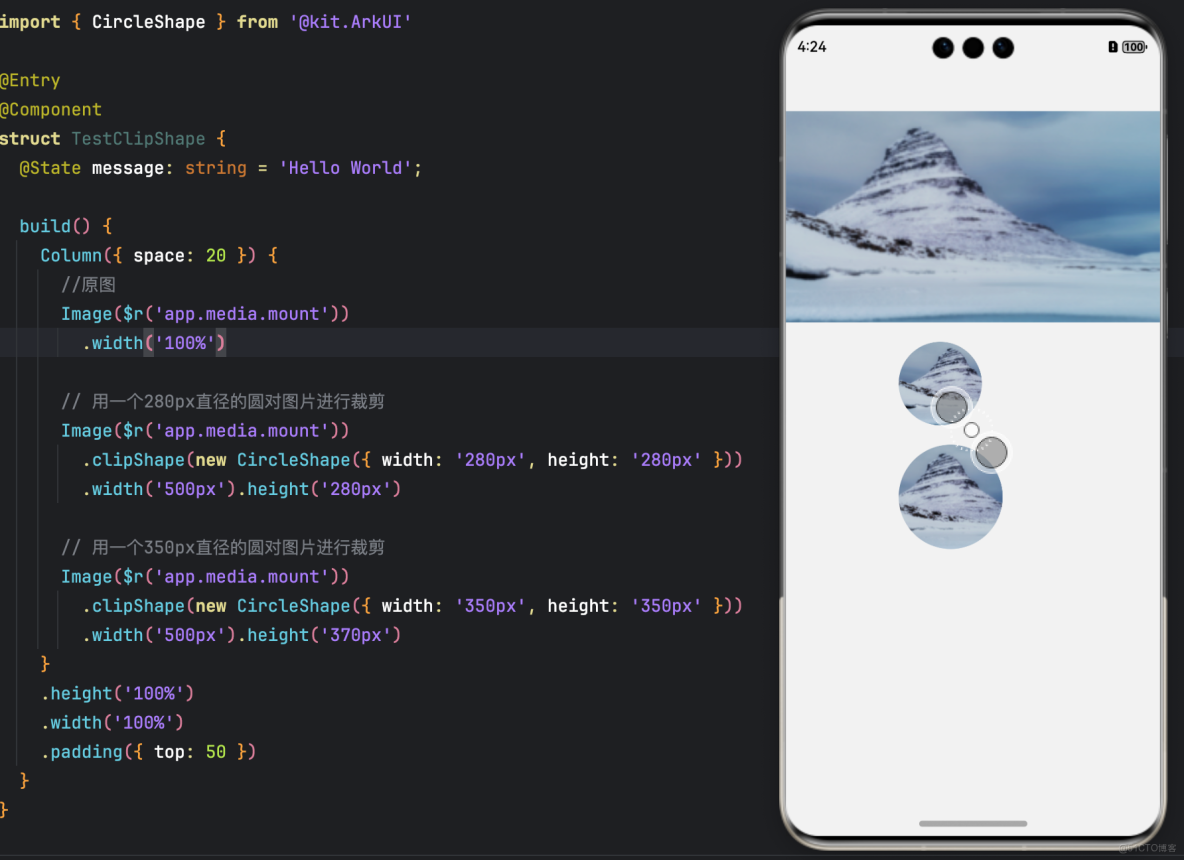
示例代碼
import { CircleShape } from '@kit.ArkUI'

@Entry
@Component
struct TestClipShape {
  @State message: string = 'Hello World';

  build() {
    Column({ space: 20 }) {
      //原圖
      Image($r('app.media.mount'))
        .width('100%')

      // 用一個280px直徑的圓對圖片進行裁剪
      Image($r('app.media.mount'))
        .clipShape(new CircleShape({ width: '280px', height: '280px' }))
        .width('500px').height('280px')

      // 用一個350px直徑的圓對圖片進行裁剪
      Image($r('app.media.mount'))
        .clipShape(new CircleShape({ width: '350px', height: '350px' }))
        .width('500px').height('370px')
    }
    .height('100%')
    .width('100%')
    .padding({ top: 50 })
  }
}
三、裁剪橢圓形
通過設置EllipseShape,將圖片裁剪為橢圓形。效果圖
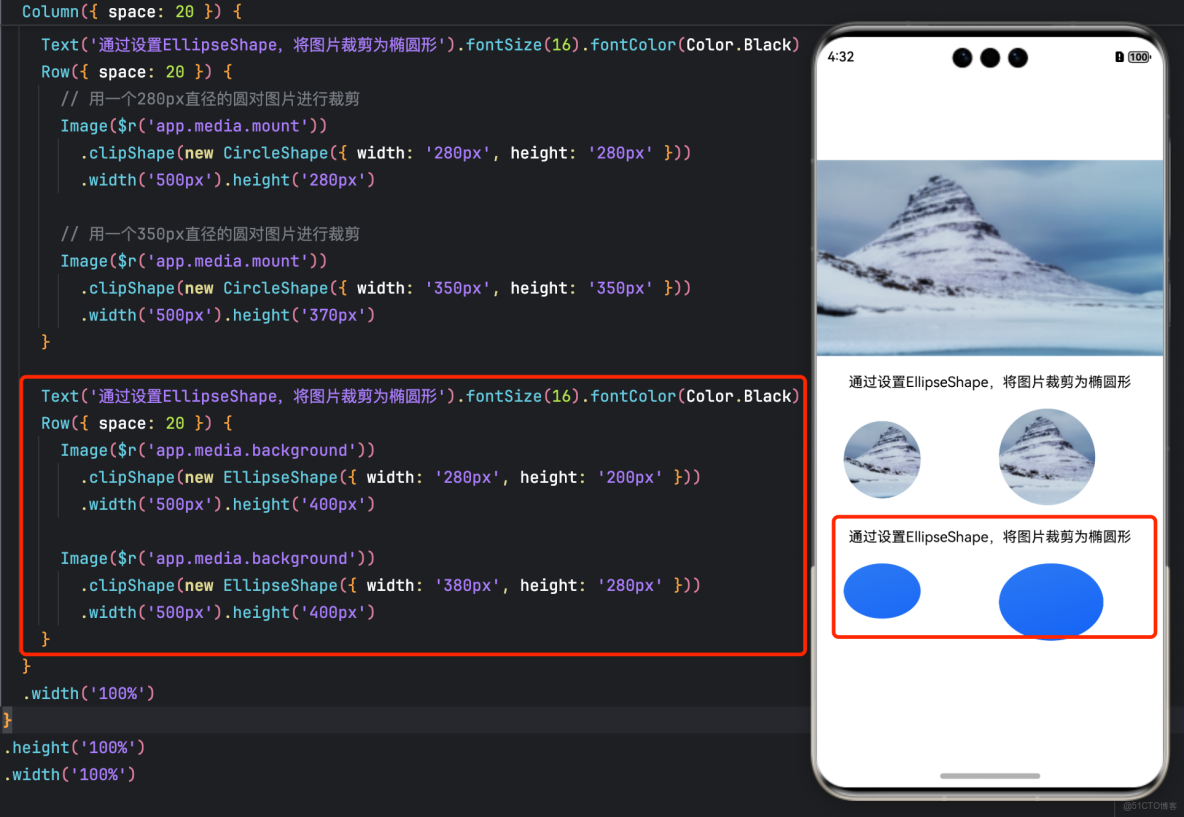
示例代碼
import { CircleShape, EllipseShape } from '@kit.ArkUI'

@Entry
@Component
struct TestClipShape {
  @State message: string = 'Hello World';

  build() {
    Scroll() {
      Column({ space: 20 }) {
        //原圖
        Image($r('app.media.mount'))
          .width('100%')

        Text('通過設置EllipseShape,將圖片裁剪為橢圓形').fontSize(16).fontColor(Color.Black)
        Row({ space: 20 }) {
          // 用一個280px直徑的圓對圖片進行裁剪
          Image($r('app.media.mount'))
            .clipShape(new CircleShape({ width: '280px', height: '280px' }))
            .width('500px').height('280px')

          // 用一個350px直徑的圓對圖片進行裁剪
          Image($r('app.media.mount'))
            .clipShape(new CircleShape({ width: '350px', height: '350px' }))
            .width('500px').height('370px')
        }

        Text('通過設置EllipseShape,將圖片裁剪為橢圓形').fontSize(16).fontColor(Color.Black)
        Row({ space: 20 }) {
          Image($r('app.media.background'))
            .clipShape(new EllipseShape({ width: '280px', height: '200px' }))
            .width('500px').height('400px')

          Image($r('app.media.background'))
            .clipShape(new EllipseShape({ width: '380px', height: '280px' }))
            .width('500px').height('400px')
        }
      }
      .width('100%')
    }
    .height('100%')
    .width('100%')

  }
}
四、裁剪矩形
通過設置RectShape,將圖片裁剪為矩形。效果圖
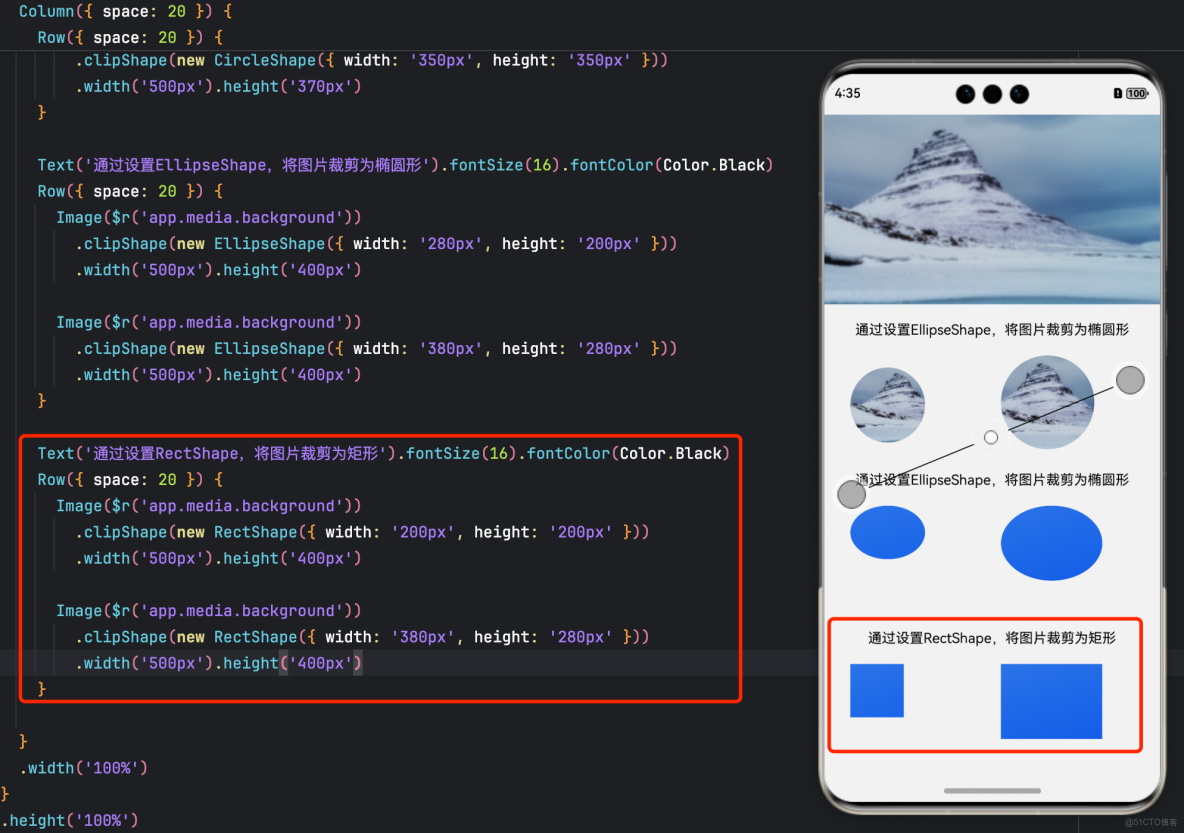
示例代碼
import { CircleShape, EllipseShape, RectShape } from '@kit.ArkUI'

@Entry
@Component
struct TestClipShape {
  @State message: string = 'Hello World';

  build() {
    Scroll() {
      Column({ space: 20 }) {
        //原圖
        Image($r('app.media.mount'))
          .width('100%')

        Text('通過設置EllipseShape,將圖片裁剪為橢圓形').fontSize(16).fontColor(Color.Black)
        Row({ space: 20 }) {
          // 用一個280px直徑的圓對圖片進行裁剪
          Image($r('app.media.mount'))
            .clipShape(new CircleShape({ width: '280px', height: '280px' }))
            .width('500px').height('280px')

          // 用一個350px直徑的圓對圖片進行裁剪
          Image($r('app.media.mount'))
            .clipShape(new CircleShape({ width: '350px', height: '350px' }))
            .width('500px').height('370px')
        }

        Text('通過設置EllipseShape,將圖片裁剪為橢圓形').fontSize(16).fontColor(Color.Black)
        Row({ space: 20 }) {
          Image($r('app.media.background'))
            .clipShape(new EllipseShape({ width: '280px', height: '200px' }))
            .width('500px').height('400px')

          Image($r('app.media.background'))
            .clipShape(new EllipseShape({ width: '380px', height: '280px' }))
            .width('500px').height('400px')
        }

        Text('通過設置RectShape,將圖片裁剪為矩形').fontSize(16).fontColor(Color.Black)
        Row({ space: 20 }) {
          Image($r('app.media.background'))
            .clipShape(new RectShape({ width: '200px', height: '200px' }))
            .width('500px').height('400px')

          Image($r('app.media.background'))
            .clipShape(new RectShape({ width: '380px', height: '280px' }))
            .width('500px').height('400px')
        }

      }
      .width('100%')
    }
    .height('100%')
    .width('100%')

  }
}
五、裁剪不規則形狀
通過設置PathShape,將圖片裁剪為不規則形狀。效果圖
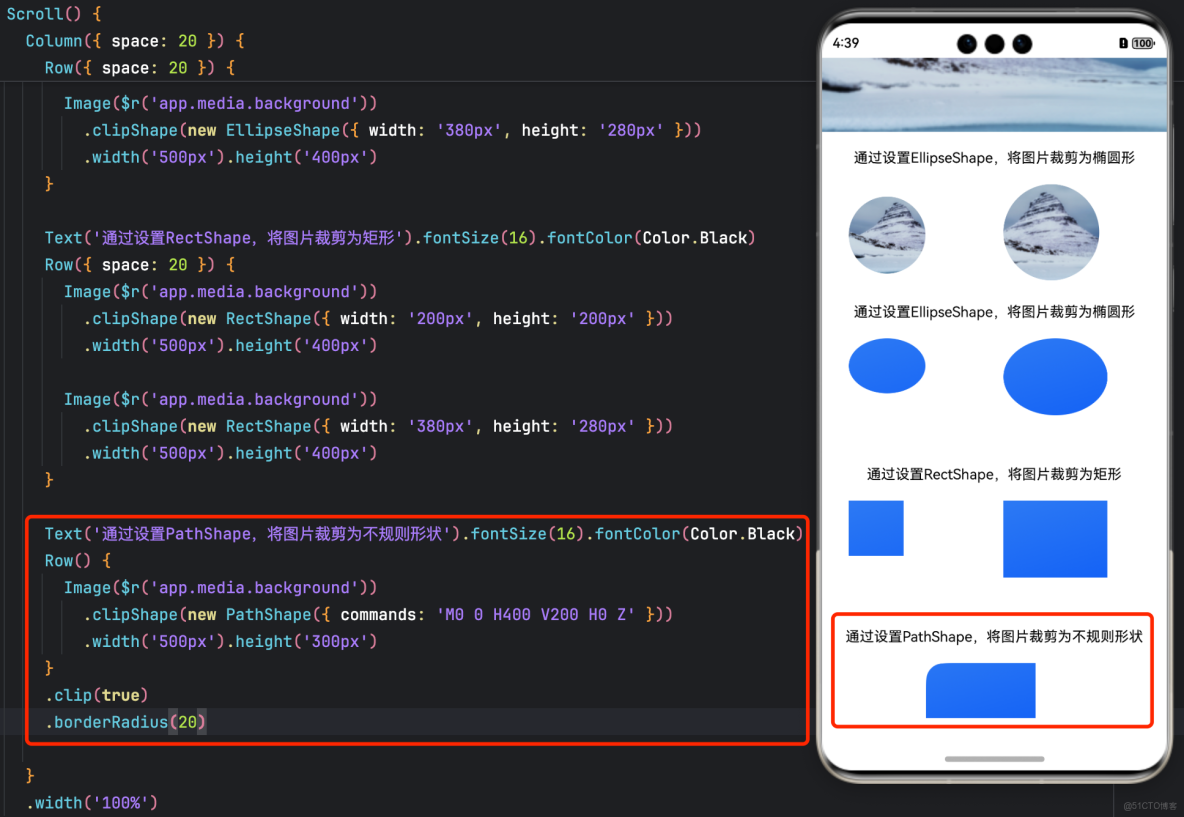
示例代碼
import { CircleShape, EllipseShape, PathShape, RectShape } from '@kit.ArkUI'

@Entry
@Component
struct TestClipShape {
  @State message: string = 'Hello World';

  build() {
    Scroll() {
      Column({ space: 20 }) {
        //原圖
        Image($r('app.media.mount'))
          .width('100%')

        Text('通過設置EllipseShape,將圖片裁剪為橢圓形').fontSize(16).fontColor(Color.Black)
        Row({ space: 20 }) {
          // 用一個280px直徑的圓對圖片進行裁剪
          Image($r('app.media.mount'))
            .clipShape(new CircleShape({ width: '280px', height: '280px' }))
            .width('500px').height('280px')

          // 用一個350px直徑的圓對圖片進行裁剪
          Image($r('app.media.mount'))
            .clipShape(new CircleShape({ width: '350px', height: '350px' }))
            .width('500px').height('370px')
        }

        Text('通過設置EllipseShape,將圖片裁剪為橢圓形').fontSize(16).fontColor(Color.Black)
        Row({ space: 20 }) {
          Image($r('app.media.background'))
            .clipShape(new EllipseShape({ width: '280px', height: '200px' }))
            .width('500px').height('400px')

          Image($r('app.media.background'))
            .clipShape(new EllipseShape({ width: '380px', height: '280px' }))
            .width('500px').height('400px')
        }

        Text('通過設置RectShape,將圖片裁剪為矩形').fontSize(16).fontColor(Color.Black)
        Row({ space: 20 }) {
          Image($r('app.media.background'))
            .clipShape(new RectShape({ width: '200px', height: '200px' }))
            .width('500px').height('400px')

          Image($r('app.media.background'))
            .clipShape(new RectShape({ width: '380px', height: '280px' }))
            .width('500px').height('400px')
        }

        Text('通過設置PathShape,將圖片裁剪為不規則形狀').fontSize(16).fontColor(Color.Black)
        Row() {
          Image($r('app.media.background'))
            .clipShape(new PathShape({ commands: 'M0 0 H400 V200 H0 Z' }))
            .width('500px').height('300px')
        }
        .clip(true)
        .borderRadius(20)

      }
      .width('100%')
    }
    .height('100%')
    .width('100%')

  }
}