
一、幾何圖形繪製概述
繪製幾何圖形有兩種方法:一是通過繪製組件Shape直接繪製出幾何圖形;二是通過形狀裁剪屬性clipShape將組件裁剪成幾何圖形。
1.1 使用場景
|
繪製方式
|
使用場景
|
|
繪製幾何圖形 (Shape)
|
用於創建指定形狀的組件,在頁面上直接繪製出幾何圖形。
|
|
形狀裁剪 (clipShape)
|
用於將組件裁剪為指定的幾何圖形。
|
1.2 約束限制
- 對繪製組件,既可用Shape組件作為父組件實現類似SVG的效果,也可單獨使用各種形狀的子組件進行繪製。
- 對形狀裁剪屬性,裁剪不會導致被裁剪區域無法響應綁定的手勢事件。
二、Shape組件簡介
繪製組件用於在頁面繪製圖形,Shape組件是繪製組件的父組件,父組件中會描述所有繪製組件均支持的通用屬性。具體用法請參考Shape。
三、創建繪製組件
繪製組件可以由以下兩種形式創建:
- 繪製組件使用Shape作為父組件,實現類似SVG的效果。接口調用為以下形式:
Shape(value?: PixelMap)該接口用於創建帶有父組件的繪製組件,其中value用於設置繪製目標,可將圖形繪製在指定的PixelMap對象中,若未設置,則在當前繪製目標中進行繪製。
Shape() {
  Rect().width(300).height(50)
}
- 繪製組件單獨使用,用於在頁面上繪製指定的圖形。有7種繪製類型,分別為Circle(圓形)、Ellipse(橢圓形)、Line(直線)、Polyline(折線)、Polygon(多邊形)、Path(路徑)、Rect(矩形)。以Circle的接口調用為例:
Circle(value?: { width?: string | number, height?: string | number })該接口用於在頁面繪製圓形,其中width用於設置圓形的寬度,height用於設置圓形的高度,圓形直徑由寬高最小值確定。
Circle({ width: 150, height: 150 })四、形狀視口viewPort
viewPort(value: { x?: number | string, y?: number | string, width?: number | string, height?: number | string })形狀視口viewPort指定用户空間中的一個矩形,該矩形映射到為關聯的SVG元素建立的視區邊界。viewPort屬性的值包含x、y、width和height四個可選參數,x和y表示視區的左上角座標,width和height表示其尺寸。
以下三個示例説明如何使用viewPort:
- 通過形狀視口對圖形進行放大與縮小。
效果圖
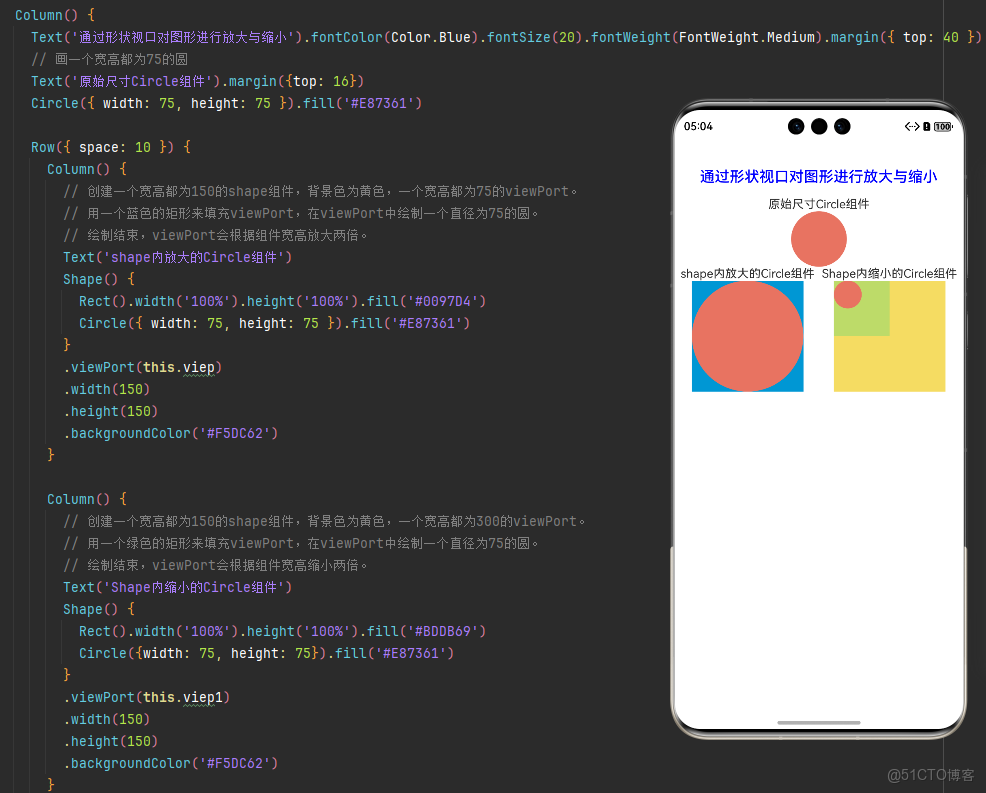
ViewPortShape.ets代碼
class tmp {
  x: number = 0
  y: number = 0
  width: number = 75
  height: number = 75
}

class tmp1 {
  x:number = 0
  y:number = 0
  width:number = 300
  height:number = 300
}
@Component
export default struct ViewPortShape {
  viep: tmp = new tmp();
  viep1: tmp1 = new tmp1();

  build() {
    Column() {
      Text('通過形狀視口對圖形進行放大與縮小').fontColor(Color.Blue).fontSize(20).fontWeight(FontWeight.Medium).margin({ top: 40 })
      // 畫一個寬高都為75的圓
      Text('原始尺寸Circle組件').margin({top: 16})
      Circle({ width: 75, height: 75 }).fill('#E87361')

      Row({ space: 10 }) {
        Column() {
          // 創建一個寬高都為150的shape組件,背景色為黃色,一個寬高都為75的viewPort。
          // 用一個藍色的矩形來填充viewPort,在viewPort中繪製一個直徑為75的圓。
          // 繪製結束,viewPort會根據組件寬高放大兩倍。
          Text('shape內放大的Circle組件')
          Shape() {
            Rect().width('100%').height('100%').fill('#0097D4')
            Circle({ width: 75, height: 75 }).fill('#E87361')
          }
          .viewPort(this.viep)
          .width(150)
          .height(150)
          .backgroundColor('#F5DC62')
        }

        Column() {
          // 創建一個寬高都為150的shape組件,背景色為黃色,一個寬高都為300的viewPort。
          // 用一個綠色的矩形來填充viewPort,在viewPort中繪製一個直徑為75的圓。
          // 繪製結束,viewPort會根據組件寬高縮小兩倍。
          Text('Shape內縮小的Circle組件')
          Shape() {
            Rect().width('100%').height('100%').fill('#BDDB69')
            Circle({width: 75, height: 75}).fill('#E87361')
          }
          .viewPort(this.viep1)
          .width(150)
          .height(150)
          .backgroundColor('#F5DC62')
        }
      }
    }
  }
}
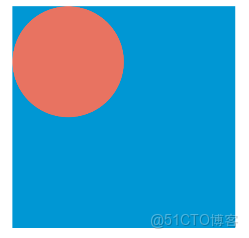
- 創建一個寬高都為300的shape組件,背景色為黃色,創建一個寬高都為300的viewPort。用一個藍色的矩形來填充viewPort,在viewPort中繪製一個半徑為75的圓。
效果圖
示例代碼
class tmp {
  x: number = 0
  y: number = 0
  width: number = 300
  height: number = 300
}

@Entry
@Component
struct Index {
  viep: tmp = new tmp();

  build() {
    Column() {
      Shape() {
        Rect().width("100%").height("100%").fill("#0097D4")
        Circle({ width: 150, height: 150 }).fill("#E87361")
      }
      .viewPort(this.viep)
      .width(300)
      .height(300)
      .backgroundColor("#F5DC62")
    }
  }
}
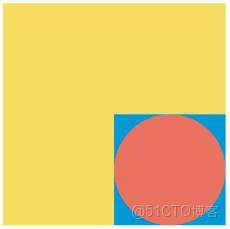
- 創建一個寬高都為300的shape組件,背景色為黃色,創建一個寬高都為300的viewPort。用一個藍色的矩形來填充viewPort,在viewPort中繪製一個半徑為75的圓,將viewPort向右方和下方各平移150。
效果圖
示例代碼
class tmp {
  x: number = -150
  y: number = -150
  width: number = 300
  height: number = 300
}

@Entry
@Component
struct Index {
  viep: tmp = new tmp();

  build() {
    Column() {
      Shape() {
        Rect().width("100%").height("100%").fill("#0097D4")
        Circle({ width: 150, height: 150 }).fill("#E87361")
      }
      .viewPort(this.viep)
      .width(300)
      .height(300)
      .backgroundColor("#F5DC62")
    }
  }
}
五、自定義樣式
繪製組件支持通過各種屬性更改組件樣式。
- 通過fill可以設置組件填充區域顏色。 效果圖
示例代碼
@Component
export default struct PathShape {
  build() {
    Column({ space: 10 }) {
      Path()
        .width(100)
        .height(100)
        .commands('M150 0 L300 300 L0 300 Z')
        .fill("#E87361")
        .strokeWidth(0)
    }
    .margin({top: 20})
  }
}
- 通過stroke可以設置組件邊框顏色。 效果圖
示例代碼
Path()
  .width(100)
  .height(100)
  .fillOpacity(0)
  .commands('M150 0 L300 300 L0 300 Z')
  .stroke(Color.Red)
- 通過strokeOpacity可以設置邊框透明度。 效果圖
示例代碼
Path()
  .width(100)
  .height(100)
  .fillOpacity(0)
  .commands('M150 0 L300 300 L0 300 Z')
  .stroke(Color.Red)
  .strokeWidth(10)
  .strokeOpacity(0.2)
- 通過strokeLineJoin可以設置線條拐角繪製樣式。拐角繪製樣式分為Bevel(使用斜角連接路徑段)、Miter(使用尖角連接路徑段)、Round(使用圓角連接路徑段)。 效果圖
示例代碼
Polyline()
  .width(100)
  .height(100)
  .fillOpacity(0)
  .stroke(Color.Red)
  .strokeWidth(8)
  .points([[20, 0], [0, 100], [100, 90]])
   // 設置折線拐角處為圓弧
  .strokeLineJoin(LineJoinStyle.Round)
- 通過strokeMiterLimit設置斜接長度與邊框寬度比值的極限值。 斜接長度表示外邊框外邊交點到內邊交點的距離,邊框寬度即strokeWidth屬性的值。strokeMiterLimit取值需大於等於1,且在strokeLineJoin屬性取值LineJoinStyle.Miter時生效。 效果圖
示例代碼
Polyline()
  .width(100)
  .height(100)
  .fillOpacity(0)
  .stroke(Color.Red)
  .strokeWidth(10)
  .points([[20, 0], [20, 100], [100, 100]])
  // 設置折線拐角處為尖角
  .strokeLineJoin(LineJoinStyle.Miter)
  // 設置斜接長度與線寬的比值
  .strokeMiterLimit(1/Math.sin(45))
Polyline()
  .width(100)
  .height(100)
  .fillOpacity(0)
  .stroke(Color.Red)
  .strokeWidth(10)
  .points([[20, 0], [20, 100], [100, 100]])
  .strokeLineJoin(LineJoinStyle.Miter)
  .strokeMiterLimit(1.42)
- 通過antiAlias設置是否開啓抗鋸齒,默認值為true(開啓抗鋸齒)。 效果圖
示例代碼
//開啓抗鋸齒
Circle()
  .width(150)
  .height(200)
  .fillOpacity(0)
  .strokeWidth(5)
  .stroke(Color.Black)
關閉抗鋸齒
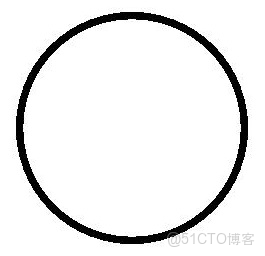
示例代碼
//關閉抗鋸齒
Circle()
  .width(150)
  .height(200)
  .fillOpacity(0)
  .strokeWidth(5)
  .stroke(Color.Black)
  .antiAlias(false)
六、場景示例
6.1 繪製封閉路徑
在Shape的(-80, -5)點繪製一個封閉路徑,填充顏色0x317AF7,線條寬度3,邊框顏色紅色,拐角樣式鋭角(默認值)。
效果圖
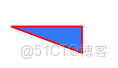
示例代碼
@Entry
@Component
struct ShapeExample {
  build() {
    Column({ space: 10 }) {
      Shape() {
        Path().width(200).height(60).commands('M0 0 L400 0 L400 150 Z')
      }
      .viewPort({ x: -80, y: -5, width: 500, height: 300 })
      .fill(0x317AF7)
      .stroke(Color.Red)
      .strokeWidth(3)
      .strokeLineJoin(LineJoinStyle.Miter)
      .strokeMiterLimit(5)
    }.width('100%').margin({ top: 15 })
  }
}
6.2 繪製圓和圓環
繪製一個直徑為150的圓,和一個直徑為150、線條為紅色虛線的圓環(寬高設置不一致時以短邊為直徑)。
效果圖
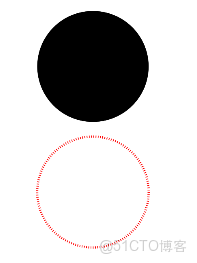
示例代碼
@Entry
@Component
struct CircleExample {
  build() {
    Column({ space: 10 }) {
      //繪製一個直徑為150的圓
      Circle({ width: 150, height: 150 })
      //繪製一個直徑為150、線條為紅色虛線的圓環
      Circle()
        .width(150)
        .height(200)
        .fillOpacity(0)
        .strokeWidth(3)
        .stroke(Color.Red)
        .strokeDashArray([1, 2])
    }.width('100%')
  }
}
6.3 UI視覺屬性作用效果
説明 backgroundColor、linearGradient等通用屬性作用於組件的背景區域,而不會在組件具體的內容區域生效。
效果圖
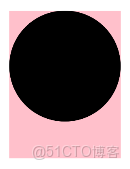
示例代碼
@Entry
@Component
struct CircleExample {
  build() {
    Column({ space: 10 }) {
      //繪製一個直徑為150的圓
      Circle()
        .width(150)
        .height(200)
        .backgroundColor(Color.Pink) // 會生效在一個150*200大小的矩形區域,而非僅在繪製的一個直徑為150的圓形區域
    }.width('100%')
  }
}