

一、簡介
模態轉場是新的界面覆蓋在舊的界面上,舊的界面不消失的一種轉場方式。
模態轉場接口
|
接口
|
説明
|
使用場景
|
|
bindContentCover
|
彈出全屏的模態組件。
|
用於自定義全屏的模態展示界面,結合轉場動畫和共享元素動畫可實現複雜轉場動畫效果,如縮略圖片點擊後查看大圖。
|
|
bindSheet
|
彈出半模態組件。
|
用於半模態展示界面,如分享框。
|
|
bindMenu
|
彈出菜單,點擊組件後彈出。
|
需要Menu菜單的場景,如一般應用的“+”號鍵。
|
|
bindContextMenu
|
彈出菜單,長按或者右鍵點擊後彈出。
|
長按浮起效果,一般結合拖拽框架使用,如桌面圖標長按浮起。
|
|
bindPopup
|
彈出Popup彈框。
|
Popup彈框場景,如點擊後對某個組件進行臨時説明。
|
|
if
|
通過if新增或刪除組件。
|
用來在某個狀態下臨時顯示一個界面,這種方式的返回導航需要由開發者監聽接口實現。
|
二、使用bindContentCover構建全屏模態轉場效果
bindContentCover接口用於為組件綁定全屏模態頁面,在組件出現和消失時可通過設置轉場參數ModalTransition添加過渡動效。
- 定義全屏模態轉場效果bindContentCover。
- 定義模態展示界面。
// 通過@Builder構建模態展示界面
@Builder MyBuilder() {
  Column() {
    Text('my model view')
  }
  // 通過轉場動畫實現出現消失轉場動畫效果,transition需要加在builder下的第一個組件
  .transition(TransitionEffect.translate({ y: 1000 }).animation({ curve: curves.springMotion(0.6, 0.8) }))
}- 通過模態接口調起模態展示界面,通過轉場動畫或者共享元素動畫去實現對應的動畫效果。
// 模態轉場控制變量
@State isPresent: boolean = false;

Button('Click to present model view')
  // 通過選定的模態接口,綁定模態展示界面,ModalTransition是內置的ContentCover轉場動畫類型,這裏選擇None代表系統不加默認動畫,通過onDisappear控制狀態變量變換
  .bindContentCover(this.isPresent, this.MyBuilder(), {
            modalTransition: ModalTransition.NONE,
            onDisappear: () => {
              if (this.isPresent) {
                this.isPresent = !this.isPresent;
              }
            }
          })
  .onClick(() => {
    // 改變狀態變量,顯示模態界面
    this.isPresent = !this.isPresent;
  })
效果圖
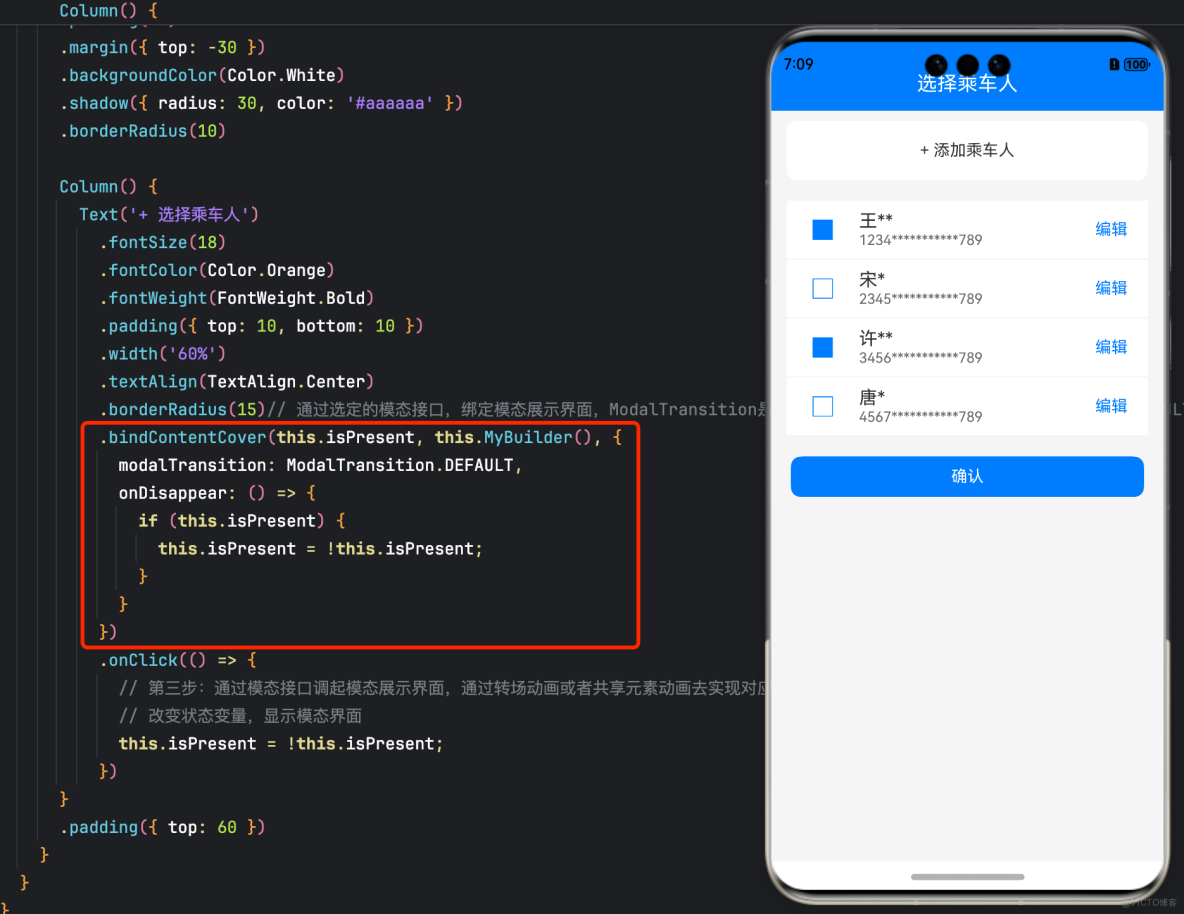
示例代碼
import { curves } from '@kit.ArkUI';

interface PersonList {
  name: string,
  cardNum: string
}

@Entry
@Component
struct BindContentCoverDemo {
  private personList: Array<PersonList> = [
    { name: '王**', cardNum: '1234***********789' },
    { name: '宋*', cardNum: '2345***********789' },
    { name: '許**', cardNum: '3456***********789' },
    { name: '唐*', cardNum: '4567***********789' }
  ];
  // 第一步:定義全屏模態轉場效果bindContentCover
  // 模態轉場控制變量
  @State isPresent: boolean = false;

  // 第二步:定義模態展示界面
  // 通過@Builder構建模態展示界面
  @Builder
  MyBuilder() {
    Column() {
      Row() {
        Text('選擇乘車人')
          .fontSize(20)
          .fontColor(Color.White)
          .width('100%')
          .textAlign(TextAlign.Center)
          .padding({ top: 30, bottom: 15 })
      }
      .backgroundColor(0x007dfe)

      Row() {
        Text('+ 添加乘車人')
          .fontSize(16)
          .fontColor(0x333333)
          .margin({ top: 10 })
          .padding({ top: 20, bottom: 20 })
          .width('92%')
          .borderRadius(10)
          .textAlign(TextAlign.Center)
          .backgroundColor(Color.White)
      }

      Column() {
        ForEach(this.personList, (item: PersonList, index: number) => {
          Row() {
            Column() {
              if (index % 2 == 0) {
                Column()
                  .width(20)
                  .height(20)
                  .border({ width: 1, color: 0x007dfe })
                  .backgroundColor(0x007dfe)
              } else {
                Column()
                  .width(20)
                  .height(20)
                  .border({ width: 1, color: 0x007dfe })
              }
            }
            .width('20%')

            Column() {
              Text(item.name)
                .fontColor(0x333333)
                .fontSize(18)
              Text(item.cardNum)
                .fontColor(0x666666)
                .fontSize(14)
            }
            .width('60%')
            .alignItems(HorizontalAlign.Start)

            Column() {
              Text('編輯')
                .fontColor(0x007dfe)
                .fontSize(16)
            }
            .width('20%')
          }
          .padding({ top: 10, bottom: 10 })
          .border({ width: { bottom: 1 }, color: 0xf1f1f1 })
          .width('92%')
          .backgroundColor(Color.White)
        })
      }
      .padding({ top: 20, bottom: 20 })

      Text('確認')
        .width('90%')
        .height(40)
        .textAlign(TextAlign.Center)
        .borderRadius(10)
        .fontColor(Color.White)
        .backgroundColor(0x007dfe)
        .onClick(() => {
          this.isPresent = !this.isPresent;
        })
    }
    .size({ width: '100%', height: '100%' })
    .backgroundColor(0xf5f5f5)
    // 通過轉場動畫實現出現消失轉場動畫效果
    .transition(TransitionEffect.translate({ y: 1000 }).animation({ curve: curves.springMotion(0.6, 0.8) }))
  }

  build() {
    Column() {
      Row() {
        Text('確認訂單')
          .fontSize(20)
          .fontColor(Color.White)
          .width('100%')
          .textAlign(TextAlign.Center)
          .padding({ top: 30, bottom: 60 })
      }
      .backgroundColor(0x007dfe)

      Column() {
        Row() {
          Column() {
            Text('00:25')
            Text('始發站')
          }
          .width('30%')

          Column() {
            Text('G1234')
            Text('8時1分')
          }
          .width('30%')

          Column() {
            Text('08:26')
            Text('終點站')
          }
          .width('30%')
        }
      }
      .width('92%')
      .padding(15)
      .margin({ top: -30 })
      .backgroundColor(Color.White)
      .shadow({ radius: 30, color: '#aaaaaa' })
      .borderRadius(10)

      Column() {
        Text('+ 選擇乘車人')
          .fontSize(18)
          .fontColor(Color.Orange)
          .fontWeight(FontWeight.Bold)
          .padding({ top: 10, bottom: 10 })
          .width('60%')
          .textAlign(TextAlign.Center)
          .borderRadius(15)// 通過選定的模態接口,綁定模態展示界面,ModalTransition是內置的ContentCover轉場動畫類型,這裏選擇DEFAULT代表設置上下切換動畫效果,通過onDisappear控制狀態變量變換。
          .bindContentCover(this.isPresent, this.MyBuilder(), {
            modalTransition: ModalTransition.DEFAULT,
            onDisappear: () => {
              if (this.isPresent) {
                this.isPresent = !this.isPresent;
              }
            }
          })
          .onClick(() => {
            // 第三步:通過模態接口調起模態展示界面,通過轉場動畫或者共享元素動畫去實現對應的動畫效果
            // 改變狀態變量,顯示模態界面
            this.isPresent = !this.isPresent;
          })
      }
      .padding({ top: 60 })
    }
  }
}
三、使用bindSheet構建半模態轉場效果
bindSheet屬性可為組件綁定半模態頁面,在組件出現時可通過設置自定義或默認的內置高度確定半模態大小。構建半模態轉場動效的步驟基本與使用bindContentCover構建全屏模態轉場動效相同。
效果圖
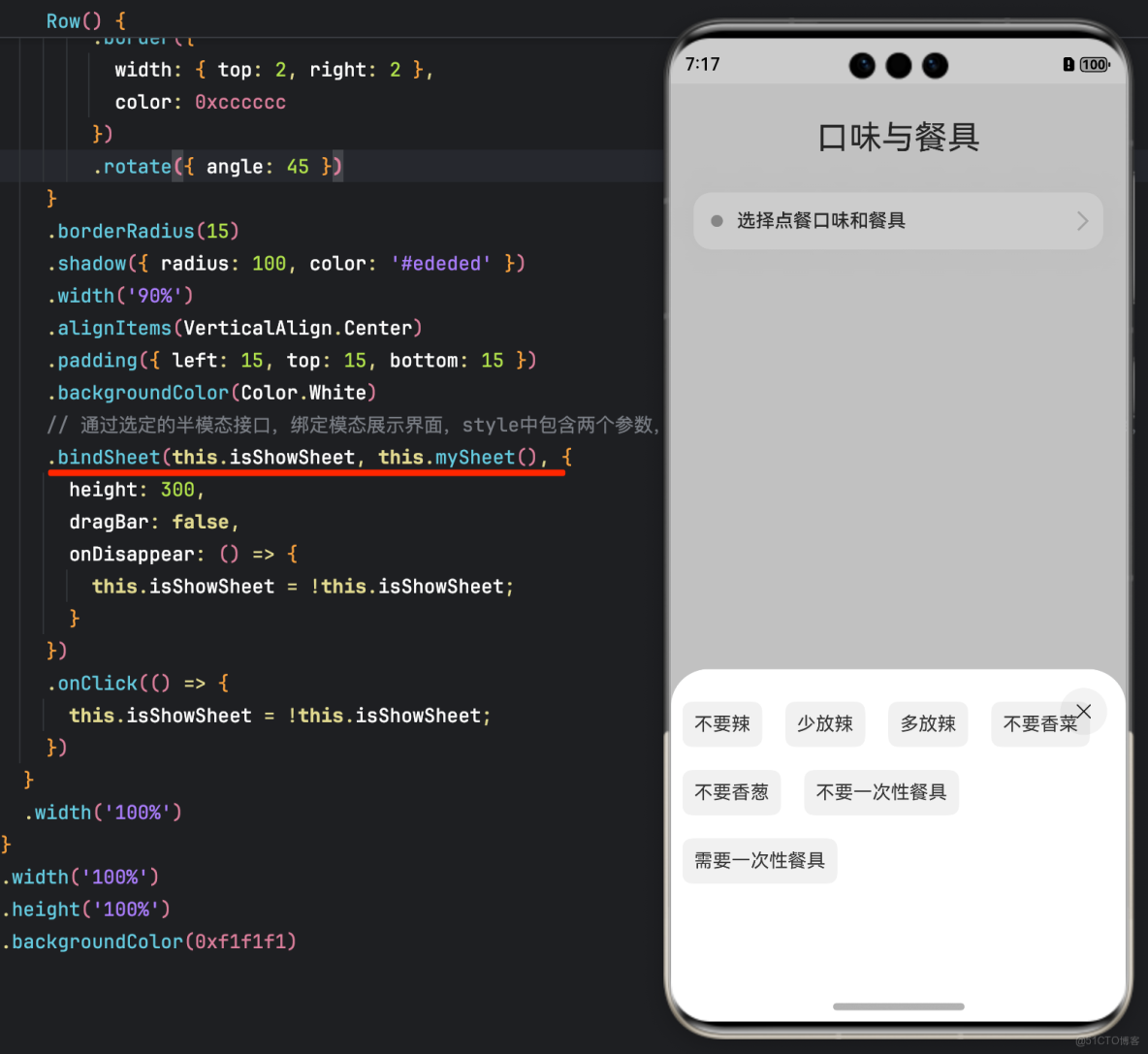
示例代碼
@Entry
@Component
struct BindSheetDemo {
  // 半模態轉場顯示隱藏控制
  @State isShowSheet: boolean = false;
  private menuList: string[] = ['不要辣', '少放辣', '多放辣', '不要香菜', '不要香葱', '不要一次性餐具', '需要一次性餐具'];

  // 通過@Builder構建半模態展示界面
  @Builder
  mySheet() {
    Column() {
      Flex({ direction: FlexDirection.Row, wrap: FlexWrap.Wrap }) {
        ForEach(this.menuList, (item: string) => {
          Text(item)
            .fontSize(16)
            .fontColor(0x333333)
            .backgroundColor(0xf1f1f1)
            .borderRadius(8)
            .margin(10)
            .padding(10)
        })
      }
      .padding({ top: 18 })
    }
    .width('100%')
    .height('100%')
    .backgroundColor(Color.White)
  }

  build() {
    Column() {
      Text('口味與餐具')
        .fontSize(28)
        .padding({ top: 30, bottom: 30 })
      Column() {
        Row() {
          Row()
            .width(10)
            .height(10)
            .backgroundColor('#a8a8a8')
            .margin({ right: 12 })
            .borderRadius(20)

          Column() {
            Text('選擇點餐口味和餐具')
              .fontSize(16)
              .fontWeight(FontWeight.Medium)
          }
          .alignItems(HorizontalAlign.Start)

          Blank()

          Row()
            .width(12)
            .height(12)
            .margin({ right: 15 })
            .border({
              width: { top: 2, right: 2 },
              color: 0xcccccc
            })
            .rotate({ angle: 45 })
        }
        .borderRadius(15)
        .shadow({ radius: 100, color: '#ededed' })
        .width('90%')
        .alignItems(VerticalAlign.Center)
        .padding({ left: 15, top: 15, bottom: 15 })
        .backgroundColor(Color.White)
        // 通過選定的半模態接口,綁定模態展示界面,style中包含兩個參數,一個是設置半模態的高度,不設置時默認高度是Large,一個是是否顯示控制條DragBar,默認是true顯示控制條,通過onDisappear控制狀態變量變換。
        .bindSheet(this.isShowSheet, this.mySheet(), {
          height: 300,
          dragBar: false,
          onDisappear: () => {
            this.isShowSheet = !this.isShowSheet;
          }
        })
        .onClick(() => {
          this.isShowSheet = !this.isShowSheet;
        })
      }
      .width('100%')
    }
    .width('100%')
    .height('100%')
    .backgroundColor(0xf1f1f1)
  }
}
四、使用bindMenu實現菜單彈出效果
bindMenu為組件綁定彈出式菜單,通過點擊觸發。完整示例和效果如下。
效果圖
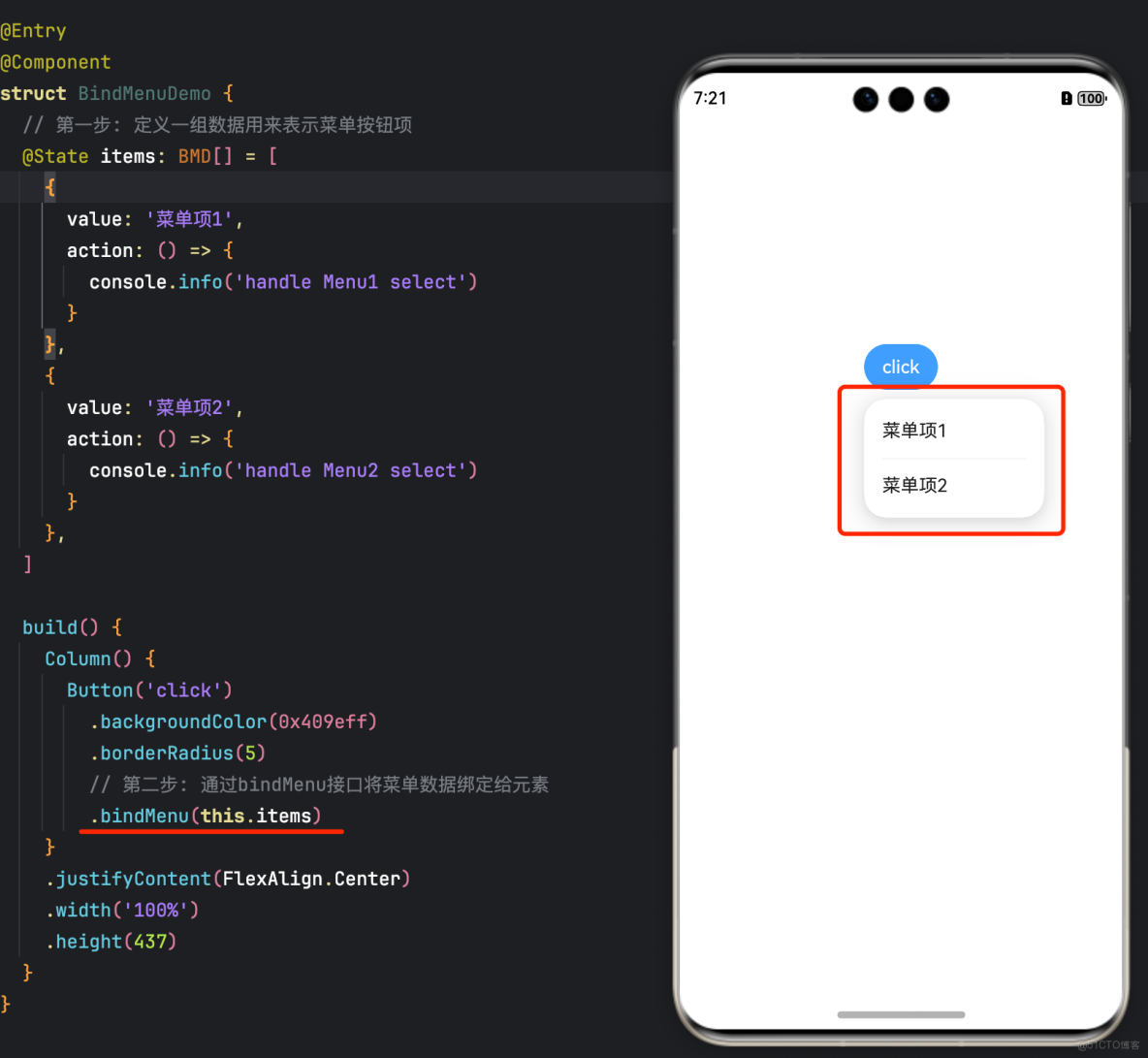
示例代碼
class BMD{
  value:ResourceStr = ''
  action:() => void = () => {}
}
@Entry
@Component
struct BindMenuDemo {

  // 第一步: 定義一組數據用來表示菜單按鈕項
  @State items:BMD[] = [
    {
      value: '菜單項1',
      action: () => {
        console.info('handle Menu1 select')
      }
    },
    {
      value: '菜單項2',
      action: () => {
        console.info('handle Menu2 select')
      }
    },
  ]

  build() {
    Column() {
      Button('click')
        .backgroundColor(0x409eff)
        .borderRadius(5)
          // 第二步: 通過bindMenu接口將菜單數據綁定給元素
        .bindMenu(this.items)
    }
    .justifyContent(FlexAlign.Center)
    .width('100%')
    .height(437)
  }
}
五、使用bindContextMenu實現菜單彈出效果
bindContextMenu為組件綁定彈出式菜單,通過長按或右鍵點擊觸發。
完整示例和效果如下。效果圖
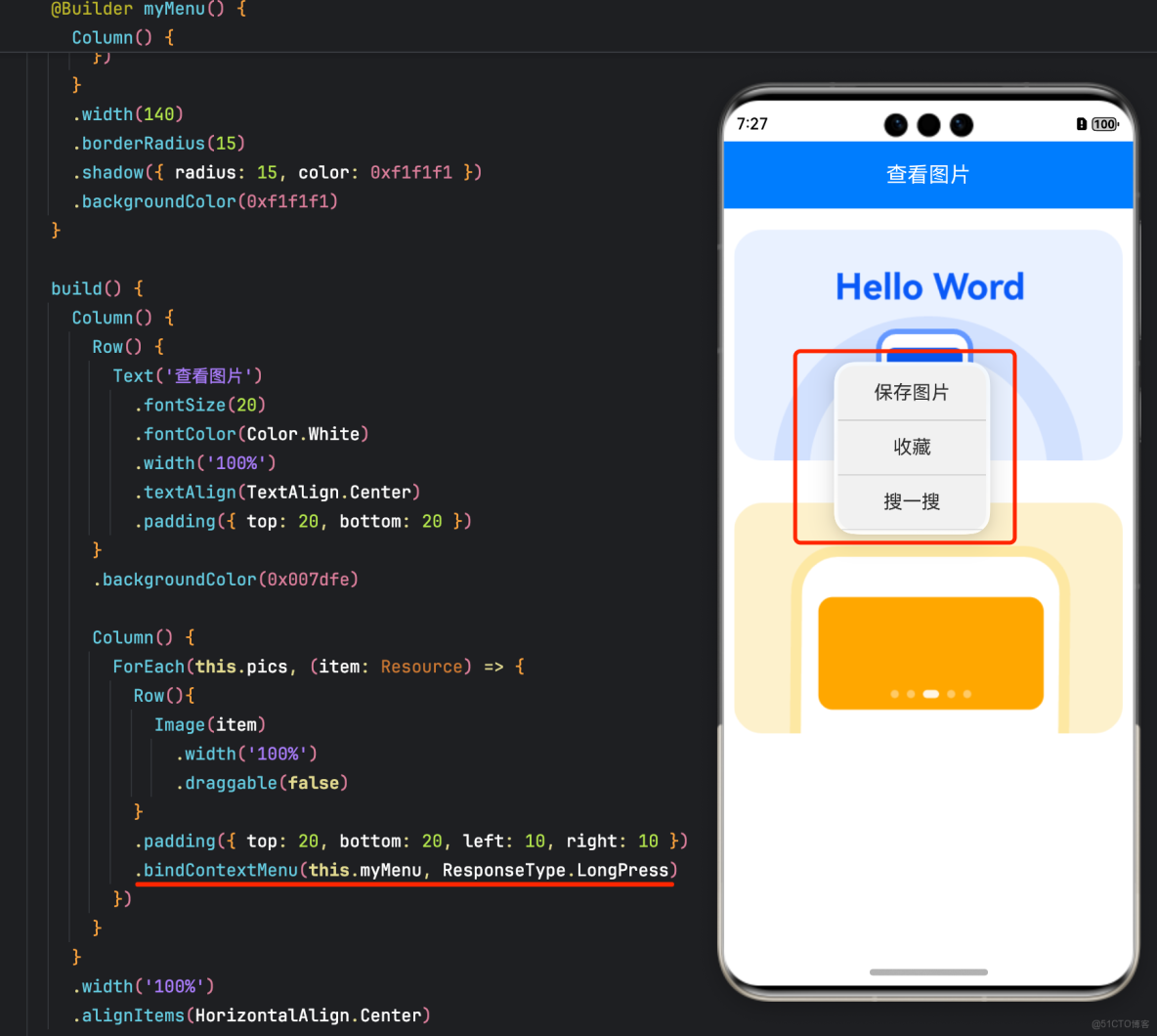
示例代碼
@Entry
@Component
struct BindContextMenuDemo {
  private menu: string[] = ['保存圖片', '收藏', '搜一搜'];
  // $r('app.media.xxx')需要替換為開發者所需的圖像資源文件。
  private pics: Resource[] = [$r('app.media.tutorial_pic1'), $r('app.media.tutorial_pic2')];

  // 通過@Builder構建自定義菜單項
  @Builder
  myMenu() {
    Column() {
      ForEach(this.menu, (item: string) => {
        Row() {
          Text(item)
            .fontSize(18)
            .width('100%')
            .textAlign(TextAlign.Center)
        }
        .padding(15)
        .border({ width: { bottom: 1 }, color: 0xcccccc })
      })
    }
    .width(140)
    .borderRadius(15)
    .shadow({ radius: 15, color: 0xf1f1f1 })
    .backgroundColor(0xf1f1f1)
  }

  build() {
    Column() {
      Row() {
        Text('查看圖片')
          .fontSize(20)
          .fontColor(Color.White)
          .width('100%')
          .textAlign(TextAlign.Center)
          .padding({ top: 20, bottom: 20 })
      }
      .backgroundColor(0x007dfe)

      Column() {
        ForEach(this.pics, (item: Resource) => {
          Row() {
            Image(item)
              .width('100%')
              .draggable(false)
          }
          .padding({
            top: 20,
            bottom: 20,
            left: 10,
            right: 10
          })
          .bindContextMenu(this.myMenu, ResponseType.LongPress)
        })
      }
    }
    .width('100%')
    .alignItems(HorizontalAlign.Center)
  }
}
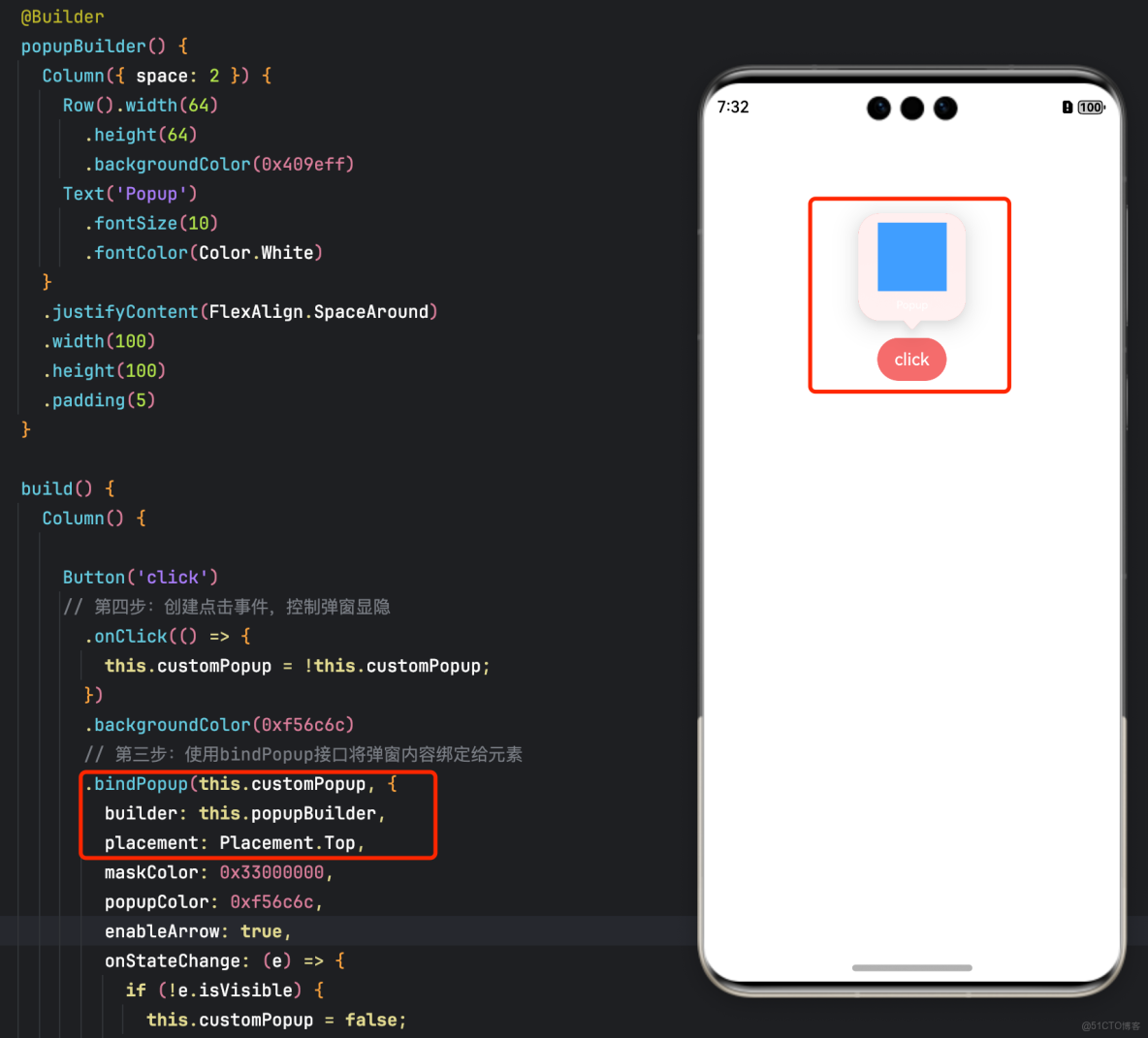
六、使用bindPopup實現氣泡彈窗效果
bindPopup屬性可為組件綁定彈窗,並設置彈窗內容,交互邏輯和顯示狀態。
完整示例和代碼如下。效果圖
@Entry
@Component
struct BindPopupDemo {

  // 第一步:定義變量控制彈窗顯示
  @State customPopup: boolean = false;

  // 第二步:popup構造器定義彈框內容
  @Builder popupBuilder() {
    Column({ space: 2 }) {
      Row().width(64)
        .height(64)
        .backgroundColor(0x409eff)
      Text('Popup')
        .fontSize(10)
        .fontColor(Color.White)
    }
    .justifyContent(FlexAlign.SpaceAround)
    .width(100)
    .height(100)
    .padding(5)
  }

  build() {
    Column() {

      Button('click')
        // 第四步:創建點擊事件,控制彈窗顯隱
        .onClick(() => {
          this.customPopup = !this.customPopup;
        })
        .backgroundColor(0xf56c6c)
          // 第三步:使用bindPopup接口將彈窗內容綁定給元素
        .bindPopup(this.customPopup, {
          builder: this.popupBuilder,
          placement: Placement.Top,
          maskColor: 0x33000000,
          popupColor: 0xf56c6c,
          enableArrow: true,
          onStateChange: (e) => {
            if (!e.isVisible) {
              this.customPopup = false;
            }
          }
        })
    }
    .justifyContent(FlexAlign.Center)
    .width('100%')
    .height(437)
  }
}
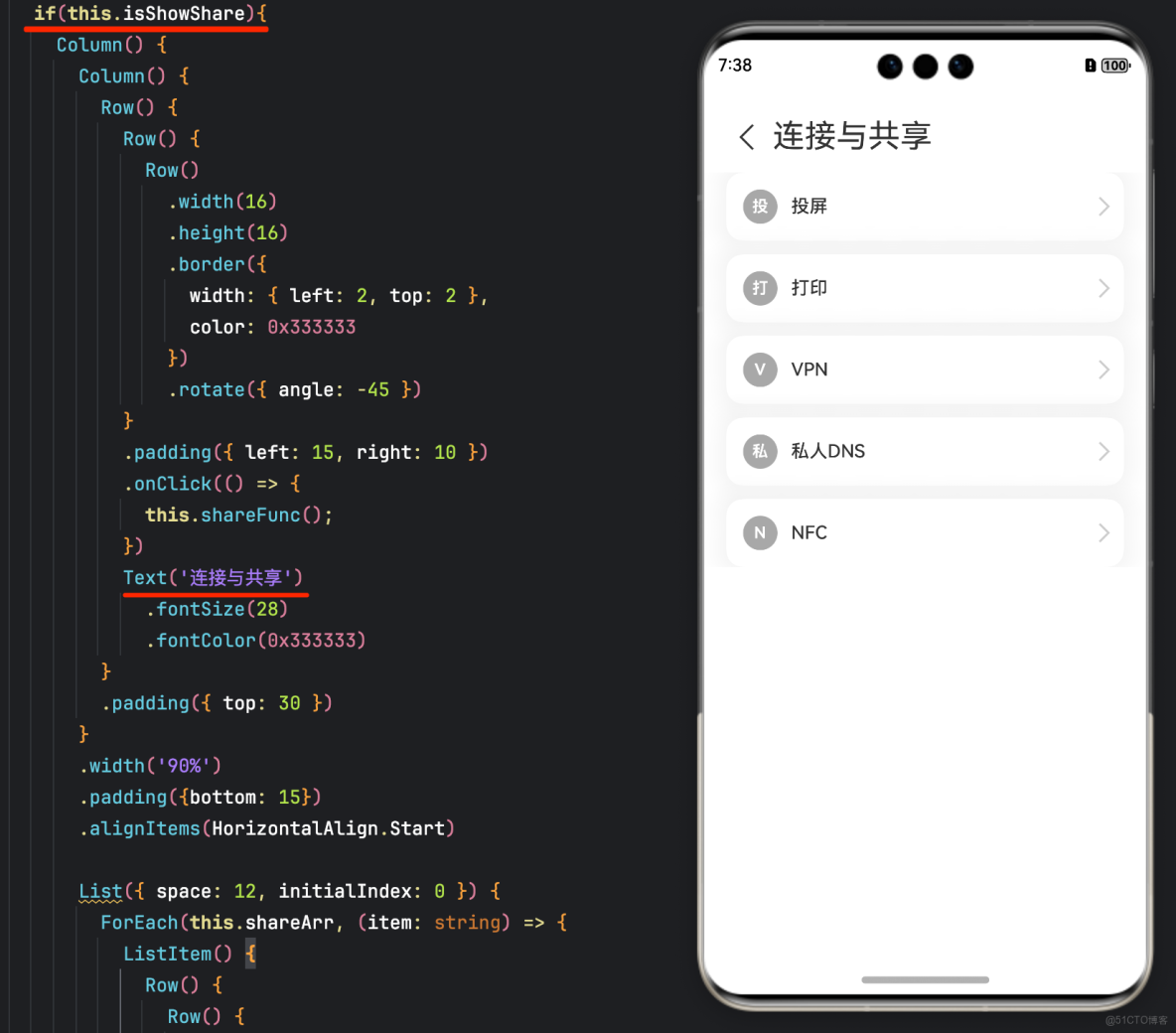
七、使用if實現模態轉場
上述模態轉場接口需要綁定到其他組件上,通過監聽狀態變量改變調起模態界面。同時,也可以通過if範式,通過新增/刪除組件實現模態轉場效果。
完整示例和代碼如下。效果圖
示例代碼
@Entry
@Component
struct ModalTransitionWithIf {
  private listArr: string[] = ['WLAN', '藍牙', '個人熱點', '連接與共享'];
  private shareArr: string[] = ['投屏', '打印', 'VPN', '私人DNS', 'NFC'];
  // 第一步:定義狀態變量控制頁面顯示
  @State isShowShare: boolean = false;
  private shareFunc(): void {
    this.getUIContext()?.animateTo({ duration: 500 }, () => {
      this.isShowShare = !this.isShowShare;
    })
  }

  build(){
    // 第二步:定義Stack佈局顯示當前頁面和模態頁面
    Stack() {
      Column() {
        Column() {
          Text('設置')
            .fontSize(28)
            .fontColor(0x333333)
        }
        .width('90%')
        .padding({ top: 30, bottom: 15 })
        .alignItems(HorizontalAlign.Start)

        TextInput({ placeholder: '輸入關鍵字搜索' })
          .width('90%')
          .height(40)
          .margin({ bottom: 10 })
          .focusable(false)

        List({ space: 12, initialIndex: 0 }) {
          ForEach(this.listArr, (item: string, index: number) => {
            ListItem() {
              Row() {
                Row() {
                  Text(`${item.slice(0, 1)}`)
                    .fontColor(Color.White)
                    .fontSize(14)
                    .fontWeight(FontWeight.Bold)
                }
                .width(30)
                .height(30)
                .backgroundColor('#a8a8a8')
                .margin({ right: 12 })
                .borderRadius(20)
                .justifyContent(FlexAlign.Center)

                Column() {
                  Text(item)
                    .fontSize(16)
                    .fontWeight(FontWeight.Medium)
                }
                .alignItems(HorizontalAlign.Start)

                Blank()

                Row()
                  .width(12)
                  .height(12)
                  .margin({ right: 15 })
                  .border({
                    width: { top: 2, right: 2 },
                    color: 0xcccccc
                  })
                  .rotate({ angle: 45 })
              }
              .borderRadius(15)
              .shadow({ radius: 100, color: '#ededed' })
              .width('90%')
              .alignItems(VerticalAlign.Center)
              .padding({ left: 15, top: 15, bottom: 15 })
              .backgroundColor(Color.White)
            }
            .width('100%')
            .onClick(() => {
              // 第五步:改變狀態變量,顯示模態頁面
              if(item.slice(-2) === '共享'){
                this.shareFunc();
              }
            })
          }, (item: string): string => item)
        }
        .width('100%')
      }
      .width('100%')
      .height('100%')
      .backgroundColor(0xfefefe)

      // 第三步:在if中定義模態頁面,顯示在最上層,通過if控制模態頁面出現消失
      if(this.isShowShare){
        Column() {
          Column() {
            Row() {
              Row() {
                Row()
                  .width(16)
                  .height(16)
                  .border({
                    width: { left: 2, top: 2 },
                    color: 0x333333
                  })
                  .rotate({ angle: -45 })
              }
              .padding({ left: 15, right: 10 })
              .onClick(() => {
                this.shareFunc();
              })
              Text('連接與共享')
                .fontSize(28)
                .fontColor(0x333333)
            }
            .padding({ top: 30 })
          }
          .width('90%')
          .padding({bottom: 15})
          .alignItems(HorizontalAlign.Start)

          List({ space: 12, initialIndex: 0 }) {
            ForEach(this.shareArr, (item: string) => {
              ListItem() {
                Row() {
                  Row() {
                    Text(`${item.slice(0, 1)}`)
                      .fontColor(Color.White)
                      .fontSize(14)
                      .fontWeight(FontWeight.Bold)
                  }
                  .width(30)
                  .height(30)
                  .backgroundColor('#a8a8a8')
                  .margin({ right: 12 })
                  .borderRadius(20)
                  .justifyContent(FlexAlign.Center)

                  Column() {
                    Text(item)
                      .fontSize(16)
                      .fontWeight(FontWeight.Medium)
                  }
                  .alignItems(HorizontalAlign.Start)

                  Blank()

                  Row()
                    .width(12)
                    .height(12)
                    .margin({ right: 15 })
                    .border({
                      width: { top: 2, right: 2 },
                      color: 0xcccccc
                    })
                    .rotate({ angle: 45 })
                }
                .borderRadius(15)
                .shadow({ radius: 100, color: '#ededed' })
                .width('90%')
                .alignItems(VerticalAlign.Center)
                .padding({ left: 15, top: 15, bottom: 15 })
                .backgroundColor(Color.White)
              }
              .width('100%')
            }, (item: string): string => item)
          }
          .width('100%')
        }
        .width('100%')
        .height('100%')
        .backgroundColor(0xffffff)
        // 第四步:定義模態頁面出現消失轉場方式
        .transition(TransitionEffect.OPACITY
          .combine(TransitionEffect.translate({ x: '100%' }))
          .combine(TransitionEffect.scale({ x: 0.95, y: 0.95 })))
      }
    }
  }
}