
一、讓AI觸手可及
相信我們身邊或多或少總是聽到很多人在説大模型大模型,可大模型具體怎麼用還是一道很深的門檻,我們博文也寫了很多,但具體的用法和作用,使我們還面臨着一個有趣的矛盾:大模型的能力越來越強,但真正能讓普通用户直接使用的AI應用卻少之又少。今天,我想分享我們如何用LangGraph和Gradio構建一個可視化、可配置的AI工作流系統,讓非技術用户也能輕鬆組合各種AI能力。
今天沒有太多理論,從我經歷的實際場景出發,在我們開始技術討論之前,先看一個真實場景,也是我們工作種大都有經歷過的,如同我們電商公司的客服團隊每天收到數百條用户反饋:
- "產品很好,但配送太慢了"
- "這個新功能太難用了"
- "界面複雜,操作繁瑣"
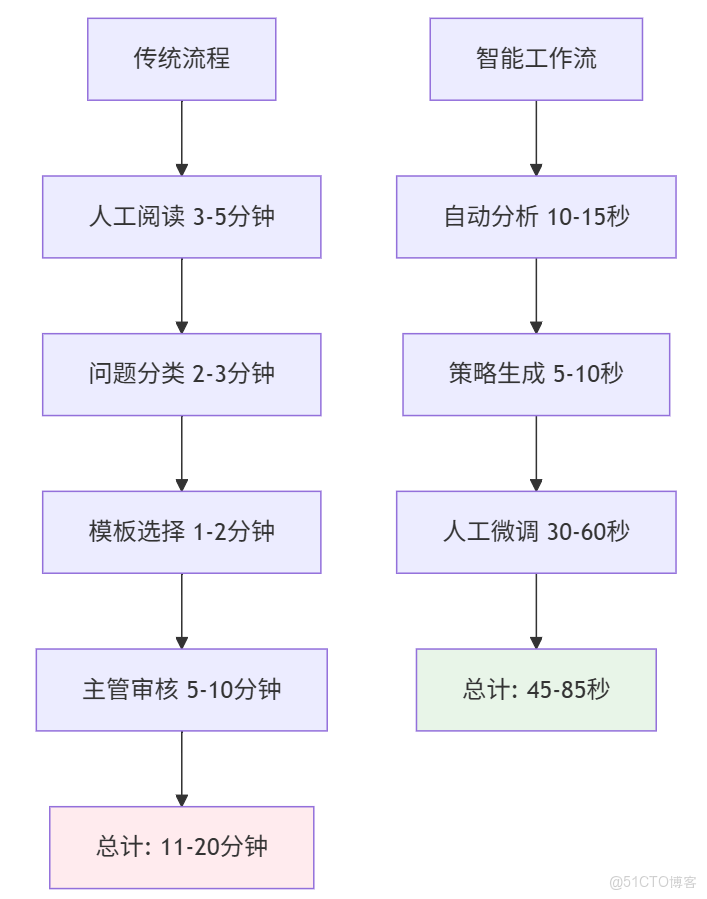
傳統處理方式下,客服人員需要:
- 人工閲讀並理解每條反饋(3-5分鐘)
- 判斷情感傾向和問題類型(2-3分鐘)
- 查找回復模板或自行組織語言(1-2分鐘)
- 主管審核後發送(5-10分鐘)

總耗時:11-20分鐘/條,且質量參差不齊
正如以上的場景,很多企業平台每天都會收到海量的用户反饋、產品評價和客户諮詢。傳統的人工處理方式面臨着效率低下、標準不一、洞察有限三大痛點。據開放的數據統計,在客户服務實踐中發現:
- 72% 的用户反饋因響應延遲而導致客户滿意度下降
- 45% 的產品改進機會在人工處理過程中被遺漏
- 68% 的客服回覆缺乏一致性和專業性
當用户説“這個功能太難用了”,我們是選擇簡單回覆“感謝反饋”,還是抓住這個讓產品變得更好的黃金機,作為產品設計者的角度,我們認真聽取客户意見是很有必要的,作為開發者的角度,我們天天研究大模型,學習AI知識,為的就是要結合實際場景來體現AI的價值,也正是基於這些真實痛點,我們考慮是否有一種可以應用AI又符合我們的業務,提高我們的效率的方案,於是基於LangGraph,我們探索的考慮並構建了這個基於LangGraph的智能工作流示例,旨在展示如何通過AI技術實現用户反饋處理的自動化、智能化和標準化。
# 系統核心架構
用户輸入 → 預處理 → 情感分析 → 關鍵詞提取 → 智能回覆 → 輸出結果
更重要的是,整個過程對用户完全透明,每個步驟都可以實時觀察和配置。
二、什麼是智能工作流
智能工作流是基於人工智能技術,將多個處理節點有機組合起來的自動化系統。它就像一條智能流水線,用户反饋作為原材料輸入,經過各個節點的精細加工,最終產出有價值的成品。
核心技術架構
我們的系統基於以下技術棧構建:
- LangGraph:工作流編排框架,負責協調各個處理節點
- Qwen大模型:提供強大的自然語言理解能力
- Gradio:構建友好的用户交互界面
- NetworkX:生成可視化的執行流程圖
效能提升對比
三、四層處理引擎
讓我們通過一個具體案例,深入瞭解智能工作流如何運作。
1. 案例背景
用户李女士在使用某產品的新功能後,提交了如下反饋:
“這個新功能太難用了,界面複雜,操作繁瑣,希望能簡化一下。”2. 第一層:智能預處理引擎
功能:文本清洗與標準化
預處理引擎首先對原始文本進行清理:
- 輸入:"這個新功能太難用了!!!界面太複雜了!!"
- 輸出:"這個新功能太難用了 界面太複雜了"
這個過程去除了情緒化的標點符號,統一了文本格式,為後續分析打下堅實基礎。
3. 第二層:情感雷達系統
功能:精準識別用户情感傾向
情感分析節點基於Qwen大模型的深度理解能力,識別出:
- 情感標籤:negative(負面)
- 置信度:92%
- 觸發關鍵詞:"太難用"、"複雜"、"繁瑣"
更重要的是,系統能夠理解這是建設性的負面反饋,而非單純的抱怨,因此啓動了高優先級處理流程。
4. 第三層:關鍵詞挖掘機
功能:提取核心問題點
關鍵詞提取節點從文本中抽取出最有價值的信息:
- 問題關鍵詞:["界面複雜", "操作繁瑣"]
- 期望關鍵詞:["簡化"]
- 上下文關鍵詞:["新功能"]
這四個關鍵詞構成了完整的問題畫像,為產品改進提供了明確方向。
5. 第四層:智能回覆生成器
功能:生成策略性專業回覆
基於前三層的分析結果,回覆生成節點創建了這樣的回覆:
- “感謝您對我們新功能的坦誠反饋。我們完全理解您在界面複雜性和操作便捷性方面遇到的挑戰——這確實影響了使用體驗。
- 我們的產品團隊已經將'界面簡化'和'操作流程優化'列為優先改進項,正在制定具體的優化方案。
- 為了更精準地解決您遇到的問題,能否與我們分享:
- 哪個操作步驟讓您感覺最繁瑣?
- 您期望的簡化方式是什麼?
- 您的詳細體驗將直接指導我們的產品迭代方向。再次感謝您幫助我們變得更好!”
這個回覆體現了情感共鳴、問題確認、行動展示、深度互動、價值肯定五個關鍵要素。
6. 案例展示
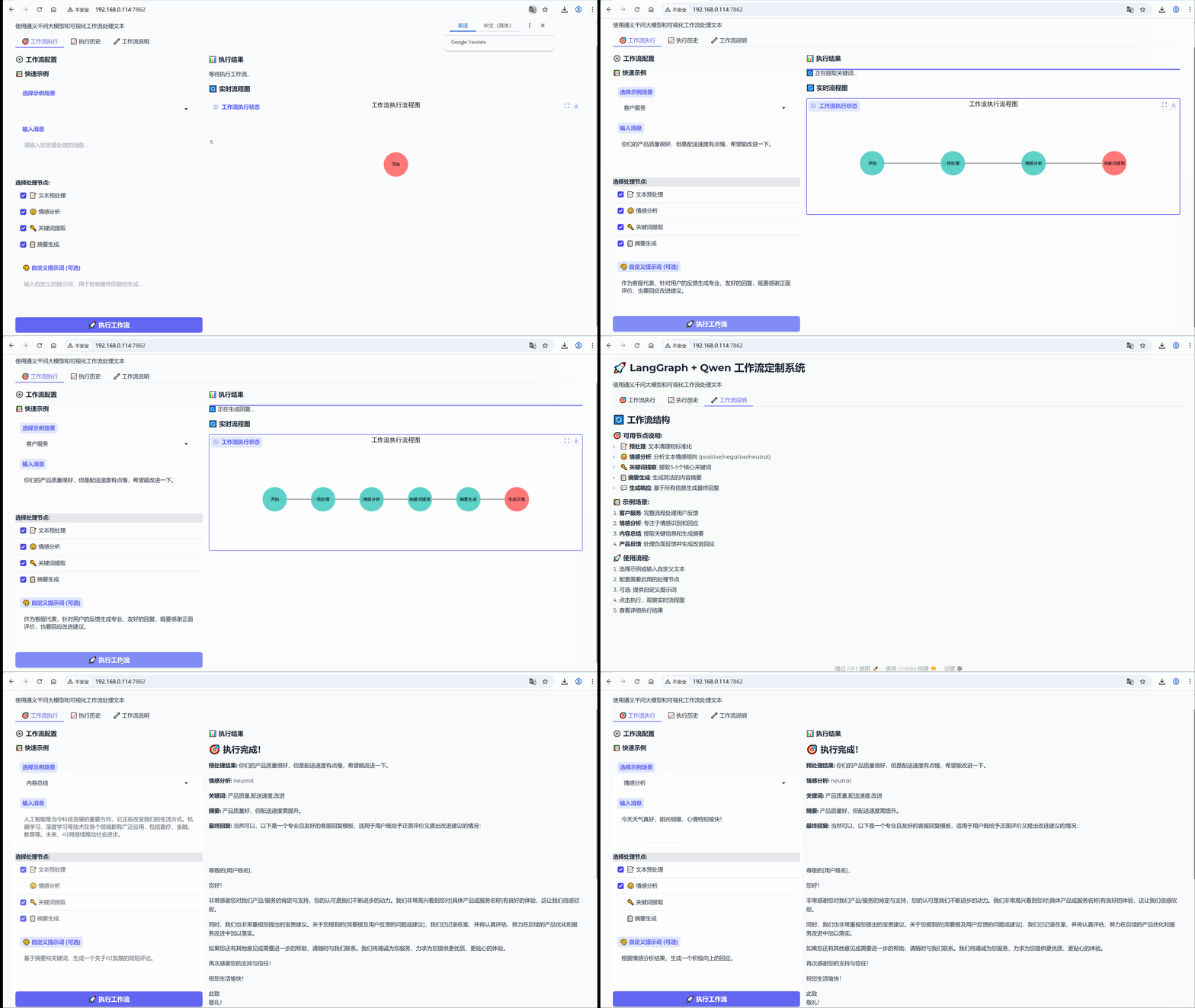
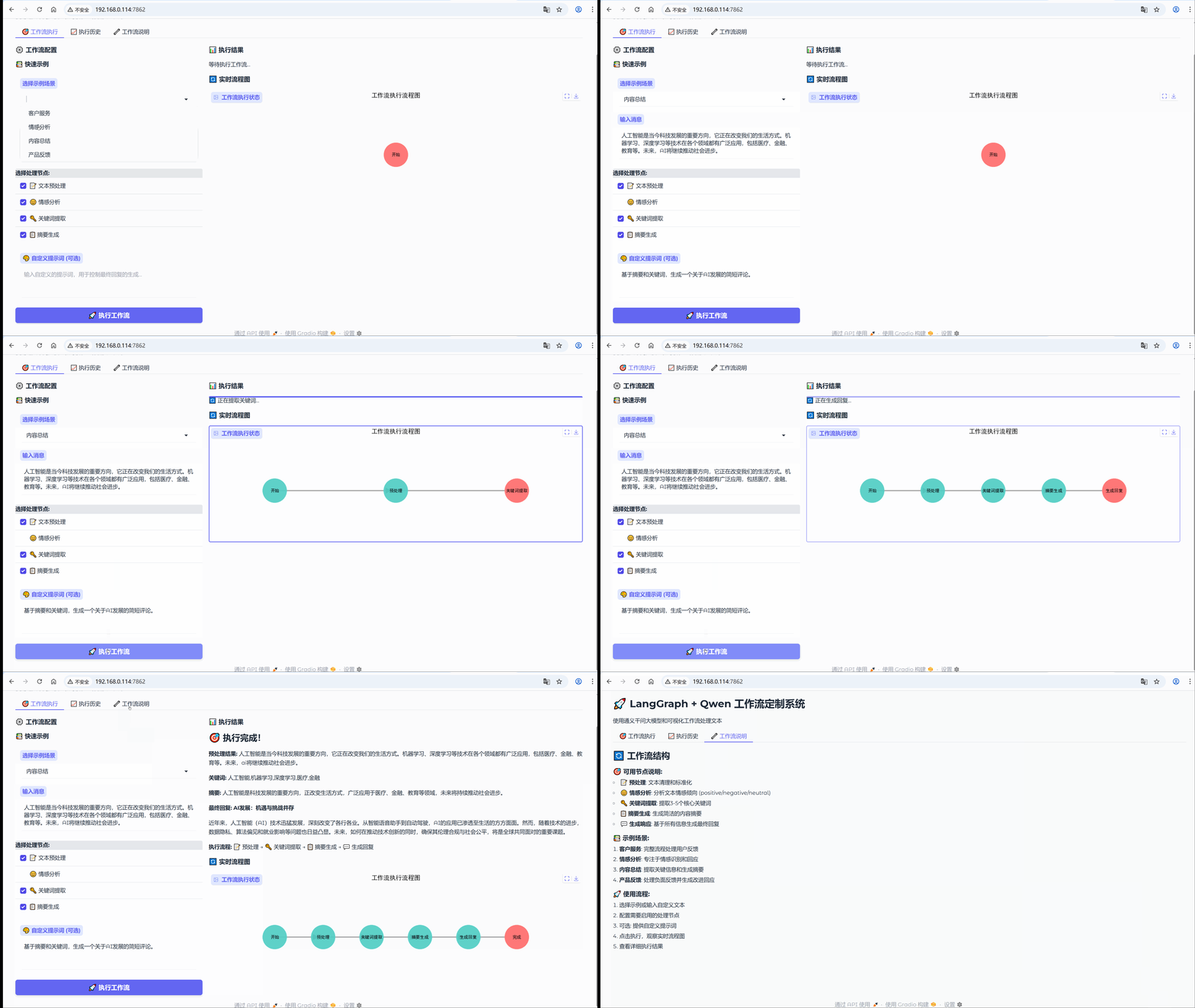
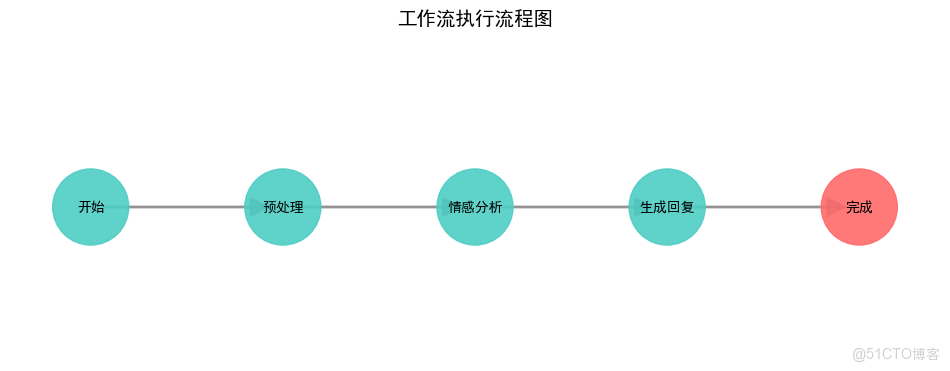
6.1 場景:情感分析
示例:今天天氣真好,陽光明媚,心情特別愉快!
流程節點:【文本預處理】-> 【情感分析】
6.2 場景:產品反饋
示例:這個新功能太難用了,界面複雜,操作繁瑣,希望能簡化一下。
流程節點:【文本預處理】-> 【情感分析】-> 【關鍵詞提取】
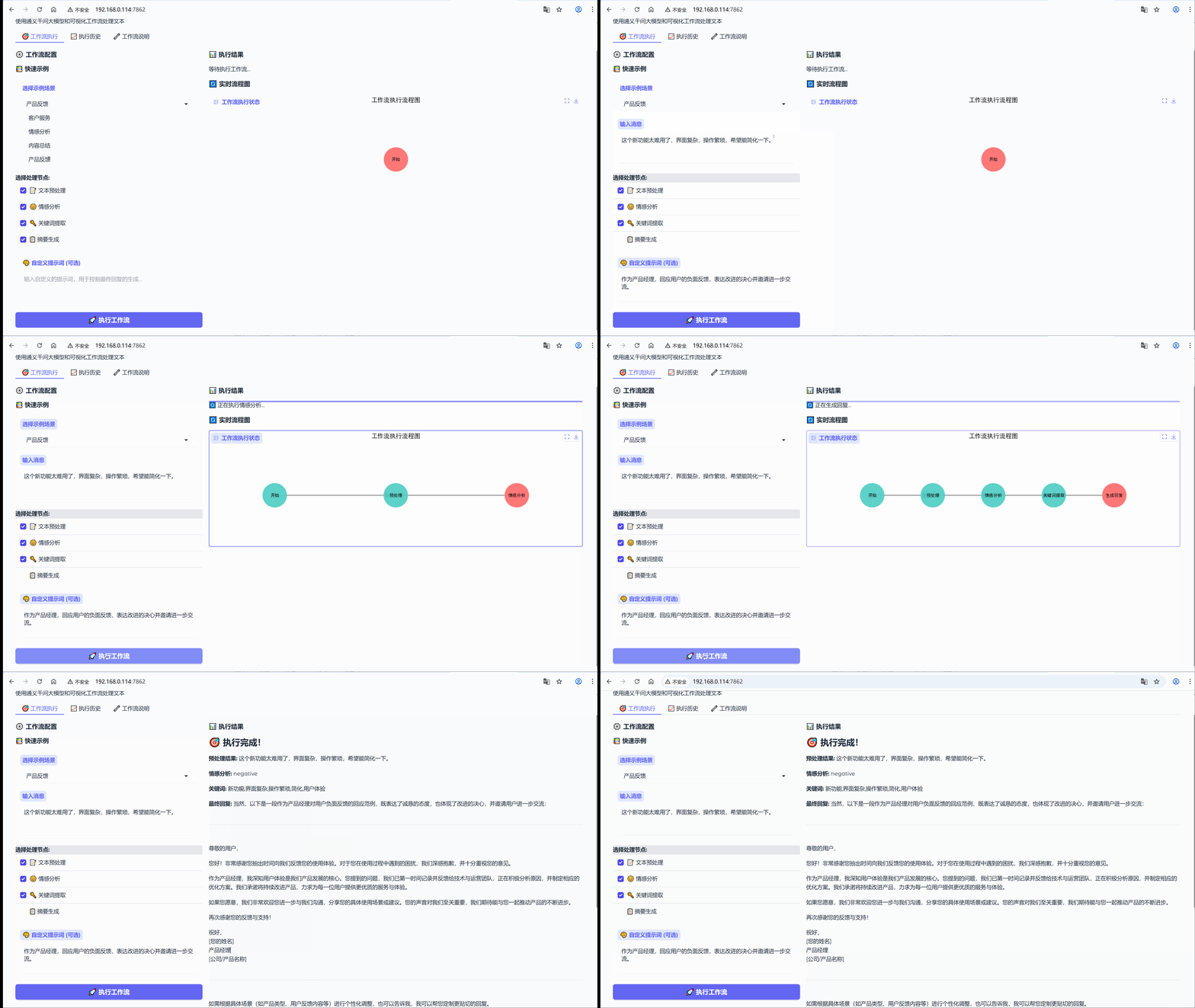
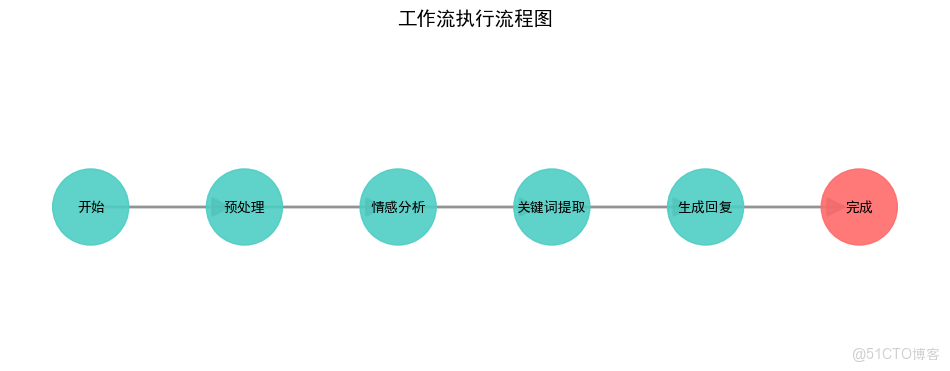
6.3 場景:內容總結
示例:人工智能是當今科技發展的重要方向,它正在改變我們的生活方式。機器學習、深度學習等技術在各個領域都有廣泛應用,包括醫療、金融、教育等。未來,AI將繼續推動社會進步。
流程節點:【文本預處理】-> 【關鍵詞提取】-> 【摘要生成】
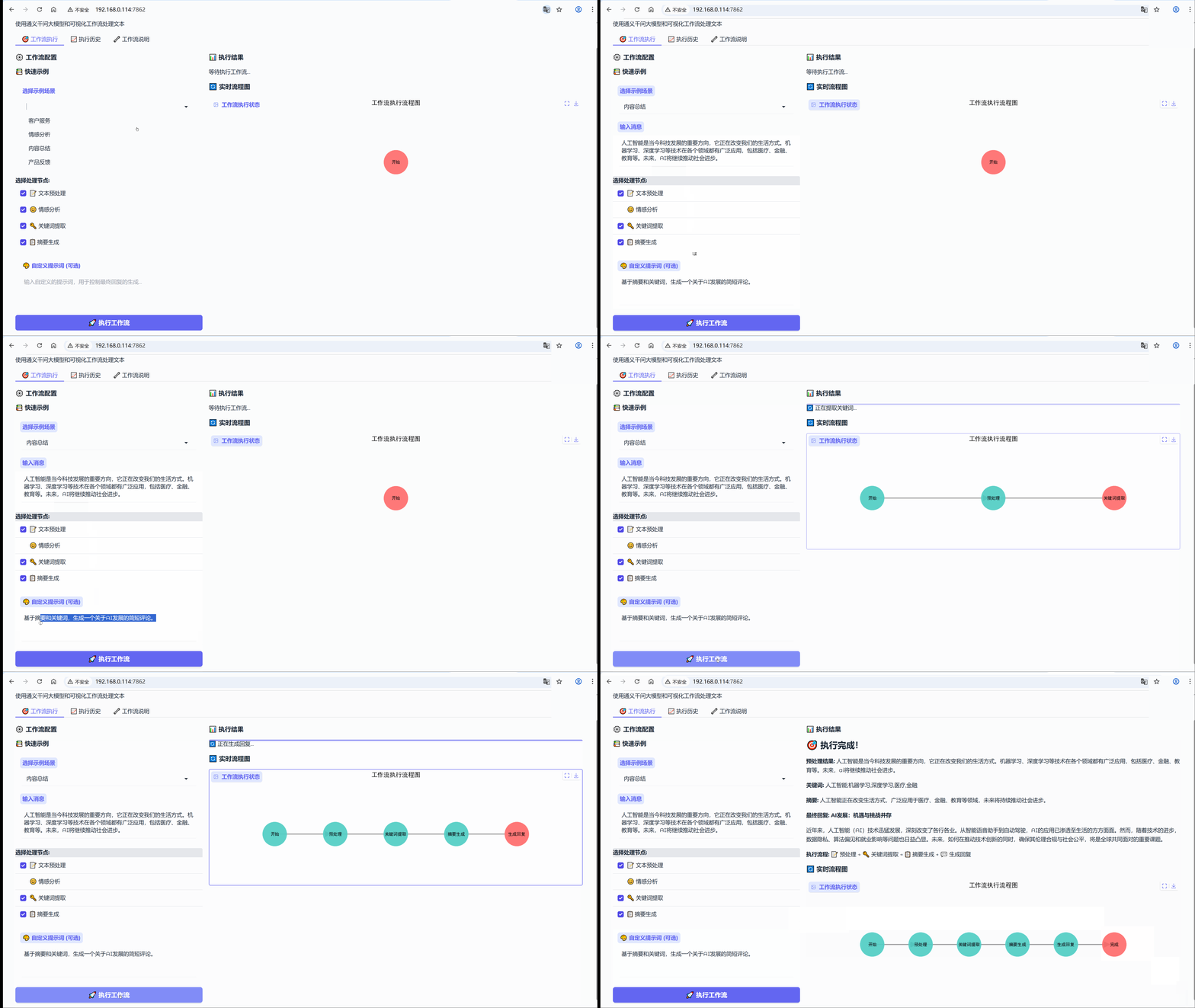

四、示例詳細説明
- 核心主題:基於 LangGraph 和 Qwen 大模型的可視化智能工作流系統
- 主要功能:通過模塊化的工作流節點處理文本,提供情感分析、關鍵詞提取、摘要生成等功能,並實時可視化執行過程。
1. 代碼分解
1.1 環境配置
# 配置中文字體,確保圖表中的中文能正常顯示
plt.rcParams['font.sans-serif'] = ['SimHei', 'Microsoft YaHei', 'DejaVu Sans']
plt.rcParams['axes.unicode_minus'] = False  # 解決負號顯示問題

# 配置 Qwen API 密鑰
# 注意:在實際生產環境中,建議使用環境變量而不是硬編碼
dashscope.api_key = "sk-b76381c**************"
1.2 數據模型定義
class AgentState(TypedDict):
    """
    工作流狀態數據模型
    定義在整個工作流執行過程中傳遞的數據結構
    """
    message: str                    # 原始用户輸入消息
    processed_message: str          # 預處理後的消息
    sentiment: str                  # 情感分析結果 (positive/negative/neutral)
    response: str                   # 最終生成的回覆
    keywords: str                   # 提取的關鍵詞
    summary: str                    # 生成的摘要
1.3 大模型服務層
class QwenModel:
    """
    Qwen 大模型調用封裝類
    負責與通義千問API進行交互,提供統一的調用接口
    """

    def __init__(self, model_name="qwen-turbo"):
        """
        初始化模型配置

        Args:
            model_name: 使用的模型名稱,默認為 qwen-turbo
        """
        self.model_name = model_name

    def invoke(self, prompt: str) -> str:
        """
        調用 Qwen API 生成回覆

        Args:
            prompt: 輸入的提示詞文本

        Returns:
            str: 模型生成的回覆文本,或錯誤信息
        """
        try:
            # 調用通義千問生成API
            response = Generation.call(
                model=self.model_name,      # 指定模型
                prompt=prompt,              # 輸入提示詞
                seed=1234,                  # 隨機種子,保證結果可復現
                max_tokens=1500,            # 最大生成token數
                temperature=0.7,            # 温度參數,控制隨機性
                top_p=0.8                   # 核採樣參數
            )

            # 檢查API調用是否成功
            if response.status_code == HTTPStatus.OK:
                return response.output.text  # 返回生成的文本
            else:
                # 返回具體的錯誤信息
                return f"Error: {response.code} - {response.message}"

        except Exception as e:
            # 捕獲並返回異常信息
            return f"API調用錯誤: {str(e)}"
1.4 工作流節點實現
class WorkflowNodes:
    """
    工作流節點處理器
    包含所有可用的文本處理節點,每個節點負責特定的處理任務
    """

    def __init__(self):
        """初始化工作流節點,創建Qwen模型實例"""
        self.llm = QwenModel("qwen-turbo")  # 使用 Qwen-turbo 模型

    def preprocess_node(self, state: AgentState) -> Dict:
        """
        預處理節點 - 文本清洗和標準化

        Args:
            state: 當前工作流狀態

        Returns:
            Dict: 包含預處理後消息的字典
        """
        message = state["message"]
        # 文本標準化處理:去除首尾空格並轉為小寫
        processed = message.strip().lower()
        return {"processed_message": processed}

    def sentiment_node(self, state: AgentState) -> Dict:
        """
        情感分析節點 - 識別文本情感傾向

        Args:
            state: 當前工作流狀態

        Returns:
            Dict: 包含情感分析結果的字典
        """
        # 優先使用預處理後的消息,如果沒有則使用原始消息
        processed_message = state.get("processed_message", state["message"])

        # 構建情感分析提示詞
        prompt = f"""
        分析以下文本的情感傾向,只返回以下之一:positive, negative, neutral
        文本:{processed_message}

        請直接返回情感標籤,不要添加其他內容。
        """

        # 調用大模型進行情感分析
        response = self.llm.invoke(prompt)
        sentiment = response.strip().lower()

        # 後處理:確保返回標準化的情感標籤
        if sentiment not in ['positive', 'negative', 'neutral']:
            if '積極' in sentiment or 'positive' in sentiment:
                sentiment = 'positive'
            elif '消極' in sentiment or 'negative' in sentiment:
                sentiment = 'negative'
            else:
                sentiment = 'neutral'

        return {"sentiment": sentiment}

    def response_node(self, state: AgentState) -> Dict:
        """
        響應生成節點 - 基於分析結果生成回覆

        Args:
            state: 當前工作流狀態

        Returns:
            Dict: 包含生成回覆的字典
        """
        processed_message = state.get("processed_message", state["message"])
        sentiment = state.get("sentiment", "unknown")  # 默認為unknown

        # 構建回覆生成提示詞
        prompt = f"""
        根據用户消息和情感分析結果生成回覆。

        用户消息:{processed_message}
        情感分析:{sentiment}

        請生成一個友好、合適的回覆,保持自然流暢。
        """

        response = self.llm.invoke(prompt)
        return {"response": response}

    def keyword_extraction_node(self, state: AgentState) -> Dict:
        """
        關鍵詞提取節點 - 從文本中提取核心關鍵詞

        Args:
            state: 當前工作流狀態

        Returns:
            Dict: 包含提取關鍵詞的字典
        """
        message = state.get("processed_message", state["message"])

        prompt = f"""
        從以下文本中提取3-5個最重要的關鍵詞:
        文本:{message}

        請以逗號分隔的形式返回關鍵詞,不要添加其他內容。
        """

        response = self.llm.invoke(prompt)
        keywords = response.strip()

        return {"keywords": keywords}

    def summary_node(self, state: AgentState) -> Dict:
        """
        摘要生成節點 - 生成文本的簡潔摘要

        Args:
            state: 當前工作流狀態

        Returns:
            Dict: 包含生成摘要的字典
        """
        message = state.get("processed_message", state["message"])

        prompt = f"""
        為以下文本生成一個簡潔的摘要(不超過100字):
        文本:{message}

        請直接返回摘要內容,不要添加其他説明。
        """

        response = self.llm.invoke(prompt)
        summary = response.strip()

        return {"summary": summary}
1.5 工作流管理部分
class WorkflowManager:
    """
    工作流管理器
    負責管理執行歷史和工作流狀態
    """

    def __init__(self):
        """初始化工作流管理器"""
        self.workflow_history = []  # 存儲執行歷史記錄

    def get_execution_history(self):
        """
        獲取執行歷史記錄

        Returns:
            list: 執行歷史記錄列表
        """
        return self.workflow_history

# 創建全局工作流管理器實例
workflow_manager = WorkflowManager()
1.6 示例數據配置
EXAMPLES = {
    "客户服務": {
        "message": "你們的產品質量很好,但是配送速度有點慢,希望能改進一下。",
        "use_preprocess": True,      # 啓用預處理
        "use_sentiment": True,       # 啓用情感分析
        "use_keywords": True,        # 啓用關鍵詞提取
        "use_summary": True,         # 啓用摘要生成
        "custom_prompt": "作為客服代表,針對用户的反饋生成專業、友好的回覆,既要感謝正面評價,也要回應改進建議。"
    },
    "情感分析": {
        "message": "今天天氣真好,陽光明媚,心情特別愉快!",
        "use_preprocess": True,
        "use_sentiment": True,
        "use_keywords": False,       # 不啓用關鍵詞提取
        "use_summary": False,        # 不啓用摘要生成
        "custom_prompt": "根據情感分析結果,生成一個積極向上的迴應。"
    },
    "內容總結": {
        "message": "人工智能是當今科技發展的重要方向,它正在改變我們的生活方式。機器學習、深度學習等技術在各個領域都有廣泛應用,包括醫療、金融、教育等。未來,AI將繼續推動社會進步。",
        "use_preprocess": True,
        "use_sentiment": False,      # 不啓用情感分析
        "use_keywords": True,
        "use_summary": True,
        "custom_prompt": "基於摘要和關鍵詞,生成一個關於AI發展的簡短評論。"
    },
    "產品反饋": {
        "message": "這個新功能太難用了,界面複雜,操作繁瑣,希望能簡化一下。",
        "use_preprocess": True,
        "use_sentiment": True,
        "use_keywords": True,
        "use_summary": False,
        "custom_prompt": "作為產品經理,迴應用户的負面反饋,表達改進的決心並邀請進一步交流。"
    }
}
1.7 可視化組件部分
def generate_workflow_diagram(steps, current_step=None):
    """
    生成工作流執行流程圖

    Args:
        steps: 步驟列表,表示工作流的執行順序
        current_step: 當前正在執行的步驟,用於高亮顯示

    Returns:
        str: 生成的流程圖臨時文件路徑
    """
    try:
        # 創建圖形和網絡圖對象
        plt.figure(figsize=(12, 4))
        G = nx.DiGraph()

        # 定義節點位置和樣式
        pos = {}
        node_colors = []
        node_labels = {}

        # 添加節點到圖中
        for i, step in enumerate(steps):
            G.add_node(step)
            # 水平排列節點
            pos[step] = (i * 2, 0)

            # 簡化的節點標籤顯示
            if step == "開始":
                label = "開始"
            elif step == "完成":
                label = "完成"
            else:
                label = step

            node_labels[step] = label

            # 當前執行到的節點用紅色高亮,其他用青色
            if step == current_step:
                node_colors.append('#FF6B6B')  # 紅色高亮
            else:
                node_colors.append('#4ECDC4')  # 青色

        # 添加邊連接節點
        for i in range(len(steps) - 1):
            G.add_edge(steps[i], steps[i + 1])

        # 繪製圖形
        plt.clf()  # 清除之前的圖形
        plt.figure(figsize=(12, 4))

        # 繪製節點
        nx.draw_networkx_nodes(G, pos,
                              node_color=node_colors,
                              node_size=3000,
                              alpha=0.9)

        # 繪製邊
        nx.draw_networkx_edges(G, pos,
                              edge_color='#666666',
                              arrows=True,
                              arrowsize=30,
                              width=2,
                              alpha=0.7)

        # 繪製節點標籤
        nx.draw_networkx_labels(G, pos,
                               labels=node_labels,
                               font_size=10,
                               font_weight='bold')

        # 設置標題和座標軸
        plt.title("工作流執行流程圖", fontsize=14, fontweight='bold', pad=20)
        plt.axis('off')  # 隱藏座標軸

        # 保存到臨時文件
        with tempfile.NamedTemporaryFile(suffix='.png', delete=False) as tmp_file:
            plt.savefig(tmp_file.name, format='png', dpi=100, bbox_inches='tight', facecolor='white')
            plt.close()
            return tmp_file.name

    except Exception as e:
        # 錯誤處理:生成佔位圖
        print(f"生成流程圖錯誤: {e}")
        with tempfile.NamedTemporaryFile(suffix='.png', delete=False) as tmp_file:
            plt.figure(figsize=(8, 2))
            plt.text(0.5, 0.5, "流程圖生成中...", ha='center', va='center', fontsize=16)
            plt.axis('off')
            plt.savefig(tmp_file.name, bbox_inches='tight', facecolor='white')
            plt.close()
            return tmp_file.name
1.8 用户界面部分
def create_custom_workflow_interface():
    """
    創建 Gradio 用户界面
    構建完整的工作流定製和可視化界面
    """

    def load_example(example_name):
        """
        加載示例數據到界面

        Args:
            example_name: 示例名稱

        Returns:
            list: 示例數據的各個字段值
        """
        if example_name in EXAMPLES:
            example = EXAMPLES[example_name]
            return [
                example["message"],
                example["use_preprocess"],
                example["use_sentiment"],
                example["use_keywords"],
                example["use_summary"],
                example["custom_prompt"]
            ]
        # 如果示例不存在,返回空值
        return ["", True, True, True, True, ""]

    def execute_custom_workflow(message, use_preprocess, use_sentiment, use_keywords, use_summary, custom_prompt):
        """
        執行自定義工作流的核心函數

        Args:
            message: 用户輸入的文本消息
            use_preprocess: 是否啓用預處理
            use_sentiment: 是否啓用情感分析
            use_keywords: 是否啓用關鍵詞提取
            use_summary: 是否啓用摘要生成
            custom_prompt: 自定義提示詞

        Yields:
            tuple: (執行結果文本, 流程圖文件路徑) 的元組
        """
        try:
            # 輸入驗證
            if not message.strip():
                yield " 請輸入消息內容", generate_workflow_diagram(["開始"], "開始")
                return

            # 初始化工作流組件
            nodes = WorkflowNodes()
            current_state = {"message": message}
            execution_steps = []      # 記錄執行的步驟
            detailed_results = {}     # 存儲每個步驟的詳細結果

            # 構建步驟列表用於流程圖顯示
            workflow_steps = ["開始"]
            current_active_step = "開始"

            # 生成初始流程圖
            initial_diagram = generate_workflow_diagram(workflow_steps, current_active_step)

            # ==================== 預處理步驟 ====================
            if use_preprocess:
                workflow_steps.append("預處理")
                current_active_step = "預處理"
                # 實時更新界面顯示
                yield " 正在執行預處理...", generate_workflow_diagram(workflow_steps, current_active_step)

                # 執行預處理節點
                preprocess_result = nodes.preprocess_node(current_state)
                current_state.update(preprocess_result)  # 更新狀態
                execution_steps.append(" 預處理")
                detailed_results["預處理結果"] = preprocess_result.get("processed_message", "")

            # ==================== 情感分析步驟 ====================
            if use_sentiment:
                workflow_steps.append("情感分析")
                current_active_step = "情感分析"
                yield " 正在執行情感分析...", generate_workflow_diagram(workflow_steps, current_active_step)

                sentiment_result = nodes.sentiment_node(current_state)
                current_state.update(sentiment_result)
                execution_steps.append(" 情感分析")
                detailed_results["情感分析"] = sentiment_result.get("sentiment", "")

            # ==================== 關鍵詞提取步驟 ====================
            if use_keywords:
                workflow_steps.append("關鍵詞提取")
                current_active_step = "關鍵詞提取"
                yield " 正在提取關鍵詞...", generate_workflow_diagram(workflow_steps, current_active_step)

                keyword_result = nodes.keyword_extraction_node(current_state)
                current_state.update(keyword_result)
                execution_steps.append(" 關鍵詞提取")
                detailed_results["關鍵詞"] = keyword_result.get("keywords", "")

            # ==================== 摘要生成步驟 ====================
            if use_summary:
                workflow_steps.append("摘要生成")
                current_active_step = "摘要生成"
                yield " 正在生成摘要...", generate_workflow_diagram(workflow_steps, current_active_step)

                summary_result = nodes.summary_node(current_state)
                current_state.update(summary_result)
                execution_steps.append(" 摘要生成")
                detailed_results["摘要"] = summary_result.get("summary", "")

            # ==================== 響應生成步驟 ====================
            workflow_steps.append("生成回覆")
            current_active_step = "生成回覆"
            yield " 正在生成回覆...", generate_workflow_diagram(workflow_steps, current_active_step)

            def custom_response_node(state):
                """
                自定義響應生成節點
                根據是否提供自定義提示詞來選擇生成策略
                """
                if custom_prompt:
                    # 使用用户提供的自定義提示詞
                    prompt = custom_prompt
                else:
                    # 構建默認提示詞,包含所有可用信息
                    base_message = state.get("processed_message", state["message"])
                    sentiment = state.get("sentiment", "")
                    keywords = state.get("keywords", "")
                    summary = state.get("summary", "")

                    prompt = f"""基於以下信息生成回覆:

用户原始消息: {base_message}
"""
                    # 動態添加可用信息
                    if sentiment:
                        prompt += f"情感傾向: {sentiment}\n"
                    if keywords:
                        prompt += f"關鍵詞: {keywords}\n"
                    if summary:
                        prompt += f"內容摘要: {summary}\n"

                    prompt += "\n請生成一個友好、專業的回覆。"

                response = nodes.llm.invoke(prompt)
                return {"response": response}

            # 執行響應生成
            response_result = custom_response_node(current_state)
            current_state.update(response_result)
            execution_steps.append(" 生成回覆")
            detailed_results["最終回覆"] = response_result.get("response", "")

            # ==================== 完成階段 ====================
            workflow_steps.append("完成")
            current_active_step = "完成"
            final_diagram = generate_workflow_diagram(workflow_steps, current_active_step)

            # 構建執行歷史記錄
            execution_record = {
                "input": message,
                "output": response_result["response"],
                "steps": execution_steps,
                "custom_prompt": custom_prompt,
                "detailed_results": detailed_results
            }
            workflow_manager.workflow_history.append(execution_record)

            # 格式化最終輸出結果
            result_text = "##  執行完成!\n\n"

            # 顯示每個步驟的詳細結果
            for step_name, step_result in detailed_results.items():
                result_text += f"**{step_name}:**\n{step_result}\n\n"

            # 顯示完整的執行流程
            result_text += f"**執行流程:** {' → '.join(execution_steps)}"

            # 返回最終結果
            yield result_text, final_diagram

        except Exception as e:
            # 錯誤處理
            error_text = f" 執行錯誤: {str(e)}"
            yield error_text, generate_workflow_diagram(["開始"], "開始")

    def show_execution_history():
        """
        顯示執行歷史記錄

        Returns:
            str: 格式化後的歷史記錄文本
        """
        history = workflow_manager.get_execution_history()
        if not history:
            return " 暫無執行歷史"

        # 構建歷史記錄顯示文本
        history_text = "##  最近執行歷史\n\n"
        # 只顯示最近5條記錄
        for i, record in enumerate(history[-5:], 1):
            history_text += f"###  執行記錄 {i}\n"
            history_text += f"**輸入:** {record['input']}\n\n"
            # 長文本截斷處理
            if len(record['output']) > 200:
                history_text += f"**輸出:** {record['output'][:200]}...\n\n"
            else:
                history_text += f"**輸出:** {record['output']}\n\n"
            history_text += f"**步驟:** {' → '.join(record['steps'])}\n\n"
            if record.get('custom_prompt'):
                history_text += f"**自定義提示:** {record['custom_prompt']}\n\n"
            history_text += "---\n\n"

        return history_text

    def show_workflow_visualization():
        """
        顯示工作流可視化説明

        Returns:
            str: 工作流説明文檔
        """
        visualization = """
##  工作流結構

###  可用節點説明:

- **📝 預處理**: 文本清理和標準化
- **😊 情感分析**: 分析文本情感傾向 (positive/negative/neutral)
- **🔑 關鍵詞提取**: 提取3-5個核心關鍵詞
- **📋 摘要生成**: 生成簡潔的內容摘要
- **💬 生成響應**: 基於所有信息生成最終回覆

###  示例場景:

1. **客户服務**: 完整流程處理用户反饋
2. **情感分析**: 專注於情感識別和迴應
3. **內容總結**: 提取關鍵信息和生成摘要
4. **產品反饋**: 處理負面反饋並生成改進迴應

###  使用流程:

1. 選擇示例或輸入自定義文本
2. 配置需要啓用的處理節點
3. 可選: 提供自定義提示詞
4. 點擊執行,觀察實時流程圖
5. 查看詳細執行結果
"""
        return visualization
1.9 構建 Gradio 界面
# 創建主界面塊
    with gr.Blocks(title="LangGraph + Qwen 工作流定製", theme=gr.themes.Soft()) as interface:
        # 界面標題
        gr.Markdown("#  LangGraph + Qwen 工作流定製系統")
        gr.Markdown("使用通義千問大模型和可視化工作流處理文本")

        # ==================== 工作流執行標籤頁 ====================
        with gr.Tab(" 工作流執行"):
            with gr.Row():
                # 左側配置面板
                with gr.Column(scale=1):
                    gr.Markdown("### ⚙️ 工作流配置")

                    # 示例選擇區域
                    gr.Markdown("####快速示例")
                    example_selector = gr.Dropdown(
                        choices=list(EXAMPLES.keys()),  # 示例選項
                        label="選擇示例場景",
                        value=None,
                        interactive=True
                    )

                    # 消息輸入框
                    message_input = gr.Textbox(
                        label="輸入消息",
                        placeholder="請輸入您想要處理的消息...",
                        lines=3
                    )

                    # 節點配置區域
                    with gr.Group():
                        gr.Markdown("**選擇處理節點:**")
                        use_preprocess = gr.Checkbox(
                            label="文本預處理",
                            value=True  # 默認啓用
                        )
                        use_sentiment = gr.Checkbox(
                            label="情感分析",
                            value=True
                        )
                        use_keywords = gr.Checkbox(
                            label="關鍵詞提取",
                            value=True
                        )
                        use_summary = gr.Checkbox(
                            label="摘要生成",
                            value=True
                        )

                    # 自定義提示詞輸入
                    custom_prompt = gr.Textbox(
                        label="自定義提示詞 (可選)",
                        placeholder="輸入自定義的提示詞,用於控制最終回覆的生成...",
                        lines=3
                    )

                    # 執行按鈕
                    execute_btn = gr.Button(" 執行工作流", variant="primary", size="lg")

                # 右側結果顯示面板
                with gr.Column(scale=2):
                    gr.Markdown("###  執行結果")
                    output_result = gr.Markdown(
                        label="執行結果",
                        value="等待執行工作流..."  # 初始提示
                    )

                    # 流程圖顯示區域
                    gr.Markdown("###  實時流程圖")
                    workflow_diagram = gr.Image(
                        label="工作流執行狀態",
                        value=generate_workflow_diagram(["開始"], "開始"),  # 初始流程圖
                        height=300  # 固定高度
                    )

        # ==================== 執行歷史標籤頁 ====================
        with gr.Tab(" 執行歷史"):
            with gr.Row():
                history_display = gr.Markdown(
                    label="執行歷史"
                )
            with gr.Row():
                # 歷史記錄操作按鈕
                refresh_btn = gr.Button(" 刷新歷史", variant="secondary")
                clear_btn = gr.Button(" 清空歷史", variant="stop")

        # ==================== 工作流説明標籤頁 ====================
        with gr.Tab(" 工作流説明"):
            visualization_display = gr.Markdown(
                label="工作流可視化説明"
            )

        # ==================== 事件綁定 ====================

        # 示例選擇事件:選擇示例後自動填充表單
        example_selector.change(
            fn=load_example,
            inputs=[example_selector],
            outputs=[message_input, use_preprocess, use_sentiment, use_keywords, use_summary, custom_prompt]
        )

        # 執行按鈕事件:點擊後執行工作流
        execute_btn.click(
            fn=execute_custom_workflow,
            inputs=[message_input, use_preprocess, use_sentiment, use_keywords, use_summary, custom_prompt],
            outputs=[output_result, workflow_diagram]
        )

        # 刷新歷史事件
        refresh_btn.click(
            fn=show_execution_history,
            outputs=history_display
        )

        # 清空歷史事件
        clear_btn.click(
            fn=lambda: "歷史記錄已清空",
            outputs=history_display
        )

        # ==================== 界面初始化 ====================

        # 界面加載時自動顯示歷史記錄和工作流説明
        interface.load(
            fn=show_execution_history,
            outputs=history_display
        ).then(
            fn=show_workflow_visualization,
            outputs=visualization_display
        )

    return interface
1.10 應用啓動部分
if __name__ == "__main__":
    """
    應用主入口點
    啓動 Gradio  web 服務器
    """

    # 注意:在生產環境中建議使用環境變量配置API密鑰
    # os.environ["DASHSCOPE_API_KEY"] = "your-api-key-here"

    # 啓動日誌
    print(" 啓動 LangGraph + Qwen 工作流定製系統...")
    print(" 請確保已設置正確的 DASHSCOPE_API_KEY")

    # 創建並啓動界面
    interface = create_custom_workflow_interface()
    interface.launch(
        server_name="0.0.0.0",    # 允許外部訪問
        server_port=7862,         # 服務端口
        share=True                # 生成公共鏈接
    )
2. 代碼結構説明
這個代碼實現了一個完整的智能工作流系統,主要特點包括:
2.1 架構分層
- 數據層:AgentState 定義數據流
- 服務層:QwenModel 封裝大模型調用
- 業務層:WorkflowNodes 實現具體處理邏輯
- 管理層:WorkflowManager 管理執行狀態
- 界面層:Gradio 構建用户界面
2.2 工作流特點
- 模塊化設計:每個節點獨立,易於擴展
- 實時可視化:動態生成執行流程圖
- 靈活配置:支持自定義節點組合
- 歷史管理:完整的執行記錄追蹤
2.3 核心價值
- 將複雜的大模型能力封裝成易用工具
- 提供直觀的可視化反饋
- 支持多種文本處理場景
- 具備良好的錯誤處理機制
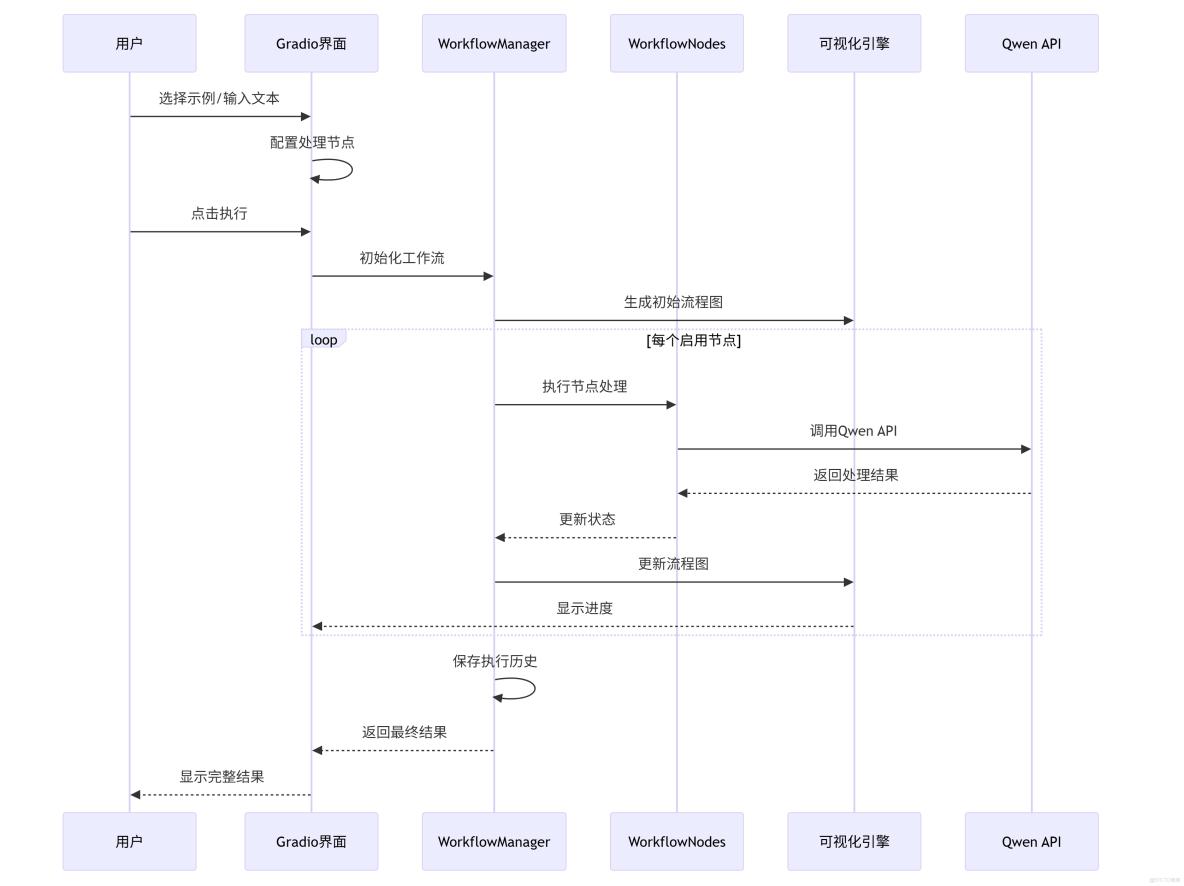
3. 系統執行流程圖
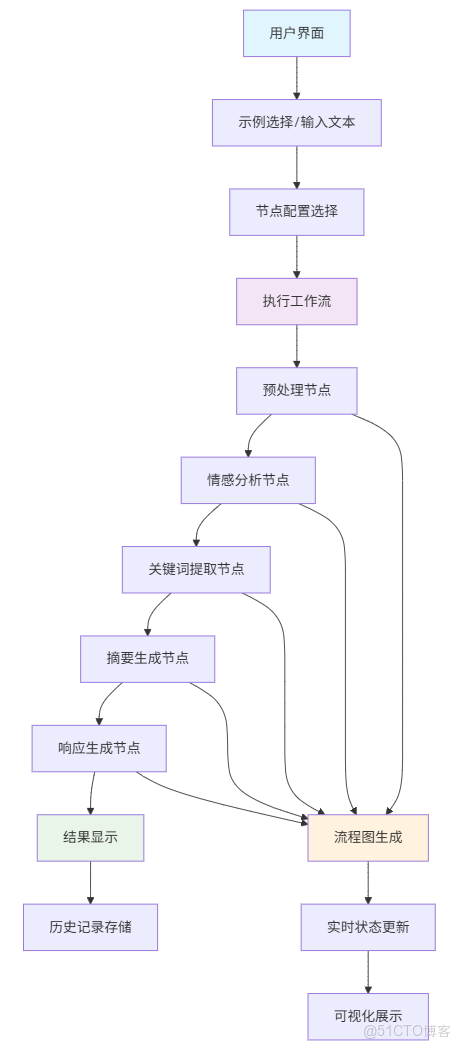
4. 工作流程圖
5. 核心處理流程
5.1 文本預處理流程
原始文本 → 去除首尾空格 → 轉為小寫 → 標準化輸出技術要點:簡單的文本規範化,為後續NLP處理做準備
5.2 情感分析流程
輸入文本 → 構造提示詞 → Qwen API調用 → 情感標籤提取 → 結果標準化技術要點:使用提示詞工程確保輸出格式統一
5.3 關鍵詞提取流程
輸入文本 → 關鍵詞提取提示 → API調用 → 逗號分隔格式化 → 返回結果技術要點:限定輸出格式,便於後續處理
5.4 動態可視化流程
節點執行開始 → 更新步驟列表 → 生成網絡圖 → 高亮當前節點 → 保存圖片 → 界面更新技術要點:使用NetworkX實時生成流程圖,提供執行反饋
五、總結
在傳統的用户反饋處理中,大多數用户聲音就像投入大海的石子,激不起什麼漣漪。但通過智能工作流,我們能夠讓每個聲音都被認真傾聽、深度理解、有效迴應。
更重要的是,我們能夠將看似普通的用户抱怨,轉化為產品進步的催化劑,將成本中心轉化為增長引擎。以前我們是在處理用户反饋,現在我們在與用户共同創造更好的產品。這不僅是技術的進步,更是產品理念的革新。不管是作為產品體驗者的我們,還是產品開發者的我們,每個聲音都值得被認真對待。