
1、簡介
模擬器是不支持的。
- Quick Actions(點擊icon的快捷方式)
- Peek&Pop(應用內快速預覽內容)
- UITouch和LivePhoto(讀取壓力和最大壓力)
2、Quick Actions(點擊icon的快捷方式)
點擊app的圖標,可以彈出Today小組件(如果有的話)和UIApplicationShortcutItem快捷方式——這就是Quick Actions!

UIApplicationShortcutItem相關API
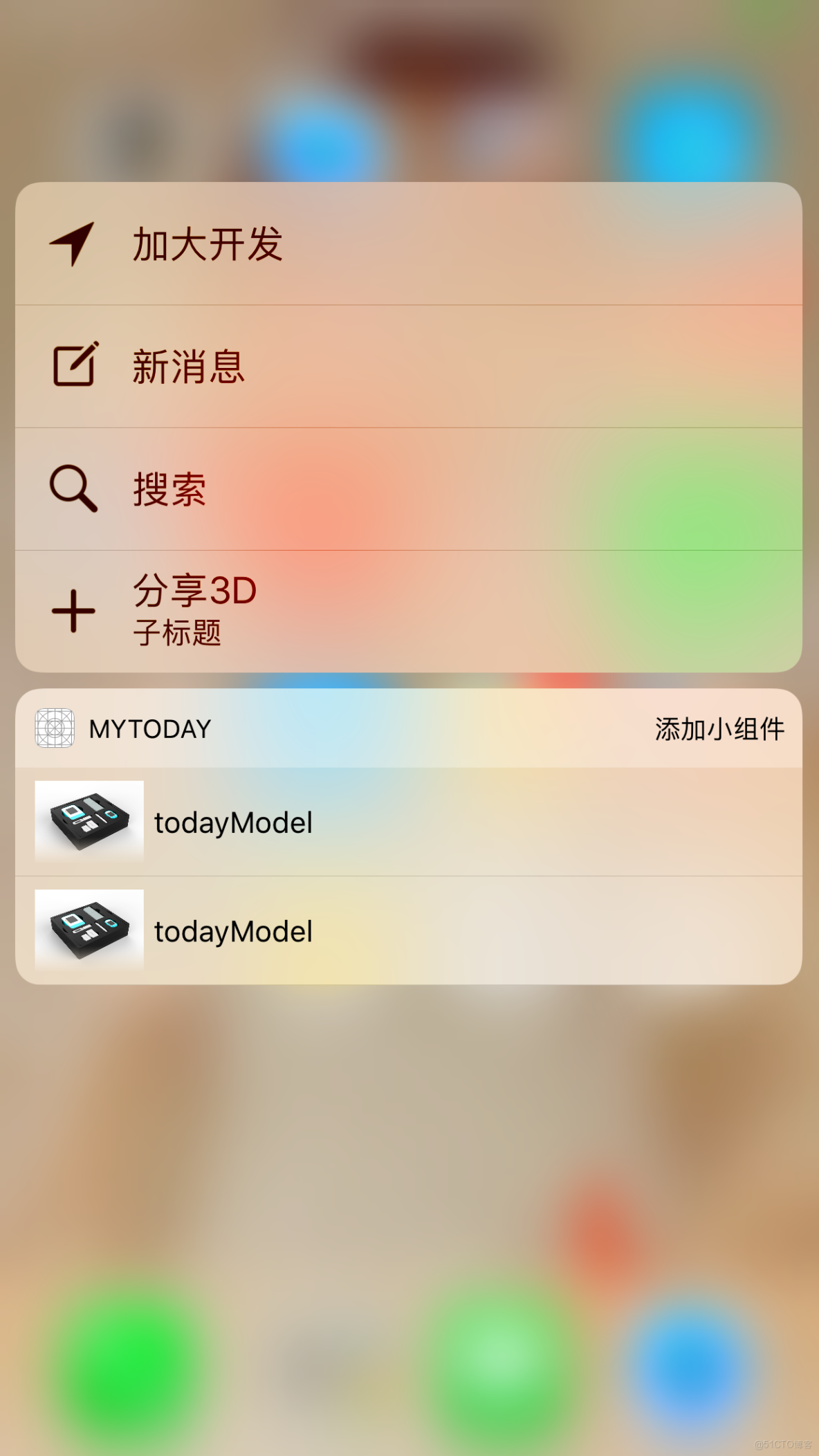
2.1、靜態創建
直接配置Info.plist文件
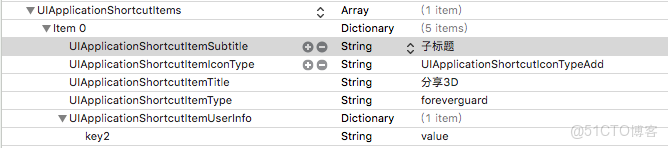
2.2、動態創建
代碼創建:
- (BOOL)application:(UIApplication *)application didFinishLaunchingWithOptions:(NSDictionary *)launchOptions {
    NSMutableArray *arrShortcutItem = (NSMutableArray *)[UIApplication sharedApplication].shortcutItems;

    UIApplicationShortcutItem *shoreItem1 = [[UIApplicationShortcutItem alloc] initWithType:@"適得府君書咖啡來看" localizedTitle:@"搜索" localizedSubtitle:nil icon:[UIApplicationShortcutIcon iconWithType:UIApplicationShortcutIconTypeSearch] userInfo:nil];
    [arrShortcutItem addObject:shoreItem1];
    UIApplicationShortcutItem *shoreItem2 = [[UIApplicationShortcutItem alloc] initWithType:@"杜師傅就快兩個打開分割" localizedTitle:@"新消息" localizedSubtitle:@"" icon:[UIApplicationShortcutIcon iconWithType:UIApplicationShortcutIconTypeCompose] userInfo:nil];
    [arrShortcutItem addObject:shoreItem2];
    UIApplicationShortcutItem *shoreItem3 = [[UIApplicationShortcutItem alloc] initWithType:@"sdfasjdfhsksdjfsdajklfdjfh" localizedTitle:@"加大開發" localizedSubtitle:@"" icon:[UIApplicationShortcutIcon iconWithType:UIApplicationShortcutIconTypeLocation] userInfo:nil];
    [arrShortcutItem addObject:shoreItem3];
    UIApplicationShortcutItem *shoreItem4 = [[UIApplicationShortcutItem alloc] initWithType:@"sdfasjdfhskdjfh" localizedTitle:@"新" localizedSubtitle:@"" icon:[UIApplicationShortcutIcon iconWithType:UIApplicationShortcutIconTypeShare] userInfo:nil];
    [arrShortcutItem addObject:shoreItem4];

    [UIApplication sharedApplication].shortcutItems = arrShortcutItem;
    return YES;
}
2.3、點擊響應方法
- (void)application:(UIApplication *)application performActionForShortcutItem:(UIApplicationShortcutItem *)shortcutItem completionHandler:(void (^)(BOOL))completionHandler{
    NSLog(@"name ==%@\n type =  %@",shortcutItem.localizedTitle,shortcutItem.type);
}
ps:系統優先加載靜態方法創建的item,可以混合加載,最多4個item;
正式發佈後會有5個item,蘋果統一添加個分享的item;
有的item的圖標會顯現在右側,這個和app在屏幕得位置有關;
3、Peek&Pop(應用內快速預覽內容)
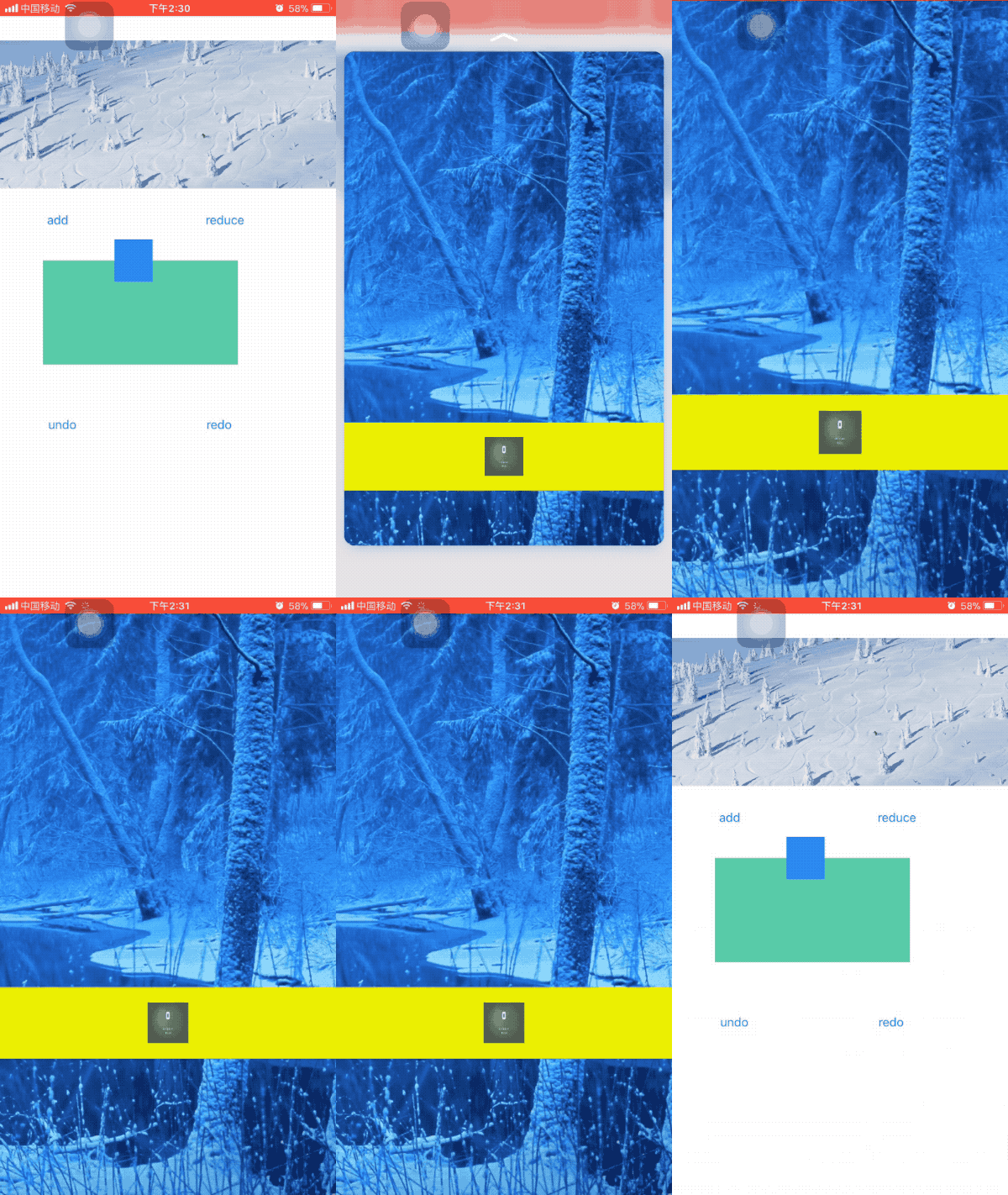
Peek頁面預覽:給視圖添加一點壓力,會以彈框的方式預覽目標界面;
Pop拉出菜單:在界面預覽時,如果有菜單選項,向上拖拽下面會出現菜單欄;
繼續增加壓力會跳轉到目標界面——也就是Peek&Pop!
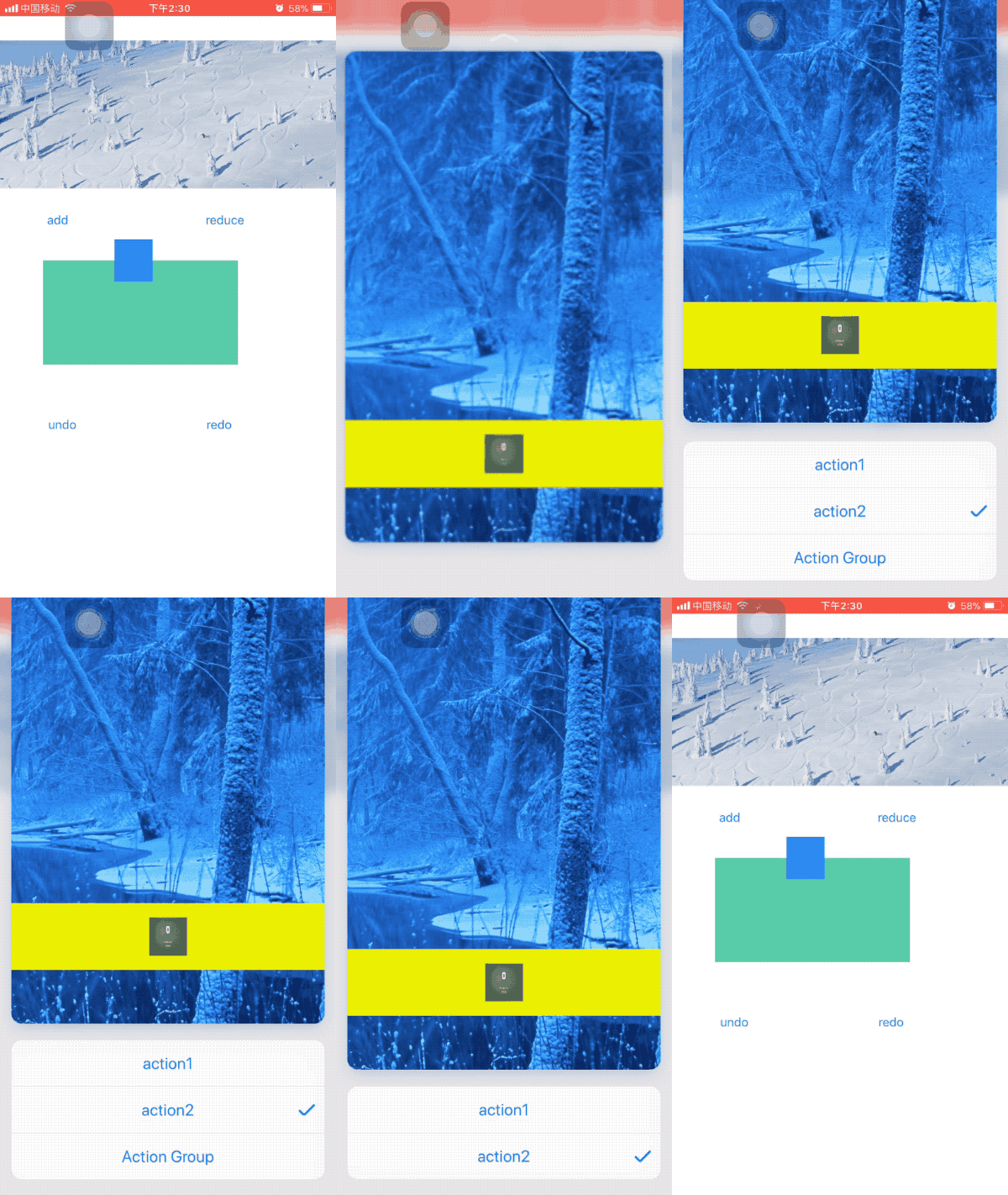
3.1、Peek
本例在圖片上添加此功能:前提一個是可以交互、二是註冊registerForPreviewingWithDelegate
[self.imageView setUserInteractionEnabled:YES];
    if (self.traitCollection.forceTouchCapability == UIForceTouchCapabilityAvailable) {
        [self registerForPreviewingWithDelegate:(id)self sourceView:self.imageView];
    }
創建菜單欄:需要在目標ViewController界面重寫- (NSArray<id<UIPreviewActionItem>> *)previewActionItems;方法
- (NSArray<id<UIPreviewActionItem>> *)previewActionItems{
    UIPreviewAction *action1 = [UIPreviewAction actionWithTitle:@"action1" style:UIPreviewActionStyleDefault handler:^(UIPreviewAction * _Nonnull action, UIViewController * _Nonnull previewViewController) {
        NSLog(@"action1");
    }];

    UIPreviewAction *action2 = [UIPreviewAction actionWithTitle:@"action2" style:UIPreviewActionStyleSelected handler:^(UIPreviewAction * _Nonnull action, UIViewController * _Nonnull previewViewController) {
        NSLog(@"action2");
    }];
    NSArray *actions = @[action1,action2];
    UIPreviewActionGroup *group1 = [UIPreviewActionGroup actionGroupWithTitle:@"Action Group" style:UIPreviewActionStyleDefault actions:actions];

    return@[action1,action2,group1];
}
預覽視圖方法和跳轉視圖方法:
//預覽
- (nullable UIViewController *)previewingContext:(id <UIViewControllerPreviewing>)previewingContext viewControllerForLocation:(CGPoint)location NS_AVAILABLE_IOS(9_0)
{
    if ([self.presentedViewController isKindOfClass:[VideoViewController class]]){
        return nil;
    }else {
        VideoViewController *contentVC = [[VideoViewController alloc] init];
        return contentVC;
    }
}

//重按進入
- (void)previewingContext:(id <UIViewControllerPreviewing>)previewingContext commitViewController:(UIViewController *)viewControllerToCommit NS_AVAILABLE_IOS(9_0)
{
    NSLog(@"重按進入");
    VideoViewController *v = [[VideoViewController alloc] init];
    [self presentViewController:v animated:YES completion:nil];
}
4、UITouch和LivePhoto(讀取壓力和最大壓力)
在UITouch類中有兩個方法用來讀取實時壓力和最大壓力:
// 觸摸壓力值
@property(nonatomic,readonly) CGFloat force NS_AVAILABLE_IOS(9_0);
// 最大觸摸壓力值
@property(nonatomic,readonly) CGFloat maximumPossibleForce NS_AVAILABLE_IOS(9_0);
在本例中重寫了ImageView的代理方法獲取這兩個數值:
- (void)touchesMoved:(NSSet<UITouch *> *)touches withEvent:(UIEvent *)event{
    NSLog(@"=======%lf",touches.anyObject.force);
}
- (void)touchesEnded:(NSSet<UITouch *> *)touches withEvent:(UIEvent *)event{
    NSLog(@"------%lf",touches.anyObject.maximumPossibleForce);
}
結果:

LivePhoto是一張圖片和一段3秒的視頻組成,當使用3D Touch時會播放這段視頻,手指放開會結束播放。
所以這個效果通過UITouch的上面兩個屬性就可以自己完成!
