
1 openssl編譯基本信息
1.1 openssl版本信息
openssl 官網:https://www.openssl.org/ 穩定版本LTS版本:https://www.openssl.org/source/openssl-1.0.2j.tar.gz
官網上説1.0.2版本是支持到2019-12-31的長期支持版本。 官網版本説明:https://www.openssl.org/policies/releasestrat.html
•Version 1.1.0 will be supported until 2018-08-31. •Version 1.0.2 will be supported until 2019-12-31 (LTS). •Support for version 1.0.1 will cease on 2016-12-31. No further releases of 1.0.1 will be made after that date. Security fixes only will be applied to 1.0.1 until then. •Version 1.0.0 is no longer supported. •Version 0.9.8 is no longer supported.
1.2 windows版本編譯依賴
編譯opensll windows 版本需要 perl,記得安裝時設置perl的bin 目錄到系統path環境變量中,是你在cmd窗口可以正常使用perl -version查看版本信息即可。
perl下載地址 http://www.activestate.com/activeperl/downloads
我使用的是ActivePerl-5.24.0.2400-MSWin32-x86-64int-300560.exe版本。x64為系統應該2個都可以。
ActivePerl-5.24.0.2400-MSWin32-x86-64int-300560.exe
ActivePerl-5.24.0.2400-MSWin32-x64-300558.exe
1.3 操作系統環境
windows 10 企業版本(10.0.14393)。vs2015 update3(14.0.25431.01)。如果編譯其他vs版本,只要把vs2015換成對應visual studio版本即可。
1.4 源碼下載
源碼獲取有3中方式:
A:在官網下載文檔版本壓縮包openssl-1.0.2j.tar.gz。(https://www.openssl.org/source/openssl-1.0.2j.tar.gz)
B:從openssl私有git倉庫下載。https://www.openssl.org/source/gitrepo.html。
git clone git://git.openssl.org/openssl.gitC:github上opensll的代碼倉庫。建議使用github上的代碼。
github地址:https://github.com/openssl/openssl
使用cmd命令窗口,進入d盤源碼目錄,進行如下操作:
cd d:\git
git clone https://github.com/openssl/openssl.git
cd d:\git\openssl
rem 遷出穩定版本1.0.2j,並建立自己本地分支b1.0.2j
git checkout OpenSSL_1_0_2j -b b1.0.2j
2 使用vs2015 編譯openssl
直接把下面的對應vs版本的bat腳本拷貝到你的cmd窗口中運行,每個vs版本需要在單獨的cmd窗口運行,
1 替換 Visual Studio 的路徑為你自己的路徑,
2 替換 d:/install/openssl-1.0.2j 為你自己的輸出路徑,
運行後,即可在d:/install/openssl-1.0.2j 下找到自己編譯的8個版本openssl庫 和 頭文件。
rem 編譯x86位參考INSTALL.W32説明文件
rem 如果你要編譯不同的visualStudio版本,每個vs版本要單獨開一個cmd窗口來操作,以免受到上一個vs版本環境變量的影響。
rem 使用vs2015 x86編譯環境,運行下面這句話,就啓用了vs2015的x86環境
"C:\Program Files (x86)\Microsoft Visual Studio 14.0\VC\bin\vcvars32.bat"

rem 一定要注意INSTALL.W32的文檔説明,win32 release 版本需要指定no-asm,並且使用ms\do_nasm.bat腳本
rem 生成win32/release靜態庫lib
nmake -f ms\nt.mak clean
rmdir /S /Q out32
rmdir /S /Q tmp32
perl Configure VC-WIN32 no-asm --prefix=d:/install/openssl-1.0.2j/vs2015/lib/win32/release
ms\do_nasm.bat
nmake -f ms\nt.mak install
rem 運行測試程序
cd out32
..\ms\test
cd ..

rem 生成win32/release動態庫dll
nmake -f ms\ntdll.mak clean
rmdir /S /Q out32dll
rmdir /S /Q tmp32dll
perl Configure VC-WIN32 no-asm --prefix=d:/install/openssl-1.0.2j/vs2015/dll/win32/release
ms\do_nasm.bat
nmake -f ms\ntdll.mak install
rem 運行測試程序
cd out32dll
..\ms\test
cd ..

rem 生成win32/debug靜態庫lib
nmake -f ms\nt.mak clean
rmdir /S /Q out32.dbg
rmdir /S /Q tmp32.dbg
perl Configure debug-VC-WIN32 no-asm --prefix=d:/install/openssl-1.0.2j/vs2015/lib/win32/debug
ms\do_ms.bat
nmake -f ms\nt.mak install
rem 運行測試程序
cd out32.dbg
..\ms\test
cd ..

rem 生成win32/debug動態庫dll
nmake -f ms\ntdll.mak clean
rmdir /S /Q out32dll.dbg
rmdir /S /Q tmp32dll.dbg
perl Configure debug-VC-WIN32 no-asm --prefix=d:/install/openssl-1.0.2j/vs2015/dll/win32/debug
ms\do_ms.bat
nmake -f ms\ntdll.mak install
rem 運行測試程序
cd out32dll.dbg
..\ms\test
cd ..

rem 編譯x64位參考INSTALL.W64説明文件
rem 如果你要編譯不同的visualStudio版本,每個vs版本要單獨開一個cmd窗口來操作,以免受到上一個vs版本環境變量的影響。
rem 使用vs2015 x64編譯環境,如果使用其他vs版本,只需修改這個運行環境
"C:\Program Files (x86)\Microsoft Visual Studio 14.0\VC\bin\amd64\vcvars64.bat"

rem 生成win64/release靜態庫lib
nmake -f ms\nt.mak clean
rmdir /S /Q out32
rmdir /S /Q tmp32
perl Configure VC-WIN64A --prefix=d:/install/openssl-1.0.2j/vs2015/lib/win64/release
ms\do_win64a.bat
nmake -f ms\nt.mak install
rem 運行測試程序
cd out32
..\ms\test
cd ..

rem 生成win64/release動態庫dll
nmake -f ms\ntdll.mak clean
rmdir /S /Q out32dll
rmdir /S /Q tmp32dll
perl Configure VC-WIN64A --prefix=d:/install/openssl-1.0.2j/vs2015/dll/win64/release
ms\do_win64a.bat
nmake -f ms\ntdll.mak install
rem 運行測試程序
cd out32dll
..\ms\test
cd ..

rem 生成win64/debug靜態庫lib
nmake -f ms\nt.mak clean
rmdir /S /Q out32.dbg
rmdir /S /Q tmp32.dbg
perl Configure debug-VC-WIN64A --prefix=d:/install/openssl-1.0.2j/vs2015/lib/win64/debug
ms\do_win64a.bat
nmake -f ms\nt.mak install
rem 運行測試程序
cd out32.dbg
..\ms\test
cd ..

rem 生成win64/debug動態庫dll
nmake -f ms\ntdll.mak clean
rmdir /S /Q out32dll.dbg
rmdir /S /Q tmp32dll.dbg
perl Configure debug-VC-WIN64A --prefix=d:/install/openssl-1.0.2j/vs2015/dll/win64/debug
ms\do_win64a.bat
nmake -f ms\ntdll.mak install
rem 運行測試程序
cd out32dll.dbg
..\ms\test
cd ..

rem vs2015 生成的4個版本90MB+
rem 通常我們只需要生成的win32/release win64/release版本。
rem 其他版本只是調試使用
3 使用vs2013 編譯openssl
rem 編譯x86位參考INSTALL.W32説明文件
rem 如果你要編譯不同的visualStudio版本,每個vs版本要單獨開一個cmd窗口來操作,以免受到上一個vs版本環境變量的影響。
rem 使用vs2013 x86編譯環境 vs2013 update5 (12.0.40629.00)
"C:\Program Files (x86)\Microsoft Visual Studio 12.0\VC\bin\vcvars32.bat"

rem 一定要注意INSTALL.W32的文檔説明,win32 release 版本需要指定no-asm,並且使用ms\do_nasm.bat腳本
rem 生成win32/release靜態庫lib
nmake -f ms\nt.mak clean
rmdir /S /Q out32
rmdir /S /Q tmp32
perl Configure VC-WIN32 no-asm --prefix=d:/install/openssl-1.0.2j/vs2013/lib/win32/release
ms\do_nasm.bat
nmake -f ms\nt.mak install
rem 運行測試程序
cd out32
..\ms\test
cd ..

rem 生成win32/release動態庫dll
nmake -f ms\ntdll.mak clean
rmdir /S /Q out32dll
rmdir /S /Q tmp32dll
perl Configure VC-WIN32 no-asm --prefix=d:/install/openssl-1.0.2j/vs2013/dll/win32/release
ms\do_nasm.bat
nmake -f ms\ntdll.mak install
rem 運行測試程序
cd out32dll
..\ms\test
cd ..

rem 生成win32/debug靜態庫lib
nmake -f ms\nt.mak clean
rmdir /S /Q out32.dbg
rmdir /S /Q tmp32.dbg
perl Configure debug-VC-WIN32 no-asm --prefix=d:/install/openssl-1.0.2j/vs2013/lib/win32/debug
ms\do_ms.bat
nmake -f ms\nt.mak install
rem 運行測試程序
cd out32.dbg
..\ms\test
cd ..

rem 生成win32/debug動態庫dll
nmake -f ms\ntdll.mak clean
rmdir /S /Q out32dll.dbg
rmdir /S /Q tmp32dll.dbg
perl Configure debug-VC-WIN32 no-asm --prefix=d:/install/openssl-1.0.2j/vs2013/dll/win32/debug
ms\do_ms.bat
nmake -f ms\ntdll.mak install
rem 運行測試程序
cd out32dll.dbg
..\ms\test
cd ..

rem 編譯x64位參考INSTALL.W64説明文件
rem 使用vs2013 x64編譯環境,如果使用其他vs版本,只需修改這個運行環境
"C:\Program Files (x86)\Microsoft Visual Studio 12.0\VC\bin\amd64\vcvars64.bat"

rem 生成win64/release靜態庫lib
nmake -f ms\nt.mak clean
rmdir /S /Q out32
rmdir /S /Q tmp32
perl Configure VC-WIN64A --prefix=d:/install/openssl-1.0.2j/vs2013/lib/win64/release
ms\do_win64a.bat
nmake -f ms\nt.mak install
rem 運行測試程序
cd out32
..\ms\test
cd ..

rem 生成win64/release動態庫dll
nmake -f ms\ntdll.mak clean
rmdir /S /Q out32dll
rmdir /S /Q tmp32dll
perl Configure VC-WIN64A --prefix=d:/install/openssl-1.0.2j/vs2013/dll/win64/release
ms\do_win64a.bat
nmake -f ms\ntdll.mak install
rem 運行測試程序
cd out32dll
..\ms\test
cd ..

rem 生成win64/debug靜態庫lib
nmake -f ms\nt.mak clean
rmdir /S /Q out32.dbg
rmdir /S /Q tmp32.dbg
perl Configure debug-VC-WIN64A --prefix=d:/install/openssl-1.0.2j/vs2013/lib/win64/debug
ms\do_win64a.bat
nmake -f ms\nt.mak install
rem 運行測試程序
cd out32.dbg
..\ms\test
cd ..

rem 生成win64/debug動態庫dll
nmake -f ms\ntdll.mak clean
rmdir /S /Q out32dll.dbg
rmdir /S /Q tmp32dll.dbg
perl Configure debug-VC-WIN64A --prefix=d:/install/openssl-1.0.2j/vs2013/dll/win64/debug
ms\do_win64a.bat
nmake -f ms\ntdll.mak install
rem 運行測試程序
cd out32dll.dbg
..\ms\test
cd ..

rem vs2013 生成的8個版本105MB
rem 通常我們只需要生成的win32/release win64/release版本。
rem 其他版本只是調試使用
4 使用vs2012 編譯openssl
rem 編譯x86位參考INSTALL.W32説明文件
rem 如果你要編譯不同的visualStudio版本,每個vs版本要單獨開一個cmd窗口來操作,以免受到上一個vs版本環境變量的影響。
rem 使用vs2012 x86編譯環境 vs2012 update5 (11.0.61219.00)
"C:\Program Files (x86)\Microsoft Visual Studio 11.0\VC\bin\vcvars32.bat"

rem 一定要注意INSTALL.W32的文檔説明,win32 release 版本需要指定no-asm,並且使用ms\do_nasm.bat腳本
rem 生成win32/release靜態庫lib
nmake -f ms\nt.mak clean
rmdir /S /Q out32
rmdir /S /Q tmp32
perl Configure VC-WIN32 no-asm --prefix=d:/install/openssl-1.0.2j/vs2012/lib/win32/release
ms\do_nasm.bat
nmake -f ms\nt.mak install
rem 運行測試程序
cd out32
..\ms\test
cd ..

rem 生成win32/release動態庫dll
nmake -f ms\ntdll.mak clean
rmdir /S /Q out32dll
rmdir /S /Q tmp32dll
perl Configure VC-WIN32 no-asm --prefix=d:/install/openssl-1.0.2j/vs2012/dll/win32/release
ms\do_nasm.bat
nmake -f ms\ntdll.mak install
rem 運行測試程序
cd out32dll
..\ms\test
cd ..

rem 生成win32/debug靜態庫lib
nmake -f ms\nt.mak clean
rmdir /S /Q out32.dbg
rmdir /S /Q tmp32.dbg
perl Configure debug-VC-WIN32 no-asm --prefix=d:/install/openssl-1.0.2j/vs2012/lib/win32/debug
ms\do_ms.bat
nmake -f ms\nt.mak install
rem 運行測試程序
cd out32.dbg
..\ms\test
cd ..

rem 生成win32/debug動態庫dll
nmake -f ms\ntdll.mak clean
rmdir /S /Q out32dll.dbg
rmdir /S /Q tmp32dll.dbg
perl Configure debug-VC-WIN32 no-asm --prefix=d:/install/openssl-1.0.2j/vs2012/dll/win32/debug
ms\do_ms.bat
nmake -f ms\ntdll.mak install
rem 運行測試程序
cd out32dll.dbg
..\ms\test
cd ..

rem 編譯x64位參考INSTALL.W64説明文件
rem 如果你要編譯不同的visualStudio版本,每個vs版本要單獨開一個cmd窗口來操作,以免受到上一個vs版本環境變量的影響。
rem 使用vs2012 x64編譯環境,如果使用其他vs版本,只需修改這個運行環境
"C:\Program Files (x86)\Microsoft Visual Studio 11.0\VC\bin\amd64\vcvars64.bat"

rem 生成win64/release靜態庫lib
nmake -f ms\nt.mak clean
rmdir /S /Q out32
rmdir /S /Q tmp32
perl Configure VC-WIN64A --prefix=d:/install/openssl-1.0.2j/vs2012/lib/win64/release
ms\do_win64a.bat
nmake -f ms\nt.mak install
rem 運行測試程序
cd out32
..\ms\test
cd ..

rem 生成win64/release動態庫dll
nmake -f ms\ntdll.mak clean
rmdir /S /Q out32dll
rmdir /S /Q tmp32dll
perl Configure VC-WIN64A --prefix=d:/install/openssl-1.0.2j/vs2012/dll/win64/release
ms\do_win64a.bat
nmake -f ms\ntdll.mak install
rem 運行測試程序
cd out32dll
..\ms\test
cd ..

rem 生成win64/debug靜態庫lib
nmake -f ms\nt.mak clean
rmdir /S /Q out32.dbg
rmdir /S /Q tmp32.dbg
perl Configure debug-VC-WIN64A --prefix=d:/install/openssl-1.0.2j/vs2012/lib/win64/debug
ms\do_win64a.bat
nmake -f ms\nt.mak install
rem 運行測試程序
cd out32.dbg
..\ms\test
cd ..

rem 生成win64/debug動態庫dll
nmake -f ms\ntdll.mak clean
rmdir /S /Q out32dll.dbg
rmdir /S /Q tmp32dll.dbg
perl Configure debug-VC-WIN64A --prefix=d:/install/openssl-1.0.2j/vs2012/dll/win64/debug
ms\do_win64a.bat
nmake -f ms\ntdll.mak install
rem 運行測試程序
cd out32dll.dbg
..\ms\test
cd ..

rem vs2012 生成的8個版本105MB
rem 通常我們只需要生成的win32/release win64/release版本。
rem 其他版本只是調試使用
5 使用vs2010 編譯openssl
rem 編譯x86位參考INSTALL.W32説明文件
rem 如果你要編譯不同的visualStudio版本,每個vs版本要單獨開一個cmd窗口來操作,以免受到上一個vs版本環境變量的影響。
rem 使用vs2010 x86編譯環境 vs2010 SP1Rel (10.0.40219.00)
"C:\Program Files (x86)\Microsoft Visual Studio 10.0\VC\bin\vcvars32.bat"

rem 一定要注意INSTALL.W32的文檔説明,win32 release 版本需要指定no-asm,並且使用ms\do_nasm.bat腳本
rem 生成win32/release靜態庫lib
nmake -f ms\nt.mak clean
rmdir /S /Q out32
rmdir /S /Q tmp32
perl Configure VC-WIN32 no-asm --prefix=d:/install/openssl-1.0.2j/vs2010/lib/win32/release
ms\do_nasm.bat
nmake -f ms\nt.mak install
rem 運行測試程序
cd out32
..\ms\test
cd ..

rem 生成win32/release動態庫dll
nmake -f ms\ntdll.mak clean
rmdir /S /Q out32dll
rmdir /S /Q tmp32dll
perl Configure VC-WIN32 no-asm --prefix=d:/install/openssl-1.0.2j/vs2010/dll/win32/release
ms\do_nasm.bat
nmake -f ms\ntdll.mak install
rem 運行測試程序
cd out32dll
..\ms\test
cd ..

rem 生成win32/debug靜態庫lib
nmake -f ms\nt.mak clean
rmdir /S /Q out32.dbg
rmdir /S /Q tmp32.dbg
perl Configure debug-VC-WIN32 no-asm --prefix=d:/install/openssl-1.0.2j/vs2010/lib/win32/debug
ms\do_ms.bat
nmake -f ms\nt.mak install
rem 運行測試程序
cd out32.dbg
..\ms\test
cd ..

rem 生成win32/debug動態庫dll
nmake -f ms\ntdll.mak clean
rmdir /S /Q out32dll.dbg
rmdir /S /Q tmp32dll.dbg
perl Configure debug-VC-WIN32 no-asm --prefix=d:/install/openssl-1.0.2j/vs2010/dll/win32/debug
ms\do_ms.bat
nmake -f ms\ntdll.mak install
rem 運行測試程序
cd out32dll.dbg
..\ms\test
cd ..

rem 編譯x64位參考INSTALL.W64説明文件
rem 如果你要編譯不同的visualStudio版本,每個vs版本要單獨開一個cmd窗口來操作,以免受到上一個vs版本環境變量的影響。
rem 使用vs2010 x64編譯環境,如果使用其他vs版本,只需修改這個運行環境
"C:\Program Files (x86)\Microsoft Visual Studio 10.0\VC\bin\amd64\vcvars64.bat"

rem 生成win64/release靜態庫lib
nmake -f ms\nt.mak clean
rmdir /S /Q out32
rmdir /S /Q tmp32
perl Configure VC-WIN64A --prefix=d:/install/openssl-1.0.2j/vs2010/lib/win64/release
ms\do_win64a.bat
nmake -f ms\nt.mak install
rem 運行測試程序
cd out32
..\ms\test
cd ..

rem 生成win64/release動態庫dll
nmake -f ms\ntdll.mak clean
rmdir /S /Q out32dll
rmdir /S /Q tmp32dll
perl Configure VC-WIN64A --prefix=d:/install/openssl-1.0.2j/vs2010/dll/win64/release
ms\do_win64a.bat
nmake -f ms\ntdll.mak install
rem 運行測試程序
cd out32dll
..\ms\test
cd ..

rem 生成win64/debug靜態庫lib
nmake -f ms\nt.mak clean
rmdir /S /Q out32.dbg
rmdir /S /Q tmp32.dbg
perl Configure debug-VC-WIN64A --prefix=d:/install/openssl-1.0.2j/vs2010/lib/win64/debug
ms\do_win64a.bat
nmake -f ms\nt.mak install
rem 運行測試程序
cd out32.dbg
..\ms\test
cd ..

rem 生成win64/debug動態庫dll
nmake -f ms\ntdll.mak clean
rmdir /S /Q out32dll.dbg
rmdir /S /Q tmp32dll.dbg
perl Configure debug-VC-WIN64A --prefix=d:/install/openssl-1.0.2j/vs2010/dll/win64/debug
ms\do_win64a.bat
nmake -f ms\ntdll.mak install
rem 運行測試程序
cd out32dll.dbg
..\ms\test
cd ..

rem vs2010 生成的8個版本101MB
rem 通常我們只需要生成的win32/release win64/release版本。
rem 其他版本只是調試使用
6 使用vs2008 編譯openssl
rem 編譯x86位參考INSTALL.W32説明文件
rem 如果你要編譯不同的visualStudio版本,每個vs版本要單獨開一個cmd窗口來操作,以免受到上一個vs版本環境變量的影響。
rem 使用vs2008 x86編譯環境 vs2008 SP (9.0.30729.1)
"C:\Program Files (x86)\Microsoft Visual Studio 9.0\VC\bin\vcvars32.bat"

rem 一定要注意INSTALL.W32的文檔説明,win32 release 版本需要指定no-asm,並且使用ms\do_nasm.bat腳本
rem 生成win32/release靜態庫lib
nmake -f ms\nt.mak clean
rmdir /S /Q out32
rmdir /S /Q tmp32
perl Configure VC-WIN32 no-asm --prefix=d:/install/openssl-1.0.2j/vs2008/lib/win32/release
ms\do_nasm.bat
nmake -f ms\nt.mak install
rem 運行測試程序
cd out32
..\ms\test
cd ..

rem 生成win32/release動態庫dll
nmake -f ms\ntdll.mak clean
rmdir /S /Q out32dll
rmdir /S /Q tmp32dll
perl Configure VC-WIN32 no-asm --prefix=d:/install/openssl-1.0.2j/vs2008/dll/win32/release
ms\do_nasm.bat
nmake -f ms\ntdll.mak install
rem 運行測試程序
cd out32dll
..\ms\test
cd ..

rem 生成win32/debug靜態庫lib
nmake -f ms\nt.mak clean
rmdir /S /Q out32.dbg
rmdir /S /Q tmp32.dbg
perl Configure debug-VC-WIN32 no-asm --prefix=d:/install/openssl-1.0.2j/vs2008/lib/win32/debug
ms\do_ms.bat
nmake -f ms\nt.mak install
rem 運行測試程序
cd out32.dbg
..\ms\test
cd ..

rem 生成win32/debug動態庫dll
nmake -f ms\ntdll.mak clean
rmdir /S /Q out32dll.dbg
rmdir /S /Q tmp32dll.dbg
perl Configure debug-VC-WIN32 no-asm --prefix=d:/install/openssl-1.0.2j/vs2008/dll/win32/debug
ms\do_ms.bat
nmake -f ms\ntdll.mak install
rem 運行測試程序
cd out32dll.dbg
..\ms\test
cd ..

rem 編譯x64位參考INSTALL.W64説明文件
rem 如果你要編譯不同的visualStudio版本,每個vs版本要單獨開一個cmd窗口來操作,以免受到上一個vs版本環境變量的影響。
rem 使用vs2008 x64編譯環境,如果使用其他vs版本,只需修改這個運行環境
"C:\Program Files (x86)\Microsoft Visual Studio 9.0\VC\bin\amd64\vcvarsamd64.bat"

rem 生成win64/release靜態庫lib
nmake -f ms\nt.mak clean
rmdir /S /Q out32
rmdir /S /Q tmp32
perl Configure VC-WIN64A --prefix=d:/install/openssl-1.0.2j/vs2008/lib/win64/release
ms\do_win64a.bat
nmake -f ms\nt.mak install
rem 運行測試程序
cd out32
..\ms\test
cd ..

rem 生成win64/release動態庫dll
nmake -f ms\ntdll.mak clean
rmdir /S /Q out32dll
rmdir /S /Q tmp32dll
perl Configure VC-WIN64A --prefix=d:/install/openssl-1.0.2j/vs2008/dll/win64/release
ms\do_win64a.bat
nmake -f ms\ntdll.mak install
rem 運行測試程序
cd out32dll
..\ms\test
cd ..

rem 生成win64/debug靜態庫lib
nmake -f ms\nt.mak clean
rmdir /S /Q out32.dbg
rmdir /S /Q tmp32.dbg
perl Configure debug-VC-WIN64A --prefix=d:/install/openssl-1.0.2j/vs2008/lib/win64/debug
ms\do_win64a.bat
nmake -f ms\nt.mak install
rem 運行測試程序
cd out32.dbg
..\ms\test
cd ..

rem 生成win64/debug動態庫dll
nmake -f ms\ntdll.mak clean
rmdir /S /Q out32dll.dbg
rmdir /S /Q tmp32dll.dbg
perl Configure debug-VC-WIN64A --prefix=d:/install/openssl-1.0.2j/vs2008/dll/win64/debug
ms\do_win64a.bat
nmake -f ms\ntdll.mak install
rem 運行測試程序
cd out32dll.dbg
..\ms\test
cd ..

rem vs2008 生成的8個版本99.5MB
rem 通常我們只需要生成的win32/release win64/release版本。
rem 其他版本只是調試使用
7 使用vs2005 編譯openssl
rem 編譯x86位參考INSTALL.W32説明文件
rem 如果你要編譯不同的visualStudio版本,每個vs版本要單獨開一個cmd窗口來操作,以免受到上一個vs版本環境變量的影響。
rem 使用vs2005 x86編譯環境 vs2005 (8.0.50727.4039)
"C:\Program Files (x86)\Microsoft Visual Studio 8\VC\bin\vcvars32.bat"

rem 一定要注意INSTALL.W32的文檔説明,win32 release 版本需要指定no-asm,並且使用ms\do_nasm.bat腳本
rem 生成win32/release靜態庫lib
nmake -f ms\nt.mak clean
rmdir /S /Q out32
rmdir /S /Q tmp32
perl Configure VC-WIN32 no-asm --prefix=d:/install/openssl-1.0.2j/vs2005/lib/win32/release
ms\do_nasm.bat
nmake -f ms\nt.mak install
rem 運行測試程序
cd out32
..\ms\test
cd ..

rem 生成win32/release動態庫dll
nmake -f ms\ntdll.mak clean
rmdir /S /Q out32dll
rmdir /S /Q tmp32dll
perl Configure VC-WIN32 no-asm --prefix=d:/install/openssl-1.0.2j/vs2005/dll/win32/release
ms\do_nasm.bat
nmake -f ms\ntdll.mak install
rem 運行測試程序
cd out32dll
..\ms\test
cd ..

rem 生成win32/debug靜態庫lib
nmake -f ms\nt.mak clean
rmdir /S /Q out32.dbg
rmdir /S /Q tmp32.dbg
perl Configure debug-VC-WIN32 no-asm --prefix=d:/install/openssl-1.0.2j/vs2005/lib/win32/debug
ms\do_ms.bat
nmake -f ms\nt.mak install
rem 運行測試程序
cd out32.dbg
..\ms\test
cd ..

rem 生成win32/debug動態庫dll
nmake -f ms\ntdll.mak clean
rmdir /S /Q out32dll.dbg
rmdir /S /Q tmp32dll.dbg
perl Configure debug-VC-WIN32 no-asm --prefix=d:/install/openssl-1.0.2j/vs2005/dll/win32/debug
ms\do_ms.bat
nmake -f ms\ntdll.mak install
rem 運行測試程序
cd out32dll.dbg
..\ms\test
cd ..

rem 編譯x64位參考INSTALL.W64説明文件
rem 如果你要編譯不同的visualStudio版本,每個vs版本要單獨開一個cmd窗口來操作,以免受到上一個vs版本環境變量的影響。
rem 使用vs2005 x64編譯環境,如果使用其他vs版本,只需修改這個運行環境
"C:\Program Files (x86)\Microsoft Visual Studio 8\VC\bin\amd64\vcvarsamd64.bat"

rem 生成win64/release靜態庫lib
nmake -f ms\nt.mak clean
rmdir /S /Q out32
rmdir /S /Q tmp32
perl Configure VC-WIN64A --prefix=d:/install/openssl-1.0.2j/vs2005/lib/win64/release
ms\do_win64a.bat
nmake -f ms\nt.mak install
rem 運行測試程序
cd out32
..\ms\test
cd ..

rem 生成win64/release動態庫dll
nmake -f ms\ntdll.mak clean
rmdir /S /Q out32dll
rmdir /S /Q tmp32dll
perl Configure VC-WIN64A --prefix=d:/install/openssl-1.0.2j/vs2005/dll/win64/release
ms\do_win64a.bat
nmake -f ms\ntdll.mak install
rem 運行測試程序
cd out32dll
..\ms\test
cd ..

rem 生成win64/debug靜態庫lib
nmake -f ms\nt.mak clean
rmdir /S /Q out32.dbg
rmdir /S /Q tmp32.dbg
perl Configure debug-VC-WIN64A --prefix=d:/install/openssl-1.0.2j/vs2005/lib/win64/debug
ms\do_win64a.bat
nmake -f ms\nt.mak install
rem 運行測試程序
cd out32.dbg
..\ms\test
cd ..

rem 生成win64/debug動態庫dll
nmake -f ms\ntdll.mak clean
rmdir /S /Q out32dll.dbg
rmdir /S /Q tmp32dll.dbg
perl Configure debug-VC-WIN64A --prefix=d:/install/openssl-1.0.2j/vs2005/dll/win64/debug
ms\do_win64a.bat
nmake -f ms\ntdll.mak install
rem 運行測試程序
cd out32dll.dbg
..\ms\test
cd ..

rem vs2005 生成的8個版本96.9MB
rem 通常我們只需要生成的win32/release win64/release版本。
rem 其他版本只是調試使用
8 使用自己編譯的OpenSSL庫文件。
這裏測試一個使用vs2015編譯的32位動態庫的D:\install\openssl-1.0.2j\vs2015\dll\win32\release版本。不管自己的工程是debug還是release版本,都引入openssl的release版本動態庫。因為實際上我們自己的工程基本不會修改openssl代碼。如果是自己研究,需要調試跟蹤openssl的代碼,需要引入openssl對應的debug版本。
新建一個vs2015空的32位控制枱工程,並引入OpenSSL庫文件。
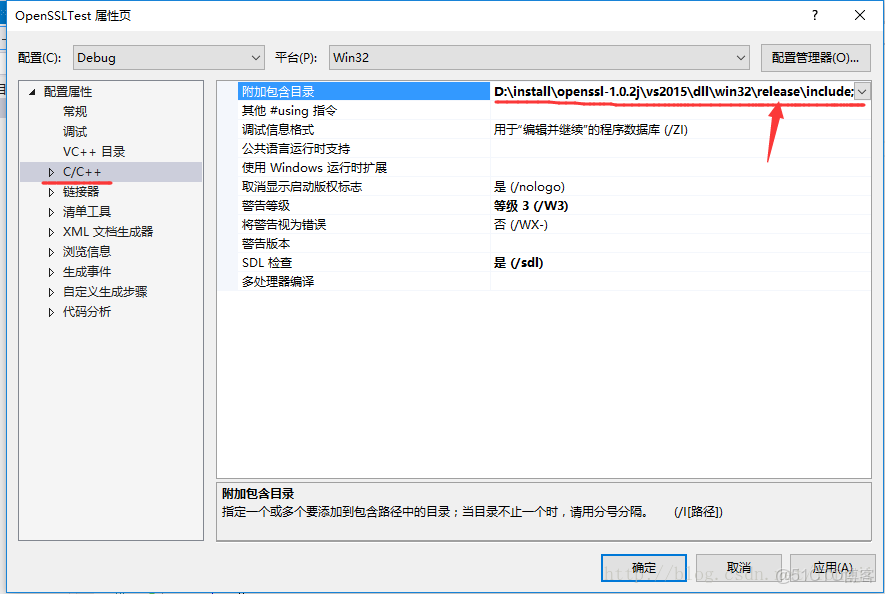
8.1 新建一個vs2015空的32位控制枱工程,工程上面右鍵菜單選擇屬性,配置屬性C/C++附加包含目錄,添加內容:D:\install\openssl-1.0.2j\vs2015\dll\win32\release\include
注意:實際工程中,需要把vs2015目錄內容拷貝到自己工程的特定第三方目錄,然後使用相對路徑引入。
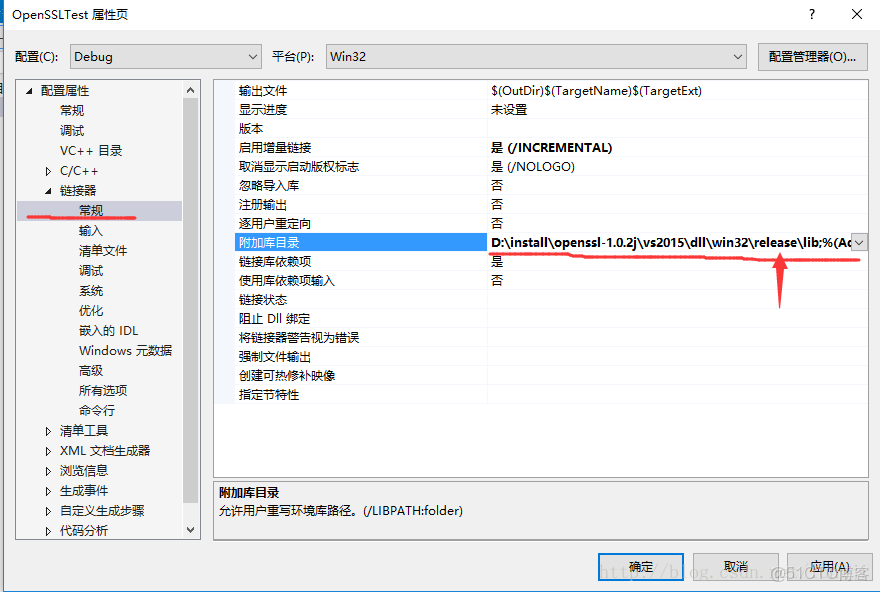
8.2 配置屬性==>連接器==>常規==>附加庫目錄,添加D:\install\openssl-1.0.2j\vs2015\dll\win32\release\lib;
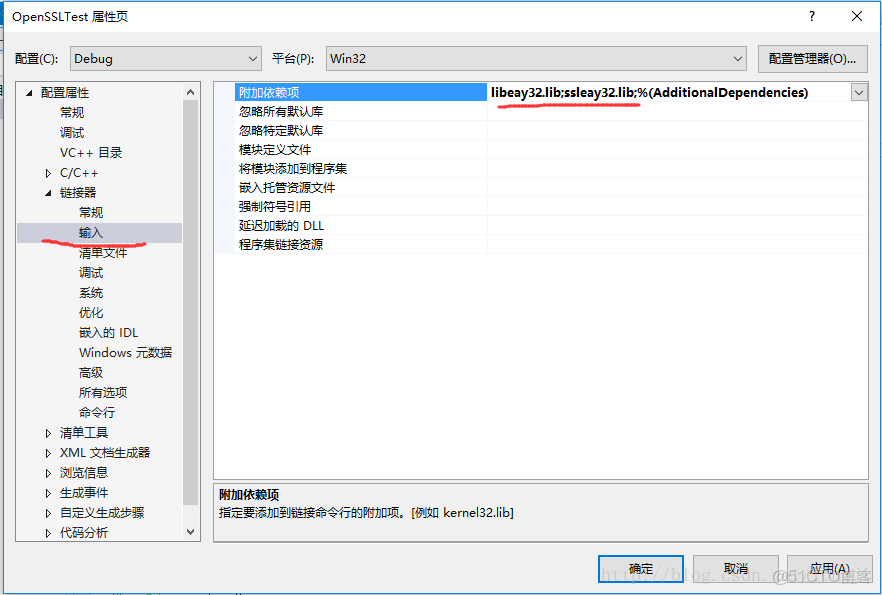
8.3 配置屬性==>連接器==>輸入==>附近依賴項,添加 libeay32.lib;ssleay32.lib;
8.4 添加一個測試的c++文件。這裏在其他人的blog上面引入了一個測試文件。OpenSSLTest.cpp。來自。
// 該代碼來自
// 把文件目錄做了修改,解密後的文件多了一個換行符
//
#include <openssl/evp.h>
#include <stdio.h>

#pragma warning(disable:4996)

#define N 1024
#define IN
//Aes算法ecb模式加密文件
/**********************************************************************
函數名稱:AesEncryptFile
函數功能:加密文件
處理過程:
1.根據選擇的密碼算法以及口令,生成key和iv。
2.把文件頭寫入密文文件
3.循環讀取原文文件數據加密後保存到密文文件路徑中。
參數説明:
szSrc:[IN] char *,待加密的原文文件路徑
szTarget:[IN] char *,加密後的密文文件保存路徑
key:[IN] unsigned char *, 口令
iType:[IN] int, 加密類型(128或256)
返回值:成功返回1,否則返回0
************************************************************************/
int AesEncryptFile(IN char * szSrc,
    IN char * szTarget,
    IN unsigned char * key,
    IN int iType)
{
    unsigned char ukey[EVP_MAX_KEY_LENGTH];
    unsigned char iv[EVP_MAX_IV_LENGTH];
    unsigned char in[N];
    int inl;   //輸入數據大小
    unsigned char out[N];
    int outl;   //輸出數據大小

    int isSuccess;

    FILE *fpIn;
    FILE *fpOut;

    EVP_CIPHER_CTX ctx;   //evp加密上下文環境
    const   EVP_CIPHER *cipher;

    fpIn = fopen(szSrc, "rb");
    if (fpIn == NULL)
    {
        printf("fopen szSrc failed");
        return 0;
    }
    fpOut = fopen(szTarget, "w+");
    if (fpOut == NULL)
    {
        printf("fopen szTarget failed");
        fclose(fpIn);
        return 0;
    }

    //選擇算法
    if (iType == 128)
    {
        cipher = EVP_aes_128_ecb();
    }
    else if (iType == 256)
    {
        cipher = EVP_aes_256_ecb();
    }
    else
    {
        printf("iType should be 128 or 256.");
        fclose(fpIn);
        fclose(fpOut);
        return 0;
    }
    //生成ukey和iv
    int len = sizeof(key);
    EVP_BytesToKey(cipher, EVP_md5(), NULL, (const unsigned char *)key, len - 1, 1, ukey, iv);

    //初始化ctx,加密算法初始化
    EVP_CIPHER_CTX_init(&ctx);
    isSuccess = EVP_EncryptInit_ex(&ctx, cipher, NULL, ukey, iv);
    if (!isSuccess)
    {
        printf("EVP_EncryptInit_ex() failed");
        EVP_CIPHER_CTX_cleanup(&ctx);
        fclose(fpIn);
        fclose(fpOut);
        return 0;
    }

    //加密文件
    for (;;)
    {
        inl = fread(in, 1, N, fpIn);
        if (inl <= 0)
            break;

        isSuccess = EVP_EncryptUpdate(&ctx, out, &outl, in, inl);
        if (!isSuccess)
        {
            printf("EVP_EncryptInit_ex() failed");
            EVP_CIPHER_CTX_cleanup(&ctx);
            fclose(fpIn);
            fclose(fpOut);
            return 0;
        }
        fwrite(out, 1, outl, fpOut);
    }
    isSuccess = EVP_EncryptFinal_ex(&ctx, out, &outl);
    if (!isSuccess)
    {
        printf("EVP_EncryptInit_ex() failed");
        EVP_CIPHER_CTX_cleanup(&ctx);
        fclose(fpIn);
        fclose(fpOut);
        return 0;
    }

    fwrite(out, 1, outl, fpOut);
    printf("加密成功\n");
    EVP_CIPHER_CTX_cleanup(&ctx);
    fclose(fpIn);
    fclose(fpOut);
    return 1;
}

//Aes算法ecb模式解密文件
/**********************************************************************
函數名稱:AesDecryptFile
函數功能:解密文件
處理過程:
1.根據選擇的密碼算法以及口令,生成key和iv。
2.把文件頭寫入密文文件
3.循環讀取原文文件數據加密後保存到密文文件路徑中。
參數説明:
szSrc:[IN] char *,待解密的密文文件路徑
szTarget:[IN] char *,解密後的解密文件保存路徑
key:[IN] unsigned char *, 口令
iType:[IN] int, 加密類型(128或256)
返回值:成功返回1,否則返回0
************************************************************************/
int AesDecryptFile(IN char * szSrc,
    IN char * szTarget,
    IN unsigned char * key,
    IN int iType)
{
    unsigned char ukey[EVP_MAX_KEY_LENGTH];
    unsigned char iv[EVP_MAX_IV_LENGTH];
    unsigned char in[N];
    int inl;   //輸入數據大小
    unsigned char out[N];
    int outl;   //輸出數據大小

    int isSuccess;

    FILE *fpIn;
    FILE *fpOut;

    EVP_CIPHER_CTX ctx;   //evp加密上下文環境
    const EVP_CIPHER *cipher;

    fpIn = fopen(szSrc, "rb");
    if (fpIn == NULL)
    {
        printf("fopen szSrc failed");
        return 0;
    }
    fpOut = fopen(szTarget, "w+");
    if (fpOut == NULL)
    {
        printf("fopen szTarget failed");
        fclose(fpIn);
        return 0;
    }

    //選擇算法
    if (iType == 128)
    {
        cipher = EVP_aes_128_ecb();
    }
    else if (iType == 256)
    {
        cipher = EVP_aes_256_ecb();
    }
    else
    {
        printf("iType should be 128 or 256.");
        fclose(fpIn);
        fclose(fpOut);
        return 0;
    }
    //生成ukey和iv
    int len = sizeof(key);
    EVP_BytesToKey(cipher, EVP_md5(), NULL, (const unsigned char *)key, len - 1, 1, ukey, iv);

    //初始化ctx,加密算法初始化
    EVP_CIPHER_CTX_init(&ctx);
    isSuccess = EVP_DecryptInit_ex(&ctx, cipher, NULL, ukey, iv);
    if (!isSuccess)
    {
        printf("EVP_DecryptInit_ex() failed");
        EVP_CIPHER_CTX_cleanup(&ctx);
        fclose(fpIn);
        fclose(fpOut);
        return 0;
    }

    //加密文件
    for (;;)
    {
        inl = fread(in, 1, N, fpIn);
        if (inl <= 0)
            break;

        isSuccess = EVP_DecryptUpdate(&ctx, out, &outl, in, inl);
        if (!isSuccess)
        {
            printf("EVP_EncryptInit_ex() failed");
            EVP_CIPHER_CTX_cleanup(&ctx);
            fclose(fpIn);
            fclose(fpOut);
            return 0;
        }
        fwrite(out, 1, outl, fpOut);
    }
    isSuccess = EVP_DecryptFinal_ex(&ctx, out, &outl);
    if (!isSuccess)
    {
        printf("EVP_DecryptInit_ex() failed");
        EVP_CIPHER_CTX_cleanup(&ctx);
        fclose(fpIn);
        fclose(fpOut);
        return 0;
    }

    fwrite(out, 1, outl, fpOut);
    printf("解密成功\n");
    EVP_CIPHER_CTX_cleanup(&ctx);
    fclose(fpIn);
    fclose(fpOut);
    return 1;
}

int main()
{
#if _DEBUG
    char *Src = "../debug/test.txt";
    char *TargetEnc = "../debug/test.txt.enc";
    char *TargetDec = "../debug/test.txt.dec";
#else
    //// 如果調試也需要指定正確的目錄
    //char *Src = "../Release/test.txt";
    //char *TargetEnc = "../Release/test.txt.enc";
    //char *TargetDec = "../Release/test.txt.dec";
    char *Src = "test.txt";
    char *TargetEnc = "test.txt.enc";
    char *TargetDec = "test.txt.dec";
#endif
    unsigned char key[32] = "abcdefg";
    int rv = AesEncryptFile(Src, TargetEnc, key, 128);
    if (rv != 1)
    {
        printf("AesEncryptFile() failed");
        return 1;
    }
    rv = AesDecryptFile(TargetEnc, TargetDec, key, 128);
    if (rv != 1)
    {
        printf("AesDecryptFile() failed");
        return 1;
    }
    return 0;
}
8.5 Build 項目,生成debug/OpenSSLTest.exe文件
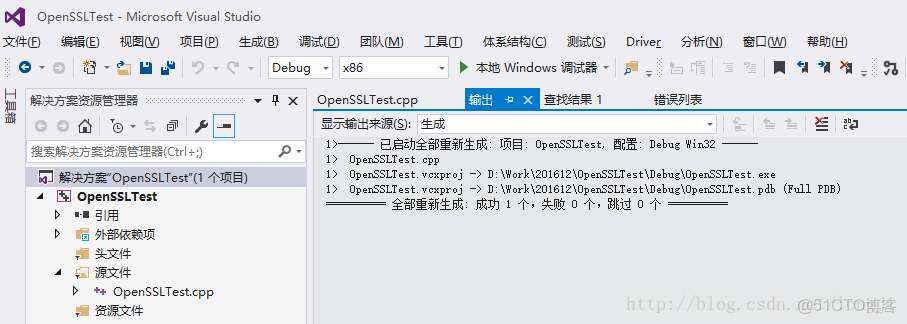
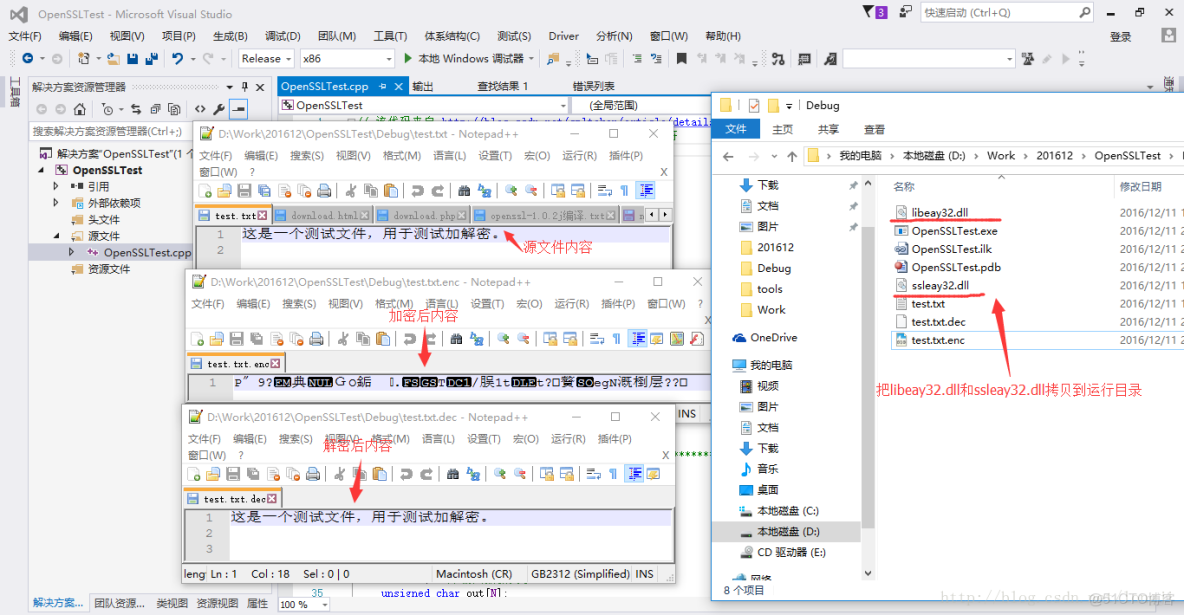
8.6 把D:\install\openssl-1.0.2j\vs2015\dll\win32\release\bin目錄下的libeay32.dll和ssleay32.dll拷貝到與 debug/OpenSSLTest.exe 相同的目錄下。在debug/OpenSSLTest.exe 目錄下,生成一個文本文件,text.txt,隨便寫些內容後,F5,運行調試OpenSSLTest.exe,生成test.txt的加密文件test.txt.enc和test.txt.enc的解密文件test.txt.dec。
09 關於運行時庫的選中
openssl基本都會作為第三方庫引入工程。而且往往會作為次級庫引入,第三方庫在編譯使用的運行時庫一般會是動態運行時,也有選擇靜態運行時庫的。openssl的編譯也面臨同樣問題。默認使用動態運行時庫。通過修改配置項,可以選擇靜態運行時庫。
09.01 運行時庫默認選項
nmake -f ms/ntdll.mak- 1
該命令生成動態庫,默認使用的是MD
nmake -f ms/nt.mak- 1
該命令生成靜態庫,默認使用的是MT
09.02 更改運行時庫方法
想生成使用靜態鏈接運行時庫的動態庫則採用下面方法
複製一個ntdll.mak並命名為ntdll_mt.mak,修改裏面的 “CFLAG= /MD /Ox …………..” 為/MT ,然後重新編譯,執行 nmake -f ms/ntdll_mt.mak
想生成使用動態鏈接運行時庫的靜態庫則採用下面方法
複製一個nt.mak並命名為nt_md.mak,修改裏面的 “CFLAG= /MT /Ox …………..” 為/MD
