文章的目的為了記錄使用QT QML開發學習的經歷。開發流程和要點有些記憶模糊,趕緊記錄,防止忘記。
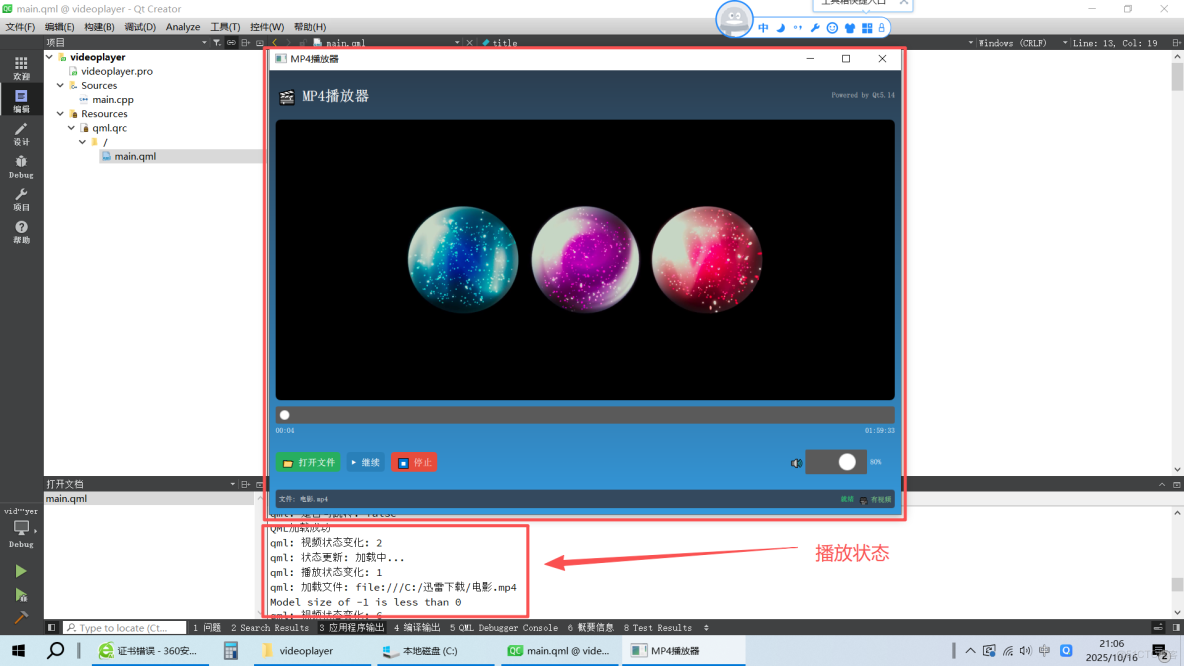
本章節主要內容是:使用qml編寫了媒體播放器,使用了K-Lite Codec Pack Mega作為解碼包,實現mp4的播放。
1.代碼分析
2.所有源碼
3.效果演示
一、代碼分析1. 主窗口和屬性定義
ApplicationWindow {
    id: mainWindow
    width: 1024
    height: 720
    visible: true
    title: "MP4播放器 - 完全兼容版"
    minimumWidth: 800
    minimumHeight: 600
    property string currentVideo: ""  // 當前視頻文件路徑
    property bool hasVideo: videoPlayer.hasVideo  // 綁定到Video組件的hasVideo屬性
    property bool isSeekable: videoPlayer.seekable  // 是否支持跳轉
    property string currentStatus: "等待選擇文件"  // 當前狀態顯示文本
}
2. 核心視頻播放組件
Video組件及其信號處理
Video {
    id: videoPlayer
    anchors.fill: parent
    anchors.margins: 2
    source: currentVideo  // 綁定到currentVideo屬性
    fillMode: VideoOutput.PreserveAspectFit  // 保持寬高比
    volume: volumeSlider.value  // 綁定音量滑塊
    autoPlay: true  // 自動播放
    // 狀態變化信號處理
    onStatusChanged: {
        console.log("視頻狀態變化:", status)
        updateStatusDisplay()  // 更新狀態顯示
    }
    // 播放狀態變化信號處理
    onPlaybackStateChanged: {
        console.log("播放狀態變化:", playbackState)
        updatePlayButton()  // 更新播放按鈕文本
    }
    // 視頻時長變化信號處理
    onDurationChanged: {
        console.log("視頻時長:", duration, "ms")
        progressSlider.to = Math.max(1, duration)  // 設置進度條最大值
    }
    // 播放位置變化信號處理
    onPositionChanged: {
        if (!progressSlider.pressed) {  // 避免拖動時衝突
            progressSlider.value = position  // 更新進度條位置
        }
    }
}
3. 主要控制函數
播放/暫停切換函數
function togglePlayPause() {
    if (!hasVideo || currentVideo === "") return  // 安全檢查
    if (videoPlayer.playbackState === MediaPlayer.PlayingState) {
        videoPlayer.pause()  // 如果正在播放,則暫停
    } else {
        videoPlayer.play()  // 否則開始播放
    }
}
狀態顯示更新函數
function updateStatusDisplay() {
    var status = videoPlayer.status  // 獲取當前視頻狀態
    switch(status) {
        case MediaPlayer.NoMedia:
            currentStatus = "無媒體文件"
            break
        case MediaPlayer.Loading:
            currentStatus = "加載中..."
            break
        case MediaPlayer.Loaded:
            currentStatus = "已加載"
            break
        case MediaPlayer.Stalling:
            currentStatus = "緩衝中..."
            break
        case MediaPlayer.Buffering:
            currentStatus = "緩衝中"
            break
        case MediaPlayer.Buffered:
            currentStatus = "就緒"
            break
        case MediaPlayer.EndOfMedia:
            currentStatus = "播放結束"
            break
        case MediaPlayer.InvalidMedia:
            currentStatus = "格式不支持"
            break
        case MediaPlayer.UnknownStatus:
            currentStatus = "未知狀態"
            break
        default:
            currentStatus = "就緒"
    }
    console.log("狀態更新:", currentStatus)
}
播放按鈕更新函數
function updatePlayButton() {
    switch(videoPlayer.playbackState) {
        case MediaPlayer.PlayingState:
            playButton.text = "⏸️ 暫停"  // 播放中顯示暫停
            break
        case MediaPlayer.PausedState:
            playButton.text = "▶️ 繼續"  // 暫停中顯示繼續
            break
        default:
            playButton.text = "▶️ 播放"  // 默認顯示播放
    }
}
4. UI狀態顯示函數
狀態圖標獲取函數
function getStatusIcon() {
    if (currentVideo === "") return ""  // 無文件
    if (videoPlayer.status === MediaPlayer.InvalidMedia) return "❌"  // 格式錯誤
    if (videoPlayer.status === MediaPlayer.Loading) return "⏳"  // 加載中
    if (!hasVideo) return ""  // 無視頻流
    return "✅"  // 正常狀態
}
狀態消息獲取函數
function getStatusMessage() {
    if (currentVideo === "") return "請選擇視頻文件開始播放"  // 初始提示
    if (videoPlayer.status === MediaPlayer.InvalidMedia) return "無法播放此文件"  // 錯誤提示
    if (videoPlayer.status === MediaPlayer.Loading) return "正在加載..."  // 加載提示
    if (!hasVideo) return "準備播放"  // 準備狀態
    return "正在播放: " + getFileName(currentVideo)  // 播放狀態顯示文件名
}
錯誤詳情獲取函數
function getErrorDetails() {
    if (videoPlayer.status === MediaPlayer.InvalidMedia) {
        return "此文件需要H.264解碼器\n請安裝K-Lite Codec Pack\n下載: https://codecguide.com/download_kl.htm"
    }
    return ""  // 無錯誤時返回空字符串
}
5. 工具函數
狀態顏色獲取函數
function getStatusColor() {
    if (videoPlayer.status === MediaPlayer.InvalidMedia) return "#e74c3c"  // 紅色-錯誤
    if (videoPlayer.status === MediaPlayer.Buffered) return "#2ecc71"  // 綠色-就緒
    if (videoPlayer.status === MediaPlayer.Loading) return "#f39c12"  // 橙色-加載中
    return "#3498db"  // 藍色-默認
}
文件名提取函數
function getFileName(filePath) {
    var path = filePath.toString()  // 轉換為字符串
    var fileName = path.split('/').pop() || path.split('\\').pop()  // 從路徑中提取文件名
    return fileName || "未知文件"  // 返回文件名或默認值
}
時間格式化函數
function formatTime(milliseconds) {
    if (!milliseconds || isNaN(milliseconds)) return "00:00"  // 無效時間處理
    var totalSeconds = Math.floor(milliseconds / 1000)  // 轉換為秒
    var hours = Math.floor(totalSeconds / 3600)  // 計算小時
    var minutes = Math.floor((totalSeconds % 3600) / 60)  // 計算分鐘
    var seconds = totalSeconds % 60  // 計算秒數
    if (hours > 0) {
        // 有時長格式:HH:MM:SS
        return hours.toString().padStart(2, '0') + ":" +
               minutes.toString().padStart(2, '0') + ":" +
               seconds.toString().padStart(2, '0')
    } else {
        // 無時長格式:MM:SS
        return minutes.toString().padStart(2, '0') + ":" +
               seconds.toString().padStart(2, '0')
    }
}
6. 進度條控制函數
進度條拖動處理
Slider {
    id: progressSlider
    // ... 其他屬性
    onMoved: {
        if (isSeekable) {  // 檢查是否支持跳轉
            videoPlayer.seek(value)  // 跳轉到指定位置
        }
    }
}
7. C++主程序函數
環境設置函數
int main(int argc, char *argv[])
{
    // 關鍵環境變量設置
    qputenv("QT_MEDIA_BACKEND", "windows");  // 強制使用Windows媒體後端
    qputenv("QT_LOGGING_RULES", "qt.multimedia.*=true");  // 啓用多媒體調試日誌
    qputenv("MF_DEBUG", "1");  // 啓用Media Foundation調試
    // 應用程序屬性設置
    QCoreApplication::setAttribute(Qt::AA_EnableHighDpiScaling);  // 高DPI支持
    QCoreApplication::setAttribute(Qt::AA_UseSoftwareOpenGL);  // 軟件渲染
    QGuiApplication app(argc, argv);
    // 應用程序信息
    app.setApplicationName("MP4播放器");
    app.setApplicationVersion("1.0");
    app.setOrganizationName("MyCompany");
}
系統診斷函數
// 詳細的多媒體支持信息
qDebug() << "=== 多媒體系統診斷信息 ===";
qDebug() << "應用程序目錄:" << QDir::currentPath();
qDebug() << "臨時目錄:" << QStandardPaths::writableLocation(QStandardPaths::TempLocation);
qDebug() << "支持的MIME類型數量:" << QMediaPlayer::supportedMimeTypes().count();
// 輸出支持的格式
auto mimeTypes = QMediaPlayer::supportedMimeTypes();
for (int i = 0; i < qMin(10, mimeTypes.count()); ++i) {
    qDebug() << "支持格式:" << mimeTypes[i];
}
8. 文件對話框處理
FileDialog {
    id: fileDialog
    title: "選擇視頻文件"
    nameFilters: [ /* 文件過濾器列表 */ ]
    onAccepted: {
        currentVideo = fileDialog.fileUrl  // 獲取選擇的文件URL
        console.log("加載文件:", currentVideo)  // 調試日誌
    }
}
二、所有源碼
1.安裝正確的解碼器包
推薦方案:K-Lite Codec Pack Mega
下載地址:https://codecguide.com/download_kl.htm
選擇版本:下載 Mega 版本(包含所有解碼器)
安裝步驟:運行安裝程序
2.pro文件
QT += quick quickcontrols2 multimedia multimediawidgets3.main.qml文件源碼
import QtQuick 2.14
import QtQuick.Window 2.14
import QtMultimedia 5.14
import QtQuick.Controls 2.14
import QtQuick.Dialogs 1.3
import QtQuick.Layouts 1.14
ApplicationWindow {
id: mainWindow
width: 1024
height: 720
visible: true
title: "MP4播放器 - 完全兼容版"
minimumWidth: 800
minimumHeight: 600
property string currentVideo: ""
property bool hasVideo: videoPlayer.hasVideo
property bool isSeekable: videoPlayer.seekable
property string currentStatus: "等待選擇文件"
// 背景漸變
Rectangle {
anchors.fill: parent
gradient: Gradient {
GradientStop { position: 0.0; color: "#2c3e50" }
GradientStop { position: 1.0; color: "#3498db" }
}
}
ColumnLayout {
anchors.fill: parent
anchors.margins: 10
spacing: 10
// 標題欄
Rectangle {
Layout.fillWidth: true
height: 60
color: "transparent"
RowLayout {
anchors.fill: parent
Text {
text: " MP4播放器"
color: "white"
font.pixelSize: 24
font.bold: true
}
Item { Layout.fillWidth: true }
Text {
text: "Powered by Qt5.14"
color: "lightgray"
font.pixelSize: 12
}
}
}
// 視頻顯示區域
Rectangle {
id: videoContainer
Layout.fillWidth: true
Layout.fillHeight: true
color: "black"
radius: 8
clip: true
Video {
id: videoPlayer
anchors.fill: parent
anchors.margins: 2
source: currentVideo
fillMode: VideoOutput.PreserveAspectFit
volume: volumeSlider.value
autoPlay: true
// 狀態變化處理 - 使用正確的信號
onStatusChanged: {
console.log("視頻狀態變化:", status)
updateStatusDisplay()
}
onPlaybackStateChanged: {
console.log("播放狀態變化:", playbackState)
updatePlayButton()
}
onDurationChanged: {
console.log("視頻時長:", duration, "ms")
progressSlider.to = Math.max(1, duration)
}
onPositionChanged: {
if (!progressSlider.pressed) {
progressSlider.value = position
}
}
}
// 加載指示器
BusyIndicator {
id: loadingIndicator
anchors.centerIn: parent
running: videoPlayer.status === MediaPlayer.Loading ||
videoPlayer.status === MediaPlayer.Stalling ||
videoPlayer.status === MediaPlayer.Buffering
visible: running
}
// 居中狀態信息
Column {
id: centerInfo
anchors.centerIn: parent
spacing: 10
visible: currentVideo === "" || videoPlayer.status === MediaPlayer.InvalidMedia || !hasVideo
Text {
id: statusIcon
anchors.horizontalCenter: parent.horizontalCenter
color: "white"
font.pixelSize: 48
text: getStatusIcon()
}
Text {
id: statusMessage
anchors.horizontalCenter: parent.horizontalCenter
color: "white"
font.pixelSize: 18
text: getStatusMessage()
horizontalAlignment: Text.AlignHCenter
}
Text {
id: errorDetails
anchors.horizontalCenter: parent.horizontalCenter
color: "yellow"
font.pixelSize: 12
text: getErrorDetails()
visible: text !== ""
horizontalAlignment: Text.AlignHCenter
width: 400
wrapMode: Text.WordWrap
}
}
// 點擊控制播放/暫停
MouseArea {
anchors.fill: parent
onClicked: togglePlayPause()
enabled: hasVideo && currentVideo !== ""
}
}
// 進度控制區域
ColumnLayout {
Layout.fillWidth: true
spacing: 5
// 進度條
Slider {
id: progressSlider
Layout.fillWidth: true
from: 0
to: 100
value: 0
enabled: isSeekable && hasVideo
onMoved: {
if (isSeekable) {
videoPlayer.seek(value)
}
}
// 自定義樣式
background: Rectangle {
implicitHeight: 6
color: "#5a5a5a"
radius: 3
}
handle: Rectangle {
x: progressSlider.leftPadding + progressSlider.visualPosition * (progressSlider.availableWidth - width)
y: progressSlider.topPadding + progressSlider.availableHeight / 2 - height / 2
implicitWidth: 16
implicitHeight: 16
radius: 8
color: progressSlider.pressed ? "#f0f0f0" : "#ffffff"
border.color: "#bdbebf"
}
}
// 時間信息
RowLayout {
Layout.fillWidth: true
Text {
color: "white"
text: formatTime(videoPlayer.position)
font.pixelSize: 12
}
Item { Layout.fillWidth: true }
Text {
color: "white"
text: formatTime(videoPlayer.duration)
font.pixelSize: 12
}
}
}
// 控制按鈕區域
Rectangle {
Layout.fillWidth: true
height: 70
color: "transparent"
RowLayout {
anchors.fill: parent
spacing: 10
// 文件操作按鈕
Button {
text: " 打開文件"
onClicked: fileDialog.open()
background: Rectangle {
color: "#27ae60"
radius: 5
}
contentItem: Text {
text: parent.text
color: "white"
horizontalAlignment: Text.AlignHCenter
verticalAlignment: Text.AlignVCenter
font.bold: true
}
}
// 播放控制按鈕
Button {
id: playButton
text: "▶️ 播放"
onClicked: togglePlayPause()
enabled: hasVideo && currentVideo !== ""
background: Rectangle {
color: enabled ? "#2980b9" : "#7f8c8d"
radius: 5
}
contentItem: Text {
text: parent.text
color: "white"
horizontalAlignment: Text.AlignHCenter
verticalAlignment: Text.AlignVCenter
font.bold: true
}
}
Button {
text: "⏹️ 停止"
onClicked: {
videoPlayer.stop()
progressSlider.value = 0
}
enabled: hasVideo && currentVideo !== ""
background: Rectangle {
color: enabled ? "#e74c3c" : "#7f8c8d"
radius: 5
}
contentItem: Text {
text: parent.text
color: "white"
horizontalAlignment: Text.AlignHCenter
verticalAlignment: Text.AlignVCenter
}
}
Item { Layout.fillWidth: true }
// 音量控制
RowLayout {
spacing: 5
Text {
text: ""
color: "white"
font.pixelSize: 16
}
Slider {
id: volumeSlider
from: 0
to: 1
value: 0.8
stepSize: 0.1
Layout.preferredWidth: 100
background: Rectangle {
implicitHeight: 4
color: "#5a5a5a"
radius: 2
}
}
Text {
color: "white"
text: Math.round(volumeSlider.value * 100) + "%"
font.pixelSize: 12
Layout.preferredWidth: 40
}
}
}
}
// 狀態信息欄
Rectangle {
Layout.fillWidth: true
height: 30
color: "#34495e"
radius: 4
RowLayout {
anchors.fill: parent
anchors.margins: 5
Text {
color: "white"
text: "文件: " + (currentVideo ? getFileName(currentVideo) : "未選擇")
font.pixelSize: 11
elide: Text.ElideMiddle
Layout.fillWidth: true
}
Text {
color: getStatusColor()
text: currentStatus
font.pixelSize: 11
font.bold: true
}
Text {
color: hasVideo ? "lightgreen" : "red"
text: hasVideo ? " 有視頻" : "❌ 無視頻"
font.pixelSize: 11
}
}
}
}
FileDialog {
id: fileDialog
title: "選擇視頻文件"
nameFilters: [
"MP4文件 (*.mp4)",
"AVI文件 (*.avi)",
"MKV文件 (*.mkv)",
"MOV文件 (*.mov)",
"WMV文件 (*.wmv)",
"所有文件 (*.*)"
]
onAccepted: {
currentVideo = fileDialog.fileUrl
console.log("加載文件:", currentVideo)
}
}
// 功能函數
function togglePlayPause() {
if (!hasVideo || currentVideo === "") return
if (videoPlayer.playbackState === MediaPlayer.PlayingState) {
videoPlayer.pause()
} else {
videoPlayer.play()
}
}
function updateStatusDisplay() {
var status = videoPlayer.status
switch(status) {
case MediaPlayer.NoMedia:
currentStatus = "無媒體文件"
break
case MediaPlayer.Loading:
currentStatus = "加載中..."
break
case MediaPlayer.Loaded:
currentStatus = "已加載"
break
case MediaPlayer.Stalling:
currentStatus = "緩衝中..."
break
case MediaPlayer.Buffering:
currentStatus = "緩衝中"
break
case MediaPlayer.Buffered:
currentStatus = "就緒"
break
case MediaPlayer.EndOfMedia:
currentStatus = "播放結束"
break
case MediaPlayer.InvalidMedia:
currentStatus = "格式不支持"
break
case MediaPlayer.UnknownStatus:
currentStatus = "未知狀態"
break
default:
currentStatus = "就緒"
}
console.log("狀態更新:", currentStatus)
}
function updatePlayButton() {
switch(videoPlayer.playbackState) {
case MediaPlayer.PlayingState:
playButton.text = "⏸️ 暫停"
break
case MediaPlayer.PausedState:
playButton.text = "▶️ 繼續"
break
default:
playButton.text = "▶️ 播放"
}
}
function getStatusIcon() {
if (currentVideo === "") return ""
if (videoPlayer.status === MediaPlayer.InvalidMedia) return "❌"
if (videoPlayer.status === MediaPlayer.Loading) return "⏳"
if (!hasVideo) return ""
return "✅"
}
function getStatusMessage() {
if (currentVideo === "") return "請選擇視頻文件開始播放"
if (videoPlayer.status === MediaPlayer.InvalidMedia) return "無法播放此文件"
if (videoPlayer.status === MediaPlayer.Loading) return "正在加載..."
if (!hasVideo) return "準備播放"
return "正在播放: " + getFileName(currentVideo)
}
function getErrorDetails() {
if (videoPlayer.status === MediaPlayer.InvalidMedia) {
return "此文件需要H.264解碼器\n請安裝K-Lite Codec Pack\n下載: https://codecguide.com/download_kl.htm"
}
return ""
}
function getStatusColor() {
if (videoPlayer.status === MediaPlayer.InvalidMedia) return "#e74c3c"
if (videoPlayer.status === MediaPlayer.Buffered) return "#2ecc71"
if (videoPlayer.status === MediaPlayer.Loading) return "#f39c12"
return "#3498db"
}
function getFileName(filePath) {
var path = filePath.toString()
var fileName = path.split('/').pop() || path.split('\\').pop()
return fileName || "未知文件"
}
function formatTime(milliseconds) {
if (!milliseconds || isNaN(milliseconds)) return "00:00"
var totalSeconds = Math.floor(milliseconds / 1000)
var hours = Math.floor(totalSeconds / 3600)
var minutes = Math.floor((totalSeconds % 3600) / 60)
var seconds = totalSeconds % 60
if (hours > 0) {
return hours.toString().padStart(2, '0') + ":" +
minutes.toString().padStart(2, '0') + ":" +
seconds.toString().padStart(2, '0')
} else {
return minutes.toString().padStart(2, '0') + ":" +
seconds.toString().padStart(2, '0')
}
}
Component.onCompleted: {
console.log("播放器初始化完成")
console.log("視頻輸出支持:", videoPlayer.availability)
console.log("是否有視頻:", videoPlayer.hasVideo)
console.log("是否可跳轉:", videoPlayer.seekable)
}
}4. main.cpp文件源碼
#include
#include
#include
#include
#include
#include
int main(int argc, char *argv[])
{
    // 設置環境變量 - 在創建QGuiApplication之前
    qputenv("QT_MEDIA_BACKEND", "windows");
    qputenv("QT_LOGGING_RULES", "qt.multimedia.*=true");
    qputenv("MF_DEBUG", "1");
    QCoreApplication::setAttribute(Qt::AA_EnableHighDpiScaling);
    QCoreApplication::setAttribute(Qt::AA_UseSoftwareOpenGL);
    QGuiApplication app(argc, argv);
    // 設置應用程序信息
    app.setApplicationName("MP4播放器");
    app.setApplicationVersion("1.0");
    app.setOrganizationName("MyCompany");
    // 詳細的多媒體支持信息
    qDebug() << "=== 多媒體系統診斷信息 ===";
    qDebug() << "應用程序目錄:" << QDir::currentPath();
    qDebug() << "臨時目錄:" << QStandardPaths::writableLocation(QStandardPaths::TempLocation);
    qDebug() << "支持的MIME類型數量:" << QMediaPlayer::supportedMimeTypes().count();
    // 輸出前10個支持的格式
    auto mimeTypes = QMediaPlayer::supportedMimeTypes();
    for (int i = 0; i < qMin(10, mimeTypes.count()); ++i) {
        qDebug() << "支持格式:" << mimeTypes[i];
    }
    qDebug() << "環境變量:";
    qDebug() << "QT_MEDIA_BACKEND =" << qgetenv("QT_MEDIA_BACKEND");
    qDebug() << "PATH =" << qgetenv("PATH");
    QQmlApplicationEngine engine;
    // 連接加載失敗信號
    QObject::connect(&engine, &QQmlApplicationEngine::objectCreated,
                     &app, [](QObject *obj, const QUrl &objUrl) {
        if (!obj) {
            qCritical() << "QML加載失敗:" << objUrl;
            QCoreApplication::exit(-1);
        } else {
            qDebug() << "QML加載成功";
        }
    }, Qt::QueuedConnection);
    engine.load(QUrl(QStringLiteral("qrc:/main.qml")));
    return app.exec();
}
三、效果演示
選擇MP4文件,進行播放,可以拖動和暫停。需要注意的是必須要安裝解碼器才行。