

官方文檔:https://docs.docker.com/engine/reference/builder/
What is dockerfile?
A Dockerfile is a text document that contains all the commands a user could call on the command line to assemble an image.
Why we use dockerfile?What we can do?
Docker can build images automatically by reading the instructions from a Dockerfile.Using docker build users can create an automated build that executes several command-line instructions in succession.
Dockerfile是一個文件,用户可以通過編寫這個文件來自動構建一個自己想要的鏡像。
How to use dockerfile?
Format
- The instruction is not case-sensitive. However, convention is for them to be UPPERCASE to distinguish them from arguments more easily.
- Docker runs instructions in a Dockerfile in order. A Dockerfile must begin with a FROM instruction. This may be after comments, and globally scoped ARGs. The FROM instruction specifies the Parent Image from which you are building. FROM may only be preceded by one or more ARG instructions, which declare arguments that are used in FROM lines in the Dockerfile. #解釋了為什麼每個鏡像都要從FROM開始
FROM scratch --- scratch是一個特殊的標識符,表示一個完全空的基礎鏡像---
- FROM 文件開頭需要指定父鏡像,也就是説,你這個鏡像是在哪個鏡像的基礎上製作的
- COPY 將宿主機的文件直接拷到鏡像裏
- ADD 往鏡像裏添加點啥?
與COPY的不同之處是,ADD放進去的壓縮包會自動解壓
- RUN 在容器開始運行時執行寫好的linux命令/shell命令
- CMD 到這一步需要執行什麼命令?
不要將 RUN 與 CMD 混淆。RUN 實際執行命令並提交結果;CMD 在構建時不執行任何操作,而是指定鏡像的預期命令。
- ENV 設置環境變量
- EXPOSE 這個鏡像向外暴露哪個端口
- LABEL 作為註釋記錄一下鏡像的信息 保存格式是鍵值對 在docker元數據裏可以看到
- MAINTAINER 作者信息 後面版本已棄用
- VOLUME 掛載數據卷
- WORKDIR 容器工作目錄
- ONBUILD (when combined with one of the supported instructions above) 當該鏡像與其它鏡像有繼承關係使用
Environment variable substitution will use the same value for each variable throughout the entire instruction.
構建鏡像
如果在dockerfile工作目錄下面創建了名為Dockerfile的文件 構建鏡像只需要執行docker build . 引擎會自動尋找文件並構建鏡像
其它參數
-f, --file 如果文件名稱不是Dockerfile 就需要用-f 來指定文件名
--label 在鏡像裏添加標籤 標籤信息在元數據裏可以找到
--network 在構建鏡像時 指定鏡像要使用的網絡模式 bridge/host/none
-q, --quiet 靜默狀態構建鏡像 構建成功後返回鏡像ID
-t, --tag 給鏡像添加tag
- The docker build command builds an image from a Dockerfile and a context. The build’s context is the set of files at a specified location PATH or URL. The PATH is a directory on your local filesystem. The URL is a Git repository location.
- The build is run by the Docker daemon, not by the CLI. The first thing a build process does is send the entire context (recursively) to the daemon. In most cases, it’s best to start with an empty directory as context and keep your Dockerfile in that directory. Add only the files needed for building the Dockerfile.
Warning:
Do not use your root directory, /, as the PATH for your build context, as it causes the build to transfer the entire contents of your hard drive to the Docker daemon.
也就是説,最好不要把 / 設置為構建docker鏡像的工作目錄。因為,這樣會把宿主機的整個操作系統都打包到鏡像裏。
- Traditionally, the Dockerfile is called Dockerfile and located in the root of the context. You use the -f flag with docker build to point to a Dockerfile anywhere in your file system.
也就是説,如果在path路徑下將Dockerfile文件命名為Dockerfile,就不用去指定文件名,docker會自動去尋找。否則需要用-t 來指定Dockerfile文件。
- To use a file in the build context, the Dockerfile refers to the file specified in an instruction, for example, a COPY instruction. To increase the build’s performance, exclude files and directories by adding a .dockerignore file to the context directory. For information about how to create a.dockerignorefile see the documentation on this page.
可以創建一個.dockerignore文件來定義工作目錄裏的哪些文件不被打包到鏡像裏。
- The Docker daemon runs the instructions in the Dockerfile one-by-one, committing the result of each instruction to a new image if necessary, before finally outputting the ID of your new image. The Docker daemon will automatically clean up the context you sent.Note that each instruction is run independently, and causes a new image to be created - so RUN cd /tmp will not have any effect on the next instructions.
守護進程執行dockerfile文件的順序是從上到下一句一句的執行,執行一句提交一句。並且執行的每一句都相互獨立,執行提交完成後自動清理產生的上下文關聯。不管你上一句執行啥,跟下一句沒有任何關係。哪怕你上一句執行一條 cd / 下一條依然還會在dockerfile工作目錄裏執行。
- When you’re done with your build, you’re ready to look into scanning your image with docker scan, and pushing your image to Docker Hub.
- Docker treats lines that begin with # as a comment. A # marker anywhere else in a line is treated as an argument.
- Environment variables are supported by the following list of instructions in the Dockerfile.
Docker會把每行行首的#視為註釋。在其它位置的#視為參數。
實例:寫個tomcat
#創建dockerfile目錄
[root@iZ2zehgslxm94zuxaqgmhiZ ~]# mkdir testfile
#將需要的安裝包傳到該目錄下
[root@iZ2zehgslxm94zuxaqgmhiZ testfile]# ll
total 200864
-rw-r--r-- 1 root root 10595855 Mar 6 14:22 apache-tomcat-8.5.75.tar.gz
-rw-r--r-- 1 root root 194042837 Mar 9 23:41 jdk-8u202-linux-x64.tar.gz
-rw-r--r-- 1 root root 1039530 Mar 6 14:22 nginx-1.18.0.tar.gz
-rw-r--r-- 1 root root 1039530 Mar 6 14:22 test.txt
[root@iZ2zehgslxm94zuxaqgmhiZ testfile]#
#編寫dockfile文件
[root@iZ2zehgslxm94zuxaqgmhiZ testfile]# vim Dockerfile
FROM centos:7
MAINTAINER watadie<15234010114.139.com>
COPY test.txt /usr/local
ADD jdk-8u202-linux-x64.tar.gz /usr/local
ADD apache-tomcat-8.5.75.tar.gz /usr/local
#ADD jdk-8u201-linux-x64.tar.gz apache-tomcat-8.5.75.tar.gz nginx-1.18.0.tar.gz a /usr/local
ENV MYDIR /usr/local
WORKDIR $MYDIR
ENV JAVA_HOME /usr/local/jdk1.8.0_202
ENV CLASSPATH .:
JAVA_HOME/lib/tools.jar:
CATALINA_HOME/lib
ENV CATALINA_HOME /usr/local/apache-tomcat-8.5.75
ENV PATH
JAVA_HOME/bin:$CATALINA_HOME/bin
RUN yum install -y vim
RUN yum install -y net-tools
EXPOSE 8080
VOLUME /usr/local/apache-tomcat-8.5.75/webapps
VOLUME /usr/local/apache-tomcat-8.5.75/logs
CMD /usr/local/apache-tomcat-8.5.75/bin/startup.sh && tail -F /usr/local/apache-tomcat-8.5.75/logs/catalina.out
[root@iZ2zehgslxm94zuxaqgmhiZ testfile]#
#運行docker build生成鏡像
[root@iZ2zehgslxm94zuxaqgmhiZ testfile]# docker build -t newtomcat .
Sending build context to Docker daemon 205.7MB
Step 1/16 : FROM centos:7
---> eeb6ee3f44bd
Step 2/16 : MAINTAINER watadie<15234010114.139.com>
---> Using cache
---> d85e2e7d3da6
Step 3/16 : ADD jdk-8u202-linux-x64.tar.gz /usr/local
---> Using cache
---> 893eb6f0e03a
Step 4/16 : ADD apache-tomcat-8.5.75.tar.gz /usr/local
---> Using cache
---> 817de9e3db89
Step 5/16 : ENV MYDIR /usr/local
---> Using cache
---> 35795f81f2c0
Step 6/16 : WORKDIR $MYDIR
---> Using cache
---> 80b78650a70c
Step 7/16 : ENV JAVA_HOME /usr/local/jdk1.8.0_202
---> Using cache
---> 860be24dc741
Step 8/16 : ENV CLASSPATH .:
JAVA_HOME/lib/tools.jar:
CATALINA_HOME/lib
---> Using cache
---> 5de1603e5c46
Step 9/16 : ENV CATALINA_HOME /usr/local/apache-tomcat-8.5.75
---> Using cache
---> 85b2d7fdc463
Step 10/16 : ENV PATH
JAVA_HOME/bin:$CATALINA_HOME/bin
---> Using cache
---> bdddc67a337b
Step 11/16 : RUN yum install -y vim
---> Using cache
---> b008e7d4a5f4
Step 12/16 : RUN yum install -y net-tools
---> Using cache
---> e7aab01d8ae0
Step 13/16 : EXPOSE 8080
---> Using cache
---> c77418ee5be5
Step 14/16 : VOLUME /usr/local/apache-tomcat-8.5.75/webapps
---> Using cache
---> c85b568606bd
Step 15/16 : VOLUME /usr/local/apache-tomcat-8.5.75/logs
---> Using cache
---> 4809ab57edff
Step 16/16 : CMD /usr/local/apache-tomcat-8.5.75/bin/startup.sh && tail -F /usr/local/apache-tomcat-8.5.75/logs/catalina.out
---> Using cache
---> 0690f0b7d589
Successfully built 0690f0b7d589
[root@iZ2zehgslxm94zuxaqgmhiZ testfile]#
#查看生成的鏡像
[root@iZ2zehgslxm94zuxaqgmhiZ testfile]# docker images
REPOSITORY TAG IMAGE ID CREATED SIZE
newtomcat latest 0690f0b7d589 32 minutes ago 997MB
[root@iZ2zehgslxm94zuxaqgmhiZ testfile]#
#使用鏡像啓動容器
[root@iZ2zehgslxm94zuxaqgmhiZ testfile]# docker run -d -h dockfiletest -p 2022:8080 --name=testtomcat -v /root/tomcat/webapps:/usr/local/apache-tomcat-8.5.75/webapps -v /root/tomcat/logs:/usr/local/apache-tomcat-8.5.75/logs
0690f0b7d5894fb00cc617868231fc45de4132d0d30b41e2675ef7c3c298af76de1049dd7690
#查看鏡像啓動情況
[root@iZ2zehgslxm94zuxaqgmhiZ testfile]# docker ps
CONTAINER ID IMAGE COMMAND CREATED STATUS PORTS NAMES
4fb00cc61786 0690f0b7d589 "/bin/sh -c '/usr/lo…" 28 seconds ago Up 27 seconds 0.0.0.0:2022->8080/tcp testtomcat
#查看卷掛載情況
[root@iZ2zehgslxm94zuxaqgmhiZ ~]# ll
total 198704
-rw-r--r-- 1 root root 10595855 Mar 6 13:52 apache-tomcat-8.5.75.tar.gz
-rw-r--r-- 1 root root 191817140 Mar 6 14:09 jdk-8u201-linux-x64.tar.gz
-rw-r--r-- 1 root root 1039530 Mar 5 14:29 nginx-1.18.0.tar.gz
drwxr-xr-x 2 root root 4096 Mar 12 00:08 testfile
-rw-r--r-- 1 root root 85 Mar 8 10:17 test.txt
drwxr-xr-x 4 root root 4096 Mar 12 00:19 tomcat
[root@iZ2zehgslxm94zuxaqgmhiZ ~]# cd tomcat
[root@iZ2zehgslxm94zuxaqgmhiZ tomcat]# ll
total 8
drwxr-xr-x 2 root root 4096 Mar 12 00:19 logs
drwxr-xr-x 7 root root 4096 Mar 12 00:24 webapps
[root@iZ2zehgslxm94zuxaqgmhiZ tomcat]#
#訪問tomcat
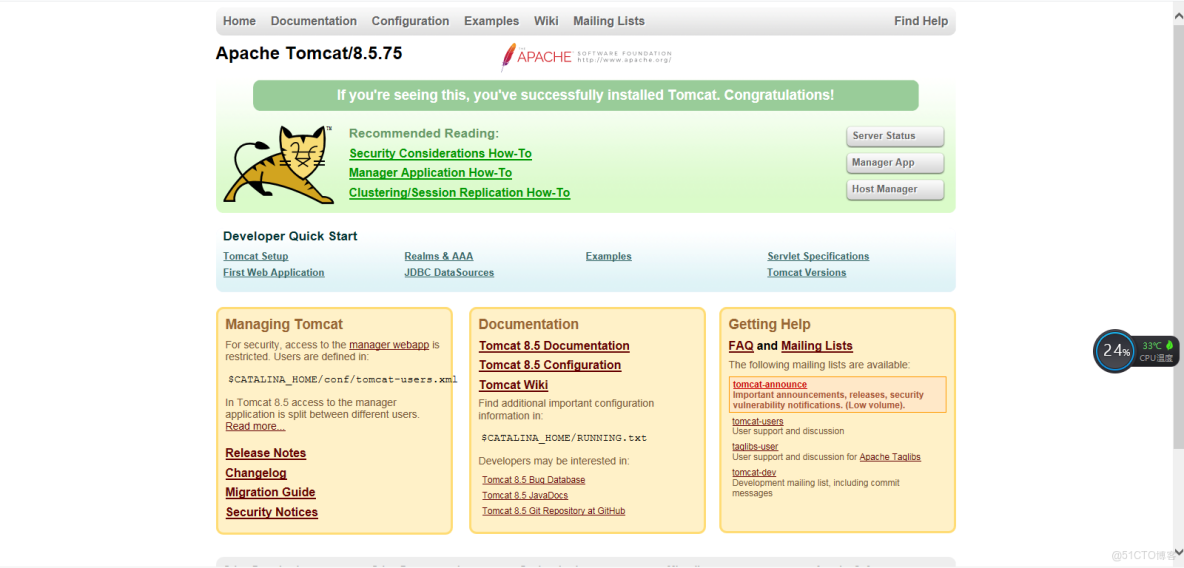
完成!
