
微軟官網指導鏈接:適用於 .NET 5 的 Windows Presentation Foundation 文檔 | Microsoft Learn
WPF框架介紹:Windows Presentation Foundation 簡介 - WPF .NET | Microsoft Learn
WPF介紹
WPF(Windows Presentation Foundation)是微軟推出的基於Windows 的用户界面框架,屬於.NET Framework 3.0的一部分。它提供了統一的編程模型、語言和框架,真正做到了分離界面設計人員與開發人員的工作;同時它提供了全新的多媒體交互用户圖形界面。
WPF是微軟新一代圖形系統,運行在.NET Framework 3.0及以上版本下,為用户界面、2D/3D 圖形、文檔和媒體提供了統一的描述和操作方法。基於DirectX 9/10技術的WPF不僅帶來了前所未有的3D界面,而且其圖形向量渲染引擎也大大改進了傳統的2D界面,比如Vista中的半透明效果的窗體等都得益於WPF。 程序員在WPF的幫助下,要開發出媲美Mac程序的酷炫界面已不再是遙不可及的奢望。 WPF相對於Windows客户端的開發來説,向前跨出了巨大的一步,它提供了超豐富的.NET UI 框架,集成了矢量圖形,豐富的流動文字支持(flow text support),3D視覺效果和強大無比的控件模型框架。
WPF應用程序(.Net Core WPF)和WPF應用(.Net Framework)的區別
.Net Core為微軟免費開源代碼,是一個.Net Fundation項目;
.Net Core跨平台,可以在windows、macos、linux上運行。部署靈活、兼容性好。
從.Net Core 3.0起,.Net Core支持開發桌面應用程序。包括WPF和Winform。
使用.Net Core開發WPF應用程序,需要Visual Studio 2019 16.3及以上版本。
WPF目前已經開源,項目地址:https://github.com/dotnet/wpf
WPF的功能和特性:
1、使用XAML標記語言來構建界面
2、前後端分離,使用C#語言作為後台邏輯代碼語言。
按功能分類的 WPF 控件
下面列出了內置的 WPF 控件:
- 按鈕: Button 和 RepeatButton。
- 數據顯示:DataGrid、ListView 和 TreeView。
- 日期顯示和選項: Calendar 和 DatePicker。
- 對話框: OpenFileDialog、 PrintDialog和 SaveFileDialog。
- 數字墨跡: InkCanvas 和 InkPresenter。
- 文檔: DocumentViewer、 FlowDocumentPageViewer、 FlowDocumentReader、 FlowDocumentScrollViewer和 StickyNoteControl。
- 輸入: TextBox、 RichTextBox和 PasswordBox。
- 佈局: Border、 BulletDecorator、 Canvas、 DockPanel、 Expander、 Grid、 GridView、 GridSplitter、 GroupBox、 Panel、 ResizeGrip、 Separator、 ScrollBar、 ScrollViewer、 StackPanel、 Thumb、 Viewbox、 VirtualizingStackPanel、 Window和 WrapPanel。
- 媒體: Image、 MediaElement和 SoundPlayerAction。
- 菜單: ContextMenu、 Menu和 ToolBar。
- 導航: Frame、 Hyperlink、 Page、 NavigationWindow和 TabControl。
- 選項: CheckBox、 ComboBox、 ListBox、 RadioButton和 Slider。
- 用户信息: AccessText、 Label、 Popup、 ProgressBar、 StatusBar、 TextBlock和 ToolTip。
創建項目實戰
- 選擇WPF應用》下次點開固定在左邊方便使用
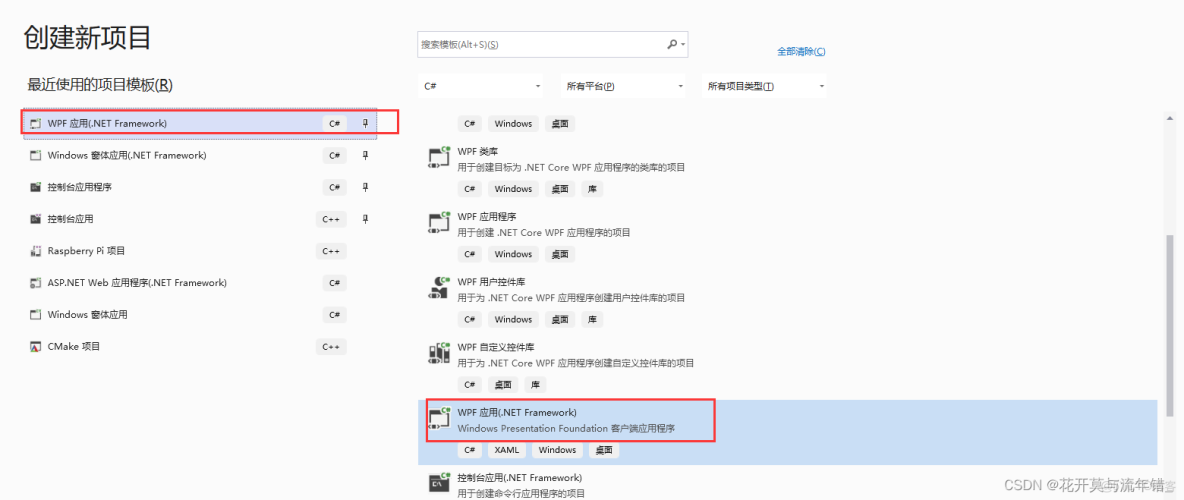
- 創建項目後運行如下,其中工具也是在左邊工具欄點擊選擇中在窗體中添加,添加後會自動在XAML中生成代碼,XAML類似WinForm中的Desiner.cs,顯示界面的更改配置都是在XAML這裏編寫。同時右下角部分用於設置屬性,個人感覺比WinForm的更好看懂。
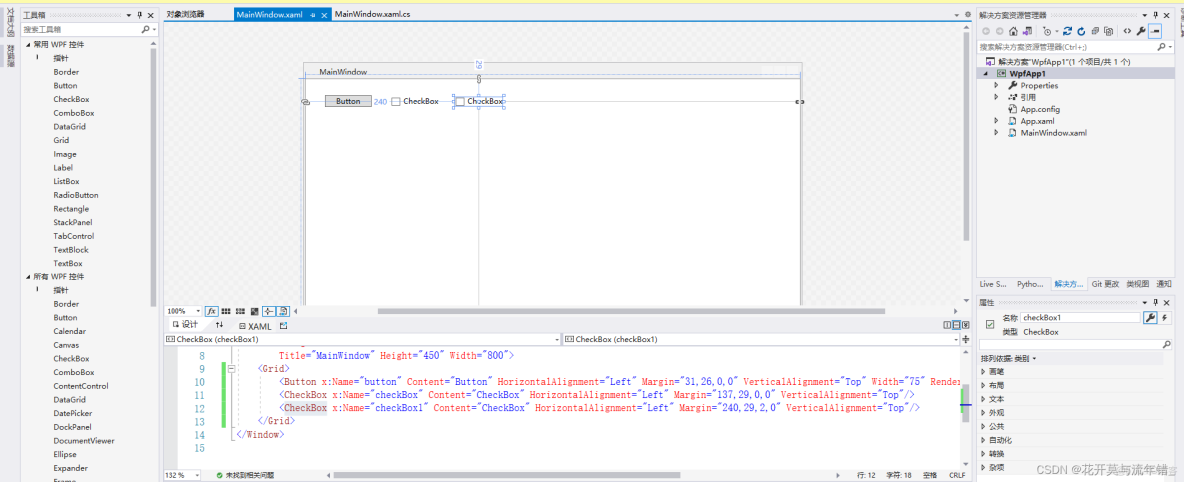
- 基本屬性。顯示內容默認在分組中,也可以鼠標右鍵更改。顯示屬性:第一參數CheckBox為控件類型,Name對應變量名,Content顯示名,HorizontalAlignment水平對齊方式,Margin界面中相對位置(左、上、右、下),VerticalAlignment垂直對齊方式
- 添加按鈕點擊事件處理
- 在XAML中添加Click="button_click",button_click為對應函數名
- 添加後默認會在對應的.g.i.cs文件中生成事件觸發函數。this.button.Click += new System.Windows.RoutedEventHandler(this.button_click);
- 在對應的.xaml.cs文件中添加處理事件。先在上面RoutedEventHandler鼠標點擊後按F12查看接口聲明,拷貝到.xaml.cs文件中,將函數名改成自己定義的button_click,實現該函數
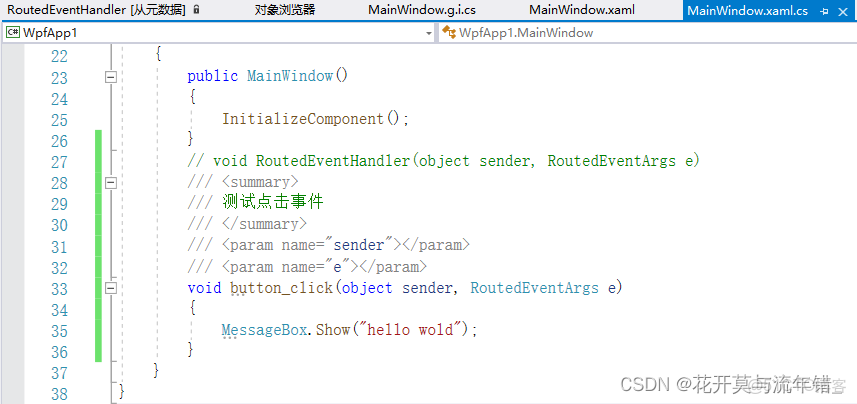
- 這裏的事件是在ButtonBase裏面聲明的,可以逐步的過來看有哪些事件處理
- 在對應.g.i.cs文件中Button聲明這裏鼠標點擊Button後按F12
- 到Button聲明這裏發現主要是繼承ButtonBase,那就去查看ButtonBase
- 其中主要的事件處理如下
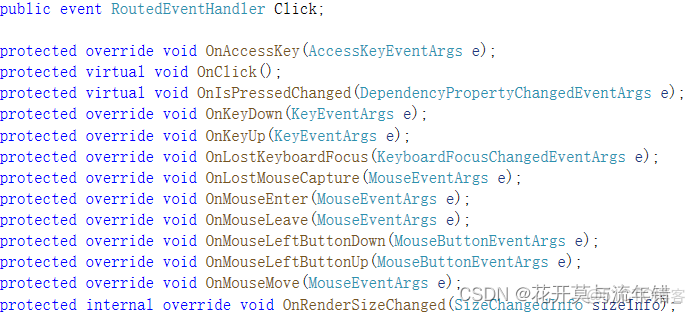
- 在XAML中添加點擊事件處理
<Button x:Name="button_Copy" Content="Button" HorizontalAlignment="Left" Margin="31,66,0,0" VerticalAlignment="Top" Width="75" RenderTransformOrigin="0.5,0.5"
        Click="btnMessage_Click"/>
<!--實現Click函數處理-->
<x:Code>
    <![CDATA[ void btnMessage_Click(object sender, System.Windows.RoutedEventArgs e) { MessageBox.Show("hello"); } ]]>
</x:Code>- Style元素將屬性值應用於類型,如Button添加後全部按配置顯示
<Window.Resources>
    <!-- Style that will be applied to all buttons for this window -->
    <Style TargetType="{x:Type Button}">
        <Setter Property="Background" Value="Orange" />
        <Setter Property="BorderBrush" Value="Crimson" />
        <Setter Property="FontSize" Value="20" />
        <Setter Property="FontWeight" Value="Bold" />
        <Setter Property="Margin" Value="5" />
    </Style>
</Window.Resources>- 設置通用背景色
- Resources裏面設置屬性,SolidColorBrush設置顏色Background指定使用,XmlDataProvider設置數據源Content指定使用
<Window
    xmlns="http://schemas.microsoft.com/winfx/2006/xaml/presentation"
    xmlns:x="http://schemas.microsoft.com/winfx/2006/xaml"
    x:Class="SDKSample.ResourcesWindow"
    Title="Resources Window">

  <!-- Define window-scoped background color resource -->
  <Window.Resources>
    <SolidColorBrush x:Key="defaultBackground" Color="Red" />
  </Window.Resources>

  <!-- Button background is defined by window-scoped resource -->
  <Button Background="{StaticResource defaultBackground}">One Button</Button>

  <!-- Label background is defined by window-scoped resource -->
  <Label Background="{StaticResource defaultBackground}">One Label</Label>
</Window>