
鴻蒙學習實戰之路:Tabs 組件開發場景最佳實踐
Tabs 組件是 HarmonyOS 開發中常用的 UI 組件,用於實現頁面內容的分類展示和快速切換。本文將結合華為開發者聯盟的官方最佳實踐,介紹 Tabs 組件的常見開發場景和實現方案。
關於本文
本文基於華為開發者聯盟官方文檔《Tabs 選項卡常見開發場景》整理而成,旨在幫助開發者快速掌握 Tabs 組件的最佳實踐。
官方文檔傳送門永遠是你的好夥伴,請收藏!
- 本文不能代替官方文檔,所有內容均基於官方文檔+個人實踐經驗總結
- 基本所有章節都會附上對應的文檔鏈接,強烈建議你點擊查看
- 所有代碼示例建議自己動手嘗試一下
- 如果英文水平不是很好,善用瀏覽器翻譯功能
代碼測試環境
確保你的開發環境符合以下要求:
|
軟件/工具
|
版本要求
|
|
HarmonyOS SDK
|
API Level 11
|
|
TypeScript
|
5.0+
|
|
DevEco Studio
|
4.1+
|
|
設備要求
|
支持 HarmonyOS NEXT 的真機或模擬器
|
Tabs 組件概述
Tabs 組件是一種常見的界面導航組件,用於將內容分類並允許用户在不同類別之間快速切換。在 HarmonyOS 中,Tabs 組件提供了豐富的配置選項和事件監聽,支持自定義樣式和交互效果。
Tabs 組件主要由以下部分組成:
- TabBar:選項卡導航欄,顯示所有可切換的選項
- TabContent:內容區域,顯示當前選中選項對應的內容
常見開發場景
1. 基礎 Tabs 組件使用
功能説明:實現一個簡單的 Tabs 組件,包含三個選項卡,分別顯示不同的內容。
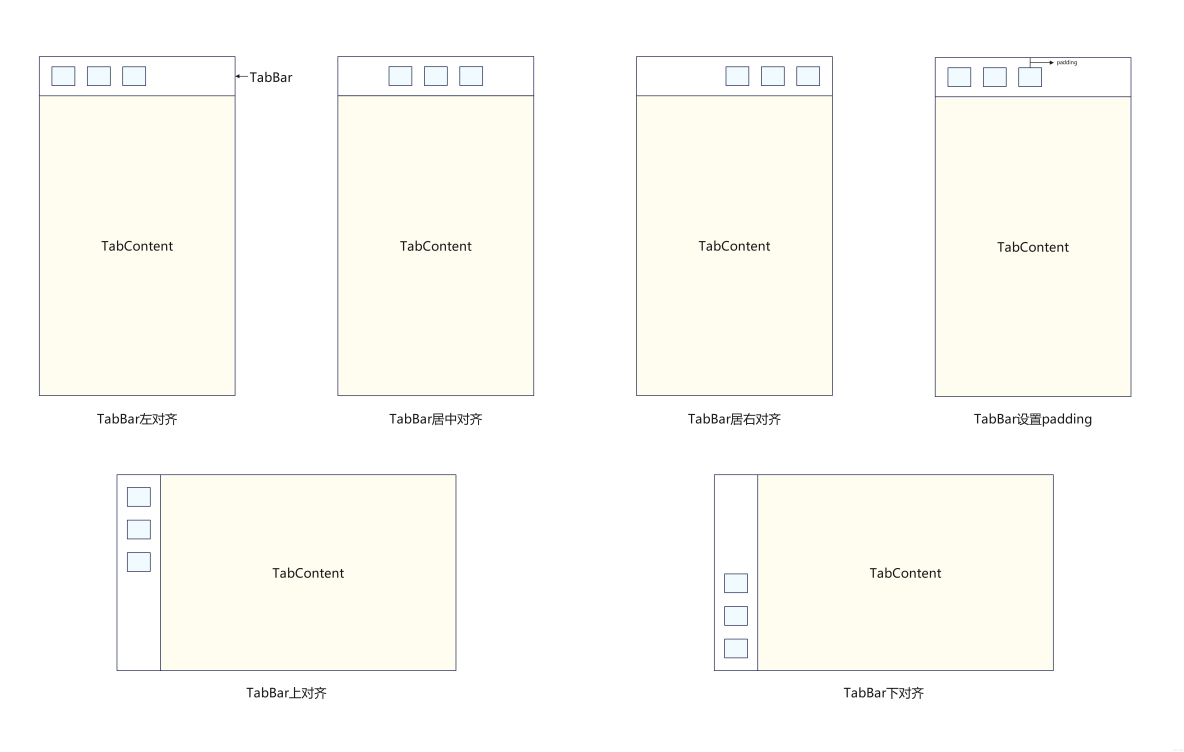
Tabs 導航樣式:
常見的應用頁籤導航效果包括底部導航、頂部導航和側邊導航。

實現步驟:
- 導入 Tabs 組件
- 配置 TabBar 選項
- 設置 TabContent 內容
代碼示例:
import { Tabs, TabBar, TabContent, Text } from '@kit.ArkUI'

@Entry
@Component
struct BasicTabsExample {
  private controller: TabsController = new TabsController()

  build() {
    Column() {
      Tabs({ controller: this.controller })
        .barPosition(BarPosition.Start)
        .width('100%')
        .height(500)
        .backgroundColor('#F5F5F5')
        {
          // TabBar選項配置
          TabBar() {
            Text('首頁').width('100%')
            Text('分類').width('100%')
            Text('我的').width('100%')
          }
          .width('100%')
          .height(60)
          .backgroundColor('#FFFFFF')

          // TabContent內容配置
          TabContent() {
            Column() {
              Text('首頁內容')
                .fontSize(20)
                .fontWeight(FontWeight.Bold)
            }
            .width('100%')
            .height('100%')
            .justifyContent(FlexAlign.Center)
          }

          TabContent() {
            Column() {
              Text('分類內容')
                .fontSize(20)
                .fontWeight(FontWeight.Bold)
            }
            .width('100%')
            .height('100%')
            .justifyContent(FlexAlign.Center)
          }

          TabContent() {
            Column() {
              Text('我的內容')
                .fontSize(20)
                .fontWeight(FontWeight.Bold)
            }
            .width('100%')
            .height('100%')
            .justifyContent(FlexAlign.Center)
          }
        }
    }
    .padding(10)
  }
}注意事項:
- 必須使用 TabsController 來控制 Tabs 組件的切換
- TabBar 和 TabContent 的數量必須保持一致
- 可以通過 barPosition 屬性設置 TabBar 的位置(頂部或底部)
2. 自定義 Tabs 樣式
功能説明:實現一個自定義樣式的 Tabs 組件,包括自定義 TabBar 的顏色、字體和指示器樣式。
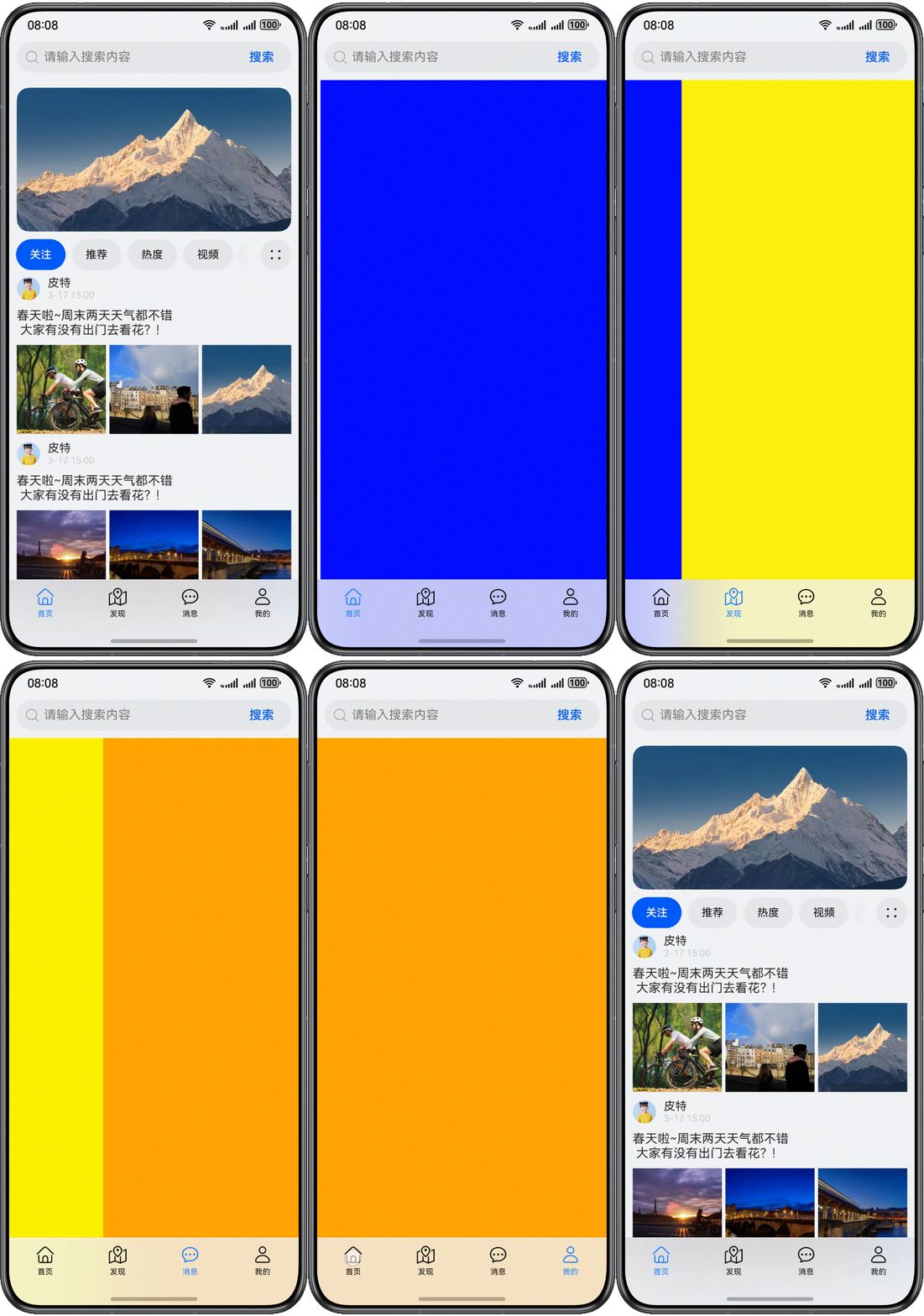
自定義頁籤樣式:
對於底部導航欄,通常用於應用主頁面的功能區分。為了更好的用户體驗,開發者通常會自定義頁籤樣式,將頁籤自定義為圖標加文字標題的形式,並且在選中和非選中的狀態下提供不同的樣式。
實現步驟:
- 配置 TabBar 的背景色和字體樣式
- 自定義指示器的樣式和位置
- 設置選中和未選中狀態的樣式
代碼示例:
import { Tabs, TabBar, TabContent, Text } from '@kit.ArkUI'

@Entry
@Component
struct CustomStyleTabsExample {
  private controller: TabsController = new TabsController()

  build() {
    Column() {
      Tabs({ controller: this.controller })
        .barPosition(BarPosition.Start)
        .width('100%')
        .height(500)
        .backgroundColor('#F5F5F5')
        // 自定義指示器樣式
        .indicatorStyle({
          width: 20,
          height: 3,
          borderRadius: 1.5,
          backgroundColor: '#007DFF'
        })
        {
          TabBar() {
            Text('首頁')
              .width('100%')
              .fontSize(16)
              .fontColor('#666666')
              .fontWeight(FontWeight.Normal)
              // 選中狀態樣式
              .selectedFontColor('#007DFF')
              .selectedFontSize(18)
              .selectedFontWeight(FontWeight.Bold)

            Text('分類')
              .width('100%')
              .fontSize(16)
              .fontColor('#666666')
              .fontWeight(FontWeight.Normal)
              .selectedFontColor('#007DFF')
              .selectedFontSize(18)
              .selectedFontWeight(FontWeight.Bold)

            Text('我的')
              .width('100%')
              .fontSize(16)
              .fontColor('#666666')
              .fontWeight(FontWeight.Normal)
              .selectedFontColor('#007DFF')
              .selectedFontSize(18)
              .selectedFontWeight(FontWeight.Bold)
          }
          .width('100%')
          .height(60)
          .backgroundColor('#FFFFFF')
          .borderBottomWidth(1)
          .borderBottomColor('#EEEEEE')

          // TabContent內容保持不變
          TabContent() {
            Column() {
              Text('首頁內容')
                .fontSize(20)
                .fontWeight(FontWeight.Bold)
            }
            .width('100%')
            .height('100%')
            .justifyContent(FlexAlign.Center)
          }

          TabContent() {
            Column() {
              Text('分類內容')
                .fontSize(20)
                .fontWeight(FontWeight.Bold)
            }
            .width('100%')
            .height('100%')
            .justifyContent(FlexAlign.Center)
          }

          TabContent() {
            Column() {
              Text('我的內容')
                .fontSize(20)
                .fontWeight(FontWeight.Bold)
            }
            .width('100%')
            .height('100%')
            .justifyContent(FlexAlign.Center)
          }
        }
    }
    .padding(10)
  }
}注意事項:
- 可以通過 indicatorStyle 屬性自定義指示器的樣式
- TabBar 的子組件可以設置選中和未選中狀態的不同樣式
- 建議保持樣式的統一性和美觀性
3. 數據加載與動態 Tabs
功能説明:實現一個動態加載數據的 Tabs 組件,根據服務器返回的數據動態生成選項卡和內容。
實現步驟:
- 定義數據模型
- 模擬數據加載
- 動態生成 TabBar 和 TabContent
代碼示例:
import { Tabs, TabBar, TabContent, Text, List, ListItem, LoadingProgress } from '@kit.ArkUI'

// 定義數據模型
interface TabItem {
  id: string
  title: string
  content: string[]
}

@Entry
@Component
struct DynamicTabsExample {
  private controller: TabsController = new TabsController()
  @State tabList: TabItem[] = []
  @State isLoading: boolean = true

  // 模擬數據加載
  async aboutToAppear() {
    this.isLoading = true
    // 模擬網絡請求延遲
    await new Promise(resolve => setTimeout(resolve, 1000))

    // 模擬服務器返回的數據
    this.tabList = [
      {
        id: '1',
        title: '推薦',
        content: ['推薦內容1', '推薦內容2', '推薦內容3', '推薦內容4', '推薦內容5']
      },
      {
        id: '2',
        title: '熱點',
        content: ['熱點內容1', '熱點內容2', '熱點內容3', '熱點內容4', '熱點內容5']
      },
      {
        id: '3',
        title: '科技',
        content: ['科技內容1', '科技內容2', '科技內容3', '科技內容4', '科技內容5']
      },
      {
        id: '4',
        title: '娛樂',
        content: ['娛樂內容1', '娛樂內容2', '娛樂內容3', '娛樂內容4', '娛樂內容5']
      }
    ]

    this.isLoading = false
  }

  build() {
    Column() {
      if (this.isLoading) {
        // 加載狀態
        Column() {
          LoadingProgress()
            .color('#007DFF')
            .height(40)
            .width(40)
          Text('加載中...')
            .fontSize(14)
            .fontColor('#666666')
            .margin({ top: 10 })
        }
        .width('100%')
        .height(500)
        .justifyContent(FlexAlign.Center)
      } else {
        // 數據加載完成,顯示Tabs組件
        Tabs({ controller: this.controller })
          .barPosition(BarPosition.Start)
          .width('100%')
          .height(500)
          .backgroundColor('#F5F5F5')
          {
            // 動態生成TabBar
            TabBar() {
              ForEach(this.tabList, (item: TabItem) => {
                Text(item.title)
                  .width('100%')
                  .fontSize(16)
                  .fontColor('#666666')
                  .selectedFontColor('#007DFF')
              }, (item: TabItem) => item.id)
            }
            .width('100%')
            .height(60)
            .backgroundColor('#FFFFFF')

            // 動態生成TabContent
            ForEach(this.tabList, (item: TabItem) => {
              TabContent() {
                List() {
                  ForEach(item.content, (content: string, index: number) => {
                    ListItem() {
                      Text(content)
                        .width('100%')
                        .padding(20)
                        .fontSize(16)
                        .borderBottomWidth(1)
                        .borderBottomColor('#EEEEEE')
                    }
                  })
                }
                .width('100%')
                .height('100%')
              }
            }, (item: TabItem) => item.id)
          }
      }
    }
    .padding(10)
  }
}注意事項:
- 使用 ForEach 動態生成 TabBar 和 TabContent 時,必須提供唯一的 key 值
- 數據加載過程中應顯示加載狀態,提升用户體驗
- 可以根據實際需求調整數據加載策略(如懶加載)
4. 多層嵌套 Tabs
功能説明:實現多層嵌套的 Tabs 組件,常用於複雜頁面的內容分類展示。
嵌套 Tabs 效果:
多層嵌套 Tabs 組件可以實現複雜的內容分類展示,常見於電商應用的商品分類和品牌館等場景。
實現步驟:
- 創建外層 Tabs 組件
- 在內層 TabContent 中創建內層 Tabs 組件
- 配置內外層 Tabs 的樣式和交互
代碼示例:
import { Tabs, TabBar, TabContent, Text } from '@kit.ArkUI'

@Entry
@Component
struct NestedTabsExample {
  private outerController: TabsController = new TabsController()
  private innerController1: TabsController = new TabsController()
  private innerController2: TabsController = new TabsController()

  build() {
    Column() {
      Text('外層Tabs')
        .fontSize(20)
        .fontWeight(FontWeight.Bold)
        .margin({ bottom: 10 })

      // 外層Tabs
      Tabs({ controller: this.outerController })
        .barPosition(BarPosition.Start)
        .width('100%')
        .height(500)
        .backgroundColor('#F5F5F5')
        {
          TabBar() {
            Text('商品分類')
              .width('100%')
              .fontSize(16)
              .selectedFontColor('#007DFF')

            Text('品牌館')
              .width('100%')
              .fontSize(16)
              .selectedFontColor('#007DFF')
          }
          .width('100%')
          .height(50)
          .backgroundColor('#FFFFFF')

          // 內層Tabs 1
          TabContent() {
            Column() {
              Text('內層Tabs - 商品分類')
                .fontSize(16)
                .fontWeight(FontWeight.Bold)
                .margin({ bottom: 10 })

              Tabs({ controller: this.innerController1 })
                .barPosition(BarPosition.Start)
                .width('100%')
                .height('100%')
                .backgroundColor('#FFFFFF')
                .barMode(BarMode.Scrollable)
                {
                  TabBar() {
                    ForEach(['手機', '電腦', '平板', '耳機', '手錶', '配件'], (item: string) => {
                      Text(item)
                        .width(80)
                        .fontSize(14)
                        .selectedFontColor('#007DFF')
                    })
                  }
                  .width('100%')
                  .height(40)
                  .backgroundColor('#F5F5F5')

                  ForEach(['手機內容', '電腦內容', '平板內容', '耳機內容', '手錶內容', '配件內容'], (item: string) => {
                    TabContent() {
                      Text(item)
                        .width('100%')
                        .height('100%')
                        .textAlign(TextAlign.Center)
                        .padding(20)
                    }
                  })
                }
            }
            .width('100%')
            .height('100%')
            .padding(10)
          }

          // 內層Tabs 2
          TabContent() {
            Column() {
              Text('內層Tabs - 品牌館')
                .fontSize(16)
                .fontWeight(FontWeight.Bold)
                .margin({ bottom: 10 })

              Tabs({ controller: this.innerController2 })
                .barPosition(BarPosition.Start)
                .width('100%')
                .height('100%')
                .backgroundColor('#FFFFFF')
                .barMode(BarMode.Scrollable)
                {
                  TabBar() {
                    ForEach(['華為', '榮耀', '小米', '蘋果', '三星', 'OPPO', 'vivo'], (item: string) => {
                      Text(item)
                        .width(80)
                        .fontSize(14)
                        .selectedFontColor('#007DFF')
                    })
                  }
                  .width('100%')
                  .height(40)
                  .backgroundColor('#F5F5F5')

                  ForEach(['華為內容', '榮耀內容', '小米內容', '蘋果內容', '三星內容', 'OPPO內容', 'vivo內容'], (item: string) => {
                    TabContent() {
                      Text(item)
                        .width('100%')
                        .height('100%')
                        .textAlign(TextAlign.Center)
                        .padding(20)
                    }
                  })
                }
            }
            .width('100%')
            .height('100%')
            .padding(10)
          }
        }
    }
    .padding(10)
  }
}注意事項:
- 多層嵌套 Tabs 需要為每個 Tabs 組件創建獨立的 TabsController
- 內層 Tabs 建議使用 BarMode.Scrollable 模式,避免選項過多導致顯示不全
- 注意控制嵌套層級,避免過度嵌套影響性能和用户體驗
常見問題與解決方案
1. Tabs 內容切換時數據丟失
問題描述:切換 Tabs 選項卡後,返回原選項卡時數據重新加載或丟失。
解決方案:
- 使用@State 裝飾器保存狀態數據
- 避免在 TabContent 中直接使用異步加載數據的邏輯
- 可以考慮使用緩存機制保存已加載的數據
2. Tabs 切換時動畫不流暢
問題描述:Tabs 切換時出現卡頓或動畫不流暢的情況。
解決方案:
- 優化 TabContent 中的組件渲染邏輯,避免過多的嵌套組件
- 對於複雜內容,考慮使用懶加載或虛擬列表
- 避免在切換時執行大量計算或網絡請求
3. TabBar 選項過多顯示不全
問題描述:TabBar 中的選項過多,導致部分選項無法顯示。
解決方案:
- 設置 Tabs 的 barMode 為 BarMode.Scrollable,使 TabBar 可以橫向滾動
- 考慮使用分段器或下拉菜單替代部分選項
- 優化選項卡的命名,使用更簡潔的標題
參考文檔
- 華為開發者聯盟 - Tabs 選項卡常見開發場景
- HarmonyOS NEXT 官方文檔 - Tabs 組件使用指南
總結
Tabs 組件是 HarmonyOS 開發中非常實用的 UI 組件,通過本文的介紹,相信你已經掌握了 Tabs 組件的常見開發場景和最佳實踐。在實際開發中,建議結合官方文檔和項目需求,靈活運用 Tabs 組件,為用户提供更好的界面體驗。
記住:
- 官方文檔永遠是你最好的學習資源
- 多動手實踐才能真正掌握組件的使用
- 關注性能和用户體驗,避免過度設計
祝你在鴻蒙開發之路上越走越遠!🚀
