
鴻蒙學習實戰之路-多端交互最佳實踐
多端交互是 HarmonyOS 應用開發中的重要特性,本文將介紹如何在鴻蒙應用中實現多端設備之間的高效交互,包括跨設備通信、數據共享、協同操作等內容。
關於本文
自己學習並使用 HarmonyOS 多端交互的記錄,旨在幫助小夥伴們少走彎路
華為開發者聯盟-多端交互文檔永遠是你的好夥伴,請收藏!
- 本文並不能代替官方文檔,所有的內容也都是基於官方文檔+自己嘗試的記錄。
- 基本所有章節基本都會附上對應的文檔鏈接,強烈建議你點看看看
- 所有結合代碼操作的部分,建議自己動手嘗試一下
代碼測試環境
|
環境/工具 |
版本/説明 |
|
DevEco Studio |
5.0.3.400 |
|
HarmonyOS SDK |
API Version 12 |
|
Node.js |
18.19.0 |
|
測試設備 |
HarmonyOS 4.0+ 模擬器 |
1. 概述
在 HarmonyOS 分佈式系統中,多端交互是實現設備協同的核心技術。通過多端交互,用户可以在不同設備之間無縫切換任務、共享數據和協同操作,極大提升了用户體驗。
1.1 多端交互基本概念
在 HarmonyOS 中,多端交互支持多種輸入設備,如圖 1 所示:
圖1 輸入設備
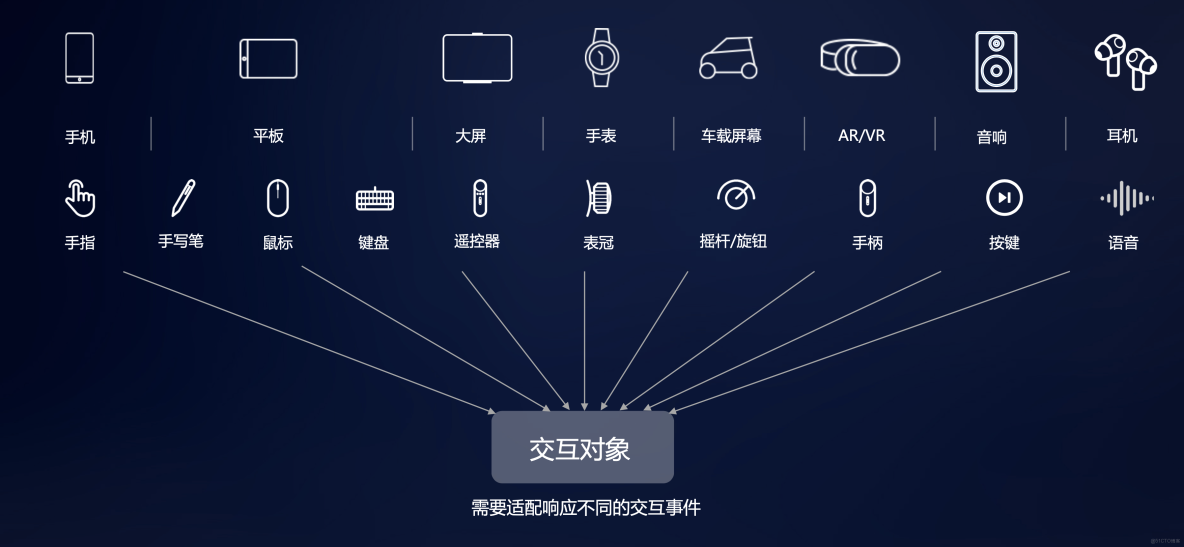
多端交互是指在 HarmonyOS 分佈式系統中,不同設備之間通過分佈式能力框架進行通信和協作的技術。
1.2 多端交互的應用場景
- 跨設備任務遷移:用户可以在手機上開始編輯文檔,然後無縫切換到平板繼續編輯
- 多屏協同:手機與平板、電腦等設備協同工作,擴展顯示和操作空間
- 數據共享:照片、文檔等數據在不同設備之間實時共享
- 設備聯動:智能家居設備之間的聯動控制,如手機控制智能電視、智能音箱等
2. 分佈式能力框架
HarmonyOS 提供了完整的分佈式能力框架,用於支持多端設備之間的交互。
2.1 分佈式能力框架概述
分佈式能力框架包含以下核心組件:
- 分佈式軟總線:提供設備發現、連接和通信能力
- 分佈式數據管理:提供跨設備數據共享和同步能力
- 分佈式任務調度:提供跨設備任務分發和遷移能力
- 分佈式安全:提供跨設備安全認證和數據加密能力
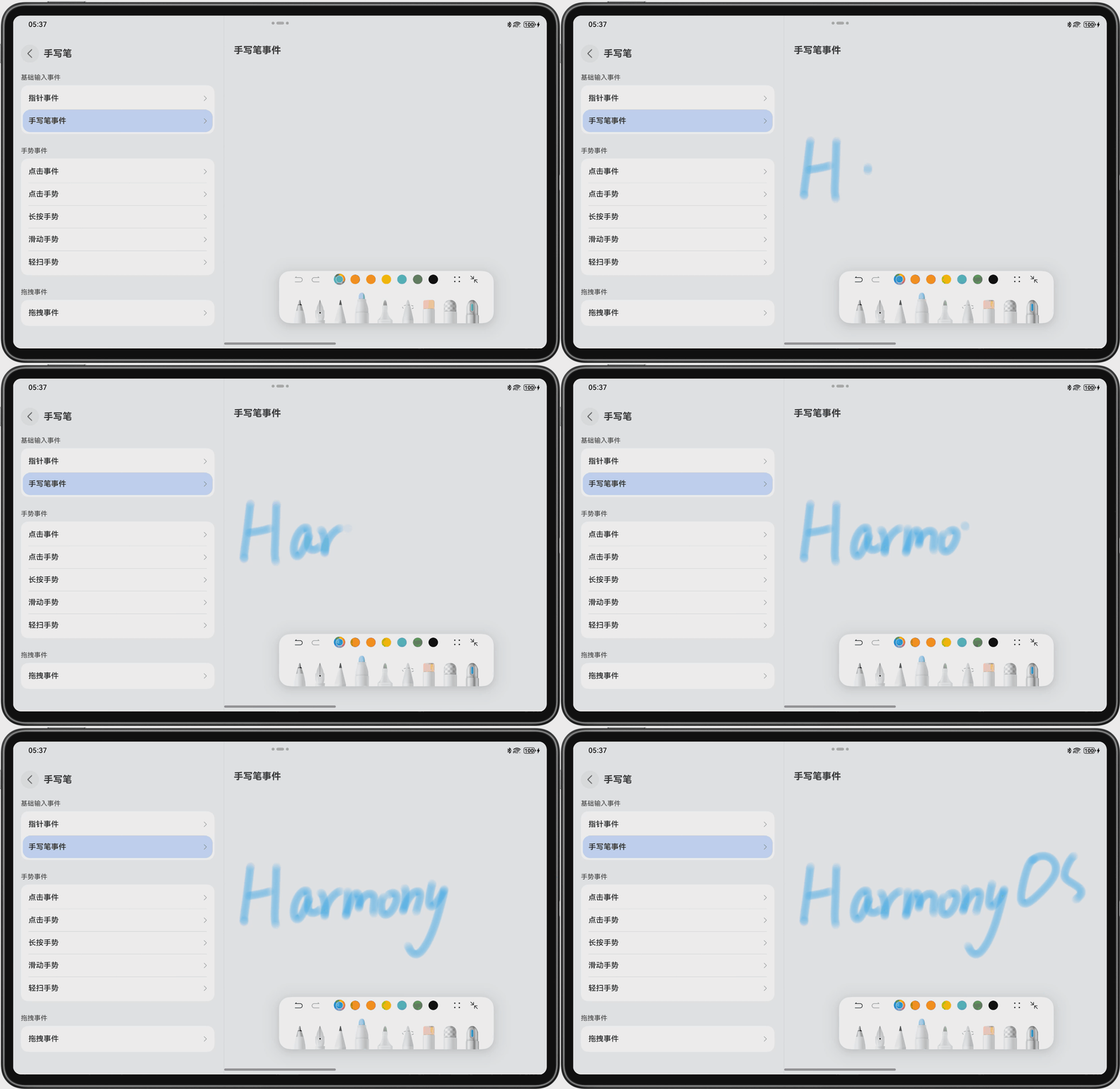
為了更好地理解多端交互,我們可以看一個手寫筆套件的示例,如圖 2 所示:
圖2 手寫筆套件示例
2.2 配置分佈式能力
在項目的module.json5文件中添加分佈式能力相關配置:
{
  module: {
    // ...其他配置
    abilities: [
      {
        // ...其他配置
        skills: [
          {
            // ...其他配置
          },
        ],
      },
    ],
    requestPermissions: [
      {
        name: "ohos.permission.DISTRIBUTED_DATASYNC",
      },
      {
        name: "ohos.permission.GET_DISTRIBUTED_DEVICE_INFO",
      },
    ],
  },
}
3. 設備發現與連接
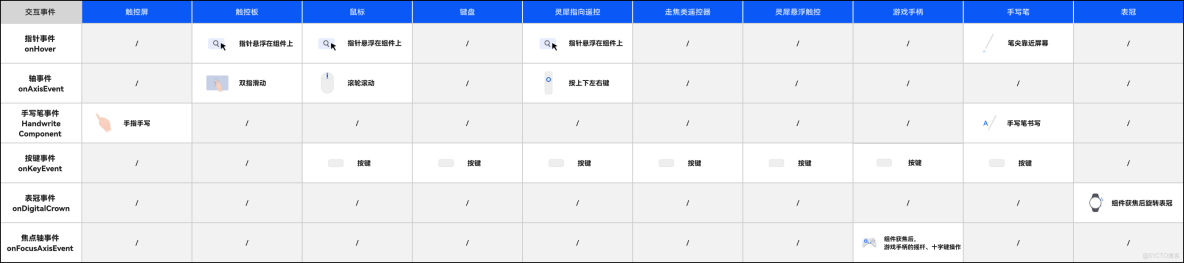
在多端交互中,瞭解不同輸入設備的基礎輸入事件觸發方式非常重要,如圖 3 所示:
圖3 輸入設備基礎輸入事件觸發方式一覽表
3.1 設備發現
使用分佈式軟總線 API 發現附近的設備:
import { businessError } from "@kit.BasicServicesKits";
import { distributedDeviceManager } from "@kit.DeviceManagerKit";

// 獲取分佈式設備管理器
let deviceManager = distributedDeviceManager.getDistributedDeviceManager();

// 發現設備
if (deviceManager) {
  deviceManager.startDeviceDiscovery(
    (
      discoveryMode: number,
      filterOptions: string,
      callback: (
        deviceId: string,
        deviceInfo: distributedDeviceManager.DeviceInfo
      ) => void,
      onFailure: (code: number, error: businessError.BusinessError) => void
    ) => {
      console.log("設備發現開始");
    }
  );

  // 監聽設備發現事件
  deviceManager.on(
    "deviceStateChange",
    (data: {
      action: number;
      deviceId: string;
      deviceInfo: distributedDeviceManager.DeviceInfo;
    }) => {
      console.log(`設備狀態變化: ${JSON.stringify(data)}`);
      if (
        data.action ===
        distributedDeviceManager.DeviceStateChangeAction.DEVICE_FOUND
      ) {
        console.log(`發現設備: ${data.deviceInfo.deviceName}`);
      }
    }
  );
}
3.2 設備連接
與發現的設備建立連接:
// 連接設備
if (deviceManager) {
  deviceManager.connectDevice(
    deviceId,
    (code: number, data: distributedDeviceManager.ConnectResult) => {
      if (code === 0) {
        console.log("設備連接成功");
      } else {
        console.error(`設備連接失敗: ${code}`);
      }
    }
  );
}
4. 跨設備數據共享
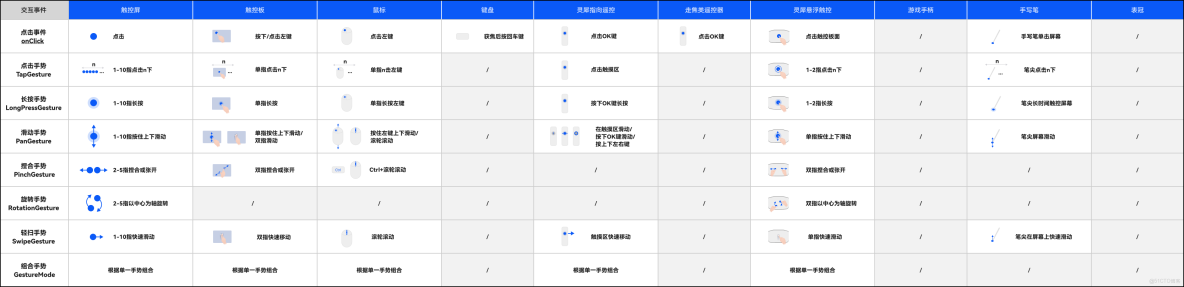
在多端交互中,手勢事件是重要的交互方式之一。下圖為常見手勢事件在不同輸入設備上的觸發方式,如圖 4 所示:
圖4 輸入設備手勢事件觸發方式一覽表
4.1 分佈式數據對象
使用分佈式數據對象實現跨設備數據共享:
import { distributedData } from "@kit.DistributedDataKit";

// 創建分佈式數據對象
let distributedObject = distributedData.createDistributedObject({
  message: "Hello HarmonyOS",
  count: 0,
});

// 監聽數據變化
distributedObject.on(
  "change",
  (data: { changedKeys: Array<string>; deviceId: string }) => {
    console.log(`數據變化: ${JSON.stringify(data)}`);
  }
);

// 更新數據
distributedObject.set("message", "Hello Distributed World");
distributedObject.set("count", distributedObject.get("count") + 1);
4.2 分佈式文件系統
使用分佈式文件系統實現跨設備文件共享:
import { distributedFS } from "@kit.DistributedFileKit";

// 獲取分佈式文件路徑
let distributedPath = distributedFS.getDistributedDir(globalThis.context);
console.log(`分佈式文件路徑: ${distributedPath}`);

// 在分佈式路徑下創建文件
let filePath = distributedPath + "/test.txt";
let fileContent = "這是一個分佈式文件示例";

distributedFS.writeFile(filePath, fileContent, (err) => {
  if (err) {
    console.error(`文件寫入失敗: ${JSON.stringify(err)}`);
  } else {
    console.log("文件寫入成功");
  }
});
5. 跨設備任務調度
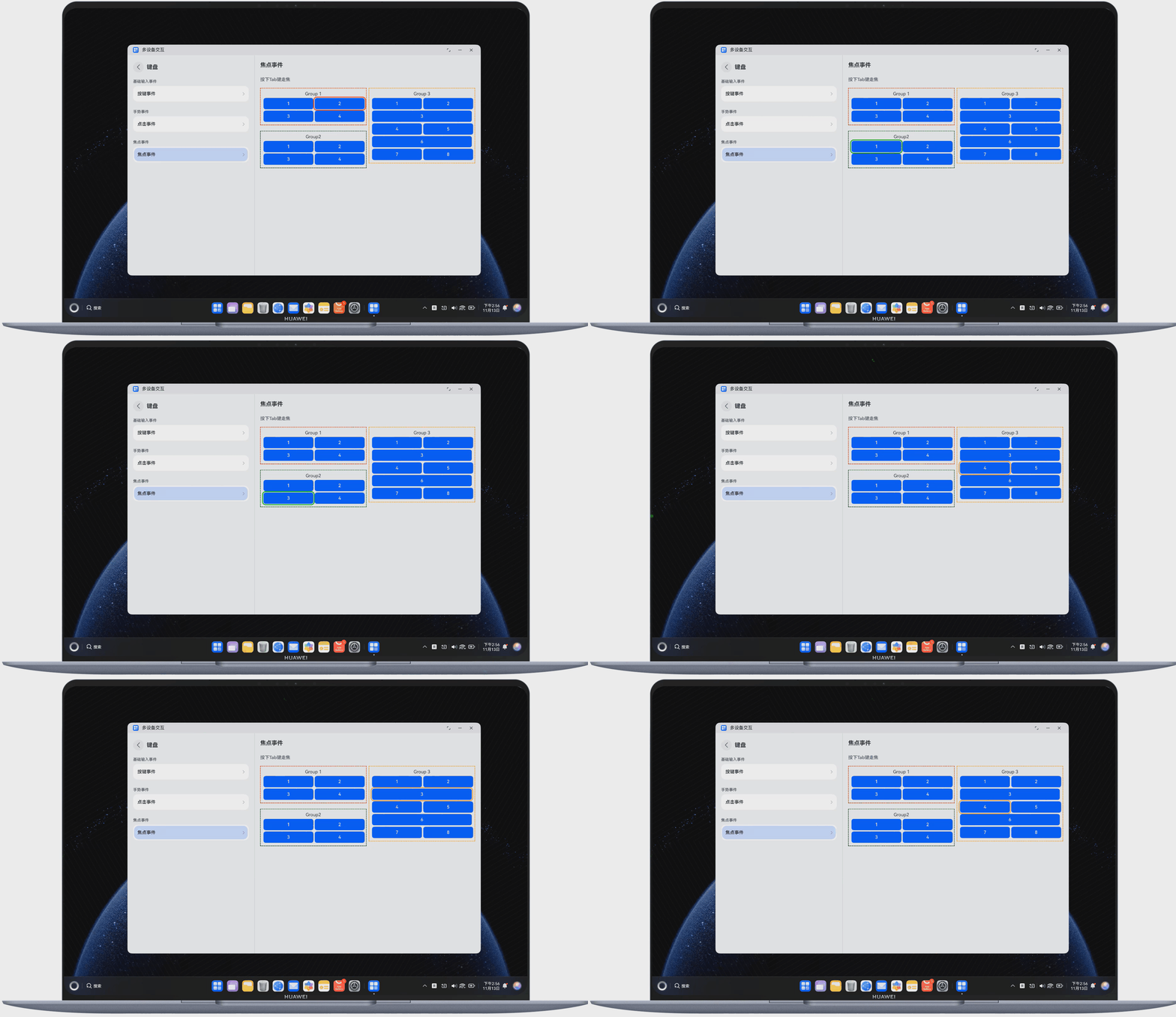
在多端交互中,鍵盤交互也是重要的組成部分。下面展示了使用鍵盤走焦的示例,如圖 5 所示:
圖5 使用鍵盤走焦
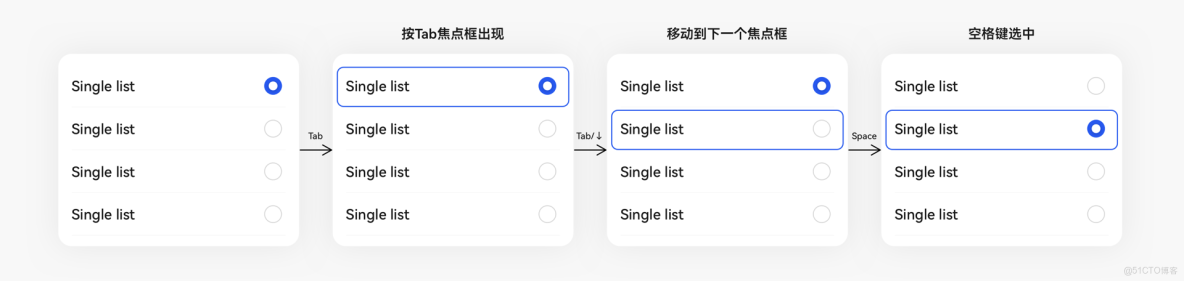
同時,良好的走焦樣式指引對於提升用户體驗非常重要,如圖 6 所示:
圖6 走焦樣式指引案例
5.1 任務遷移
將任務從當前設備遷移到目標設備:
import { distributedTask } from "@kit.DistributedTaskKit";

// 遷移任務
let taskInfo = {
  bundleName: "com.example.myapplication",
  abilityName: "EntryAbility",
  parameters: {
    key1: "value1",
    key2: "value2",
  },
};

distributedTask.migrateTaskToDevice(deviceId, taskInfo, (err) => {
  if (err) {
    console.error(`任務遷移失敗: ${JSON.stringify(err)}`);
  } else {
    console.log("任務遷移成功");
  }
});
5.2 遠程調用
調用目標設備上的能力:
import { remote } from "@kit.RemoteDeviceKit";

// 創建遠程調用會話
let session = remote.createRemoteSession(deviceId);

// 調用遠程方法
session.callRemoteMethod("remoteMethod", { param: "test" }, (err, result) => {
  if (err) {
    console.error(`遠程調用失敗: ${JSON.stringify(err)}`);
  } else {
    console.log(`遠程調用結果: ${JSON.stringify(result)}`);
  }
  // 關閉會話
  session.close();
});
6. 多端交互最佳實踐
6.1 場景一:跨設備文檔編輯
實現思路:
- 使用分佈式數據對象同步文檔內容
- 使用分佈式任務調度實現編輯任務遷移
- 使用分佈式安全確保文檔內容安全
// 文檔編輯示例
import { distributedData } from '@kit.DistributedDataKit';

@Component
export struct DistributedDocumentEditor {
  // 創建分佈式文檔對象
  private docObject = distributedData.createDistributedObject({
    content: '',
    cursorPosition: 0,
    lastEditTime: 0
  });

  @State localContent: string = '';

  build() {
    Column() {
      TextInput({
        text: this.localContent,
        placeholder: '開始編輯文檔...'
      })
      .width('100%')
      .height(300)
      .onChange((value: string) => {
        this.localContent = value;
        // 同步到分佈式數據對象
        this.docObject.set('content', value);
        this.docObject.set('lastEditTime', Date.now());
      })

      Button('同步到其他設備')
      .onClick(() => {
        console.log('文檔已同步');
      })
    }
    .padding(20)
  }

  aboutToAppear() {
    // 監聽分佈式數據變化
    this.docObject.on('change', (data) => {
      if (data.changedKeys.includes('content')) {
        this.localContent = this.docObject.get('content') as string;
      }
    });
  }
}
6.2 場景二:多設備協同遊戲
實現思路:
- 使用分佈式軟總線實現設備間實時通信
- 使用分佈式數據管理同步遊戲狀態
- 使用分佈式任務調度協調遊戲流程
// 多設備協同遊戲示例
import { distributedData } from '@kit.DistributedDataKit';
import { distributedDeviceManager } from '@kit.DeviceManagerKit';

@Component
export struct DistributedGame {
  // 遊戲狀態
  private gameState = distributedData.createDistributedObject({
    players: [] as Array<{ deviceId: string; name: string; score: number }>,
    currentTurn: '',
    gameStatus: 'waiting' // waiting, playing, finished
  });

  @State localPlayerName: string = '玩家1';
  @State connectedDevices: Array<distributedDeviceManager.DeviceInfo> = [];

  build() {
    Column() {
      Text('多設備協同遊戲')
      .fontSize(24)
      .margin(20)

      TextInput({
        text: this.localPlayerName,
        placeholder: '輸入你的暱稱'
      })
      .width('80%')
      .margin(20)

      Button('加入遊戲')
      .onClick(() => {
        this.joinGame();
      })

      Text('已連接設備:')
      .fontSize(18)
      .margin(20)

      ForEach(this.connectedDevices, (device) => {
        Text(device.deviceName)
        .padding(10)
      })

      Button('開始遊戲')
      .onClick(() => {
        this.startGame();
      })
      .margin(20)
    }
  }

  joinGame() {
    // 獲取設備管理器
    let deviceManager = distributedDeviceManager.getDistributedDeviceManager();
    if (deviceManager) {
      // 獲取本地設備信息
      let localDeviceInfo = deviceManager.getLocalDeviceInfo();

      // 添加玩家到遊戲狀態
      let players = this.gameState.get('players') as Array<{ deviceId: string; name: string; score: number }>;
      players.push({
        deviceId: localDeviceInfo.deviceId,
        name: this.localPlayerName,
        score: 0
      });

      this.gameState.set('players', players);
      this.gameState.set('gameStatus', 'waiting');

      console.log(`${this.localPlayerName} 加入了遊戲`);
    }
  }

  startGame() {
    // 設置遊戲狀態為開始
    this.gameState.set('gameStatus', 'playing');

    // 設置當前回合
    let players = this.gameState.get('players') as Array<{ deviceId: string; name: string; score: number }>;
    if (players.length > 0) {
      this.gameState.set('currentTurn', players[0].deviceId);
    }

    console.log('遊戲開始');
  }

  aboutToAppear() {
    // 監聽設備連接狀態
    let deviceManager = distributedDeviceManager.getDistributedDeviceManager();
    if (deviceManager) {
      deviceManager.on('deviceStateChange', (data) => {
        if (data.action === distributedDeviceManager.DeviceStateChangeAction.DEVICE_ONLINE) {
          this.connectedDevices.push(data.deviceInfo);
        } else if (data.action === distributedDeviceManager.DeviceStateChangeAction.DEVICE_OFFLINE) {
          this.connectedDevices = this.connectedDevices.filter(device => device.deviceId !== data.deviceId);
        }
      });
    }
  }
}
7. 多端交互性能優化
7.1 減少數據傳輸量
- 只傳輸必要的數據字段
- 使用壓縮算法減少數據大小
- 批量傳輸數據,減少通信次數
7.2 優化設備發現機制
- 使用合適的發現模式(主動/被動)
- 設置合理的發現超時時間
- 避免頻繁掃描設備
7.3 合理使用緩存
- 在本地緩存常用數據
- 減少跨設備數據查詢次數
- 使用增量同步減少數據傳輸
8. 總結
多端交互是 HarmonyOS 分佈式能力的核心特性,通過本文的介紹,我們瞭解了:
- HarmonyOS 分佈式能力框架的基本組成
- 設備發現與連接的實現方法
- 跨設備數據共享的技術方案
- 跨設備任務調度的使用場景
- 多端交互的最佳實踐案例
- 性能優化的關鍵策略
通過合理應用這些技術,開發者可以構建出更加智能、高效的多端協同應用,為用户提供無縫的跨設備體驗。
參考文檔
- 華為開發者聯盟-分佈式能力文檔
需要參加鴻蒙認證的請點擊 鴻蒙認證鏈接
