

用 .NET 構建你的第一個 MCP 服務器併發布到 NuGet
引言
隨着人工智能技術的快速發展,AI 助手在各行各業的應用越來越廣泛。然而,AI 模型本身往往缺乏與外部系統和數據源直接交互的能力。Model Context Protocol (MCP) 正是為解決這一問題而生的開放標準,它作為連接 AI 模型與現實世界的橋樑,使 AI 助手能夠安全地訪問數據庫、API、文件系統和自定義業務邏輯。
藉助 .NET 10 和全新的 MCP 模板,開發者現在可以輕鬆構建強大的 MCP 服務器來擴展 AI 能力,並通過 NuGet 發佈這些工具,讓整個 .NET 社區都能發現和使用。本文將詳細介紹如何使用 .NET 10 構建你的第一個 MCP 服務器,並將其發佈到 NuGet 平台。
正文內容
1. 準備工作與環境配置
1.1 先決條件
在開始構建 MCP 服務器之前,請確保你的開發環境滿足以下要求:
- .NET 10.0 SDK(預覽版 6 或更高版本)
- Visual Studio Code
- GitHub Copilot 擴展
- NuGet.org 賬號
1.2 安裝 MCP 模板
第一步是安裝 MCP Server 項目模板。打開終端或命令行工具,執行以下命令:
dotnet new install Microsoft.Extensions.AI.Templates請確保安裝的是 9.7.0-preview.2.25356.2 或更新版本。這個模板包含了構建 MCP 服務器所需的基本結構和配置。
2. 創建 MCP 服務器項目
2.1 初始化項目
使用以下命令創建一個新的 MCP 服務器項目:
dotnet new mcpserver -n SampleMcpServer
cd SampleMcpServer
dotnet build
這個命令會生成一個包含基本功能的工作 MCP 服務器,其中已經包含了一個示例的 get_random_number 工具。
2.2 添加自定義工具
為了讓我們的 MCP 服務器更有實用價值,讓我們添加一個天氣查詢工具。在項目的 Tools 目錄下創建一個新的 WeatherTools.cs 文件,並添加以下代碼:
[McpServerTool]
[Description("Describes random weather in the provided city.")]
public string GetCityWeather(
    [Description("Name of the city to return weather for")] string city)
{
    // 從環境變量讀取天氣選項
    var weather = Environment.GetEnvironmentVariable("WEATHER_CHOICES");
    if (string.IsNullOrWhiteSpace(weather))
    {
        weather = "balmy,rainy,stormy";
    }

    var weatherChoices = weather.Split(",");
    var selectedWeatherIndex = Random.Shared.Next(0, weatherChoices.Length);

    return $"The weather in {city} is {weatherChoices[selectedWeatherIndex]}.";
}
然後更新 Program.cs 文件,在現有的 WithTools 調用後添加 .WithTools<WeatherTools>()。
這個工具演示瞭如何:
- 接受來自 AI 助手的參數
- 使用環境變量進行配置
- 返回有意義的響應
3. 測試 MCP 服務器
3.1 配置 GitHub Copilot
為了測試我們的 MCP 服務器,需要配置 GitHub Copilot 來使用它。在項目根目錄下創建 .vscode/mcp.json 文件,內容如下:
{
  "servers": {
    "SampleMcpServer": {
      "type": "stdio",
      "command": "dotnet",
      "args": [
        "run",
        "--project",
        "."
      ],
      "env": {
        "WEATHER_CHOICES": "sunny,humid,freezing,perfect"
      }
    }
  }
}
3.2 進行測試
配置完成後,可以在 GitHub Copilot 中使用以下提示進行測試:
- "What's the weather in Seattle?"
- "Give me a random number between 1 and 100"
4. 準備 NuGet 發佈
4.1 配置服務器元數據
在發佈到 NuGet 之前,需要更新 .mcp/server.json 文件來聲明輸入和元數據:
{
  "description": "A sample MCP server with weather and random number tools",
  "name": "io.github.yourusername/SampleMcpServer",
  "packages": [
    {
      "registry_name": "nuget",
      "name": "YourUsername.SampleMcpServer",
      "version": "1.0.0",
      "package_arguments": [],
      "environment_variables": [
        {
          "name": "WEATHER_CHOICES",
          "description": "Comma separated list of weather descriptions",
          "is_required": true,
          "is_secret": false
        }
      ]
    }
  ],
  "repository": {
    "url": "https://github.com/yourusername/SampleMcpServer",
    "source": "github"
  },
  "version_detail": {
    "version": "1.0.0"
  }
}
4.2 更新項目文件
確保在 .csproj 文件中設置了唯一的 <PackageId>:
<PackageId>YourUsername.SampleMcpServer</PackageId>5. 發佈到 NuGet
5.1 打包項目
使用以下命令打包項目:
dotnet pack -c Release5.2 發佈到 NuGet
發佈打包好的項目到 NuGet:
dotnet nuget push bin/Release/*.nupkg --api-key <your-api-key> --source https://api.nuget.org/v3/index.json提示:在發佈到生產環境前,可以先使用 NuGet 測試環境 int.nugettest.org 進行測試。
6. 發現和使用 MCP 服務器
一旦發佈成功,你的 MCP 服務器將在 NuGet.org 上可被發現。開發者可以通過以下方式使用你的服務器:
- 搜索:在 NuGet.org 上使用 MCP Server 包類型過濾器進行搜索
- 探索:查看包詳情並從"MCP Server"標籤複製配置
- 安裝:將配置添加到
.vscode/mcp.json文件中
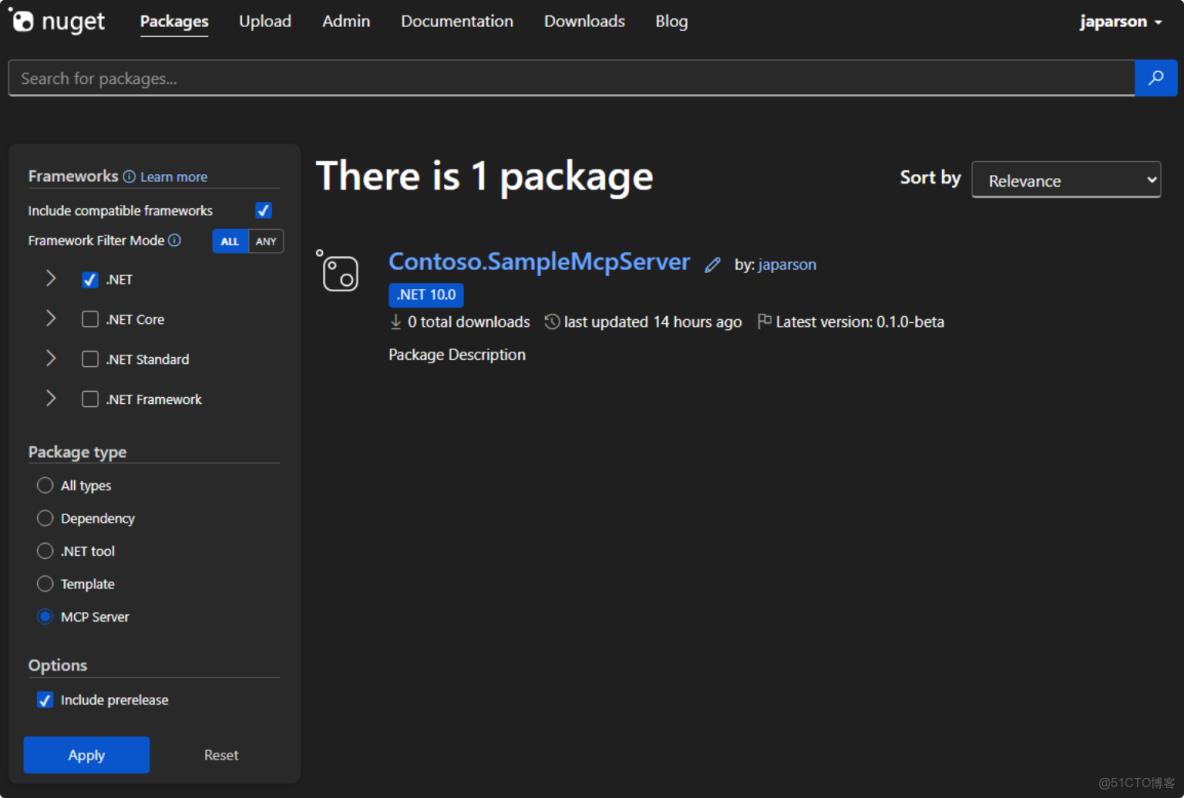
生成的配置示例如下:
{
  "inputs": [
    {
      "type": "promptString",
      "id": "weather-choices",
      "description": "Comma separated list of weather descriptions",
      "password": false
    }
  ],
  "servers": {
    "YourUsername.SampleMcpServer": {
      "type": "stdio",
      "command": "dnx",
      "args": [
        "YourUsername.SampleMcpServer",
        "--version",
        "1.0.0",
        "--yes"
      ],
      "env": {
        "WEATHER_CHOICES": "${input:weather-choices}"
      }
    }
  }
}
VS Code 會在首次使用 MCP 服務器時提示輸入值,使配置過程對用户更加友好。
結論
通過本文的指導,你已經學會了如何使用 .NET 10 構建一個功能完整的 MCP 服務器,並將其發佈到 NuGet 平台。這一過程不僅展示了 .NET 生態系統對 AI 擴展性的強大支持,也體現了 NuGet 作為 .NET 包管理器的靈活性和可擴展性。
隨着 .NET 10 和 NuGet 對 MCP 的官方支持,你現在已經成為這個不斷髮展的生態系統的一部分,正在參與改變 AI 助手與世界互動方式的革命。.NET 強大的庫與 NuGet 的包管理相結合,為 AI 擴展性創造了無限可能。
作者:葡萄城技術開發團隊
