

地圖投影
對於接觸互聯網地圖的同學來説,最開始接觸的恐怕就是座標轉換的過程了。由於地球是個近似橢球的形狀,有各種各樣的橢球模型來模擬地球,最著名的也就是GPS系統使用的WGS84橢球了。但是這些橢球體的座標使用的是經緯度,單位是角度。目前我們的地圖大多是二維平面上展示,使用角度為基礎來計算多有不便,所以有眾多數學家提出各種不同的轉換方式來將經緯度表示的位置轉換成平面座標,這個轉換過程地圖學上成為投影。投影的方式多種多樣,對我們做互聯網地圖的來説,最重要的就是墨卡託投影的變體——Web墨卡託投影。我們先來看一下墨卡託投影的轉換過程
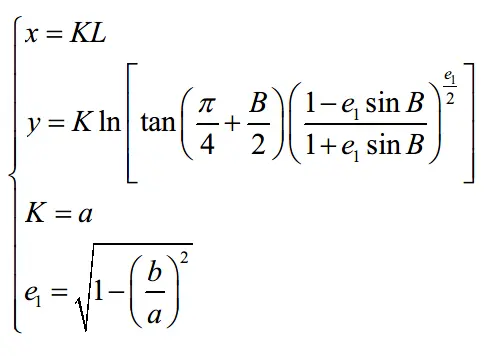
(以赤道本初子午線為原點)
投影完畢後的結果就是:
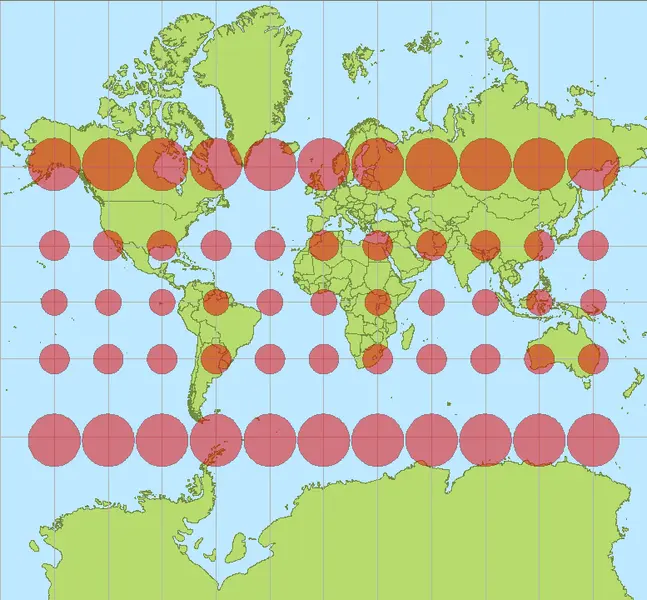
先不要頭疼數學公式,已經有很多類庫做好了代碼實現,比如leaflet:
L.Projection.Mercator = {
    R: 6378137,
    R_MINOR: 6356752.314245179,

    bounds: L.bounds([-20037508.34279, -15496570.73972], [20037508.34279, 18764656.23138]),

    project: function (latlng) {
        var d = Math.PI / 180,
            r = this.R,
            y = latlng.lat * d,
            tmp = this.R_MINOR / r,
            e = Math.sqrt(1 - tmp * tmp),
            con = e * Math.sin(y);

        var ts = Math.tan(Math.PI / 4 - y / 2) / Math.pow((1 - con) / (1 + con), e / 2);
        y = -r * Math.log(Math.max(ts, 1E-10));

        return new L.Point(latlng.lng * d * r, y);
    },

    unproject: function (point) {
        var d = 180 / Math.PI,
            r = this.R,
            tmp = this.R_MINOR / r,
            e = Math.sqrt(1 - tmp * tmp),
            ts = Math.exp(-point.y / r),
            phi = Math.PI / 2 - 2 * Math.atan(ts);

        for (var i = 0, dphi = 0.1, con; i < 15 && Math.abs(dphi) > 1e-7; i++) {
            con = e * Math.sin(phi);
            con = Math.pow((1 - con) / (1 + con), e / 2);
            dphi = Math.PI / 2 - 2 * Math.atan(ts * con) - phi;
            phi += dphi;
        }

        return new L.LatLng(phi * d, point.x * d / r);
    }
};接下來我們説一下互聯網地圖真正使用的投影——Web墨卡託或者也叫球形墨卡託。一般來説按照傳統地圖學的要求,一個投影座標系都要有一個對應的橢球體,比如從WGS84的座標轉換成國內騰訊地圖或者百度地圖的座標,都是要經過一步橢球體轉換成gcj02橢球下的經緯度然後才能打點。所以有沒有小夥伴在開發中使用Geolocation接口獲取的經緯度直接傳入上面地圖api中打點發現誤差很大?就是因為沒有轉成gcj02橢球下的經緯度。但是web墨卡託這個投影其實並不符合地圖學的要求,它沒有對應的橢球體,它是谷歌自己造出來的(因為簡單),也可以説對任何橢球體都適用,但這種時候我們在表達一個位置信息時嚴格來説應當這樣表達:橢球下的Web墨卡託投影座標是。
好了現在來説一下web墨卡託的轉換方式:
/*
 * @namespace Projection
 * @projection L.Projection.SphericalMercator
 *
 * Spherical Mercator projection — the most common projection for online maps,
 * used by almost all free and commercial tile providers. Assumes that Earth is
 * a sphere. Used by the `EPSG:3857` CRS.
 */

L.Projection.SphericalMercator = {

    R: 6378137,
    MAX_LATITUDE: 85.0511287798,

    project: function (latlng) {
        var d = Math.PI / 180,
            max = this.MAX_LATITUDE,
            lat = Math.max(Math.min(max, latlng.lat), -max),
            sin = Math.sin(lat * d);

        return new L.Point(
                this.R * latlng.lng * d,
                this.R * Math.log((1 + sin) / (1 - sin)) / 2);
    },

    unproject: function (point) {
        var d = 180 / Math.PI;

        return new L.LatLng(
            (2 * Math.atan(Math.exp(point.y / this.R)) - (Math.PI / 2)) * d,
            point.x * d / this.R);
    },

    bounds: (function () {
        var d = 6378137 * Math.PI;
        return L.bounds([-d, -d], [d, d]);
    })()
};
相對來説這個計算方法簡單一些,但是這種投影有一些缺點,比如維度投影範圍只能在-85~85之間,一般來説沒什麼關係,反正一般人不會閒的沒事跑南北極去。同時由於南北極特殊的位置,通常有一些專門的地圖來表達。
地圖的組織方式
可以觀察一下騰訊地圖在展示時,通常是一個正方形一個正方形的出現,這些正方形地圖上成為瓦片。下面我們來説一下地圖的組織方式。
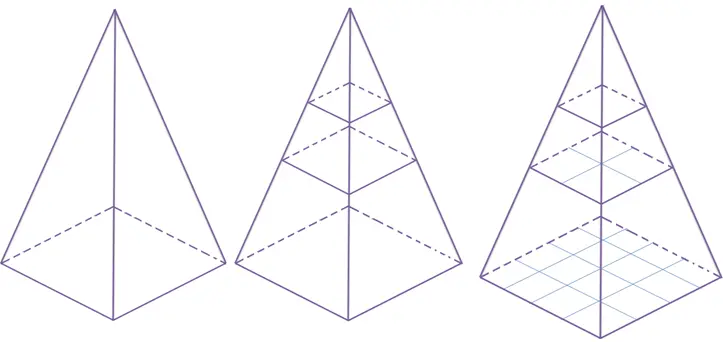
如果地圖數據有一個G,那麼在端上展示地圖時,是把整個地圖數據全部下載下來好還是隻把我們需要看的一部分下來好呢。答案肯定是後者。那麼有來一個問題,是每次都根據位置實時計算好還是提前將地圖分割成塊,根據範圍加載瓦片好呢?這個問題的答案不完全是瓦片,但絕大多數都是。所以現在互聯網地圖的組織形式就是金字塔結構的瓦片地圖。
瓦片地圖金字塔模型是一種多分辨率層次模型,從瓦片金字塔的底層到頂層,分辨率越來越低,但表示的地理範圍不變(這張圖瓦片座標是從左上角開始,通常谷歌系標準的瓦片是從左下角起始的)。
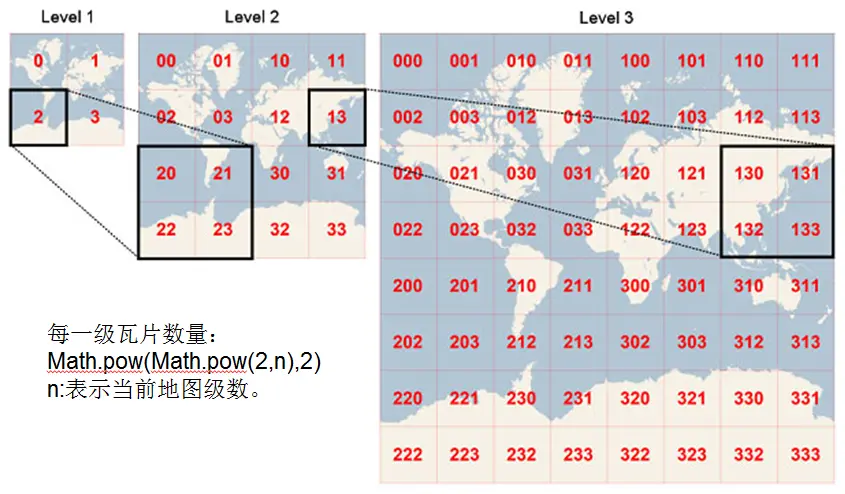
那麼這些瓦片的級別是按照什麼規則來分的呢?這就要牽扯出地圖學中另一個重要的概念——比例尺(即地圖上的一釐米代表着實際上的多少釐米)。到了web地圖中我們把比例尺轉換成另一個概念——分辨率(Resolution,圖上一像素代表實際多少米)。比例尺跟分辨率的換算舉個例子:
//示例來自:http://www.cnblogs.com/naaoveGIS/
//這裏的像素是設備像素

現在假設地圖的座標單位是米,dpi為96 ;
    1英寸=2.54釐米;
    1英寸=96像素;
    最終換算的單位是米;
    如果當前地圖比例尺為1:125000000,則代表圖上1米等於實地125000000米;
    米和像素間的換算公式:
    1英寸=0.0254米=96像素
    1像素=0.0254/96 米
    則根據1:125000000比例尺,圖上1像素代表實地距離是 125000000*0.0254/96 = 33072.9166666667米。
上面這個例子同樣可以由分辨率換算出比例尺。所以在互聯網地圖中我們先不去關心比例尺,只關心分辨率的概念,假設瓦片的大小為256像素,每一級別的瓦塊數目為2^n * 2^n。分辨率計算公式為:
r=6378137
resolution=2*PI*r/(2^zoom*256)r為Web墨卡託投影時選取的地球半徑,2PIr代表地球周長,地球周長除以該級別下所有瓦片像素得到分辨率。
注意這裏的像素實際並不是設備像素,而是一種參照像素(web中的css像素或者是安卓上的設備無關像素),比如在某些高清屏下(window.devicePixelRatio = 3),一參照像素寬度等於3設備像素,這時候可能實際瓦片大小是512設備像素的,但是在顯示時仍然要把它顯示成256參照像素(css像素)。
從經緯度到地圖瓦片
現在要進入關鍵的一步!如何給定經緯度來找出對應瓦片。這時候又要經過幾個座標轉換的過程:
- 經緯度轉Web墨卡託;
- Web墨卡託轉世界平面點;
- 世界平面點轉瓦片像素座標;
- 瓦片像素座標轉瓦片行列號
我們再來看一下這些瓦片的組織方式,
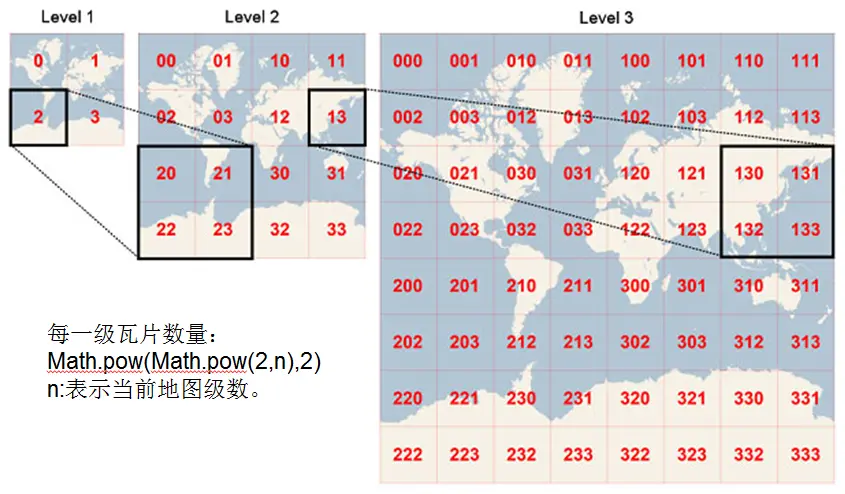
可以看到這裏的起始點是從左上角開始的,而經緯度和Web墨卡託的起始點是赤道和本初子午線,在瓦片像素座標的中心它的座標是(256 2^n / 2, 256 2^n / 2),所以中間就有了世界平面點這一步,它是一箇中間轉換的過程。
所以上文中我們給出了經緯度轉Web墨卡託的代碼。那麼接下來就要把Web墨卡託座標轉換成為世界平面點,這個座標系的原點在左上角(0, 0),在leaft中它認為這個座標的原點在左上角為(0,0),座標範圍為0~1。對應代碼:
// @method latLngToPoint(latlng: LatLng, zoom: Number): Point
    // Projects geographical coordinates into pixel coordinates for a given zoom.
    latLngToPoint: function (latlng, zoom) {
        var projectedPoint = this.projection.project(latlng),
            scale = this.scale(zoom);

        return this.transformation._transform(projectedPoint, scale);
    },
// @method scale(zoom: Number): Number
    // Returns the scale used when transforming projected coordinates into
    // pixel coordinates for a particular zoom. For example, it returns
    // `256 * 2^zoom` for Mercator-based CRS.
    scale: function (zoom) {
        return 256 * Math.pow(2, zoom);
    },
transform對應的代碼為:
/*
 * @class Transformation
 * @aka L.Transformation
 *
 * Represents an affine transformation: a set of coefficients `a`, `b`, `c`, `d`
 * for transforming a point of a form `(x, y)` into `(a*x + b, c*y + d)` and doing
 * the reverse. Used by Leaflet in its projections code.
 *
 * @example
 *
 * ```js
 * var transformation = new L.Transformation(2, 5, -1, 10),
 *     p = L.point(1, 2),
 *     p2 = transformation.transform(p), //  L.point(7, 8)
 *     p3 = transformation.untransform(p2); //  L.point(1, 2)
 * ```
 */


// factory new L.Transformation(a: Number, b: Number, c: Number, d: Number)
// Creates a `Transformation` object with the given coefficients.
L.Transformation = function (a, b, c, d) {
    this._a = a;
    this._b = b;
    this._c = c;
    this._d = d;
};

L.Transformation.prototype = {
    // @method transform(point: Point, scale?: Number): Point
    // Returns a transformed point, optionally multiplied by the given scale.
    // Only accepts actual `L.Point` instances, not arrays.
    transform: function (point, scale) { // (Point, Number) -> Point
        return this._transform(point.clone(), scale);
    },

    // destructive transform (faster)
    _transform: function (point, scale) {
        scale = scale || 1;
        point.x = scale * (this._a * point.x + this._b);
        point.y = scale * (this._c * point.y + this._d);
        return point;
    },

    // @method untransform(point: Point, scale?: Number): Point
    // Returns the reverse transformation of the given point, optionally divided
    // by the given scale. Only accepts actual `L.Point` instances, not arrays.
    untransform: function (point, scale) {
        scale = scale || 1;
        return new L.Point(
                (point.x / scale - this._b) / this._a,
                (point.y / scale - this._d) / this._c);
    }
};
對於Web墨卡託來説,transformation的四個參數為:
/*
 * @namespace CRS
 * @crs L.CRS.EPSG3857
 *
 * The most common CRS for online maps, used by almost all free and commercial
 * tile providers. Uses Spherical Mercator projection. Set in by default in
 * Map's `crs` option.
 */

L.CRS.EPSG3857 = L.extend({}, L.CRS.Earth, {
    code: 'EPSG:3857',
    projection: L.Projection.SphericalMercator,

    transformation: (function () {
        var scale = 0.5 / (Math.PI * L.Projection.SphericalMercator.R);
        return new L.Transformation(scale, 0.5, -scale, 0.5);
    }())
});

L.CRS.EPSG900913 = L.extend({}, L.CRS.EPSG3857, {
    code: 'EPSG:900913'
});
這裏要解釋一下在Web墨卡託中transform這四個參數的意思:scale代表球的周長分之一,b和d都是0.5這代表赤道和本初子午線的交點在世界平面點的位置為(0.5, 0.5);this._a * point.x + this._b代表x軸方向墨卡託座標在世界平面點位置,c=-scale,結合 this._c * point.y + this._d,能計算出y軸方向墨卡託在世界平面點位置。至於c為什麼是付的,結合一下維度座標的性質,以上為正下為負,到了世界平面座標中,負的緯度座標要大於0.5。
接下來的兩步就比較簡單了,世界平面點座標轉像素座標,只要乘以各個軸上對應的像素長度:
256 * 2^zoom * coord.x
256 * 2^zoom * coord.y
在leaft中其實已經在Transformation的_transform函數中坐了這一步。
剩下的我們已經知道了像素座標,就很容易求出對應的瓦片:
//tileSize = 256
xIndex = pixelCoord.x / tileSize;
yIndex = pixelCoord.y / tileSize;
注意谷歌系的瓦片都是以左下角為瓦片索引的起始,所以對應的y方向上的瓦片計算方式為:
Math.pow(2, mapZoom) - yIndex - 1
加載一屏地圖
一般來説在實例化一個地圖時,都會給給Map構造函數傳入一個zoom和一個center參數,3d情況下還會傳入theta和phi代表左右旋轉和上下翻轉,然後就會加載出一幅地圖。為了簡單起見我們先説説2D情況,以leaflet為例
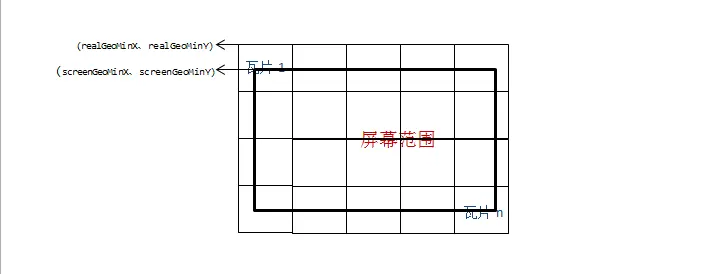
要加載一幅地圖,我們只需要知道屏幕四個點的經緯度所在範圍內的瓦片,再將這些瓦片按照一定的偏移座標佈置即可。
上面傳入的center代表當前範圍的中心點,同時也是屏幕的中心點,那麼就可以求出該經緯度對應的像素座標,這個像素座標就是屏幕中心點對應的瓦片像素座標。這裏的像素與我們的css像素一一對應,利用屏幕範圍可得出屏幕四個角點的瓦片像素座標。利用這四個點的瓦片座標,可以求出當前屏幕的瓦片索引範圍,加載這些瓦片。
    _getTiledPixelBounds: function (center) {
        var map = this._map,
            mapZoom = map._animatingZoom ? Math.max(map._animateToZoom, map.getZoom()) : map.getZoom(),
            scale = map.getZoomScale(mapZoom, this._tileZoom),
            pixelCenter = map.project(center, this._tileZoom).floor(),
            halfSize = map.getSize().divideBy(scale * 2);

        return new L.Bounds(pixelCenter.subtract(halfSize), pixelCenter.add(halfSize));
    },
_pxBoundsToTileRange: function (bounds) {
var tileSize = this.getTileSize();
return new L.Bounds(
bounds.min.unscaleBy(tileSize).floor(),
bounds.max.unscaleBy(tileSize).ceil().subtract([1, 1]));
},接下來要注意一些,這時候這些瓦片的座標範圍肯定是大於屏幕的座標範圍,所以要對所有的瓦片做一些偏移。計算過程比較簡單,屏幕座標以左上點為原點,這個點對應的像素座標已知,只要求出每個瓦片的左上角點的瓦片像素座標與屏幕左上點的瓦片像素座標做差值,即可得出在css中的position的偏移值(高級點的用css3的translate)。下面我們可以看看leaflet的處理過程:
_setView: function (center, zoom, noPrune, noUpdate) {
        var tileZoom = Math.round(zoom);
        if ((this.options.maxZoom !== undefined && tileZoom > this.options.maxZoom) ||
            (this.options.minZoom !== undefined && tileZoom < this.options.minZoom)) {
            tileZoom = undefined;
        }

        var tileZoomChanged = this.options.updateWhenZooming && (tileZoom !== this._tileZoom);

        if (!noUpdate || tileZoomChanged) {

            this._tileZoom = tileZoom;

            if (this._abortLoading) { // 如果zoom要發生變化,停止當前所有tiles的加載;通過更改他們的onload onerror事件實現
                this._abortLoading();
            }

            // 1、創建該級別容器瓦片
            // 2、 設置zIndex
            // 3、設置本級別圖層基準點origin
            // 4、設置值本級別容器的偏移量
            this._updateLevels();
            // 1、得到世界的像素bounds
            // 2、得通過像素範圍除以tileSize得到能夠覆蓋世界的瓦片範圍
            // 3、得到座標系經度和緯度範圍內的瓦片範圍
            this._resetGrid();

            if (tileZoom !== undefined) {
                // 加載可視範圍內的瓦片
                // 1、計算可視區域的像素範圍
                // 2、 將像素範圍轉變成瓦片格網範圍
                // 3、計算一個buffer的格網範圍
                // 4、將不再當前範圍內已加載的瓦片打上標籤
                // 5、如果zoom發生變化重新進行setView
                // 6、將格網範圍內的tile放入一個數組中
                // 7、對數組進行排序,靠近中心點的先加載
                // 8、創建瓦片
                //     (1) 計算瓦片在地圖上的偏移量 coords * tileSize - origin
                //     (2) 加載瓦片數據(圖片或者矢量數據)
                //  (3) 設置圖片位置 setPosition
                this._update(center);
            }

            if (!noPrune) {
                this._pruneTiles(); // 移除不在範圍內的tile; retainParent部分尚沒看懂,可能是按照瓦片金字塔保留
            }

            // Flag to prevent _updateOpacity from pruning tiles during
            // a zoom anim or a pinch gesture
            this._noPrune = !!noPrune;
        }
//將地圖的新中心點移到地圖中央
        this._setZoomTransforms(center, zoom);
    },
3D地圖的加載
互聯網地圖發展到現在出現了不少3D地圖,3D的計算過程有些複雜,尤其是設置了旋轉和俯視角度之後。不過我們可以從簡單情況説起。
3D地圖其實比2D多了一個環節,那就是墨卡託與3D世界座標,3D世界與屏幕像素之間的轉換。如果我們不想自找麻煩,通常3D座標都是以米為單位,保持跟墨卡託的座標單位一致,但是一般不直接以墨卡託的原點做3D世界的原點,因為墨卡託座標比較大,後續計算精度是個問題。所以一般以用户設置的center轉換成的墨卡託座標為原點來建立3D的世界座標系。
一般來講大家使用的都是透視投影,由於3D世界在屏幕上的投影時非線性的,所以3D世界與屏幕像素之間的比值並不是固定的。但一般對地圖來講,不考旋轉俯視情況下,相機的視線軸與水平面是垂直關係,那麼就可以利用相機投影面高度與屏幕高的比值求出3D世界單位與像素的比值,這個分辨率我們成為resolution2
_getPixelMeterRatio(target) {
    target = target ? target : this.controls.target;
    let distance = this.camera.position.distanceTo(target);
    let top = this.camera instanceof PerspectiveCamera ?
      (Math.tan(this.camera.fov / 2 * DEG2RAD) * distance) :
      this.camera.top / this.camera.zoom;
    let meterPerPixel = 2 * top / this.container.clientHeight;

    return meterPerPixel;
  }
前面章節中我們有一個地圖的瓦片像素分辨率resolution,只要讓這兩個分辨率的值相等,就能計算出相機應當距離水平面的合適高度,將css像素與瓦片像素一比一對應起來。但是這個時候不建議像2D那樣用四個點的瓦片像素座標來計算瓦片索引,建議將屏幕四個點轉成3D座標,3D座標轉成墨卡託,墨卡託轉瓦片像素座標,然後再求瓦片索引。為什麼要多此一舉,原因在於當俯視角度存在時,瓦片分辨率與resolution2並不相同,這時候的視野範圍是個梯形,但是我們可以將屏幕座標轉成墨卡託座標再來計算這個過程。
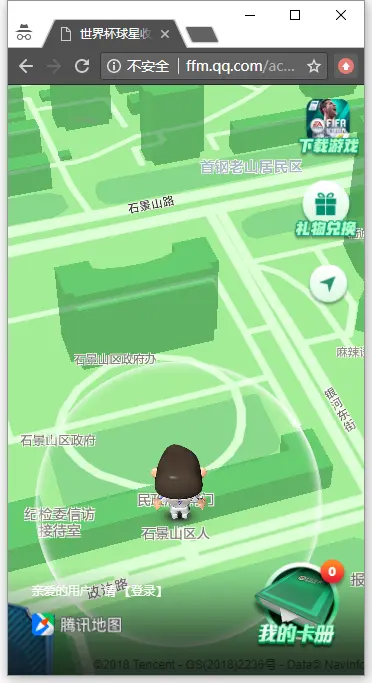
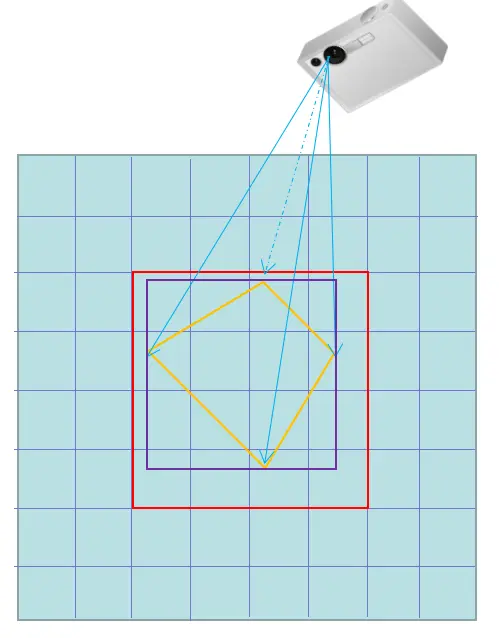
是的沒錯,那個梯形就是你的手機屏幕!至於這個梯形的計算過程,可以利用相機的fov、near、aspect等屬性計算出四條射線,這四條射線與水平面的交點構成了一個梯形,這個梯形可以求出一個外包矩形,利用這個外包矩形求出瓦片的索引範圍。像mapbox中計算的方法相對巧妙一些,沒有直接通過相機座標系求射線方式,而是利用屏幕座標求出ndc座標,通過將兩個ndc座標的z值分別設置為0和1求出一條射線,然後將ndc座標轉換成3d座標,利用線性關係求出水平面的點(z=0)。從而求出那個梯形。
/**
     * Return all coordinates that could cover this transform for a covering
     * zoom level.
     * @param {Object} options
     * @param {number} options.tileSize
     * @param {number} options.minzoom
     * @param {number} options.maxzoom
     * @param {boolean} options.roundZoom
     * @param {boolean} options.reparseOverscaled
     * @param {boolean} options.renderWorldCopies
     * @returns {Array<Tile>} tiles
     */
    coveringTiles(
        options: {
            tileSize: number,
            minzoom?: number,
            maxzoom?: number,
            roundZoom?: boolean,
            reparseOverscaled?: boolean,
            renderWorldCopies?: boolean
        }
    ) {
        let z = this.coveringZoomLevel(options);
        const actualZ = z;

        if (options.minzoom !== undefined && z < options.minzoom) return [];
        if (options.maxzoom !== undefined && z > options.maxzoom) z = options.maxzoom;

        const centerCoord = this.pointCoordinate(this.centerPoint, z);
        const centerPoint = new Point(centerCoord.column - 0.5, centerCoord.row - 0.5);
// 利用屏幕四個點求ndc座標,ndc座標轉3D座標,根據線性關係求出交點
        const cornerCoords = [
            this.pointCoordinate(new Point(0, 0), z),
            this.pointCoordinate(new Point(this.width, 0), z),
            this.pointCoordinate(new Point(this.width, this.height), z),
            this.pointCoordinate(new Point(0, this.height), z)
        ];
        return tileCover(z, cornerCoords, options.reparseOverscaled ? actualZ : z, this._renderWorldCopies)
            .sort((a, b) => centerPoint.dist(a.canonical) - centerPoint.dist(b.canonical));
    }
下面這個函數就是mapbox中求交點步驟的巧妙之處
pointCoordinate(p: Point, zoom?: number) {
        if (zoom === undefined) zoom = this.tileZoom;

        const targetZ = 0;
        // since we don't know the correct projected z value for the point,
        // unproject two points to get a line and then find the point on that
        // line with z=0

        const coord0 = [p.x, p.y, 0, 1];
        const coord1 = [p.x, p.y, 1, 1];

        vec4.transformMat4(coord0, coord0, this.pixelMatrixInverse);
        vec4.transformMat4(coord1, coord1, this.pixelMatrixInverse);

        const w0 = coord0[3];
        const w1 = coord1[3];
        const x0 = coord0[0] / w0;
        const x1 = coord1[0] / w1;
        const y0 = coord0[1] / w0;
        const y1 = coord1[1] / w1;
        const z0 = coord0[2] / w0;
        const z1 = coord1[2] / w1;

        const t = z0 === z1 ? 0 : (targetZ - z0) / (z1 - z0);

        return new Coordinate(
            interp(x0, x1, t) / this.tileSize,
            interp(y0, y1, t) / this.tileSize,
            this.zoom)._zoomTo(zoom);
    }