

前言
在操作Word文檔時,可以通過添加頁碼來使其條理清晰,以便於後期查看整理。通常來説,一個Word文檔包含了多個節,我們可以忽視這些節為整個文檔添加連續頁碼,同時也可以根據不同節來設置不連續頁碼。本文將通過使用Java程序來演示以上兩種添加頁碼情況。
測試環境搭建
在運行代碼前,請確保你的電腦上安裝有JDK和Intellij IDEA。同時需要導入Spire.Doc.jar包。導入方式有兩種:其一,在官網上下載獲取Free Spire.Doc for Java產品包,解壓後將lib文件夾下的Spire.Doc.jar手動導入到IDEA。其二,在IDEA中創建一個Maven項目,然後在pom.xml文件中鍵入以下代碼,最後點擊“Import Changes”即可。
<repositories>
<repository>
<id>com.e-iceblue</id>
<url>http://repo.e-iceblue.cn/repository/maven-public/</url>
</repository>
</repositories>
<dependencies>
<dependency>
<groupId>e-iceblue</groupId>
<artifactId>spire.doc.free</artifactId>
<version>3.9.1</version>
</dependency>
</dependencies>
代碼示例
【示例1】添加連續的頁碼到文檔
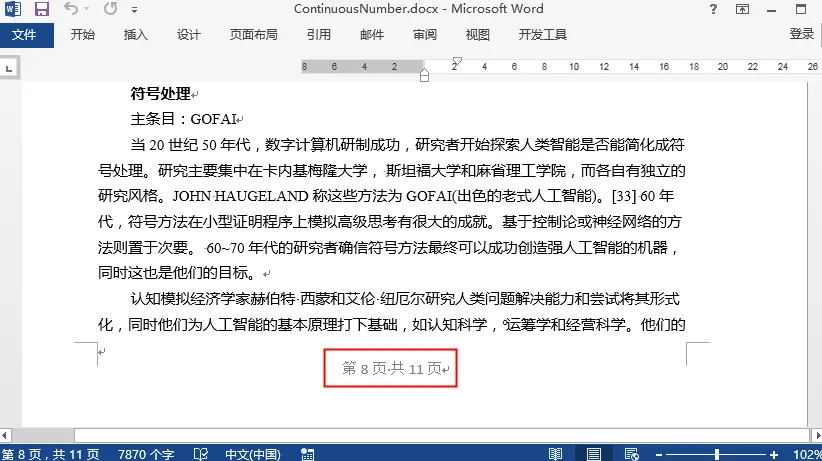
默認情況下,當我們添加頁碼到第一節的頁眉或頁腳後,其他節會通過鏈接到前一節來使用相同的頁眉或頁腳。因此,我們只需要在第一節中設置頁碼即可。
import com.spire.doc.Document;
import com.spire.doc.FieldType;
import com.spire.doc.FileFormat;
import com.spire.doc.HeaderFooter;
import com.spire.doc.documents.HorizontalAlignment;
import com.spire.doc.documents.Paragraph;
public class AddContinuousNumber {
    public static void main(String[] args) {
        //加載Word文檔
 Document document = new Document("C:UsersTest1DesktopSample.docx");
        //獲取第一個節中的頁腳
 HeaderFooter footer = document.getSections().get(0).getHeadersFooters().getFooter();
        //添加段落到頁腳
 Paragraph footerParagraph = footer.addParagraph();
        //添加文字、頁碼域和總頁數域到段落
 footerParagraph.appendText("第");
        footerParagraph.appendField("page number", FieldType.Field_Page);
        footerParagraph.appendText("頁 共");
        footerParagraph.appendField("number of pages", FieldType.Field_Num_Pages);
        footerParagraph.appendText("頁");
        //將段落居中
 footerParagraph.getFormat().setHorizontalAlignment(HorizontalAlignment.Center);
        //保存文檔
 document.saveToFile("output/ContinuousNumber.docx", FileFormat.Docx_2013);
    }
}
效果圖:
【示例2】根據節來添加不連續的頁碼
Free Spire.Doc for Java除了支持給Word文檔設置連續頁碼外,還可以根據文檔中的節來設置不連續頁碼,即下一節的起始頁從1開始編頁碼。
import com.spire.doc.Document;
import com.spire.doc.FieldType;
import com.spire.doc.FileFormat;
import com.spire.doc.HeaderFooter;
import com.spire.doc.documents.HorizontalAlignment;
import com.spire.doc.documents.Paragraph;
public class AddDiscontinuousNumber {
    public static void main(String[] args) {
        //加載Word文檔
 Document document = new Document("C:UsersTest1DesktopSample.docx");
        //獲取第一節的頁腳
 HeaderFooter footer = document.getSections().get(0).getHeadersFooters().getFooter();
        //添加段落到頁腳
 Paragraph footerParagraph = footer.addParagraph();
        //添加文本、節域、頁碼域到段落
 footerParagraph.appendText("第");
        footerParagraph.appendField("section number", FieldType.Field_Section);
        footerParagraph.appendText("節 第");
        footerParagraph.appendField("page number", FieldType.Field_Page);
        footerParagraph.appendText("頁");
        //將段落居中
 footerParagraph.getFormat().setHorizontalAlignment(HorizontalAlignment.Center);
        //判斷文檔是否含多個節
 if (document.getSections().getCount()>1) {
            //遍歷除第一節以外的其他節
 for (int i = 1; i < document.getSections().getCount(); i++) {
                //在當前節重新開始編頁碼
 document.getSections().get(i).getPageSetup().setRestartPageNumbering(true);
                //從1開始編頁碼
 document.getSections().get(i).getPageSetup().setPageStartingNumber(1);
            }
        }
        //保存文檔
 document.saveToFile("output/DiscontinuousNumbering.docx", FileFormat.Docx_2013);
    }
}
效果圖:

(本文完)
