

網上一大堆美化教程,囉裏囉唆,還講不清,並且一堆錯誤
第一步安裝模塊
powershell 管理員身份運行,並執行以下。
##允許執行腳本
set-executionpolicy remotesigned
Install-module PSReadline
Install-Module posh-git
Install-Module oh-my-posh
Install-Module DirColors
第二步 導入模塊
Import-Module PSReadline
Import-Module DirColors
Import-Module posh-git
Import-Module oh-my-posh
Set-PoshPrompt -Theme powerLine
但此時,只應用到當前,下次打開還是老樣子,這樣,我們就給加個配置文件
第三步 配置
首先記事本打開(命令行輸入)
notepad $profile
接着,在彈出的記事本文件輸入如下內容並保存
Import-Module PSReadline
Import-Module DirColors
Import-Module posh-git
Import-Module oh-my-posh
Set-PoshPrompt -Theme powerLine
第四步 安裝個好看的字體
安裝字體是必須的,否則可能出現亂碼。這裏既然用的Theme powerLine,那我們就下powerLine字體
powerline/fonts: Patched fonts for Powerline users. (github.com)
下載以後,找到DejaVu Sans Mono for Powerline.ttf安裝
並在windows terminal設置裏設置好該字體
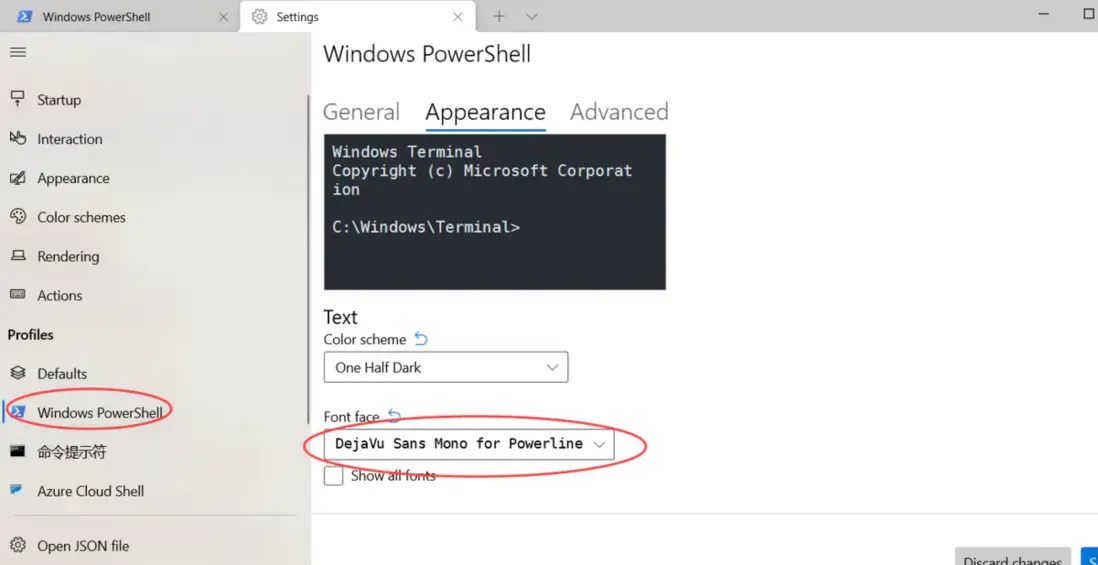
第五步 給windows terminal選個合適的配色
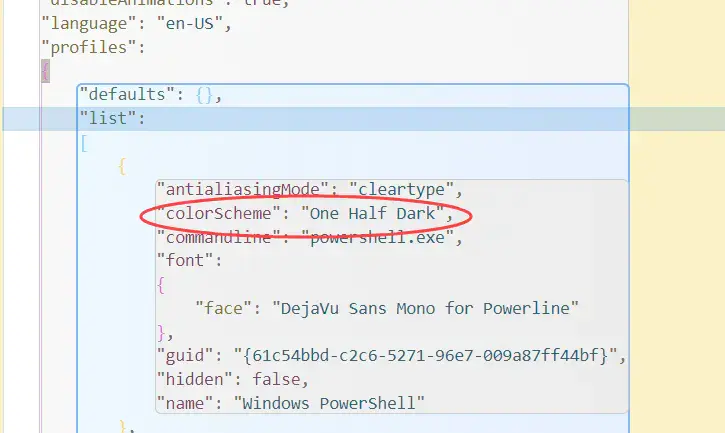
在Terminal的配置json文件中插入
"colorScheme": "One Half Dark",
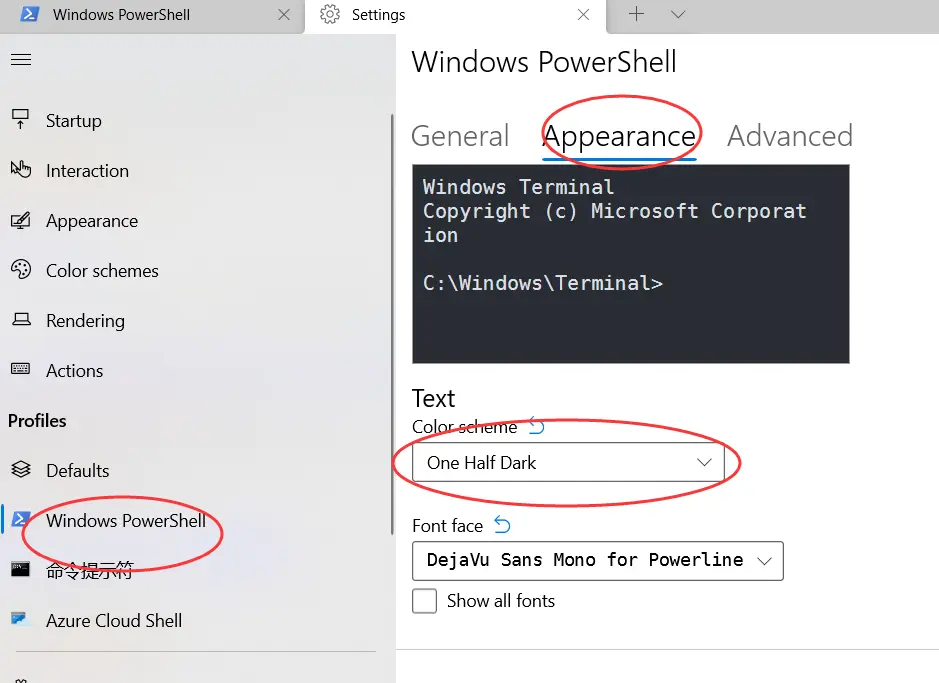
直接窗口選擇也可以
我的成品,是不是好看多了!
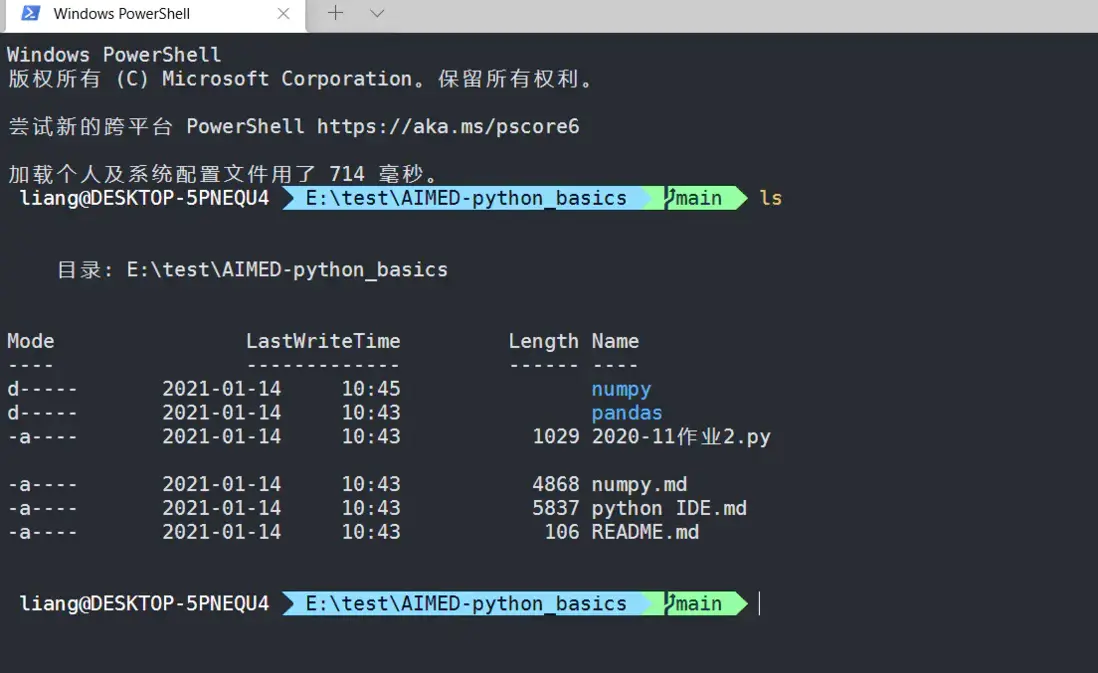
oh-my-posh又有更新,
以下是新教程,只針對
oh-my-posh3
直接在微軟商店搜索oh my posh下載
或者
winget install JanDeDobbeleer.OhMyPosh -s wingetThis installs a couple of things:
- oh-my-posh.exe - Windows executable
- themes - The latest Oh My Posh themes
然後terminal 重啓
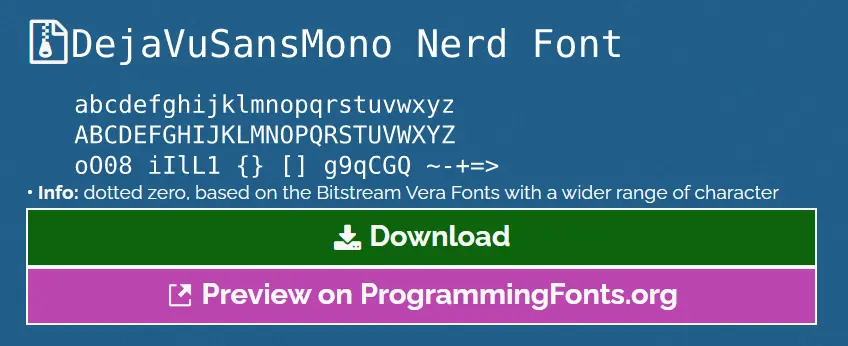
先下載一個字體
https://www.nerdfonts.com/fon...
個人推薦
和之前一樣,在terminal打開
notepad $profile輸入
oh-my-posh init pwsh | Invoke-Expression
保存
但是,這個官方推薦的默認主題非常慢,加載還總出錯,我推薦選其他的
自己到官方看看哪個符合心意?
https://ohmyposh.dev/docs/themes
oh-my-posh init pwsh --config "$env:POSH_THEMES_PATH/unicorn.omp.json" | Invoke-Expression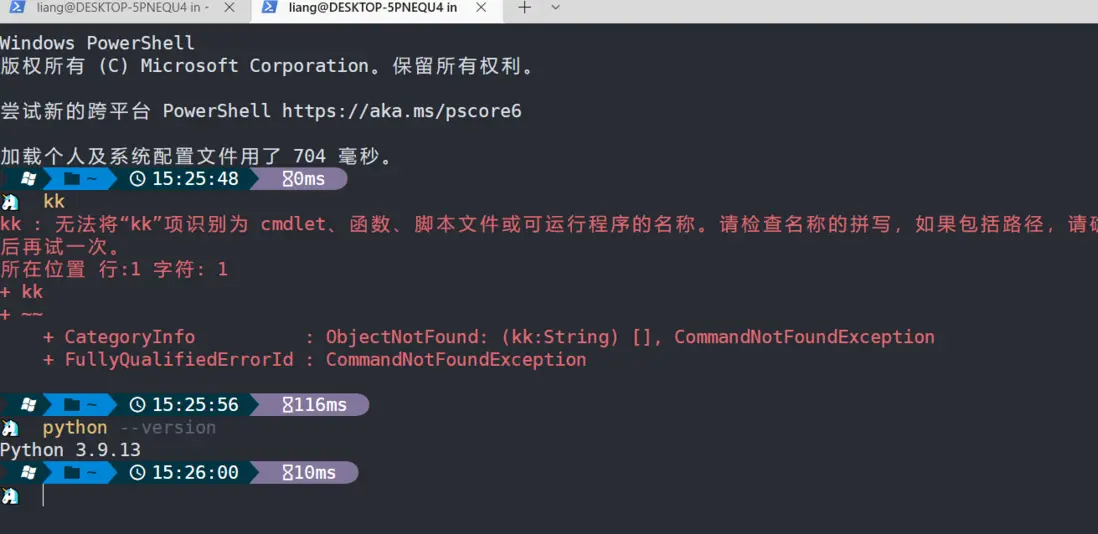
比之前簡單多了
