

開始前在這裏貼一下我們的項目地址和官網,歡迎大家訪問併為我們的項目點上star⭐️
項目地址:https://github.com/didi/LogicFlow
官網地址:https://site.logic-flow.cn/
引言
在流程圖中,邊(Edge) 的主要作用是連接兩個節點,表示從一個節點到另一個節點的關係或流程。在業務系統中,邊通常代表某種邏輯連接,比如狀態轉移、事件觸發、任務流動等。對於複雜的流程圖,邊不僅僅是兩點之間的連接,它還可以傳遞信息、約束流程的順序,並通過不同的樣式或標記來表達不同的含義。
不同的場景下,邊可能需要具備豐富的樣式或交互,比如箭頭表示方向、虛線表示條件判斷、動畫表示動態效果等。因此,靈活定義和實現自定義邊對於流程圖的可視化設計尤為重要。
LogicFlow的邊
為了靈活適配不同場景下的需求,LogicFlow的邊模型是由 線條、箭頭、文本、調整點五個模塊組成。用户可以繼承基礎邊類,對邊的線條、箭頭、文本和調整點進行自定義。
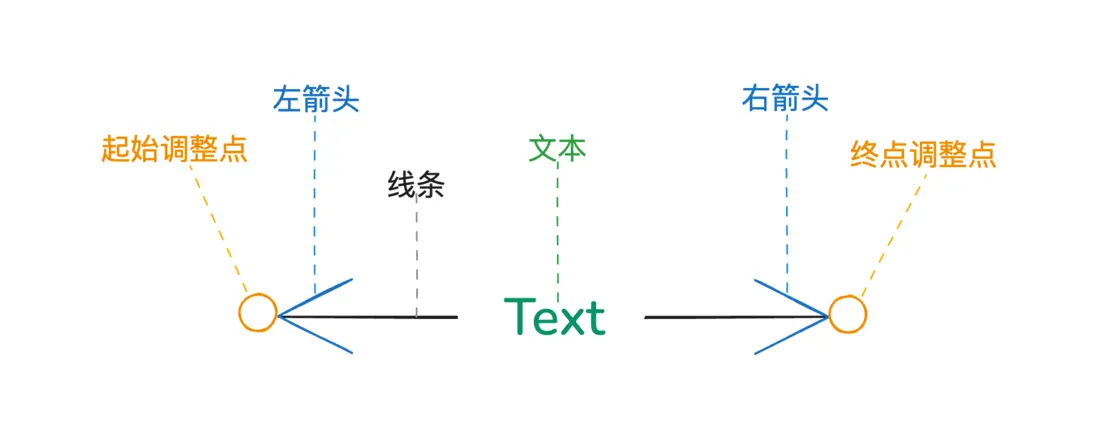
基礎邊:BaseEdge
屬性方法簡介
BaseEdgeModel中定義了一些核心屬性,用於描述邊的幾何結構和樣式。
| 屬性 | 釋義 |
|---|---|
| sourceNodeId | 起始節點Id |
| targetNodeId | 目標節點Id |
| startPoint | 起點信息,默認存儲的是起始節點上連接該邊錨點的座標信息 |
| endPoint | 終點信息,默認存儲的是目標節點上連接該邊錨點的座標信息 |
| text | 邊文本信息,存儲邊上文本的內容和位置 |
| properties | 自定義屬性,用於存儲不同業務場景下的定製屬性 |
| pointsList | 路徑頂點座標列表 |
圍繞着這些核心屬性,LogicFlow設計了支撐邊運轉的核心方法
| 方法 | 用途 |
|---|---|
| initEdgeData | 初始化邊的數據和狀態 |
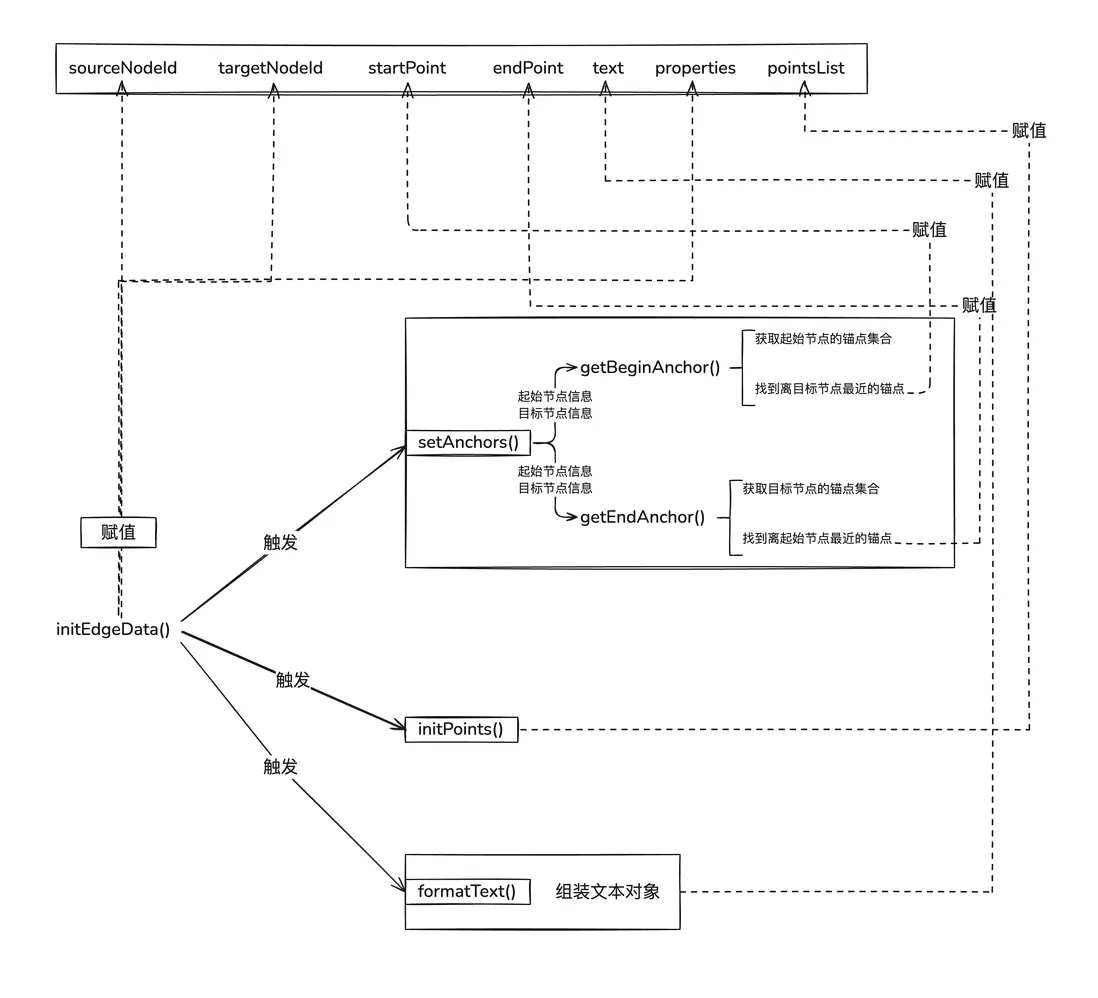
| setAnchors | 設置邊的端點,startPoint和endPoint會在這個被賦值 |
| initPoints | 設置邊路徑,pointsList會在這個階段被賦值 |
| formatText | 將外部傳入的文本格式化成統一的文本對象 |
還有一些渲染使用的樣式方法
| 方法 | 用途 |
|---|---|
| getEdgeStyle | 設置邊樣式 |
| getEdgeAnimationStyle | 設置邊動畫 |
| getAdjustPointStyle | 設置調整點樣式 |
| getTextStyle | 設置文本樣式 |
| getArrowStyle | 設置箭頭樣式 |
| getOutlineStyle | 設置邊外框樣式 |
| getTextPosition | 設置文本位置 |
運轉過程
邊實例化時,數據層Model類內部會先調用initeEdgeData方法,將無需處理的屬性直接存儲下來,設置為監聽屬性然後觸發setAnchors、initPoints和formatText方法,生成邊起終點、路徑和文本信息存儲並監聽。
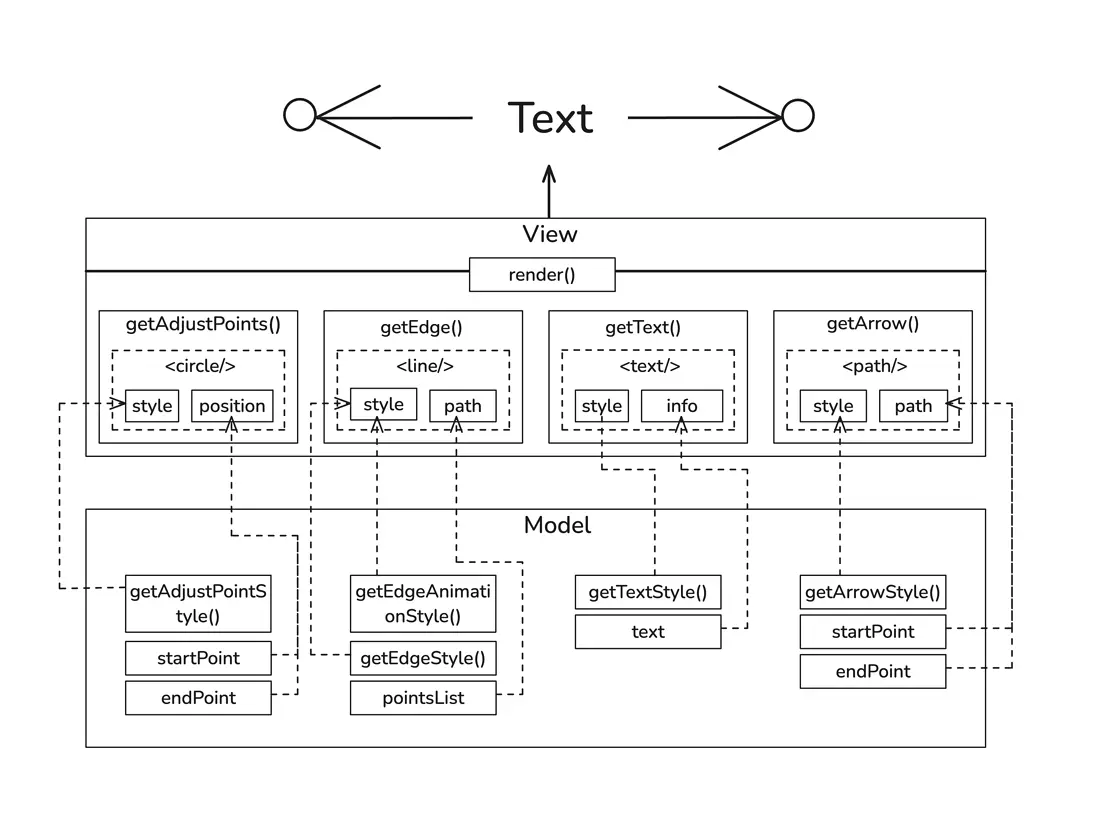
視圖層渲染時,Model中存儲的數據會以外部參數的形式傳給組件,由不同渲染方法消費。每個渲染方法都是從Model存儲的核心數據中獲取圖形信息、從樣式方法中獲取圖形渲染樣式,組裝到svg圖形上。最終由render函數將不同模塊方法返回的內容呈現出來。
內置衍生邊
LogicFlow內部基於基礎邊衍生提供三種邊:直線邊、折線邊和曲線邊。
直線邊
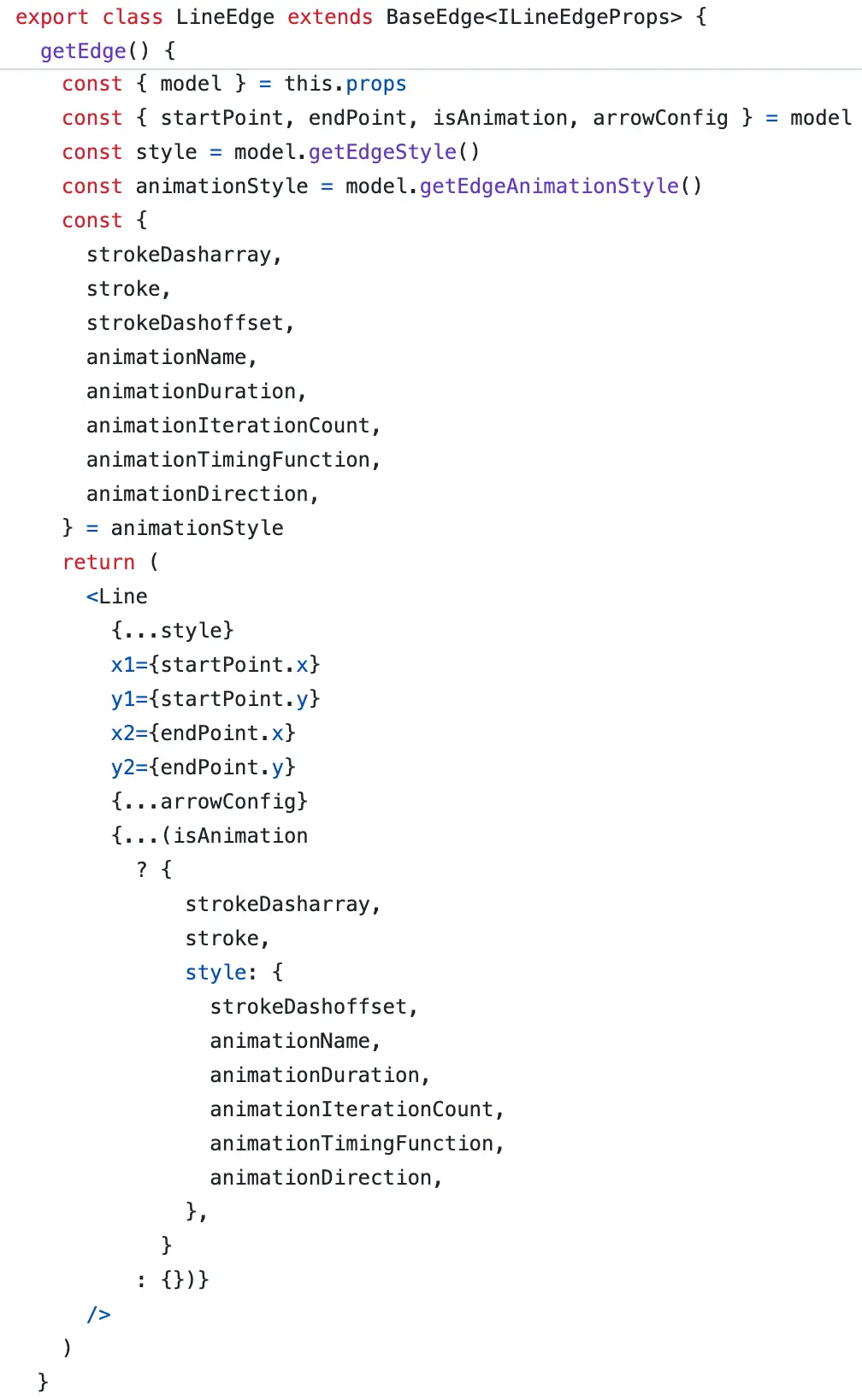
在基礎邊的之上做簡單的定製:
- 支持樣式快速設置
- 限制文本位置在線段中間
- 使用svg的line元素實現線條的繪製
| View | Model |
|---|---|
 |
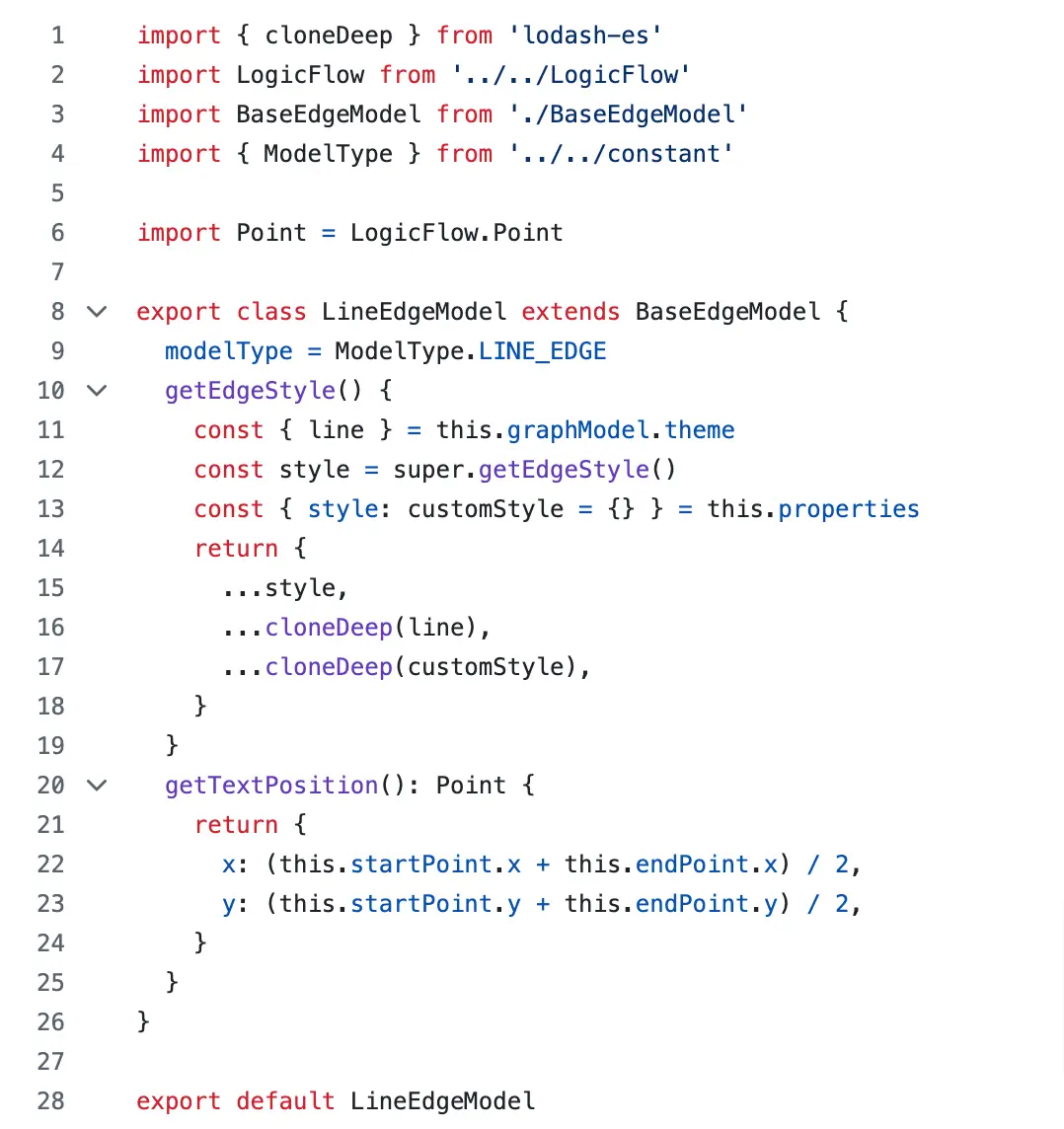 |
<p align=center>直線邊數據層和視圖層源碼邏輯</p>
折線邊

折線邊在Model類的實現上針對邊路徑計算做了比較多的處理,會根據兩個節點的位置、重疊情況,使用 A*查找 結合 曼哈頓距離 計算路徑,實時自動生成pointsList數據。在View類中則重寫了getEdge方法,使用svg polyline元素渲染路徑。
曲線邊

曲線邊和折線邊類似,Model類針對邊路徑計算做了較多處理,不一樣的是,為了調整曲線邊的弧度,曲線邊額外還提供了兩個調整點,邊路徑也是根據邊起終點和兩個調整點的位置和距離計算得出,View類裏使用svg的path元素渲染路徑。
一起實現一條自定義動畫邊
自定義邊的實現思路和內置邊的實現類似:繼承基礎邊 → 重寫Model類/View類的方法 → 按需增加自定義方法 → 命名並導出成模塊
今天就帶大家一起實現一條複雜動畫邊,話不多説,先看效果:

要實現這樣效果的邊,我們核心只需要做一件事:重新定義邊的渲染內容。
在實際寫代碼時,主要需要繼承視圖類,重寫getEdge方法。
實現基礎邊
那我們先聲明自定義邊,並向getEdge方法中增加邏輯,讓它返回基礎的折線邊。
為了方便預覽效果,我們在畫布上增加節點和邊數據。
自定義邊實現
import { h, PolylineEdge, PolylineEdgeModel } from '@logicflow/core'

class CustomAnimateEdge extends PolylineEdge {
  // 重寫 getEdge 方法,定義邊的渲染
  getEdge() {
    const { model } = this.props
    const { points, arrowConfig } = model
    const style = model.getEdgeStyle()
    return h('g', {}, [
      h('polyline', {
        points,
        ...style,
        ...arrowConfig,
        fill: 'none',
        strokeLinecap: 'round',
      }),
    ])
  }
}

class CustomAnimateEdgeModel extends PolylineEdgeModel {}

export default {
  type: 'customAnimatePolyline',
  model: CustomAnimateEdgeModel,
  view: CustomAnimateEdge,
}
定義畫布渲染內容
lf.render({
  nodes: [
    {
      id: '1',
      type: 'rect',
      x: 150,
      y: 320,
      properties: {},
    },
    {
      id: '2',
      type: 'rect',
      x: 630,
      y: 320,
      properties: {},
    },
  ],
  edges: [
    {
      id: '1-2-1',
      type: 'customPolyline',
      sourceNodeId: '1',
      targetNodeId: '2',
      startPoint: { x: 200, y: 320 },
      endPoint: { x: 580, y: 320 },
      properties: {
        textPosition: 'center',
        style: {
          strokeWidth: 10,
        },
      },
      text: { x: 390, y: 320, value: '邊文本3' },
      pointsList: [
        { x: 200, y: 320 },
        { x: 580, y: 320 },
      ],
    },
    {
      id: '1-2-2',
      type: 'customPolyline',
      sourceNodeId: '1',
      targetNodeId: '2',
      startPoint: { x: 150, y: 280 },
      endPoint: { x: 630, y: 280 },
      properties: {
        textPosition: 'center',
        style: {
          strokeWidth: 10,
        },
      },
      text: { x: 390, y: 197, value: '邊文本2' },
      pointsList: [
        { x: 150, y: 280 },
        { x: 150, y: 197 },
        { x: 630, y: 197 },
        { x: 630, y: 280 },
      ],
    },
    {
      id: '1-2-3',
      type: 'customPolyline',
      sourceNodeId: '2',
      targetNodeId: '1',
      startPoint: { x: 630, y: 360 },
      endPoint: { x: 150, y: 360 },
      properties: {
        textPosition: 'center',
        style: {
          strokeWidth: 10,
        },
      },
      text: { x: 390, y: 458, value: '邊文本4' },
      pointsList: [
        { x: 630, y: 360 },
        { x: 630, y: 458 },
        { x: 150, y: 458 },
        { x: 150, y: 360 },
      ],
    },
    {
      id: '1-2-4',
      type: 'customPolyline',
      sourceNodeId: '1',
      targetNodeId: '2',
      startPoint: { x: 100, y: 320 },
      endPoint: { x: 680, y: 320 },
      properties: {
        textPosition: 'center',
        style: {
          strokeWidth: 10,
        },
      },
      text: { x: 390, y: 114, value: '邊文本1' },
      pointsList: [
        { x: 100, y: 320 },
        { x: 70, y: 320 },
        { x: 70, y: 114 },
        { x: 760, y: 114 },
        { x: 760, y: 320 },
        { x: 680, y: 320 },
      ],
    },
  ],
})
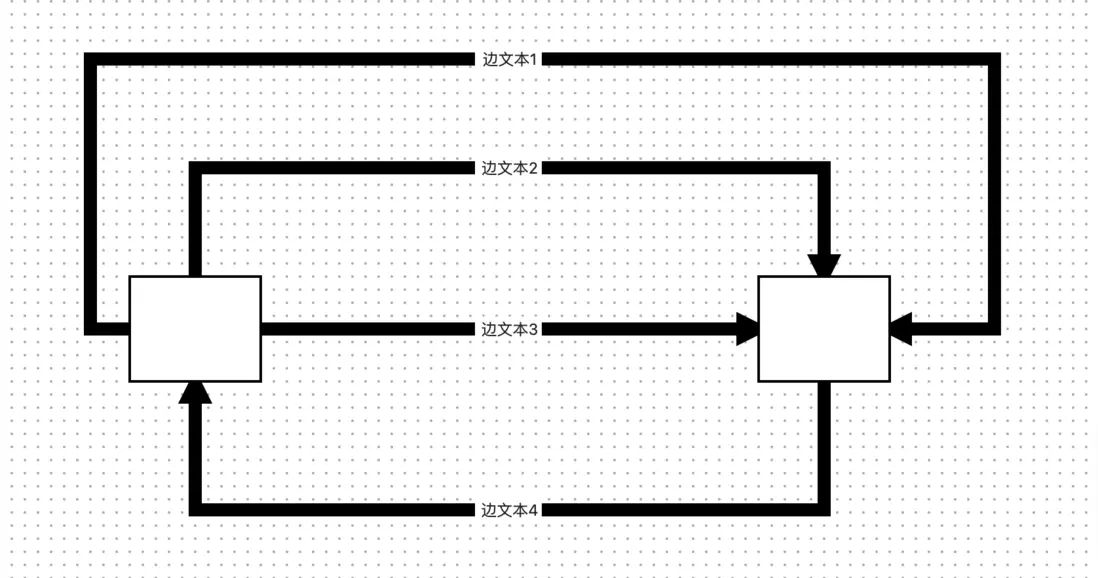
然後我們就能獲得一個這樣內容的畫布:
添加動畫
LogicFlow提供的邊動畫能力其實是svg 屬性和css屬性的集合,目前主要支持了下述這些屬性。
type EdgeAnimation = {
    stroke?: Color; // 邊顏色, 本質是svg stroke屬性
    strokeDasharray?: string; // 虛線長度與間隔設置, 本質是svg strokeDasharray屬性
    strokeDashoffset?: NumberOrPercent; // 虛線偏移量, 本質是svg strokeDashoffset屬性
    animationName?: string; // 動畫名稱,能力等同於css animation-name
    animationDuration?: `${number}s` | `${number}ms`; // 動畫週期時間,能力等同於css animation-duration
    animationIterationCount?: 'infinite' | number; // 動畫播放次數,能力等同於css animation-iteration-count
    animationTimingFunction?: string; // 動畫在週期內的執行方式,能力等同於css animation-timing-function
    animationDirection?: string; // 動畫播放順序,能力等同於css animation-direction
};
接下來我們就使用這些屬性實現虛線滾動效果。
邊的動畫樣式是取的 model.getEdgeAnimationStyle() 方法的返回值,在內部這個方法是取全局主題的edgeAnimation屬性的值作為返回的,默認情況下默認的動畫是這樣的效果:

開發者可以通過修改全局樣式來設置邊動畫樣式;但如果是隻是指定類型邊需要設置動畫部分,則需要重寫getEdgeAnimationStyle方法做自定義,就像下面這樣:
class ConveyorBeltEdgeModel extends PolylineEdgeModel {
  // 自定義動畫
  getEdgeAnimationStyle() {
    const style = super.getEdgeAnimationStyle()
    style.strokeDasharray = '40 160' // 虛線長度和間隔
    style.animationDuration = '10s' // 動畫時長
    style.stroke = 'rgb(130, 179, 102)' // 邊顏色
    return style
  }
}
然後在getEdge方法中加上各個動畫屬性
// 改寫getEdge方法內容
const animationStyle = model.getEdgeAnimationStyle()
const {
  stroke,
  strokeDasharray,
  strokeDashoffset,
  animationName,
  animationDuration,
  animationIterationCount,
  animationTimingFunction,
  animationDirection,
} = animationStyle

return h('g', {}, [
  h('polyline', {
    // ...
    strokeDasharray,
    stroke,
    style: {
      strokeDashoffset: strokeDashoffset,
      animationName,
      animationDuration,
      animationIterationCount,
      animationTimingFunction,
      animationDirection,
    },
  }),
])

我們就得到了定製樣式的動畫邊:
添加漸變顏色和陰影
最後來增加樣式效果,我們需要給這些邊增加漸變顏色和陰影。
SVG提供了元素linearGradient定義線性漸變,我們只需要在getEdge返回的內容裏增加linearGradient元素,就能實現邊顏色線性變化的效果。
實現陰影則是使用了SVG的濾鏡能力實現。
// 繼續改寫getEdge方法內容
return h('g', {}, [
  h('linearGradient', { // svg 線性漸變元素
    id: 'linearGradient-1',
    x1: '0%',
    y1: '0%',
    x2: '100%',
    y2: '100%',
    spreadMethod: 'repeat',
  }, [
    h('stop', { // 坡度1,0%顏色為#36bbce
      offset: '0%',
      stopColor: '#36bbce'
    }),
    h('stop', { // 坡度2,100%顏色為#e6399b
      offset: '100%',
      stopColor: '#e6399b'
    })
  ]),
  h('defs', {}, [
    h('filter', { // 定義濾鏡
      id: 'filter-1',
      x: '-0.2',
      y: '-0.2',
      width: '200%',
      height: '200%',
    }, [
      h('feOffset', { // 定義輸入圖像和偏移量
        result: 'offOut',
        in: 'SourceGraphic',
        dx: 0,
        dy: 10,
      }),
      h('feGaussianBlur', { // 設置高斯模糊
        result: 'blurOut',
        in: 'offOut',
        stdDeviation: 10,
      }),
      h('feBlend', { // 設置圖像和陰影的混合模式
        mode: 'normal',
        in: 'SourceGraphic',
        in2: 'blurOut',
      }),
    ]),
  ]),
  h('polyline', {
    points,
    ...style,
    ...arrowConfig,
    strokeDasharray,
    stroke: 'url(#linearGradient-1)', // 邊顏色指向漸變元素
    filter: 'url(#filter-1)', // 濾鏡指向前面定義的濾鏡內容
    fill: 'none',
    strokeLinecap: 'round',
    style: {
      strokeDashoffset: strokeDashoffset,
      animationName,
      animationDuration,
      animationIterationCount,
      animationTimingFunction,
      animationDirection,
    },
  }),
])

就得到了我們的自定義動畫邊
結尾
在流程圖中,邊不僅僅是節點之間的連接,更是傳遞信息、表達邏輯關係的重要工具。通過 LogicFlow,開發者可以輕鬆地創建和自定義邊,以滿足不同的業務場景需求。從基礎的直線邊到複雜的曲線邊,甚至動畫邊,LogicFlow 都為開發者提供了高度的靈活性和定製能力。
希望能通過這篇文章拋磚引玉,幫助你瞭解在 LogicFlow 中創建和定製邊的核心技巧,打造出符合你業務需求的流程圖效果。
如果這篇文章對你有幫助,請為我們的項目點上star,非常感謝ღ( ´・ᴗ・` )
項目傳送門:https://github.com/didi/LogicFlow
