實現效果
- 地圖定位、地點搜索、拖拽地圖中心定位
- 底部view拖拽下滑和上滑
-
拖拽和縮放地圖,底部view滑動到底部

實現方案
方案一
通過uniapp提供的movable-area & movable-view 實現滑動。一開始還算順利,但是後邊遇到了各種奇葩問題,主要就是屏幕事件衝突的問題和輸入框焦點問題。導致我不得不想各種野路子去解決,最後算是順利實現了,但是偶爾會出現一些不影響使用的bug,總感覺不得勁。
遇到的最主要的兩個問題如下:
- movable-view下的輸入框(暫且命名view1,輸入框input1)隱藏鍵盤不會失去焦點,屏幕底部會有空白(安卓存在,ios不存在)。
嘗試過各種解決辦法沒有解決。最後通過佈局一個相同的view實現(只是不在movable-view下,暫且命名view2,輸入框input2)。當input1獲取焦點時,隱藏view1,顯示view2,並且view2對應的input2手動設置焦點。當input2失去焦點時,隱藏view2,顯示view1。但這是一個極為複雜的解決方案,導致代碼臃腫,邏輯複雜。
. - 彈窗的地址搜索popup,在movable-view對應的區域list無法滑動,雖然popup在最上層(ios存在,安卓不存在)。
通過彈出popup時隱藏movable-view來解決。
當然還有一些其它的問題,不再描述。 總之不建議在movable-view中有太複雜的交互事件。
方案二
自定義實現view拖拽。一開始不想重複造輪子,但是方案一太複雜,最後嘗試自己實現。
自定義拖拽具體實現
頁面佈局
<view class="movable-area">
<!--@touchmove.stop.prevent是為了解決橫向滑動穿透到地圖,導致地圖滑動,不能用@touchmove 否則滑動。會穿透到地圖-->
<view class="movable-view" @touchmove.stop.prevent="onTouchMoveStop" @touchstart="onTouchStart" @touchend="onTouchEnd"
:style="{ transform: `translateY(${deltaY}px)`,transition: 'transform 0.2s ease-out'}">
<view class="input-form-container">
<view class="input-form-header">
<view class="drag-line-container">
<view class="drag-line"></view>
</view>
<view class="search-bar vertical-center" @click="onSearchClick">
<uni-icons type="search" size="22"></uni-icons>
<text class="search-text">請輸入查詢地點</text>
</view>
</view>
<view style="padding: 10rpx 10rpx;">
<text style="font-size: 28rpx;color: #606266">填寫設備信息</text>
</view>
<uni-forms :modelValue="addDeviceFormData" :rules="addDeviceRules" ref="addDeviceForm"
validateTrigger="bind">
<uni-forms-item name="imei">
<view class="input-container" style="position: relative;">
<uni-easyinput trim placeholder="輸入設備編號" :clearable="false" v-model="addDeviceFormData.imei">
<template #left>
<uni-icons style="margin-left: 30rpx;" custom-prefix="iconfont" type="icon-device-imei"
size="24"></uni-icons>
</template>
</uni-easyinput>
<view class="vertical-center" @click="onScanClick"
style="padding-left: 20rpx; padding-right: 20rpx; background-color: #FAFAFA;">
<uni-icons type="scan" size="26" color="#303133"></uni-icons>
</view>
</view>
</uni-forms-item>
<uni-forms-item name="deviceName">
<view class="input-container">
<uni-easyinput trim placeholder=" 輸入設備暱稱" v-model="addDeviceFormData.deviceName">
<template #left>
<uni-icons style="margin-left: 34rpx;" custom-prefix="iconfont" type="icon-input-name"
size="20"></uni-icons>
</template>
</uni-easyinput>
</view>
</uni-forms-item>
<uni-forms-item name="address">
<view class="input-container">
<uni-easyinput trim placeholder="輸入設備位置" v-model="addDeviceFormData.address">
<template #left>
<uni-icons style="margin-left: 30rpx;" type="location" size="26"></uni-icons>
</template>
</uni-easyinput>
</view>
</uni-forms-item>
</uni-forms>
<button class="button-primary login-button" @click="addDeviceClick">添加設備</button>
</view>
</view>
</view>- @touchmove.stop.prevent是為了解決橫向滑動穿透到地圖,導致地圖滑動,不能用@touchmove 否則滑動會穿透到地圖。
- :style="{ transform:
translateY(${deltaY}px),transition: 'transform 0.2s ease-out'}" 動態設置movable-view的位置,同時設置移動的動畫
css樣式
.movable-area{
  position: fixed;
  width: 100vw;
  bottom: 30rpx;
  z-index: 10;
  //解決movable-view滑動底部,地圖仍然不能滑動
  pointer-events: none;

  .movable-view{
    width: 100%;
    display: flex;
    justify-content: center;
    //解決movable-view滑動底部,地圖仍然不能滑動
    pointer-events: auto;

    .input-form-container {
      width: 95vw;
      height: 720rpx;
      padding: 24rpx 40rpx;
      background-color: #FFFFFF;
      border-radius: 30rpx;

      .drag-line-container{
        display: flex;
        flex-direction: column;
        align-items: center;
        padding-bottom: 20rpx;
        .drag-line{
          height: 10rpx;
          width: 140rpx;
          border-radius: 5rpx;
          background-color: #E6E8EB;
        }
      }

      .search-bar {
        width: 100%;
        height: 80rpx;
        padding-left: 30rpx;
        border-radius: 40rpx;
        background-color: #FAFAFA;
        margin-bottom: 30rpx;
        //border: $primary-black solid 1px;

        .search-text {
          color: $placeholder-text;
          font-size: 24rpx;
          padding-left: 18rpx;
        }
      }

      .input-container {
        border-radius: 20rpx;
        overflow: hidden;
        margin-top: 20rpx;
        display: flex;

        .icon-scan {
          padding-left: 20rpx;
          padding-right: 40rpx;
        }
      }

      .login-button {
        margin-top: 30rpx;
        border-radius: 40rpx;
        height: 80rpx;
        line-height: 80rpx;
      }

      :deep() {
        .is-input-border {
          border: none;
        }
        .uni-easyinput__content {
          background-color: $dark-fill !important;
        }
        .uni-forms-item {
          margin-bottom: 16rpx;
        }

        .uni-easyinput__content-input {
          height: 90rpx;
          padding-left: 20rpx !important;
        }
      }
    }
  }
}- 注意 movable-area 中的 pointer-events:none 和 movable-view中的pointer-events:auto 用於解決movable-view滑動到底部後,拖動這一片區域,下層地圖無法拖動的問題。
JS代碼
//觸摸起點Y值
let startY = 0;
//相對與startY的差值,已經上下滑動的距離
const deltaY = ref(0);
//當前觸摸點的Y值
let currentY = 0;
//是否正在拖動中
let isDragging = false;
// 拖拽閾值,滑動操過這個距離才會開始移動view,用於防止誤滑動
const dragThreshold = 40;
// 可以向底部滑動的最大距離
let deltaMaxY = 300;
//是否已經滑動到底部
let isBottom = false;
//movable-view默認的高度
let movableViewHeight = 300;
//地點搜索view默認的高度
let searchViewHeight = 50;

//開始觸摸
function onTouchStart(e) {
  //記錄起點,並且設置拖動中
  startY = e.touches[0].pageY;
  isDragging = true;
}

/**
 * 滑動事件
 * 為什麼沒有用@touchmove,因為會導致滑動穿透到地圖
 */
function onTouchMoveStop(e) {
  if (!isDragging) {
    return;
  }

  //計算上下滑動的距離
  currentY = e.touches[0].pageY;
  let offsetY = currentY - startY;

  //達到拖拽閾值才開始滑動,否則用户輕微誤操作就有可能導致滑動
  if (Math.abs(offsetY) < dragThreshold) {
    return;
  }

  //本來就在頂部時不能再向上滑動。同時設置deltaY=0,防止到頂部鬆開手指時會有輕微跳動
  if (!isBottom && offsetY <= 0) {
    deltaY.value = 0;
    return;
  }

  //滑動到最底部或最頂部,不能在滑動
  if (Math.abs(offsetY) >= (deltaMaxY+dragThreshold)) {
    return;
  }

  if (!isBottom) {
    //如果是向下滑動,設置movable-view的位置為滑動距離減去閾值(dragThreshold)。這樣滑動看起來更順滑,否則會從原位置直接跳動到閾值的距離
    deltaY.value = offsetY-dragThreshold;
  }else {//如果是向上滑動,減去閾值(dragThreshold)這樣滑動看起來跟個順滑
    deltaY.value = deltaMaxY-Math.abs(offsetY)+dragThreshold;
  }
}

//滑動結束,手指抬起
function onTouchEnd(e) {
  isDragging = false;
  //如果是向下滑動鬆開時,滑動距離超過閾值即滑動到底部
  if (!isBottom) {
    //如果只是向下滑動了一點點,這樣會有回彈的效果
    if (Math.abs(deltaY.value) < dragThreshold) {
      deltaY.value = 0;
      return;
    }
    //鬆開後滑動到最底部
    deltaY.value = deltaMaxY;
    isBottom = true;
    //移動定位按鈕改變位置
    locateBtnBottom.value = locateBtnBottom.value - deltaMaxY*2;
  }else {
    //如果只是向上滑動了一點點,那麼鬆開後恢復到底部,回彈效果
    if (deltaMaxY - deltaY.value < dragThreshold) {
      deltaY.value = deltaMaxY;
      return;
    }
    //如果向上滑動操過了閾值,那麼鬆開後movable-view即滑動到頂部
    deltaY.value = 0;
    isBottom = false;
    //移動定位按鈕改變位置
    locateBtnBottom.value = 820;
  }
}

//計算movable-view的高度
function getMovableViewHeight(){
  uni.createSelectorQuery()
      .select('.movable-area') // 選擇器
      .boundingClientRect(res => {
        if (res) {
          console.log('movable-area 的高度為:', res.height);
          movableViewHeight = res.height;
        }
      })
      .exec();
}

//計算searchview的高度
function getSearchViewHeight() {
  uni.createSelectorQuery()
      .select('.input-form-header') // 選擇器
      .boundingClientRect(res => {
        if (res) {
          console.log('input-form-header 的高度為:', res.height);
          searchViewHeight = res.height;
        }
      })
      .exec();
}

onReady(() => {
  getSearchViewHeight();
  getMovableViewHeight();
  setTimeout(() => {
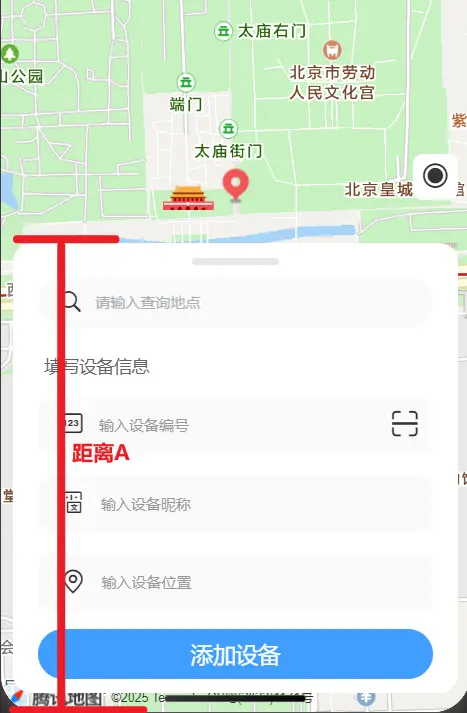
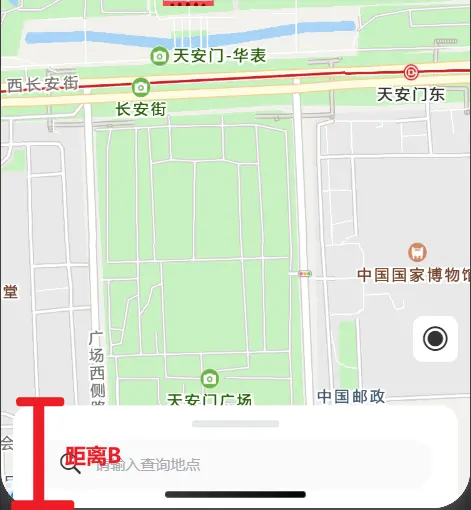
    //最大滑動距離和佈局有很大關係,邏輯就是 最大滑動距離=距離A-距離B
    //最大滑動距離 = (movable-view的高度+距離底部的高度) - (搜索view的高度 + 父padding+bottom)
    deltaMaxY = (movableViewHeight+15)-(searchViewHeight+12 + 15);
    console.log('------------>deltaMaxY:',deltaMaxY);
  },500);
});
地圖部分實現
頁面佈局
<view class="map-container">
  <map id="tMap" style="width: 100%; height: 100vh;" :latitude="centerLatitude" :longitude="centerLongitude"
       @regionchange="onMapRegionChange" :scale="mapScale" :enable-scroll="enableScroll">
    <!--屏幕中心位置圖標-->
    <image class="location-pin" src="@/static/icon/location-pin.png"></image>
    <!--屏幕右側定位按鈕-->
    <view class="locate-btn" @click="getLocation" :style="{bottom: locateBtnBottom+'rpx',transition: 'bottom 0.2s ease-out'}">
      <uni-icons type="circle-filled" size="26" ></uni-icons>
    </view>
  </map>
</view>

...省略...

<view>
  <uni-popup ref="popup" type="bottom" @change="onPupuChange" :safe-area="false">
    <view class="popu-content-container">
      <uni-search-bar placeholder="請輸入查詢地點" v-model="searchKey" :focus="searchFocus"
                      cancelButton="none" bgColor="#FAFAFA" :radius="18" @input="onAddressInput">
      </uni-search-bar>
      <view style="overflow-y: auto;height: 1000rpx;">
        <uni-list :border="false">
          <uni-list-item clickable v-for="item in searchResult" :key="item.id" @click="addressChooseClick(item)">
            <template v-slot:body>
              <view style="display:flex;">
                <uni-icons type="location" size="26"></uni-icons>
                <view style="margin-left: 10rpx">
                  <view>
                    <text style="font-weight: bold;color: #303133">{{item.title}}</text> <text style="color: #007aff">-{{item.city}}</text>
                  </view>
                  <view>
                    <text style="font-size: 28rpx;color: #909399">{{item.address}}</text>
                  </view>
                </view>
              </view>
            </template>
          </uni-list-item>
        </uni-list>
      </view>
      <button plain class="close-btn" @click="popup.close()">
        <uni-icons type="close" color="gray" size="38"></uni-icons>
      </button>
    </view>
    <view style="height: 30rpx;background-color: #FFFFFF00"></view>
  </uni-popup>
</view>
- :style="{bottom: locateBtnBottom+'rpx',transition: 'bottom 0.2s ease-out'}" 添加移動動畫
css樣式
...省略...
.map-container {
  width: 100%;
  height: 100%;
  background-color: #FFFFFF;
  position: relative;

  .location-pin {
    position: absolute;
    width: 60rpx;
    height: 60rpx;
    top: 50%;
    left: 50%;
    transform: translate(-50%,-100%);
  }

  .locate-btn{
    position: absolute;
    padding: 10rpx;
    background-color: #FFFFFF;
    bottom: 80rpx;
    right: 20rpx;
    border-radius: 16rpx;
  }
  .locate-btn:active{
    background-color: #90939950;
  }
}
...省略...
JS代碼
import QQMapWX from '@/common/js/qqmap-wx-jssdk.min.js';
import UniIcons from "../../uni_modules/uni-icons/components/uni-icons/uni-icons.vue";
import locationPinIcon from '@/static/icon/location-pin.png';

const qqMapSdk = new QQMapWX({
    key: 'xxxx'
});
const enableScroll = ref(true);
const mapScale = ref(16);
const mapContext = uni.createMapContext('tMap', this);
const centerLongitude = ref(116.39827);
const centerLatitude = ref(39.908724);
/**
* 由於視野變化會重複回調函數,因此為了防止重複無效的調用逆地理
* 位置編碼接口(通過經緯度獲取地址接口),使用以下3個變量進行限制
*/
//是否已經定位過,不管時成功還是失敗
let located = false;
//上一次獲取位置信息時的經緯度
let lastReverseLongitude = -1;
let lastReverseLatitude = -1;
//位置搜索彈窗
const popup = ref(null);
//搜索關鍵字
const searchKey = ref('');
//搜索地區
const region = ref('');
const searchFocus = ref(false);
//搜索結果
const searchResult = ref([]);
//第一次進入頁面,定位後不隱藏底部的設備信息
let firstTimeLocate = true;
//定位按鈕默認Y值
const locateBtnBottom = ref(840)

function getLocation() {
  uni.getLocation({
    type: 'gcj02',
    success: function (res) {
      located = true;
      centerLongitude.value = res.longitude;
      centerLatitude.value = res.latitude;

      //1秒後將第一次定位設置為false,主要是用於剛進入頁面定位後不讓底部設備信息自動隱藏
      setTimeout(()=>{
        firstTimeLocate = false;
      },2000);

      //這裏會觸發一次視野變化回調
      mapContext.moveToLocation({
        latitude: res.latitude,
        longitude: res.longitude,
        success: function () {
          //這裏會觸發一次視野變化回調
          mapScale.value = mapContext.getScale({
            success: function (res) {
              /*
               * 必須先要獲取到當前縮放級別,因為mapScale.value的值不會隨着手動縮放地圖而改變。
               * 因此需要先獲取當前實際的縮放級別,然後設置為默認的縮放級別,這樣地圖才會縮放,
               * 否則直接設置mapScale的值不起作用
               */
              mapScale.value = res.scale;
              mapScale.value = 16;
            }
          });
        },
        fail: function (error) {
          console.log('移動地圖失敗------------>', error);
        }
      });
      //這裏不用調用逆地址解析接口,定位成功後,視野會移動到定位位置,並且作為中心,會觸發視野變化回調
    },
    fail: function (error) {
      console.log('獲取當前位置信息失敗------------>', error);
      located = true;
      //1秒後將第一次定位設置為false,主要是用於剛進入頁面定位後不讓底部設備信息自動隱藏
      setTimeout(()=>{
        firstTimeLocate = false;
      },2000);
      //定位失敗處理
      uni.showModal({
        title: '無法獲取你的位置',
        content: '請打開定位,並再『位置』中允許微信在『使用APP期間』訪問位置信息。',
        showCancel: false
      });
    }
  });
}

function addPointMarker(content='北京天安門', latitude=39.908724, longitude=116.39827) {
  mapContext.addMarkers({
    markers:[{
      id:1,
      latitude: latitude,
      longitude: longitude,
      iconPath: locationPinIcon,
      alpha: 0.8,
      width: 30,
      height: 30,
      callout: {
        content: content,
        color: '#000000',
        fontSize: 12,
        borderRadius: 5,
        bgColor: '#fff',
        padding: 10,
        display: 'ALWAYS',
        borderColor: '#90939950',
        borderWidth: 1
      }
    }],
    clear: true
  });
}

function reverseGeocoder(latitude, longitude) {
  qqMapSdk.reverseGeocoder({
    location: {
      latitude: latitude,
      longitude: longitude
    },
    success: function (res) {
      console.log('逆地址解析成功------------>', res);
      //從recommend去掉重複的行政區
      let recommend = res.result.formatted_addresses.recommend.replace(res.result.address_component.district, '');
      //地址拼接recommend更符合實際生活中的地址
      let address = res.result.address + recommend;
      region.value = res.result.address_component.city;
      addDeviceFormData.value.address = address;
      addPointMarker(address, latitude, longitude);
    }
  });
}

//將會移動到底部
let willMovingBottom = false;

/**
 * 視野發生變化時調用,但是有個問題,會被重複被調用
 * @param event
 */
function onMapRegionChange(event) {
  if (event.type === 'begin') {
    if (willMovingBottom) {
      console.log('視野變化開始------------> begin 將會滑動 被攔截 ');
      return;
    }
    if (firstTimeLocate) {
      console.log('進入頁面後第一次,不自動將底部設備信息隱藏');
      return;
    }
    //如果movableView沒有滑動到最底部,那麼滑動到對最底部
    if (!isBottom) {
      console.log('視野變化開始------------>begin 將會滑動到最底部');
      willMovingBottom = true;
      deltaY.value = deltaMaxY
      isBottom = true;
      //定位按鈕移動到底部
      locateBtnBottom.value = locateBtnBottom.value - deltaMaxY*2;
      setTimeout(()=>{
        willMovingBottom = false;
      },300);
    }
    return;
  }
  //沒有定位前(無論是否成功),不獲取位置信息,防止重複無效的請求
  if (!located) {
    return;
  }
  //視野變化時,重新獲取中心位置,獲取位置信息
  mapContext.getCenterLocation({
    success: function (res) {
      /*
       * 過濾視野變化重複回調,位置信息不會變化,防止重複無效的請求逆地址解析接口.
       * 由於滑動、移動到當前位置、縮放都會觸發視野變化回調。有時候經緯度沒有變化,
       * 但是會重複回調,因此計算差值過濾掉重複或者變化極小的回答
       */
      let differLatitude = Math.abs(lastReverseLatitude-res.latitude);
      let differLongitude = Math.abs(lastReverseLongitude-res.longitude);
      if (differLatitude <= 0.0001 && differLongitude <= 0.0001) {
        return;
      }
      lastReverseLongitude = res.longitude;
      lastReverseLatitude = res.latitude;
      //開發時先不調用該接口
      reverseGeocoder(res.latitude, res.longitude);
    }
  });
}

/**
 * 設備信息輸入框是否顯示,當搜索地點時,彈出popu顯示列表,
 * 但是會出現列表無法滑動的情況,原因是searchbar不失去焦點。
 * 同樣還是movable-view導致的,因此popu展開時需要隱藏掉
 */
function onPupuChange(e) {
  show.value = e.show;
  //主要是解決ios popup展開時滾動穿透的問題
  enableScroll.value = !e.show;
}

function onAddressInput(value) {
  console.log('輸入內容---------------->', value);
  qqMapSdk.getSuggestion({
    keyword: value,
    region: region.value,
    success: function (res) {
      console.log('搜索結果---------------->',res);
      searchResult.value = [];
      for (let i = 0; i < res.data.length; i++) {
        searchResult.value.push({
          title: res.data[i].title,
          id: res.data[i].id,
          latitude: res.data[i].location.lat,
          longitude: res.data[i].location.lng,
          address: res.data[i].address,
          city: res.data[i].city
        });
      }
    },
    fail: function (res) {
      console.log('搜索失敗---------------->',res);
    }
  });
}

function addressChooseClick(item) {
  popup.value.close();
  setTimeout(() => {
    centerLongitude.value = item.longitude;
    centerLatitude.value = item.latitude;
    mapContext.moveToLocation({
      latitude: item.latitude,
      longitude: item.longitude,
      success: function () {
        //這裏會觸發一次視野變化回調
        mapScale.value = mapContext.getScale({
          success: function (res) {
            /*
             * 必須先要獲取到當前縮放級別,因為mapScale.value的值不會隨着手動縮放地圖而改變。
             * 因此需要先獲取當前實際的縮放級別,然後設置為默認的縮放級別,這樣地圖才會縮放,
             * 否則直接設置mapScale的值不起作用
             */
            mapScale.value = res.scale;
            mapScale.value = 16;
          }
        });
      },
      fail: function (error) {
        console.log('移動地圖失敗------------>', error);
      }
    });
  },300);
}