

1. Gauge 是什麼?
Gauge 是 ArkUI 信息展示類組件中的 數據量規圖表組件,可以把一個數值用 環形儀表盤 的方式展示出來。
典型場景:
- 設備健康度 / 電量 / 評分展示;
- CPU/內存佔用、網絡質量等系統指標可視化;
- 運動完成度、睡眠質量等健康數據面板;
- 任意「當前值 + 範圍(min~max)」的 KPI 儀表盤。
特性小結:
- 支持 單色 / 漸變 / 分段多色 圓環;
- 支持 起止角度 調整(不一定是整圓);
- 支持中間插槽區域:當前值 + 輔助文本 / 圖標;
- 支持 陰影、指針、自定義內容區、隱私模式 等擴展能力;
- 從 API 8 開始支持,後續版本增強了卡片、元服務、內容修改器等能力。
卡片 / 元服務支持:
- ArkTS 卡片:API 9+(部分能力 API 18+)
- 元服務:API 11+(部分能力 API 18+)
2. 快速上手:用最小代碼畫一個儀表盤
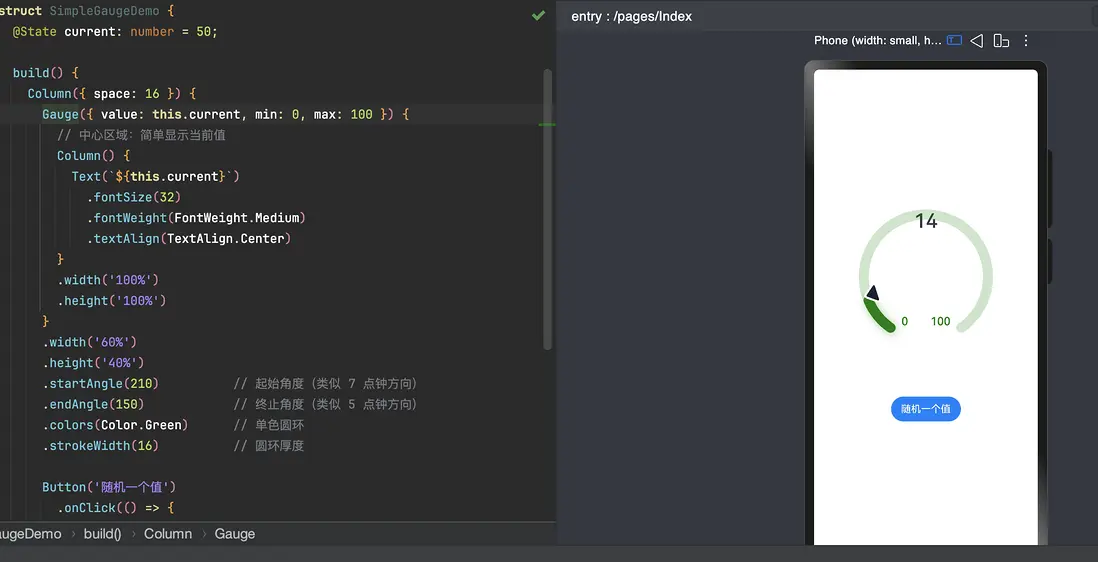
先來個「能跑起來」的最小示例:
// xxx.ets
@Entry
@Component
struct SimpleGaugeDemo {
  @State current: number = 50;

  build() {
    Column({ space: 16 }) {
      Gauge({ value: this.current, min: 0, max: 100 }) {
        // 中心區域:簡單顯示當前值
        Column() {
          Text(`${this.current}`)
            .fontSize(32)
            .fontWeight(FontWeight.Medium)
            .textAlign(TextAlign.Center)
        }
        .width('100%')
        .height('100%')
      }
      .width('60%')
      .height('40%')
      .startAngle(210)          // 起始角度(類似 7 點鐘方向)
      .endAngle(150)            // 終止角度(類似 5 點鐘方向)
      .colors(Color.Green)      // 單色圓環
      .strokeWidth(16)          // 圓環厚度

      Button('隨機一個值')
        .onClick(() => {
          this.current = Math.floor(Math.random() * 100);
        })
    }
    .width('100%')
    .height('100%')
    .justifyContent(FlexAlign.Center)
    .alignItems(HorizontalAlign.Center)
  }
}
這個 demo 幫你搞清楚幾個點:
Gauge({ value, min, max })創建組件;- 組件內部可以放一個子組件(一般用
Text/Column搭數值+輔助文案); startAngle/endAngle決定「開口方向」;colors+strokeWidth決定「長什麼樣」。
3. GaugeOptions:value / min / max 怎麼用?
創建 Gauge 時,推薦總是把 value / min / max 顯式寫上:
Gauge({
  value: 60,  // 當前值(指針指向)
  min: 0,     // 最小值
  max: 100    // 最大值
})
幾點行為要記一下:
value不在[min, max]範圍內時,會 強制按 min 處理;min/max默認值:0/100;max < min時,會退回默認[0, 100];min/max支持負數(可以做「温度 / 虧盈」這類區間)。
實戰習慣:
- 界面上展示的文案可以有自己的格式(例如「60%」/「60 分」),
- 但
value/min/max建議統一用「純數值」,方便邏輯複用。
4. 核心屬性速查
4.1 value:動態更新指針位置
.value(v: number)- 作用:動態修改當前數據值;
- 常見用法:綁定
@State,配合按鈕 / 定時器更新。
Gauge({ value: this.current, min: 0, max: 200 })
  .value(this.current)   // 一般直接改 State 即可
4.2 startAngle / endAngle:控制開口方向
.startAngle(angle: number)
.endAngle(angle: number)-
角度説明:
- 0 度:時鐘「12 點方向」;
- 順時針為正角度。
- 默認:
startAngle(0)、endAngle(360),整圓。 - 注意:起止角度差太小 會畫出很奇怪的圖形,建議保證有一個可見的弧度(比如 > 60°)。
常見佈局:
- 儀表盤樣式:
startAngle(210)、endAngle(150)(一個扇形)。 - 半圓:
startAngle(180)、endAngle(0)。
4.3 colors:單色、漸變、多段漸變
colors(
  colors: ResourceColor
        | LinearGradient
        | Array<[ResourceColor | LinearGradient, number]>
)
從 API 11 開始,規則是:
-
單色環
.colors('#64BB5C') -
漸變環(整圈漸變)
.colors( new LinearGradient([ { color: '#64BB5C', offset: 0 }, { color: '#F7CE00', offset: 0.5 }, { color: '#E84026', offset: 1 } ]) ) -
分段漸變環(最多 9 段)
每一段是[顏色, 權重],權重控制該顏色佔的比例:.colors([ [Color.Green, 3], [Color.Yellow, 2], [Color.Red, 1] ])
注意點:
- 段數最多 9 段,多了不顯示;
- 同一段的權重 ≤ 0 會被忽略;
- 所有權重都是 0 時,圓環不顯示;
- 傳錯顏色類型會退回到默認告警色
"0xFFE84026"。
4.4 strokeWidth:環形厚度
.strokeWidth(length: Length) // vp,不能用百分比- 默認:
4vp; - 不能小於 0,小於 0 就按默認;
- 最大值是圓環半徑,超過則按最大值處理。
實戰建議:
- 儀表盤類場景:
12~24vp的厚度比較常見;- 卡片小尺寸 Gauge:
8~12vp更精緻。
4.5 description:底部説明區域
.description(value: CustomBuilder)- API 11+:支持設置説明內容;
- 適合放「最大/最小值説明」「單位提示」「小圖標」。
示例(文本説明):
@Builder
function descBuilder() {
  Text('日活在線用户數')
    .fontSize(12)
    .fontColor('#99000000')
    .textAlign(TextAlign.Center)
}

Gauge({ value: 60, min: 0, max: 100 })
  .description(descBuilder)
説明:
- 若説明區域內容使用百分比寬高,基準範圍為圓環直徑的某個矩形區域(大概在圓環底部居中);
description(null)表示不顯示説明;-
若不設置
description,是否顯示最大最小值與min/max設置有關:- 設置了
min/max(或其中一個):默認展示 min/max 文本; - 都沒設置時:不顯示説明內容。
- 設置了
4.6 trackShadow:環形陰影
.trackShadow(value: GaugeShadowOptions)GaugeShadowOptions 繼承自 MultiShadowOptions,你可以理解成「多層陰影配置」。
示例:
.trackShadow({
  radius: 7,
  offsetX: 7,
  offsetY: 7
})
説明:
- 陰影顏色與 圓環顏色一致;
- 傳
null表示不啓用陰影。
4.7 indicator:指針樣式 & 自定義指針
.indicator(value: GaugeIndicatorOptions | null)GaugeIndicatorOptions:
-
icon: ResourceStr- 自定義指針圖標(僅支持 svg);
- 不配則用系統默認三角形指針;
-
space: Dimension- 指針與圓環外邊的距離(vp,非百分比);
- 默認:
8vp。
示例(移除指針,僅用圓環表示):
.indicator(null)示例(自定義 svg 指針):
// $r('app.media.indicator') 為 svg 資源
.indicator({
  space: 10,
  icon: $r('app.media.indicator')
})
4.8 privacySensitive:隱私模式
.privacySensitive(isPrivacySensitiveMode: Optional<boolean>)- 卡片能力:API 12+;
-
開啓後:
- 指針會指向 0 位置;
- 最大最小值文本會被遮罩;
- 圓環以灰色或底色顯示。
示例:
Gauge({ value: 80, min: 0, max: 100 })
  .privacySensitive(true)
場景:工資、消費額度、健康指標等隱私信息,在「卡片 / 小窗」裏特別好用。
4.9 contentModifier:自定義內容區(進階)
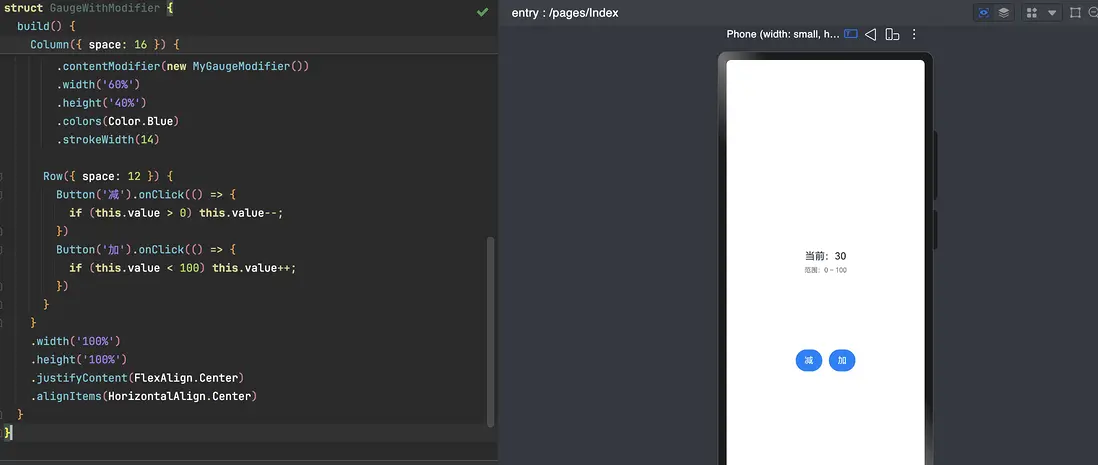
.contentModifier(modifier: ContentModifier<GaugeConfiguration>)- 用於「在 Gauge 上再套一層內容繪製邏輯」;
-
GaugeConfiguration裏包含:value:當前值min:最小值max:最大值
簡單理解:
系統會把 GaugeConfiguration 傳給你,實現 ContentModifier 接口後,你可以在 applyContent() 中決定內容長什麼樣。
極簡示例:
@Builder
function SimpleGaugeContent(config: GaugeConfiguration) {
  Column({ space: 8 }) {
    Text(`當前:${config.value}`)
      .fontSize(18)
      .fontWeight(FontWeight.Medium)
    Text(`範圍:${config.min} ~ ${config.max}`)
      .fontSize(12)
      .fontColor('#99000000')
  }
  .width('100%')
  .height('100%')
  .justifyContent(FlexAlign.Center)
  .alignItems(HorizontalAlign.Center)
}

class MyGaugeModifier implements ContentModifier<GaugeConfiguration> {
  applyContent(): WrappedBuilder<[GaugeConfiguration]> {
    return wrapBuilder(SimpleGaugeContent);
  }
}

@Entry
@Component
struct GaugeWithModifier {
  @State value: number = 30;

  build() {
    Column({ space: 16 }) {
      Gauge({ value: this.value, min: 0, max: 100 })
        .contentModifier(new MyGaugeModifier())
        .width('60%')
        .height('40%')
        .colors(Color.Blue)
        .strokeWidth(14)

      Row({ space: 12 }) {
        Button('減').onClick(() => {
          if (this.value > 0) this.value--;
        })
        Button('加').onClick(() => {
          if (this.value < 100) this.value++;
        })
      }
    }
    .width('100%')
    .height('100%')
    .justifyContent(FlexAlign.Center)
    .alignItems(HorizontalAlign.Center)
  }
}
5. 實戰示例合集
下面挑幾個典型場景:多色、單色、輔助文本、自定義指針、隱私模式。
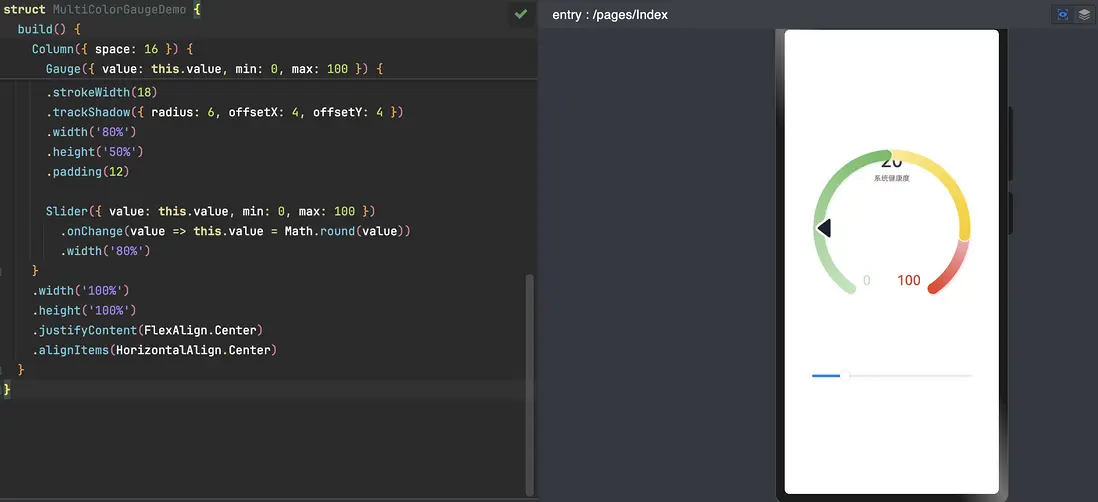
5.1 多段漸變儀表盤 + 中心數值 + 輔助文案
@Entry
@Component
struct MultiColorGaugeDemo {
  private segments = [
    [new LinearGradient([{ color: '#C1E4BE', offset: 0 }, { color: '#64BB5C', offset: 1 }]), 3],
    [new LinearGradient([{ color: '#FCEB99', offset: 0 }, { color: '#F7CE00', offset: 1 }]), 2],
    [new LinearGradient([{ color: '#F5B5C2', offset: 0 }, { color: '#E84026', offset: 1 }]), 1]
  ] as Array<[LinearGradient, number]>;

  @State value: number = 50;

  build() {
    Column({ space: 16 }) {
      Gauge({ value: this.value, min: 0, max: 100 }) {
        Column({ space: 4 }) {
          Text(`${this.value}`)
            .fontSize(32)
            .fontWeight(FontWeight.Medium)
            .textAlign(TextAlign.Center)

          Text('系統健康度')
            .fontSize(12)
            .fontColor('#99000000')
            .textAlign(TextAlign.Center)
        }
        .width('100%')
        .height('100%')
      }
      .startAngle(210)
      .endAngle(150)
      .colors(this.segments)
      .strokeWidth(18)
      .trackShadow({ radius: 6, offsetX: 4, offsetY: 4 })
      .width('80%')
      .height('50%')
      .padding(12)

      Slider({ value: this.value, min: 0, max: 100 })
        .onChange(value => this.value = Math.round(value))
        .width('80%')
    }
    .width('100%')
    .height('100%')
    .justifyContent(FlexAlign.Center)
    .alignItems(HorizontalAlign.Center)
  }
}
5.2 單色 Gauge + 圖標説明(類似「打卡時長」)
@Entry
@Component
struct SingleColorGaugeDemo {
  @State value: number = 75;

  @Builder
  descImage() {
    // 使用系統時鐘圖標,僅為示例,可替換為自己的資源
    Image($r('sys.media.ohos_ic_public_clock'))
      .width(48)
      .height(48)
  }

  build() {
    Column({ space: 24 }) {
      Gauge({ value: this.value, min: 0, max: 120 }) {
        Column({ space: 4 }) {
          Text(`${this.value} min`)
            .fontSize(28)
            .fontWeight(FontWeight.Medium)
            .textAlign(TextAlign.Center)
        }
        .width('100%')
        .height('100%')
      }
      .startAngle(210)
      .endAngle(150)
      .colors('#CCA5D61D')        // 單色
      .strokeWidth(18)
      .description(this.descImage) // 使用圖片作為説明區
      .width('70%')
      .height('45%')
      .padding(16)

      Button('模擬累積 5 分鐘')
        .onClick(() => {
          this.value = Math.min(this.value + 5, 120);
        })
    }
    .width('100%')
    .height('100%')
    .justifyContent(FlexAlign.Center)
    .alignItems(HorizontalAlign.Center)
  }
}
5.3 使用子組件做「主值 + 輔助文本」佈局
@Entry
@Component
struct GaugeWithHelperTextDemo {
  @State score: number = 88;

  build() {
    Column() {
      Gauge({ value: this.score, min: 0, max: 100 }) {
        Column() {
          Text(`${this.score}`)
            .fontSize(40)
            .fontWeight(FontWeight.Bold)
            .textAlign(TextAlign.Center)
            .margin({ top: '30%' })

          Text('綜合評分')
            .fontSize(14)
            .fontColor($r('sys.color.ohos_id_color_text_secondary'))
            .textAlign(TextAlign.Center)
        }
        .width('100%')
        .height('100%')
      }
      .startAngle(210)
      .endAngle(150)
      .colors(new LinearGradient([
        { color: '#64BB5C', offset: 0 },
        { color: '#F7CE00', offset: 0.5 },
        { color: '#E84026', offset: 1 }
      ]))
      .strokeWidth(18)
      .trackShadow({ radius: 6, offsetX: 4, offsetY: 4 })
      .description(null)       // 不用默認 min/max 説明
      .width('80%')
      .height('50%')
      .padding(16)
    }
    .width('100%')
    .height('100%')
    .justifyContent(FlexAlign.Center)
    .alignItems(HorizontalAlign.Center)
  }
}
5.4 自定義 svg 指針
// 指針 svg 示例(放到 app.media.indicator.svg 等資源中)
/*
<svg width="200" height="200" viewBox="0 0 100 100">
  <path d="M 10,30 A 20,20 0,0,1 50,30 A 20,20 0,0,1 90,30 Q 90,60 50,90 Q 10,60 10,30 z"
        stroke="black" stroke-width="3" fill="white"/>
</svg>
*/

@Entry
@Component
struct GaugeCustomIndicatorDemo {
  build() {
    Column() {
      Gauge({ value: 50, min: 0, max: 100 })
        // 注意替換為你自己的 svg 資源
        .indicator({ space: 10, icon: $r('app.media.indicator') })
        .startAngle(210)
        .endAngle(150)
        .colors('#CCA5D61D')
        .strokeWidth(18)
        .width('70%')
        .height('45%')
        .padding(18)
    }
    .width('100%')
    .height('100%')
    .justifyContent(FlexAlign.Center)
    .alignItems(HorizontalAlign.Center)
  }
}
5.5 隱私模式 Gauge(卡片場景)
@Entry
@Component
struct GaugePrivacyDemo {
  build() {
    Scroll() {
      Column({ space: 24 }) {
        Text('消費額度(隱私示例)')
          .fontSize(16)
          .fontWeight(FontWeight.Medium)
          .margin({ top: 16 })

        Gauge({ value: 80, min: 0, max: 100 })
          .startAngle(225)
          .endAngle(135)
          .colors(Color.Red)
          .strokeWidth(18)
          .trackShadow({ radius: 7, offsetX: 7, offsetY: 7 })
          .privacySensitive(true)     // 開啓隱私模式
          .width('80%')
          .height('50%')
          .padding(18)
      }
      .width('100%')
      .alignItems(HorizontalAlign.Center)
    }
  }
}
6. 常見坑 & 實戰建議
-
起止角度設置不當
- 起止角度差太小 → 圓環幾乎看不到,或者圖樣畸形;
- 常見推薦:儀表盤式用
210° ~ 150°、或225° ~ 135°。
-
分段漸變段數太多
- 最多 9 段,多於部分直接被忽略;
- 設計上也不建議超過 5 段,太花會影響可讀性。
-
strokeWidth 過大
- 厚度最大值是半徑,超過會被「截斷」;
- 小尺寸卡片裏,厚度過大容易壓縮中間內容區。
-
指針圖標格式錯誤
- 只支持 svg;
- 非 svg 會退回系統默認三角形指針。
-
隱私模式效果看不到
privacySensitive(true)需要 卡片框架支持,普通頁面裏可能看不到預期效果。
-
內容區排版
-
中心區域佈局完全由你控制,但要注意:
- 儘量保持在中間 / 居中;
- 字號不要過大,以免在小屏設備上溢出;
- 可以配合
maxFontSize/minFontSize做自適應。
-
希望這篇文章能對大家學習鴻蒙有幫助~歡迎交流~指正~
