

前言
本文是 ahooks 源碼系列的第三篇,往期文章:
- 【解讀 ahooks 源碼系列】(開篇)如何獲取和監聽 DOM 元素
- 【解讀 ahooks 源碼系列】DOM篇(一)
本文主要解讀 useEventTarget、useExternal、useTitle、useFavicon、useFullscreen、useHover 源碼實現
useEventTarget
常見表單控件(通過 e.target.value 獲取表單值) 的 onChange 跟 value 邏輯封裝,支持自定義值轉換和重置功能。
官方文檔
export interface Options<T, U> {
  initialValue?: T; // 初始值
  transformer?: (value: U) => T; // 自定義回調值的轉化
}
基本用法
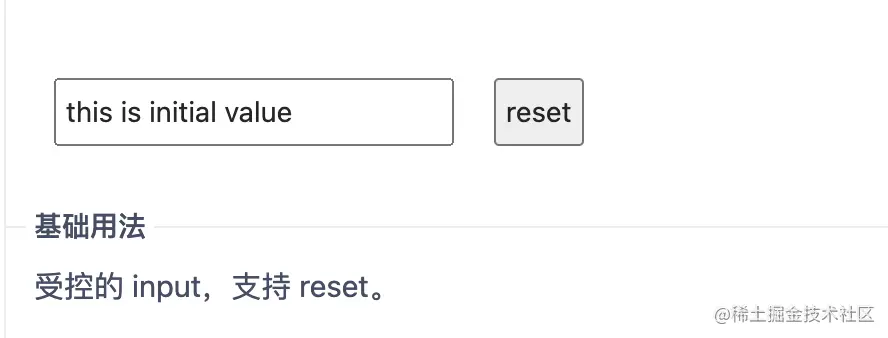
import React from 'react';
import { useEventTarget } from 'ahooks';

export default () => {
  const [value, { reset, onChange }] = useEventTarget({ initialValue: 'this is initial value' });

  return (
    <div>
      <input value={value} onChange={onChange} style={{ width: 200, marginRight: 20 }} />
      <button type="button" onClick={reset}>
        reset
      </button>
    </div>
  );
};
使用場景
適用於較為簡單的表單受控控件(如 input 輸入框)管理
實現思路
- 監聽表單的 onChange 事件,拿到值後更新 value 值
- 支持自定義回調值的轉化,對外暴露 value 值、onChange 和 reset 方法
核心實現
這個實現比較簡單,這裏結尾代碼有個as const,它表示強制 TypeScript 將變量或表達式的類型視為不可變的
具體可以看下這篇文章: 殺手級的 TypeScript 功能:const 斷言
function useEventTarget<T, U = T>(options?: Options<T, U>) {
  const { initialValue, transformer } = options || {};
  const [value, setValue] = useState(initialValue);

  const transformerRef = useLatest(transformer);

  const reset = useCallback(() => setValue(initialValue), []);

  const onChange = useCallback((e: EventTarget<U>) => {
    const _value = e.target.value;
    if (isFunction(transformerRef.current)) {
      return setValue(transformerRef.current(_value));
    }
    // no transformer => U and T should be the same
    return setValue(_value as unknown as T);
  }, []);

  return [
    value,
    {
      onChange,
      reset,
    },
  ] as const; // 將數組變為只讀元組,可以確保其內容不會在其聲明和函數調用之間發生變化
}
完整源碼
useExternal
動態注入 JS 或 CSS 資源,useExternal 可以保證資源全局唯一。
官方文檔
基本用法
import React from 'react';
import { useExternal } from 'ahooks';

export default () => {
  const status = useExternal('/useExternal/test-external-script.js', {
    js: {
      async: true,
    },
  });

  return (
    <>
      <p>
        Status: <b>{status}</b>
      </p>
      <p>
        Response: <i>{status === 'ready' ? window.TEST_SCRIPT?.start() : '-'}</i>
      </p>
    </>
  );
};
實現思路
原理:通過 script 標籤加載 JS 資源 / 創建 link 標籤加載 CSS 資源,再通過創建標籤返回的 Element 元素監聽 load 和 error 事件 獲取加載狀態
- 正則判斷傳入的路徑 path 是 JS 還是 CSS
- 加載 CSS/JS:創建 link/script 標籤傳入 path,支持傳入 link/script 標籤支持的屬性,添加到 head/body 中,並返回 Element 元素與加載狀態;這裏需判斷標籤路徑匹配是否存在,存在則返回上一次結果,以保證資源全局唯一
- 利用創建標籤返回的 Element 元素監聽 load 和 error 事件,並在回調中改變加載狀態
核心實現
主體實現結構:
export interface Options {
  type?: 'js' | 'css';
  js?: Partial<HTMLScriptElement>;
  css?: Partial<HTMLStyleElement>;
}

const useExternal = (path?: string, options?: Options) => {
  const [status, setStatus] = useState<Status>(path ? 'loading' : 'unset');

  const ref = useRef<Element>();

  useEffect(() => {
    if (!path) {
      setStatus('unset');
      return;
    }
    const pathname = path.replace(/[|#].*$/, '');
    if (options?.type === 'css' || (!options?.type && /(^css!|\.css$)/.test(pathname))) {
      const result = loadCss(path, options?.css);
    } else if (options?.type === 'js' || (!options?.type && /(^js!|\.js$)/.test(pathname))) {
      const result = loadScript(path, options?.js);
    } else {
    }

    if (!ref.current) {
      return;
    }

    const handler = (event: Event) => {};

    ref.current.addEventListener('load', handler);
    ref.current.addEventListener('error', handler);
    return () => {
      // 移除監聽 & 清除操作
    };
  }, [path]);

  return status;
};
主函數中判斷加載 CSS 還是 JS 資源:
const pathname = path.replace(/[|#].*$/, '');
if (options?.type === 'css' || (!options?.type && /(^css!|\.css$)/.test(pathname))) {
  const result = loadCss(path, options?.css); // 加載 css 資源並返回結果
  ref.current = result.ref; // 返回創建 link 標籤返回的 Element 元素,用於後續綁定監聽 load 和 error事件
  setStatus(result.status); // 設置加載狀態
} else if (options?.type === 'js' || (!options?.type && /(^js!|\.js$)/.test(pathname))) {
  const result = loadScript(path, options?.js);
  ref.current = result.ref;
  setStatus(result.status);
} else {
  // do nothing
  console.error(
    "Cannot infer the type of external resource, and please provide a type ('js' | 'css'). " +
      'Refer to the https://ahooks.js.org/hooks/dom/use-external/#options',
  );
}
loadCss 方法:
往 HTML 標籤上添加任意以 "data-" 為前綴來設置我們需要的自定義屬性,可以進行一些數據的存放
const loadCss = (path: string, props = {}): loadResult => {
  const css = document.querySelector(`link[href="${path}"]`);
  // 不存在則創建
  if (!css) {
    const newCss = document.createElement('link');

    newCss.rel = 'stylesheet';
    newCss.href = path;
    // 設置 link 標籤支持的屬性
    Object.keys(props).forEach((key) => {
      newCss[key] = props[key];
    });
    // IE9+
    const isLegacyIECss = 'hideFocus' in newCss;
    // use preload in IE Edge (to detect load errors)
    if (isLegacyIECss && newCss.relList) {
      newCss.rel = 'preload';
      newCss.as = 'style';
    }
    // 設置自定義屬性[data-status]為loading狀態
    newCss.setAttribute('data-status', 'loading');
    // 添加到 head 標籤
    document.head.appendChild(newCss);

    // 標籤路徑匹配存在則直接返回現有結果,保證全局資源全局唯一
    return {
      ref: newCss,
      status: 'loading',
    };
  }
  // 如果標籤存在則直接返回,並取 data-status 中的值
  return {
    ref: css,
    status: (css.getAttribute('data-status') as Status) || 'ready',
  };
}
loadScript 方法的實現也類似:
const loadScript = (path: string, props = {}): loadResult => {
  const script = document.querySelector(`script[src="${path}"]`);

  if (!script) {
    const newScript = document.createElement('script');
    newScript.src = path;
    // 設置 script 標籤支持的屬性
    Object.keys(props).forEach((key) => {
      newScript[key] = props[key];
    });

    newScript.setAttribute('data-status', 'loading');
    // 添加到 body 標籤
    document.body.appendChild(newScript);

    return {
      ref: newScript,
      status: 'loading',
    };
  }

  return {
    ref: script,
    status: (script.getAttribute('data-status') as Status) || 'ready',
  };
};
前面獲取到 Element 元素後,監聽 Element 的 load 和 error 事件,判斷其加載狀態並更新狀態
const handler = (event: Event) => {
  const targetStatus = event.type === 'load' ? 'ready' : 'error';
  ref.current?.setAttribute('data-status', targetStatus);
  setStatus(targetStatus);
};

ref.current.addEventListener('load', handler);
ref.current.addEventListener('error', handler);
完整源碼
useTitle
用於設置頁面標題。
官方文檔
基本用法
import React from 'react';
import { useTitle } from 'ahooks';

export default () => {
  useTitle('Page Title');

  return (
    <div>
      <p>Set title of the page.</p>
    </div>
  );
};
使用場景
當進入某頁面需要改瀏覽器 Tab 中展示的標題時
核心實現
這個實現比較簡單
const DEFAULT_OPTIONS: Options = {
  restoreOnUnmount: false, // 組件卸載時,是否恢復上一個頁面標題
};

function useTitle(title: string, options: Options = DEFAULT_OPTIONS) {
  const titleRef = useRef(isBrowser ? document.title : '');
  useEffect(() => {
    document.title = title;
  }, [title]);

  useUnmount(() => {
    if (options.restoreOnUnmount) {
      // 組件卸載時,恢復上一個頁面標題
      document.title = titleRef.current;
    }
  });
}如果項目中我們自己實現的話,有個需要注意的地方,不要把document.title = title;寫在外層,要寫在 useEffect 裏面,具體見該文:檢測意外的副作用
完整源碼
useFavicon
設置頁面的 favicon。
官方文檔
favicon 指顯示在瀏覽器收藏夾、地址欄和標籤標題前面的個性化圖標
基本用法
import React, { useState } from 'react';
import { useFavicon } from 'ahooks';

export const DEFAULT_FAVICON_URL = 'https://ahooks.js.org/simple-logo.svg';

export const GOOGLE_FAVICON_URL = 'https://www.google.com/favicon.ico';

export default () => {
  const [url, setUrl] = useState<string>(DEFAULT_FAVICON_URL);

  useFavicon(url);

  return (
    <>
      <p>
        Current Favicon: <span>{url}</span>
      </p>
      <button
        style={{ marginRight: 16 }}
        onClick={() => {
          setUrl(GOOGLE_FAVICON_URL);
        }}
      >
        Change To Google Favicon
      </button>
      <button
        onClick={() => {
          setUrl(DEFAULT_FAVICON_URL);
        }}
      >
        Back To AHooks Favicon
      </button>
    </>
  );
};
使用場景
當需要改瀏覽器 Tab 中展示的圖標 icon 時
核心實現
原理:通過 link 標籤設置 favicon
更多 favicon 知識可見: 詳細介紹 HTML favicon 尺寸 格式 製作等相關知識
源代碼僅支持圖標四種類型:
const ImgTypeMap = {
  SVG: 'image/svg+xml',
  ICO: 'image/x-icon',
  GIF: 'image/gif',
  PNG: 'image/png',
};

type ImgTypes = keyof typeof ImgTypeMap;
const useFavicon = (href: string) => {
useEffect(() => {
if (!href) return;
const cutUrl = href.split('.');
// 取出文件後綴
const imgSuffix = cutUrl[cutUrl.length - 1].toLocaleUpperCase() as ImgTypes;
const link: HTMLLinkElement =
document.querySelector("link[rel*='icon']") || document.createElement('link');
link.type = ImgTypeMap[imgSuffix];
// 指定被鏈接資源的地址
link.href = href;
// rel 屬性用於指定當前文檔與被鏈接文檔的關係,直接使用 rel=icon 就可以,源碼下方的 `shortcut icon` 是一種過時的用法
link.rel = 'shortcut icon';
document.getElementsByTagName('head')[0].appendChild(link);
}, [href]);
};完整源碼
useFullscreen
管理 DOM 全屏的 Hook。
官方文檔
基本用法
import React, { useRef } from 'react';
import { useFullscreen } from 'ahooks';

export default () => {
  const ref = useRef(null);
  const [isFullscreen, { enterFullscreen, exitFullscreen, toggleFullscreen }] = useFullscreen(ref);
  return (
    <div ref={ref} style={{ background: 'white' }}>
      <div style={{ marginBottom: 16 }}>{isFullscreen ? 'Fullscreen' : 'Not fullscreen'}</div>
      <div>
        <button type="button" onClick={enterFullscreen}>
          enterFullscreen
        </button>
        <button type="button" onClick={exitFullscreen} style={{ margin: '0 8px' }}>
          exitFullscreen
        </button>
        <button type="button" onClick={toggleFullscreen}>
          toggleFullscreen
        </button>
      </div>
    </div>
  );
};
原生全屏 API
- Element.requestFullscreen():用於發出異步請求使元素進入全屏模式
- Document.exitFullscreen():用於讓當前文檔退出全屏模式。調用這個方法會讓文檔回退到上一個調用 Element.requestFullscreen()方法進入全屏模式之前的狀態
-
[已過時不建議使用]:Document.fullscreen:只讀屬性報告文檔當前是否以全屏模式顯示內容 - Document.fullscreenElement:返回當前文檔中正在以全屏模式顯示的 Element 節點,如果沒有使用全屏模式,則返回 null
- Document.fullscreenEnabled:返回一個布爾值,表明瀏覽器是否支持全屏模式。全屏模式只在那些不包含窗口化的插件的頁面中可用
- fullscreenchange:元素過渡到或過渡到全屏模式時觸發的全屏更改事件的事件
- fullscreenerror:在 Element 過渡到或退出全屏模式發生錯誤後處理事件
screenfull 庫
useFullscreen 內部主要是依賴 screenfull 這個庫進行實現的。
screenfull 對各種瀏覽器全屏的 API 進行封裝,兼容性好。
下面是該庫的 API:
- .request(element, options?):使元素或者頁面切換到全屏
- .exit():退出全屏
- .toggle(element, options?):在全屏和非全屏之間切換
- .on(event, function):添加一個監聽器,監聽全屏切換或者錯誤事件。event 支持
change或者error - .off(event, function):移除之前註冊的事件監聽
- .isFullscreen:判斷是否為全屏
- .isEnabled:判斷當前環境是否支持全屏
- .element:返回該元素是否是全屏模式展示,否則返回 undefined
實現思路
看看 useFullscreen 的導出值:
return [
  state,
  {
    enterFullscreen: useMemoizedFn(enterFullscreen),
    exitFullscreen: useMemoizedFn(exitFullscreen),
    toggleFullscreen: useMemoizedFn(toggleFullscreen),
    isEnabled: screenfull.isEnabled,
  },
] as const;
那麼實現的方向就比較簡單了:
- 內部封裝並暴露 toggleFullscreen、enterFullscreen、exitFullscreen 方法,暴露內部是否全屏的狀態,還有是否支持全屏的狀態
- 通過 screenfull 庫監聽
change事件,在change事件裏面改變全屏狀態與處理執行回調
核心實現
三個方法的實現:
// 進入全屏方法
const enterFullscreen = () => {
  const el = getTargetElement(target);
  if (!el) {
    return;
  }

  if (screenfull.isEnabled) {
    try {
      screenfull.request(el);
      screenfull.on('change', onChange);
    } catch (error) {
      console.error(error);
    }
  }
};

// 退出全屏方法
const exitFullscreen = () => {
  const el = getTargetElement(target);
  if (screenfull.isEnabled && screenfull.element === el) {
    screenfull.exit();
  }
};

const toggleFullscreen = () => {
  if (state) {
    exitFullscreen();
  } else {
    enterFullscreen();
  }
};
onChange 方法
const onChange = () => {
  if (screenfull.isEnabled) {
    const el = getTargetElement(target);
    // screenfull.element:當前元素以全屏模式顯示
    if (!screenfull.element) {
      // 退出全屏
      onExitRef.current?.();
      setState(false);
      screenfull.off('change', onChange); // 卸載 change 事件
    } else {
      // 全屏模式展示
      const isFullscreen = screenfull.element === el; // 判斷當前全屏元素是否為目標元素
      if (isFullscreen) {
        onEnterRef.current?.();
      } else {
        onExitRef.current?.();
      }
      setState(isFullscreen);
    }
  }
};上方onChange以及exitFullscreen執行退出全屏前有行需要判斷的代碼注意下,具體原因可以看下修復 useFullScreen 當全屏後,子元素重複全屏和退出全屏操作後父元素也會退出全屏
// 判斷當前全屏元素是否為目標元素,支持對多個元素同時全屏
const isFullscreen = screenfull.element === el;
screenfull.element 的實現:
element: {
  enumerable: true,
  get: () => document[nativeAPI.fullscreenElement] ?? undefined,
},
完整源碼
useHover
監聽 DOM 元素是否有鼠標懸停。
官方文檔
基本用法
import React, { useRef } from 'react';
import { useHover } from 'ahooks';

export default () => {
  const ref = useRef(null);
  const isHovering = useHover(ref);
  return <div ref={ref}>{isHovering ? 'hover' : 'leaveHover'}</div>;
};
鼠標監聽事件
- mouseenter:第一次移動到觸發事件元素中的激活區域時觸發
- mouseleave:在定點設備(通常是鼠標)的指針移出某個元素時被觸發
擴展下幾個鼠標事件的區別:
- mouseenter:當鼠標移入某元素時觸發。
- mouseleave:當鼠標移出某元素時觸發。
- mouseover:當鼠標移入某元素時觸發,移入和移出其子元素時也會觸發。
- mouseout:當鼠標移出某元素時觸發,移入和移出其子元素時也會觸發。
- mousemove:鼠標在某元素上移動時觸發,即使在其子元素上也會觸發。
核心實現
原理是監聽 mouseenter 觸發 onEnter 回調,切換狀態為 true;監聽 mouseleave 觸發 onLeave回調,切換狀態為 false。
完整實現:
export interface Options {
  onEnter?: () => void;
  onLeave?: () => void;
  onChange?: (isHovering: boolean) => void;
}

export default (target: BasicTarget, options?: Options): boolean => {
  const { onEnter, onLeave, onChange } = options || {};

  // useBoolean:優雅的管理 boolean 狀態的 Hook
  const [state, { setTrue, setFalse }] = useBoolean(false);

  // 監聽 mouseenter 判斷有鼠標進入目標元素
  useEventListener(
    'mouseenter',
    () => {
      onEnter?.();
      setTrue();
      onChange?.(true);
    },
    {
      target,
    },
  );

  // 監聽 mouseleave 判斷有鼠標是否移出目標元素
  useEventListener(
    'mouseleave',
    () => {
      onLeave?.();
      setFalse();
      onChange?.(false);
    },
    {
      target,
    },
  );

  return state;
};
完整源碼



