
【高心星出品】
圖片編碼保存
圖片編碼指將PixelMap編碼成不同格式的存檔圖片,當前支持打包為JPEG、WebP、png和 HEIF(不同硬件設備支持情況不同) 格式,用於後續處理,如保存、傳輸等。圖片編碼是圖片解碼-圖片處理-圖片保存的最後環節,保存到當前應用沙箱中比較簡單,但保存到用户文件中就比較麻煩。
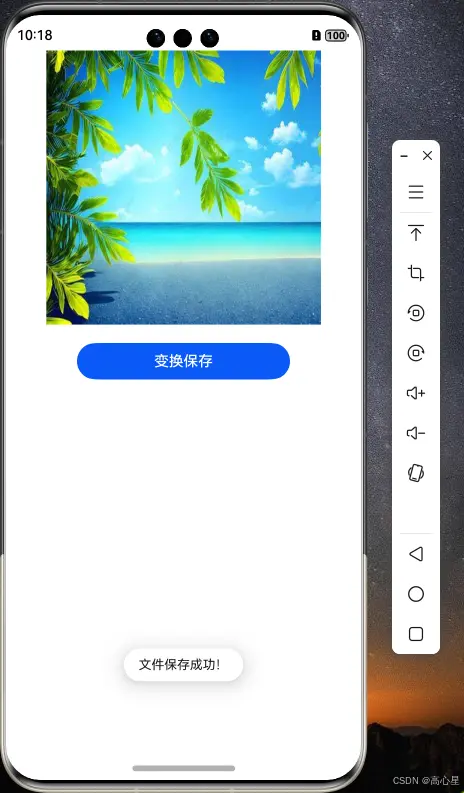
圖片保存到應用沙箱
圖片壓縮成字節數組
// 圖片打包器
let packer=image.createImagePacker()
let file=fileIo.openSync(getContext(this).getApplicationContext().cacheDir+'/edit.jpg',fileIo.OpenMode.CREATE|fileIo.OpenMode.READ_WRITE)
// 將pixelmap打包成字節數組
 packer.packing(this.src,{format:'image/jpeg',quality:100}).then((buffer)=>{
  // 將字節數組 寫入文件
  fileIo.writeSync(file.fd,buffer)
 })
圖片直接打包成文件
// 圖片打包器
let packer=image.createImagePacker()
let file=fileIo.openSync(getContext(this).getApplicationContext().cacheDir+'/edit.jpg',fileIo.OpenMode.CREATE|fileIo.OpenMode.READ_WRITE)
// 直接打包成文件
packer.packToFile(this.src,file.fd,{format:'image/jpeg',quality:100}).then(()=>{
  promptAction.showToast({message:'文件保存成功!'})

}).catch(((e:Error)=>{console.error('gxxt ',e.message)}))
完整代碼
import { image } from '@kit.ImageKit';
import { fileIo } from '@kit.CoreFileKit';
import { promptAction } from '@kit.ArkUI';

@Entry
@Component
struct Imgsave {
  @State message: string = 'Hello World';
  @State src:PixelMap|undefined=undefined
  aboutToAppear(): void {
   //  資源管理器
   let rsmanager=getContext(this).resourceManager
   //  圖片字節
   let buffer= rsmanager.getMediaContentSync($r('app.media.jingse')).buffer.slice(0)
    // 生成imagesource
    let source=image.createImageSource(buffer)
    // 生成pixelmap
    this.src=source.createPixelMapSync({editable:true})
  }
  savepic(){
    // 圖片打包器
    let packer=image.createImagePacker()
    let file=fileIo.openSync(getContext(this).getApplicationContext().cacheDir+'/edit.jpg',fileIo.OpenMode.CREATE|fileIo.OpenMode.READ_WRITE)
    // 將pixelmap打包成字節數組
    // packer.packing(this.src,{format:'image/jpeg',quality:100}).then((buffer)=>{
    //   // 將字節數組 寫入文件
    //   fileIo.writeSync(file.fd,buffer)
    // })
    // 直接打包成文件
    packer.packToFile(this.src,file.fd,{format:'image/jpeg',quality:100}).then(()=>{
      promptAction.showToast({message:'文件保存成功!'})

    }).catch(((e:Error)=>{console.error('gxxt ',e.message)}))
  }
  build() {
    Column(){
     Image(this.src).width(300).height(300).objectFit(ImageFit.Fill)
      Button('變換保存').width('60%').margin({top:20})
        .onClick(()=>{
          // 圖片透明度改變和圖片旋轉180
          this.src?.opacitySync(0.5)
          this.src?.rotate(180)
        //   圖片保存
          this.savepic()
        })

    }.width('100%')
    .height('100%')
  }
}
圖片保存到用户文件
由於用户文件系統與應用文件系統的隔離機制,想要訪問用户文件系統,首先需要加入權限ohos.permission.WRITE_IMAGEVIDEO。
但鴻蒙又提供了一種臨時獲取用户權限的組件SaveButton,使用該組件不用申請權限可以臨時獲取用户文件系統的訪問權限。

保存到相冊
 //  圖片打包
            let packer = image.createImagePacker()
            packer.packing(this.src, { format: 'image/jpeg', quality: 100 }).then(async (buffer) => {
              //   獲取圖片的字節數組
              //   獲取圖庫圖片操作管理員
              let phhelper = photoAccessHelper.getPhotoAccessHelper(getContext(this))
              // 保存相冊請求 參數為上下文環境 保存類型
              let request = photoAccessHelper.MediaAssetChangeRequest.createAssetRequest(getContext(this),
                photoAccessHelper.PhotoType.IMAGE, 'jpg')
              // 將字節數組加入相冊資源
              request.addResource(photoAccessHelper.ResourceType.IMAGE_RESOURCE, buffer)
              // 將相冊改變保存
              phhelper.applyChanges(request).then(() => {

                promptAction.showToast({ message: '文件保存成功' })
              })
            })
完整代碼
import { image } from '@kit.ImageKit';
import { photoAccessHelper } from '@kit.MediaLibraryKit';
import { fileIo } from '@kit.CoreFileKit';
import { promptAction } from '@kit.ArkUI';

@Entry
@Component
struct Imagesave1 {
  @State message: string = 'Hello World';
  @State src: PixelMap | undefined = undefined

  aboutToAppear(): void {
    //  資源管理器
    let rsmanager = getContext(this).resourceManager
    //  圖片字節
    let buffer = rsmanager.getMediaContentSync($r('app.media.jingse')).buffer.slice(0)
    // 生成imagesource
    let source = image.createImageSource(buffer)
    // 生成pixelmap
    this.src = source.createPixelMapSync({ editable: true })
  }

  build() {
    Column() {
      Image(this.src).width(300).height(300).objectFit(ImageFit.Fill).margin({ bottom: 20 })
      SaveButton({ text: SaveDescription.SAVE_IMAGE }).width('60%')
        .onClick((event: ClickEvent, result: SaveButtonOnClickResult) => {
          if (result == SaveButtonOnClickResult.SUCCESS) {
            //   授權成功
            //   圖片水平翻轉
            this.src?.flip(true, false)
            //  圖片打包
            let packer = image.createImagePacker()
            packer.packing(this.src, { format: 'image/jpeg', quality: 100 }).then(async (buffer) => {
              //   獲取圖片的字節數組
              //   獲取圖庫圖片操作管理員
              let phhelper = photoAccessHelper.getPhotoAccessHelper(getContext(this))
              // 保存相冊請求 參數為上下文環境 保存類型
              let request = photoAccessHelper.MediaAssetChangeRequest.createAssetRequest(getContext(this),
                photoAccessHelper.PhotoType.IMAGE, 'jpg')
              // 將字節數組加入相冊資源
              request.addResource(photoAccessHelper.ResourceType.IMAGE_RESOURCE, buffer)
              // 將相冊改變保存
              phhelper.applyChanges(request).then(() => {

                promptAction.showToast({ message: '文件保存成功' })
              })
            })
          } else {
            promptAction.showToast({ message: '權限申請失敗' })
          }
        })

    }.width('100%')
    .height('100%')
  }
}
          })
            })
          } else {
            promptAction.showToast({ message: '權限申請失敗' })
          }
        })

    }.width('100%')
    .height('100%')
  }
}