

在企業應用中,Word 文檔(DOC/DOCX)仍然是信息交換和報告製作的核心工具。無論是合同、通知、彙報材料還是自動生成報表,都需要程序化生成 Word 文件。在傳統做法中,開發者可能依賴手動操作或 Office 自動化(Interop),但這類方法存在依賴 Office 安裝、性能低下及易出錯的問題。
本文將詳細介紹如何使用 Free Spire.Doc for .NET 在 C# 中創建 Word 文檔、插入文本、表格、圖片及頁眉頁腳,並擴展到保存不同格式和 MemoryStream 的場景。示例數據仍使用英文文本,以便快速理解。
1. 安裝 Spire.Doc
在使用前,需要通過 NuGet 安裝 Spire.Doc:
Install-Package FreeSpire.Doc安裝完成後,在 C# 項目中引用必要命名空間:
using Spire.Doc;
using Spire.Doc.Documents;
using Spire.Doc.Fields;
using System.IO;
using System.Drawing;
2. 創建 Word 文檔並添加段落
// 創建新的文檔
Document document = new Document();
Section section = document.AddSection();

// 添加標題段落
Paragraph title = section.AddParagraph();
title.AppendText("Employee Report");
title.Format.HorizontalAlignment = HorizontalAlignment.Center;
title.ApplyStyle(BuiltinStyle.Heading1);

// 添加正文段落
Paragraph intro = section.AddParagraph();
intro.AppendText("This report contains the details of employees in the company. All information is for internal use only.");
intro.Format.HorizontalAlignment = HorizontalAlignment.Left;
intro.Format.LineSpacing = 15f;説明:
AddSection創建獨立章節,方便分頁和樣式管理。- 內置樣式(
BuiltinStyle)提供 Word 標準格式。 Paragraph.Format可自定義對齊、行距、縮進等。
3. 插入表格並填充數據
// 創建表格,5 行 5 列(含標題行)
Table table = section.AddTable(true);
table.ResetCells(5, 5);

// 設置標題行
table[0, 0].AddParagraph().AppendText("EmployeeID");
table[0, 1].AddParagraph().AppendText("FullName");
table[0, 2].AddParagraph().AppendText("Department");
table[0, 3].AddParagraph().AppendText("HireDate");
table[0, 4].AddParagraph().AppendText("Salary");

// 填充示例數據
table[1, 0].AddParagraph().AppendText("E101");
table[1, 1].AddParagraph().AppendText("John Miller");
table[1, 2].AddParagraph().AppendText("Finance");
table[1, 3].AddParagraph().AppendText("2020-02-15");
table[1, 4].AddParagraph().AppendText("7500");

table[2, 0].AddParagraph().AppendText("E102");
table[2, 1].AddParagraph().AppendText("Sarah Brown");
table[2, 2].AddParagraph().AppendText("HR");
table[2, 3].AddParagraph().AppendText("2019-07-10");
table[2, 4].AddParagraph().AppendText("6800");

table[3, 0].AddParagraph().AppendText("E103");
table[3, 1].AddParagraph().AppendText("Mike Smith");
table[3, 2].AddParagraph().AppendText("IT");
table[3, 3].AddParagraph().AppendText("2020-01-20");
table[3, 4].AddParagraph().AppendText("9000");

table[4, 0].AddParagraph().AppendText("E104");
table[4, 1].AddParagraph().AppendText("Lisa Jones");
table[4, 2].AddParagraph().AppendText("Marketing");
table[4, 3].AddParagraph().AppendText("2018-09-05");
table[4, 4].AddParagraph().AppendText("5500");説明:
AddTable(true)創建具有默認樣式的表格。ResetCells定義行列數。table[i, j].AddParagraph()可插入文本,支持格式和超鏈接。
4. 自定義表格樣式和段落格式
// 設置標題行背景色
for (int i = 0; i < 5; i++)
{
    table[0, i].CellFormat.BackColor = Color.LightGray;
    table[0, i].Paragraphs[0].GetStyle().CharacterFormat.Bold = true;
}

// 設置表格邊框
table.TableFormat.Borders.BorderType = BorderStyle.Single;

// 設置行高
for (int i = 0; i < table.Rows.Count; i++)
{
    table.Rows[i].Height = 20f;
}
5. 插入圖片
// 添加圖片
Paragraph imgPara = section.AddParagraph();
DocPicture picture = imgPara.AppendPicture(Image.FromFile("company_logo.png"));
picture.Width = 100;
picture.Height = 50;
imgPara.Format.HorizontalAlignment = HorizontalAlignment.Right;説明:
- 使用
AppendPicture插入圖片,可調整寬高。 - 圖片可放置於段落中,可對齊左、中、右。
6. 添加頁眉頁腳
// 頁眉
HeaderFooter header = section.HeadersFooters.Header;
Paragraph headerPara = header.AddParagraph();
headerPara.AppendText("Company Confidential");
headerPara.Format.HorizontalAlignment = HorizontalAlignment.Center;

// 頁腳
HeaderFooter footer = section.HeadersFooters.Footer;
Paragraph footerPara = footer.AddParagraph();
footerPara.AppendText("Page ");
footerPara.AppendField("PAGE", FieldType.FieldPage);
footerPara.AppendText(" of ");
footerPara.AppendField("NUMPAGES", FieldType.FieldNumPages);
footerPara.Format.HorizontalAlignment = HorizontalAlignment.Center;説明:
- 頁眉頁腳可包含文字、頁碼、圖片等內容。
FieldType.FieldPage與FieldType.FieldNumPages可實現自動頁碼功能。
7. 保存 Word 文檔及其他格式
// 保存為 DOCX
document.SaveToFile("EmployeeReport.docx", FileFormat.Docx);

// 保存為 PDF
document.SaveToFile("EmployeeReport.pdf", FileFormat.PDF);

// 保存為 HTML
document.SaveToFile("EmployeeReport.html", FileFormat.Html);

// 保存到 MemoryStream
using (MemoryStream ms = new MemoryStream())
{
    document.SaveToStream(ms, FileFormat.Docx);
    // 可直接發送到客户端或存儲到數據庫
}
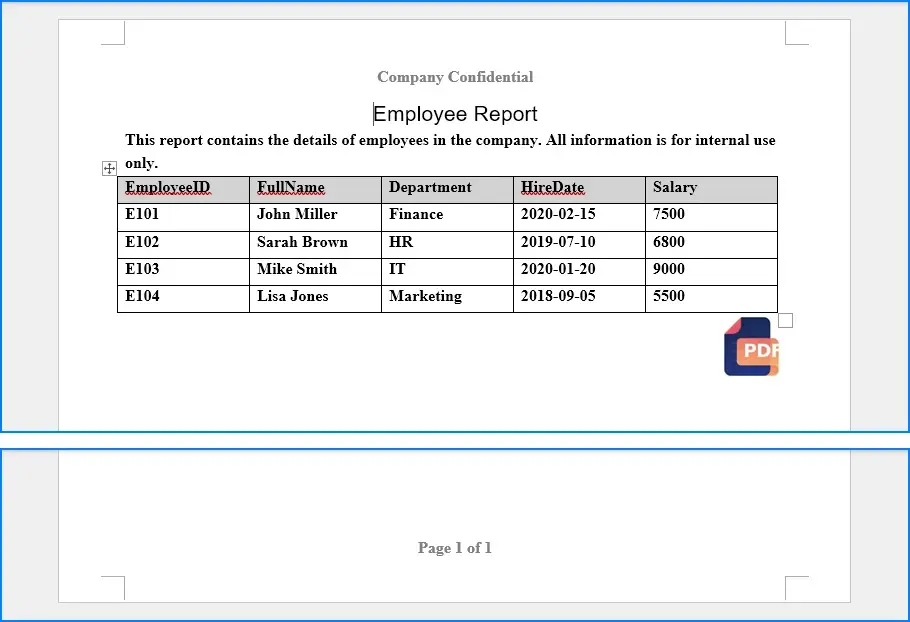
8. 生成效果展示
以下是上述代碼生成的 Word 文檔效果:
9. 擴展應用場景
- 自動化報表生成
系統可以定期生成員工報告、銷售報表,減少手工操作。 - 動態內容生成
根據數據庫動態填充段落、表格、圖片,生成模板化文檔。 - 多格式導出
Spire.Doc 支持 DOCX、PDF、HTML 等多種格式,滿足打印、網頁展示或二次處理。 - Web 集成
MemoryStream 方式可直接返回客户端,無需寫入磁盤,提高安全性和性能。
10. 總結
本文演示瞭如何使用 Spire.Doc for .NET:
- 創建 Word 文檔並添加標題、正文、表格
- 美化表格和段落樣式
- 插入圖片和頁眉頁腳
- 將文檔保存為 DOCX、PDF、HTML 等多種格式
- 使用 MemoryStream 實現網絡傳輸或二次處理
通過掌握 Document、Section、Paragraph、Table、DocPicture 等核心類和方法,你可以輕鬆實現 Word 文檔自動化生成,提高辦公系統開發效率和文檔管理水平。
