

在許多企業應用場景中,Word 文檔依舊是最常用的信息呈現與內容輸出格式。批量生成合同、輸出數據報表、構建結構化文檔時,表格往往是不可或缺的組成部分。為了提高效率,使用 C# 自動創建、插入並格式化 Word 表格,已經成為許多系統中的標準能力。
本文將介紹在 C# 中如何以編程方式創建 Word 文檔、插入表格、設置樣式,並擴展到動態行列與嵌套表格等高級操作。
文中示例基於 Free Spire.Doc for .NET 實現,如需使用,可通過 NuGet 安裝:Install-Package FreeSpire.Doc。
1. Word 文檔對象模型(基於 Free Spire.Doc for .NET)
要熟練操作表格,瞭解 Word 文檔的對象結構十分重要。Free Spire.Doc for .NET 的 DOM(Document Object Model)與 Microsoft Word 文檔結構基本一致,主要對象包括:
- Document:表示整個 Word 文檔
- Section:文檔的分節區域,每個 Section 內可以包含多個內容塊
- Body:Section 的主體內容區域
- Table:表格對象
- TableRow:表格中的一行
- TableCell:表格單元格
- Paragraph:單元格或正文中的段落
- TextRange:段落中的實際文本
- ParagraphStyle:段落樣式,用於統一設置字體、字號、對齊方式等
理解這些對象的層級關係,可以幫助你更靈活地控制表格結構、樣式與數據填充。
2. 創建並插入基礎表格
下面示例演示如何創建 Word 文檔、插入一個固定行列的表格,並填充表頭與數據內容。
using Spire.Doc;
using Spire.Doc.Documents;
using Spire.Doc.Fields;

public class TableInsertion
{
    public static void InsertBasicTable(string filePath)
    {
        // 創建一個新的Word文檔
        Document document = new Document();
        Section section = document.AddSection();

        // 添加一個段落作為表格的標題
        Paragraph titleParagraph = section.AddParagraph();
        TextRange tr = titleParagraph.AppendText("產品銷售數據表");
        titleParagraph.Format.HorizontalAlignment = HorizontalAlignment.Center;
        tr.CharacterFormat.FontName = "微軟雅黑";
        tr.CharacterFormat.FontSize = 16;
        tr.CharacterFormat.Bold = true;

        // 添加一個普通段落作為表格前的間距
        section.AddParagraph().AppendText("\n");

        // 創建一個表格,指定行數和列數
        Table table = section.AddTable();
        table.ResetCells(5, 4); // 5行4列

        // 設置表格的默認邊框
        table.TableFormat.Borders.BorderType = BorderStyle.Single;
        table.TableFormat.Borders.LineWidth = 1f;

        // 創建表頭和數據行樣式
        ParagraphStyle headerStyle = document.AddParagraphStyle("headerStyle");
        headerStyle.ParagraphFormat.HorizontalAlignment = HorizontalAlignment.Center;
        headerStyle.CharacterFormat.FontName = "微軟雅黑";
        headerStyle.CharacterFormat.FontSize = 14;
        headerStyle.CharacterFormat.Bold = true;
        ParagraphStyle dataStyle = document.AddParagraphStyle("dataStyle");
        dataStyle.ParagraphFormat.HorizontalAlignment = HorizontalAlignment.Center;
        dataStyle.CharacterFormat.FontName = "微軟雅黑";
        dataStyle.CharacterFormat.FontSize = 12;

        // 填充表格數據
        string[] headers = { "產品ID", "產品名稱", "銷售數量", "銷售額" };
        string[,] data = {
            { "P001", "筆記本電腦", "150", "150000" },
            { "P002", "智能手機", "300", "210000" },
            { "P003", "平板電腦", "100", "80000" },
            { "P004", "智能手錶", "200", "40000" }
        };

        // 填充表頭
        for (int i = 0; i < headers.Length; i++)
        {
            TableCell cell = table.Rows[0].Cells[i];
            Paragraph p = cell.AddParagraph();
            p.AppendText(headers[i]);
            p.ApplyStyle(headerStyle.Name);
            cell.CellFormat.VerticalAlignment = VerticalAlignment.Middle;
        }

        // 填充數據行
        for (int r = 0; r < data.GetLength(0); r++)
        {
            for (int c = 0; c < data.GetLength(1); c++)
            {
                TableCell cell = table.Rows[r + 1].Cells[c]; // 從第二行開始填充數據
                Paragraph p = cell.AddParagraph();
                p.AppendText(data[r, c]);
                p.ApplyStyle(dataStyle.Name);
                cell.CellFormat.VerticalAlignment = VerticalAlignment.Middle;
            }
        }

        // 保存文檔
        document.SaveToFile(filePath, FileFormat.Docx);
        Console.WriteLine($"文檔已保存到: {filePath}");
    }
    static void Main(string[] args)
    {
        InsertBasicTable("Table.docx");
    }
}
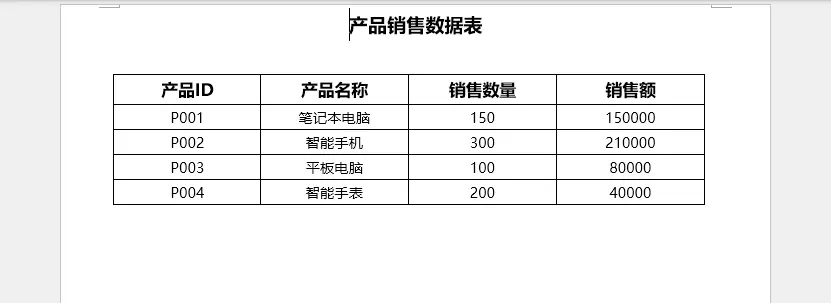
結果文檔預覽
説明
Document→ 創建文檔對象Section→ 在文檔中添加分節AddTable()→ 創建表格ResetCells(rows, columns)→ 指定初始行列數cell.AddParagraph().AppendText()→ 填充單元格文本table.TableFormat.Borders→ 設置表格整體邊框
該示例適用於結構固定的報表,如月度統計表、產品清單等。
3. 設置表格格式與樣式
實際項目中,僅插入表格是不夠的,還需要對佈局和樣式進行控制,以提升可讀性。以下示例展示了更復雜的表格格式化過程,包括列寬、行高、背景色、合併單元格和應用段落樣式等。
using System.Drawing; // 引入System.Drawing命名空間處理顏色
using Spire.Doc;
using Spire.Doc.Documents;
using Spire.Doc.Fields;

public class TableFormatting
{
    public static void FormatComplexTable(string filePath)
    {
        Document document = new Document();
        Section section = document.AddSection();

        TextRange tr = section.AddParagraph().AppendText("\n複雜表格示例");
        tr.CharacterFormat.FontName = "宋體";
        tr.CharacterFormat.FontSize = 16;
        section.AddParagraph().AppendText("\n");

        Table table = section.AddTable();
        table.ResetCells(5, 5); // 5行4列

        // 設置表格的默認邊框
        table.TableFormat.Borders.BorderType = BorderStyle.Single;
        table.TableFormat.Borders.LineWidth = 0.5f;
        table.TableFormat.Borders.Color = Color.LightGray;

        // 設置列寬
        foreach (TableRow row in table.Rows)
        {
            row.Cells[0].SetCellWidth(100, CellWidthType.Point);
            row.Cells[1].SetCellWidth(150, CellWidthType.Point);
            row.Cells[2].SetCellWidth(80, CellWidthType.Point);
            row.Cells[3].SetCellWidth(120, CellWidthType.Point);
            row.Cells[4].SetCellWidth(100, CellWidthType.Point);
        }

        // 設置第一行(表頭)的格式
        TableRow headerRow = table.Rows[0];
        headerRow.Height = 25;
        headerRow.HeightType = TableRowHeightType.Exactly;
        ParagraphStyle headerStyle = document.AddParagraphStyle("headerStyle");
        headerStyle.CharacterFormat.Bold = true;
        headerStyle.CharacterFormat.FontName = "黑體";
        headerStyle.CharacterFormat.FontSize = 13;
        headerStyle.ParagraphFormat.HorizontalAlignment = HorizontalAlignment.Center;
        foreach (TableCell cell in headerRow.Cells)
        {
            cell.CellFormat.BackColor = Color.FromArgb(192, 192, 192); // 灰色背景
            cell.CellFormat.VerticalAlignment = VerticalAlignment.Middle;
            Paragraph p = cell.AddParagraph();
            p.ApplyStyle(headerStyle.Name);
        }
        headerRow.Cells[0].Paragraphs[0].AppendText("區域");
        headerRow.Cells[1].Paragraphs[0].AppendText("銷售經理");
        headerRow.Cells[2].Paragraphs[0].AppendText("Q1銷售");
        headerRow.Cells[3].Paragraphs[0].AppendText("Q2銷售");
        headerRow.Cells[4].Paragraphs[0].AppendText("總銷售額");

        // 單元格合併示例:合併第一列的第2、3行
        table.ApplyVerticalMerge(0, 1, 2);
        table.Rows[1].Cells[0].CellFormat.VerticalAlignment = VerticalAlignment.Middle;
        table.Rows[1].Cells[0].AddParagraph().AppendText("華北區");

        // 填充數據行
        string[,] data = {
            { "張三", "12000", "15000", "27000" },
            { "李四", "10000", "13000", "23000" },
            { "王五", "18000", "20000", "38000" },
            { "趙六", "16000", "19000", "35000" }
        };

        for (int r = 0; r < data.GetLength(0); r++)
        {
            TableRow dataRow = table.Rows[r + 1]; // 從第二行開始,跳過已合併的行
            if (r == 0) // 第一行數據對應華北區合併單元格的第二行
            {
                dataRow.Cells[1].AddParagraph().AppendText(data[r, 0]);
                dataRow.Cells[2].AddParagraph().AppendText(data[r, 1]);
                dataRow.Cells[3].AddParagraph().AppendText(data[r, 2]);
                dataRow.Cells[4].AddParagraph().AppendText(data[r, 3]);
            }
            else if (r == 1) // 第二行數據對應華北區合併單元格的第三行
            {
                dataRow.Cells[1].AddParagraph().AppendText(data[r, 0]);
                dataRow.Cells[2].AddParagraph().AppendText(data[r, 1]);
                dataRow.Cells[3].AddParagraph().AppendText(data[r, 2]);
                dataRow.Cells[4].AddParagraph().AppendText(data[r, 3]);
            }
            else // 其他行正常填充
            {
                // 合併"華南區"
                table.ApplyVerticalMerge(0, r + 1, 4);
                table.Rows[r + 1].Cells[0].CellFormat.VerticalAlignment = VerticalAlignment.Middle;
                table.Rows[r + 1].Cells[0].AddParagraph().AppendText("華南區");
                table.Rows[r + 1].Cells[0].AddParagraph().Format.HorizontalAlignment = HorizontalAlignment.Center;

                dataRow = table.Rows[r + 1];
                dataRow.Cells[1].AddParagraph().AppendText(data[r, 0]);
                dataRow.Cells[2].AddParagraph().AppendText(data[r, 1]);
                dataRow.Cells[3].AddParagraph().AppendText(data[r, 2]);
                dataRow.Cells[4].AddParagraph().AppendText(data[r, 3]);
            }

            foreach (TableCell cell in dataRow.Cells)
            {
                cell.CellFormat.VerticalAlignment = VerticalAlignment.Middle;
                if (cell.Paragraphs.Count > 0)
                    cell.Paragraphs[0].Format.HorizontalAlignment = HorizontalAlignment.Center;
            }
        }

        // 確保所有單元格都有段落
        foreach (TableRow row in table.Rows)
        {
            foreach (TableCell cell in row.Cells)
            {
                if (cell.Paragraphs.Count == 0)
                {
                    cell.AddParagraph();
                }
            }
        }
        // 創建並應用數據行樣式
        ParagraphStyle dataStyle = document.AddParagraphStyle("dataStyle");
        dataStyle.CharacterFormat.FontSize = 12;
        dataStyle.CharacterFormat.FontName = "黑體";
        for (int rowIndex = 1; rowIndex < table.Rows.Count; rowIndex++)
        {
            TableRow row = table.Rows[rowIndex];
            foreach (TableCell cell in row.Cells)
            {
                cell.Paragraphs[0].ApplyStyle(dataStyle.Name);
            }
        }

        document.SaveToFile(filePath, FileFormat.Docx);
        Console.WriteLine($"格式化文檔已保存到: {filePath}");
    }
    static void Main(string[] args)
    {
        FormatComplexTable("ComplexTable.docx");
    }
}
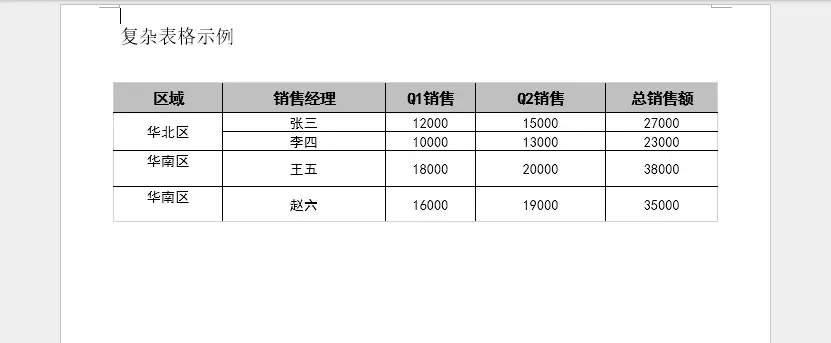
結果文檔預覽
説明
列寬設置
通過 SetCellWidth() 精確設置列寬,使整體佈局更整齊。
行高控制
TableRow.Height 與 HeightType 允許使用固定行高或自適應高度。
背景色與邊框
使用 CellFormat.BackColor 和 Borders 提升表格視覺層次。
合併單元格
ApplyVerticalMerge() 和 ApplyHorizontalMerge() 可用於製作更復雜的表頭結構。
注意:合併後只有左上角有效單元格可以繼續填充內容。
段落樣式統一管理
使用 ParagraphStyle 可以對字體、字號、加粗、對齊方式進行統一配置,再通過 p.ApplyStyle() 應用於多個單元格,避免重複設置。
4. 更多表格操作:動態行/列操作與嵌套表格
在數據量不固定的場景(如根據數據庫記錄生成報表)中,動態添加刪除行列、插入嵌套表格等是非常常見的需求。
動態添加/刪除行/列
我們可以通過直接操作table.Rows和table.Rows[rowIndex].Cells集合來實現表格行與列的插入、刪除等操作。
代碼示例
// 動態添加行
public static void AddRowToTable(Table table, string[] rowData)
{
    TableRow newRow = table.AddRow(); // 在表格末尾添加新行
    newRow.Height = 20;
    newRow.HeightType = TableRowHeightType.Auto;

    for (int i = 0; i < rowData.Length; i++)
    {
        TableCell cell = newRow.Cells[i];
        Paragraph p = cell.AddParagraph();
        p.AppendText(rowData[i]);
        p.Format.HorizontalAlignment = HorizontalAlignment.Center;
        cell.CellFormat.VerticalAlignment = VerticalAlignment.Middle;
    }
}

// 動態刪除行
public static void RemoveRowFromTable(Table table, int rowIndex)
{
    if (rowIndex >= 0 && rowIndex < table.Rows.Count)
    {
        table.Rows.RemoveAt(rowIndex);
    }
}

// 動態添加列 (邏輯更復雜,需要遍歷所有行)
public static void AddColumnToTable(Table table, int columnIndex, string[] columnData)
{
    for (int r = 0; r < table.Rows.Count; r++)
    {
        TableCell newCell = new TableCell(table.Document);
        table.Rows[r].Cells.Insert(columnIndex, newCell); // 插入新單元格

        Paragraph p = newCell.AddParagraph();
        if (r < columnData.Length) // 填充數據
        {
            p.AppendText(columnData[r]);
        }
        p.Format.HorizontalAlignment = HorizontalAlignment.Center;
        newCell.CellFormat.VerticalAlignment = VerticalAlignment.Middle;
    }
}

// 動態刪除列 (邏輯更復雜,需要遍歷所有行)
public static void RemoveColumnFromTable(Table table, int columnIndex)
{
    for (int r = 0; r < table.Rows.Count; r++)
    {
        if (columnIndex >= 0 && columnIndex < table.Rows[r].Cells.Count)
        {
            table.Rows[r].Cells.RemoveAt(columnIndex);
        }
    }
}
這種方法適用於對已有表格進行行列操作等場景。
創建嵌套表格
在複雜文檔結構中(如合同條款、問卷、嵌套佈局),可能需要在單元格內部再嵌入一個表格。操作方式與普通表格一致,只是嵌套表格通過:
public static void InsertNestedTable(string filePath)
{
    Document document = new Document();
    Section section = document.AddSection();

    section.AddParagraph().AppendText("嵌套表格示例").Format.Font.Size = 16;
    section.AddParagraph().AppendText("\n");

    Table outerTable = section.AddTable();
    outerTable.ResetCells(2, 2);
    outerTable.TableFormat.Borders.BorderType = BorderStyle.Single;

    // 在外層表格的第一個單元格中插入文本
    outerTable.Rows[0].Cells[0].AddParagraph().AppendText("外部表格 - 單元格 (0,0)");

    // 在外層表格的第二個單元格中插入嵌套表格
    TableCell nestedTableCell = outerTable.Rows[0].Cells[1];
    nestedTableCell.AddParagraph().AppendText("嵌套表格在此:"); // 添加一個描述文本

    Table innerTable = nestedTableCell.AddTable(); // 在單元格中添加一個新表格
    innerTable.ResetCells(3, 2);
    innerTable.TableFormat.Borders.BorderType = BorderStyle.Dot; // 內部表格邊框樣式不同

    // 填充內部表格數據
    innerTable.Rows[0].Cells[0].AddParagraph().AppendText("內部表頭1");
    innerTable.Rows[0].Cells[1].AddParagraph().AppendText("內部表頭2");
    innerTable.Rows[1].Cells[0].AddParagraph().AppendText("數據A");
    innerTable.Rows[1].Cells[1].AddParagraph().AppendText("數據B");
    innerTable.Rows[2].Cells[0].AddParagraph().AppendText("數據C");
    innerTable.Rows[2].Cells[1].AddParagraph().AppendText("數據D");

    // 設置內部表格單元格格式
    foreach (TableRow row in innerTable.Rows)
    {
        foreach (TableCell cell in row.Cells)
        {
            cell.CellFormat.VerticalAlignment = VerticalAlignment.Middle;
            if (cell.Paragraphs.Count > 0)
                cell.Paragraphs[0].Format.HorizontalAlignment = HorizontalAlignment.Center;
        }
    }

    // 繼續填充外層表格的其他單元格
    outerTable.Rows[1].Cells[0].AddParagraph().AppendText("外部表格 - 單元格 (1,0)");
    outerTable.Rows[1].Cells[1].AddParagraph().AppendText("外部表格 - 單元格 (1,1)");

    document.SaveToFile(filePath, FileFormat.Docx);
    Console.WriteLine($"嵌套表格文檔已保存到: {filePath}");
}
插入結果預覽:
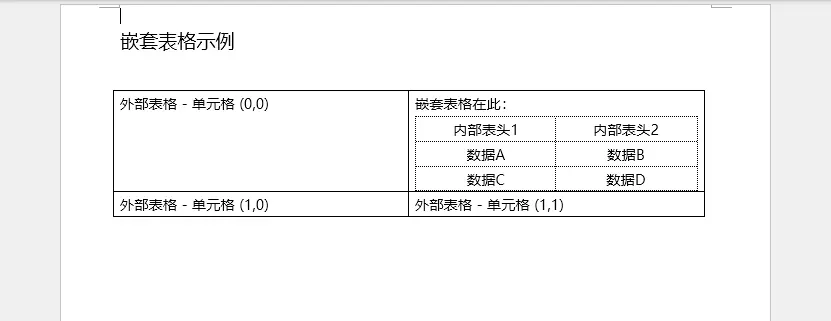
嵌套表格常用於:
- 條款編號 + 內容的雙層結構
- 表格內的説明性結構
- 帶標題欄的小型信息塊
適當使用嵌套表格可以極大提升複雜文檔的佈局靈活性。
5. 總結
本文通過多個示例展示瞭如何使用 C# 和 Free Spire.Doc for .NET 操作 Word 表格,包括:
- 創建文檔與插入基礎表格
- 控制表格格式、佈局和樣式
- 動態行列生成適配數據量變化
- 在單元格中嵌套表格構建更靈活的結構
這些功能覆蓋了大多數實際業務場景,無論是自動生成合同、構建數據報表,還是製作結構化文檔,都可以輕鬆實現。
如需進一步擴展(如圖片插入、分頁控制、導出 PDF 等),也可以在此基礎上繼續組合更多 API 功能。更多操作請參考 Spire.Doc for .NET 官方教程。
