

在不同格式的文檔之間進行數據傳輸是非常重要的操作。例如將CSV和Excel表格數據導入到Word文檔中,不僅可以實現數據的有效整合與展示,還能極大地提升工作效率和文檔的專業性。無論是生成報告、製作統計分析還是編制業務文檔,熟練掌握用Python處理這些常見文檔的數據,能幫助我們更靈活地管理和呈現信息,滿足各種需求。本文將介紹如何使用Python將CSV和Excel表格數據導入到Word文檔中並創建表格。
- 用Python導入CSV數據到Word表格
- 用Python導入Excel數據到Word表格
本文所使用的方法需要用到Spire.Doc for Python,PyPI:pip install Spire.Doc。
用Python導入CSV數據到Word表格
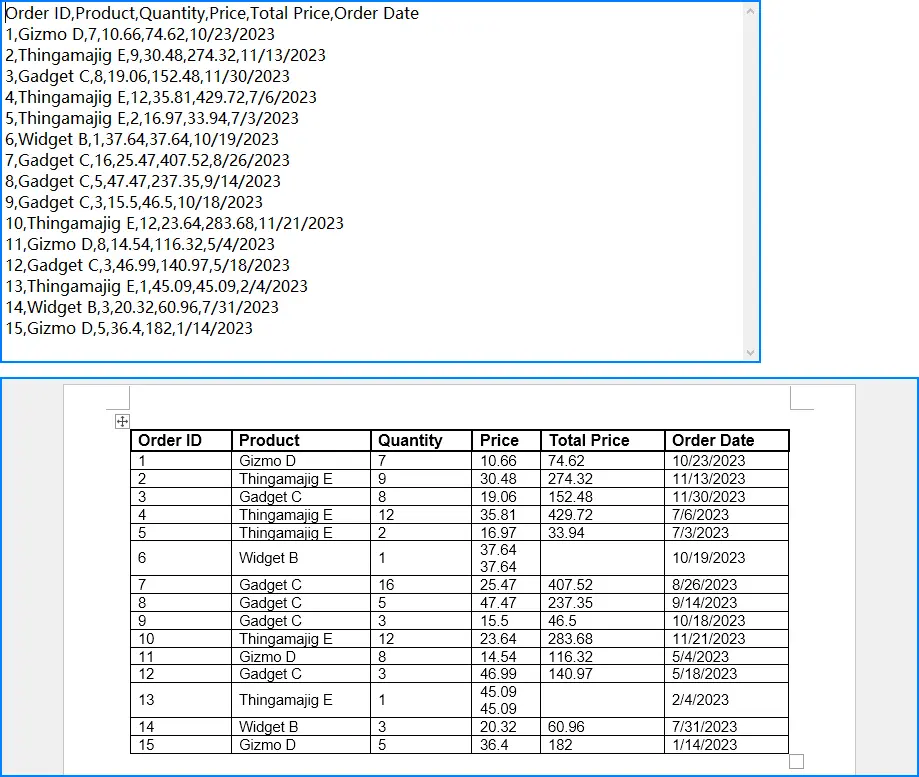
CSV文件中的表格數據可以使用Python標準庫中的csv模塊直接讀取為字符串,然後我們再使用Spire.Doc for Python中的方法和屬性利用讀取的數據在Word文檔中創建表格,即可實現CSV表格數據到Word文檔的導入。以下是操作步驟示例:
- 導入所需模塊。
- 創建
Document對象從而創建一個Word文檔。 - 使用
Document.AddSection()方法再文檔中創建一個節,再使用Section.AddTable()方法在節中創建一個表格。 - 創建表頭單元格文本和數據行單元格文本的段落樣式。
- 將表頭數據寫入表格並設置格式。
- 將其他數據寫入表格並設置格式。
- 使用
Table.AutoFit(AutoFitBehaviorType)方法設置表格自動對齊方式。 - 使用
Document.SaveToFile()方法保存文檔。 - 釋放資源。
代碼示例
from spire.doc import *
import csv

# 讀取CSV表格數據
with open('Sample.csv', 'r', encoding='utf-8') as file:
    reader = csv.reader(file)
    tableData = []
    for row in reader:
        tableData.append(row)

# 創建Document實例
doc = Document()

# 添加一個章節和一個表格
section = doc.AddSection()
table = section.AddTable()

# 為表頭和單元格創建段落樣式
headerStyle = ParagraphStyle(doc)
headerStyle.Name = "TableHeader"
headerStyle.CharacterFormat.FontName = "Arial"
headerStyle.CharacterFormat.FontSize = 12
headerStyle.CharacterFormat.Bold = True
doc.Styles.Add(headerStyle)
cellStyle = ParagraphStyle(doc)
cellStyle.Name = "TableCell"
cellStyle.CharacterFormat.FontName = "Arial"
cellStyle.CharacterFormat.FontSize = 11
doc.Styles.Add(cellStyle)

# 向表格添加表頭行
headerRow = tableData[0]
tableRow = table.AddRow()
for cell in headerRow:
    tableCell = tableRow.AddCell()
    paragraph = tableCell.AddParagraph()
    paragraph.AppendText(cell)
    paragraph.ApplyStyle(headerStyle.Name)
    tableCell.CellFormat.VerticalAlignment = VerticalAlignment.Middle
    tableCell.CellFormat.Borders.BorderType(BorderStyle.Single)
    tableCell.CellFormat.Borders.Color = Color.get_Black()
    tableCell.CellFormat.Borders.LineWidth(1.8)

# 向表格添加數據行
for row in tableData[1:]:
    tableRow = table.AddRow()
    for cell in row:
        tableCell = tableRow.Cells[row.index(cell)]
        paragraph = tableCell.AddParagraph()
        paragraph.AppendText(cell)
        paragraph.ApplyStyle(cellStyle.Name)
        tableCell.CellFormat.VerticalAlignment = VerticalAlignment.Middle
        tableCell.CellFormat.Borders.BorderType(BorderStyle.Single)
        tableCell.CellFormat.Borders.Color = Color.get_Black()
        tableCell.CellFormat.Borders.LineWidth(0.8)

# 自動調整表格大小
table.AutoFit(AutoFitBehaviorType.AutoFitToWindow)

# 保存文檔
doc.SaveToFile("output/CSVToWordTable.docx", FileFormat.Docx2019)
doc.Close()
結果文檔
用Python導入Excel數據到Word表格
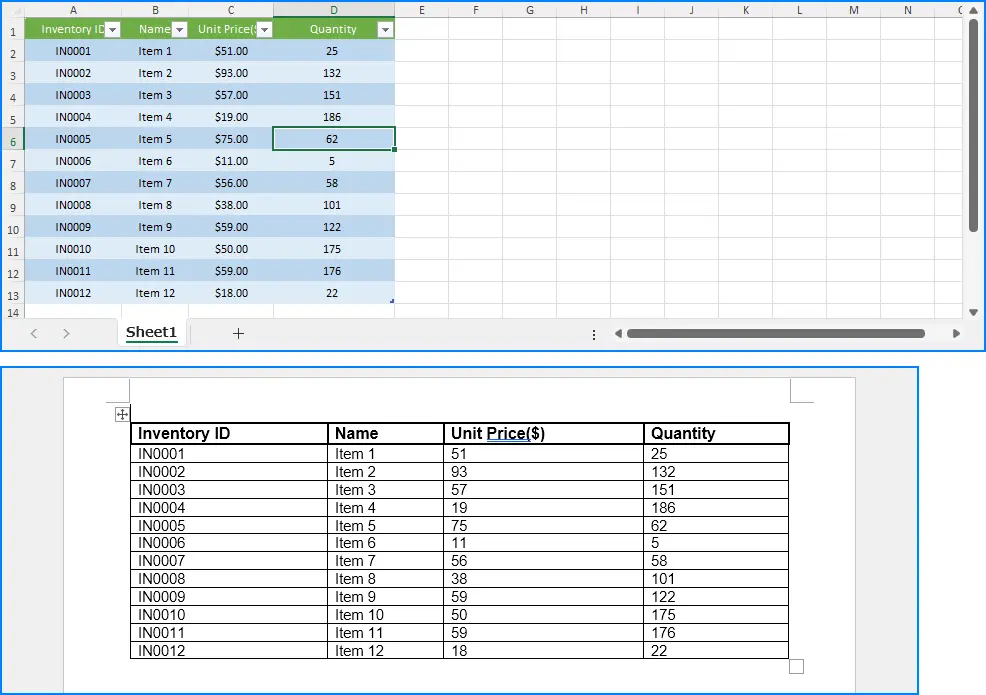
將Excel文件表格數據導入Word文檔也可以用相似的操作進行。注意需要使用Spire.XLS for Python(PyPI:pip install Spire.XLS)導入Excel工作表數據,然後寫入Word文檔表格。以下是操作步驟:
- 導入所需模塊。
- 創建
Document對象從而創建一個Word文檔。 - 使用
Document.AddSection()方法再文檔中創建一個節,再使用Section.AddTable()方法在節中創建一個表格。 - 創建
Workbook對象並使用Workbook.LoadFromFile()方法載入Excel文件。 - 使用
Workbook.Worksheets.get_Item()方法獲取工作表。 - 創建表頭單元格文本和數據行單元格文本的段落樣式。
- 將表頭數據寫入表格並設置格式。
- 將其他數據寫入表格並設置格式。
- 使用
Table.AutoFit(AutoFitBehaviorType)方法設置表格自動對齊方式。 - 使用
Document.SaveToFile()方法保存文檔。 - 釋放資源。
代碼示例
from spire.doc import Document, ParagraphStyle, VerticalAlignment, BorderStyle, Color, FileFormat
from spire.xls import Workbook

# 創建Document實例
doc = Document()

# 添加一個章節和一個表格
section = doc.AddSection()
table = section.AddTable()

# 創建Workbook實例並加載一個Excel文件
workbook = Workbook()
workbook.LoadFromFile("Sample.xlsx")

worksheet = workbook.Worksheets.get_Item(0)

# 為表頭和單元格創建段落樣式
headerStyle = ParagraphStyle(doc)
headerStyle.Name = "TableHeader"
headerStyle.CharacterFormat.FontName = "Arial"
headerStyle.CharacterFormat.FontSize = 12
headerStyle.CharacterFormat.Bold = True
doc.Styles.Add(headerStyle)
cellStyle = ParagraphStyle(doc)
cellStyle.Name = "TableCell"
cellStyle.CharacterFormat.FontName = "Arial"
cellStyle.CharacterFormat.FontSize = 11
doc.Styles.Add(cellStyle)

print(worksheet.AllocatedRange.ColumnCount)
print(worksheet.AllocatedRange.ColumnCount)

headerRow = table.AddRow()
for i in range(worksheet.AllocatedRange.ColumnCount):
    cell = headerRow.AddCell()
    paragraph = cell.AddParagraph()
    paragraph.AppendText(worksheet.AllocatedRange.get_Item(1, i + 1).Text)
    paragraph.ApplyStyle(headerStyle.Name)
    cell.CellFormat.VerticalAlignment = VerticalAlignment.Middle
    cell.CellFormat.Borders.BorderType(BorderStyle.Single)
    cell.CellFormat.Borders.Color = Color.get_Black()
    cell.CellFormat.Borders.LineWidth(1.8)

for j in range(1, worksheet.AllocatedRange.RowCount):
    dataRow = table.AddRow()
    for k in range(worksheet.AllocatedRange.ColumnCount):
        cell = dataRow.Cells.get_Item(k)
        paragraph = cell.AddParagraph()
        paragraph.AppendText(worksheet.AllocatedRange.get_Item(j + 1, k + 1).Value)
        paragraph.ApplyStyle(cellStyle.Name)
        cell.CellFormat.VerticalAlignment = VerticalAlignment.Middle
        cell.CellFormat.Borders.BorderType(BorderStyle.Single)
        cell.CellFormat.Borders.Color = Color.get_Black()
        cell.CellFormat.Borders.LineWidth(0.8)

# 自動調整表格大小
table.AutoFit(AutoFitBehaviorType.AutoFitToWindow)

# 保存文檔
doc.SaveToFile("output/ExcelTableToWord.docx", FileFormat.Docx2019)
doc.Close()
結果文檔
本文介紹瞭如何使用Python將CSV和Excel表格數據導入Word文檔並創建表格。
更多Word文檔處理技巧請前往Spire.Doc for Python教程查看。
