

在日常辦公系統開發中,涉及 PDF 處理相關的開發時,生成可填寫的 PDF 表單是一種常見需求,例如員工信息登記表、用户註冊表、問卷調查或協議確認頁等。與靜態 PDF 不同,帶有表單域(Form Field)的文檔支持用户直接在 PDF 內部輸入、勾選、選擇等交互操作,極大提升了表單使用體驗。
本文將介紹如何使用 C# 為 PDF 添加各種類型的表單域,包括文本框、下拉框、複選框、單選框、列表框和按鈕,並通過完整示例演示如何將這些域組合成一個實際可用的表單頁。
本文所使用的方法需要用到Free Spire.PDF for .NET,NuGet安裝:PM> Install-Package FreeSpire.PDF。
使用 PdfTextBoxField 添加文本輸入域
PdfTextBoxField 表示文本輸入域,適用於姓名、地址、日期等自由輸入內容。
PdfTextBoxField textBox = new PdfTextBoxField(page, "textBox");
textBox.Bounds = new RectangleF(100, 50, 150, 20);
textBox.Text = "Enter your name";
textBox.Font = new PdfFont(PdfFontFamily.Helvetica, 12f);
doc.Form.Fields.Add(textBox);
使用 PdfComboBoxField 添加下拉選擇域
PdfComboBoxField 是用於顯示可選列表的下拉框,適合性別、部門、國籍等字段。
PdfComboBoxField comboBox = new PdfComboBoxField(page, "comboBox");
comboBox.Bounds = new RectangleF(100, 110, 150, 20);
comboBox.Items.Add(new PdfListFieldItem("Option A", "A"));
comboBox.Items.Add(new PdfListFieldItem("Option B", "B"));
comboBox.Items.Add(new PdfListFieldItem("Option C", "C"));
comboBox.SelectedIndex = 0;
comboBox.Font = new PdfFont(PdfFontFamily.Helvetica, 12f);
doc.Form.Fields.Add(comboBox);
使用 PdfCheckBoxField 添加複選框域
PdfCheckBoxField 表示複選框,適用於“是否同意”、“是否接收通知”等二元布爾選項。
PdfCheckBoxField checkBox = new PdfCheckBoxField(page, "checkBox");
checkBox.Bounds = new RectangleF(100, 80, 15, 15);
checkBox.Checked = false;
doc.Form.Fields.Add(checkBox);
綜合示例:包含所有類型表單域的 PDF 表單
以下代碼創建了一個“用户信息登記表”,整合了所有常見表單域類型,包括文本框、下拉框、複選框、列表框、單選按鈕和按鈕。
using Spire.Pdf;
using Spire.Pdf.Actions;
using Spire.Pdf.Fields;
using Spire.Pdf.Graphics;
using System.Drawing;

class Program
{
    static void Main(string[] args)
    {
        // 創建文檔和頁面
        PdfDocument doc = new PdfDocument();
        PdfPageBase page = doc.Pages.Add();

        // 座標和樣式初始化
        float baseX = 100;
        float baseY = 30;
        PdfSolidBrush titleBrush = new PdfSolidBrush(new PdfRGBColor(Color.Blue));
        PdfSolidBrush labelBrush = new PdfSolidBrush(new PdfRGBColor(Color.Black));
        PdfFont font = new PdfFont(PdfFontFamily.Helvetica, 12f, PdfFontStyle.Regular);

        // 文本框
        page.Canvas.DrawString("TextBox:", font, titleBrush, new PointF(10, baseY));
        RectangleF textBoxBounds = new RectangleF(baseX, baseY, 150, 15);
        PdfTextBoxField textBox = new PdfTextBoxField(page, "textbox");
        textBox.Bounds = textBoxBounds;
        textBox.Text = "Hello World";
        textBox.Font = font;
        doc.Form.Fields.Add(textBox);
        baseY += 25;

        // 複選框
        page.Canvas.DrawString("CheckBox:", font, titleBrush, new PointF(10, baseY));
        RectangleF checkBox1Bounds = new RectangleF(baseX, baseY, 15, 15);
        PdfCheckBoxField checkBox1 = new PdfCheckBoxField(page, "checkbox1");
        checkBox1.Bounds = checkBox1Bounds;
        checkBox1.Checked = false;
        page.Canvas.DrawString("Option 1", font, labelBrush, new PointF(baseX + 20, baseY));

        RectangleF checkBox2Bounds = new RectangleF(baseX + 70, baseY, 15, 15);
        PdfCheckBoxField checkBox2 = new PdfCheckBoxField(page, "checkbox2");
        checkBox2.Bounds = checkBox2Bounds;
        checkBox2.Checked = false;
        page.Canvas.DrawString("Option 2", font, labelBrush, new PointF(baseX + 90, baseY));

        doc.Form.Fields.Add(checkBox1);
        doc.Form.Fields.Add(checkBox2);
        baseY += 25;

        // 下拉列表框
        page.Canvas.DrawString("ComboBox:", font, titleBrush, new PointF(10, baseY));
        RectangleF comboBoxBounds = new RectangleF(baseX, baseY, 150, 15);
        PdfComboBoxField comboBox = new PdfComboBoxField(page, "combobox");
        comboBox.Bounds = comboBoxBounds;
        comboBox.Items.Add(new PdfListFieldItem("Item 1", "item1"));
        comboBox.Items.Add(new PdfListFieldItem("Item 2", "item2"));
        comboBox.Items.Add(new PdfListFieldItem("Item 3", "item3"));
        comboBox.SelectedIndex = 0;
        comboBox.Font = font;
        doc.Form.Fields.Add(comboBox);
        baseY += 25;

        // 列表框
        page.Canvas.DrawString("ListBox:", font, titleBrush, new PointF(10, baseY));
        RectangleF listBoxBounds = new RectangleF(baseX, baseY, 150, 50);
        PdfListBoxField listBox = new PdfListBoxField(page, "listbox");
        listBox.Bounds = listBoxBounds;
        listBox.Items.Add(new PdfListFieldItem("Item 1", "item1"));
        listBox.Items.Add(new PdfListFieldItem("Item 2", "item2"));
        listBox.Items.Add(new PdfListFieldItem("Item 3", "item3"));
        listBox.SelectedIndex = 0;
        listBox.Font = font;
        doc.Form.Fields.Add(listBox);
        baseY += 60;

        // 單選按鈕
        page.Canvas.DrawString("RadioButton:", font, titleBrush, new PointF(10, baseY));
        PdfRadioButtonListField radioGroup = new PdfRadioButtonListField(page, "radioGroup");
        PdfRadioButtonListItem radio1 = new PdfRadioButtonListItem("Option1");
        radio1.Bounds = new RectangleF(baseX, baseY, 15, 15);
        page.Canvas.DrawString("Option 1", font, labelBrush, new PointF(baseX + 20, baseY));

        PdfRadioButtonListItem radio2 = new PdfRadioButtonListItem("Option2");
        radio2.Bounds = new RectangleF(baseX + 70, baseY, 15, 15);
        page.Canvas.DrawString("Option 2", font, labelBrush, new PointF(baseX + 90, baseY));

        radioGroup.Items.Add(radio1);
        radioGroup.Items.Add(radio2);
        radioGroup.SelectedIndex = 0;
        doc.Form.Fields.Add(radioGroup);
        baseY += 25;

        // 簽名域
        page.Canvas.DrawString("Signature Field:", font, titleBrush, new PointF(10, baseY));
        RectangleF signatureBounds = new RectangleF(baseX, baseY, 150, 80);
        PdfSignatureField signatureField = new PdfSignatureField(page, "signatureField");
        signatureField.Bounds = signatureBounds;
        doc.Form.Fields.Add(signatureField);
        baseY += 90;

        // 按鈕
        page.Canvas.DrawString("Button:", font, titleBrush, new PointF(10, baseY));
        RectangleF buttonBounds = new RectangleF(baseX, baseY, 50, 15);
        PdfButtonField button = new PdfButtonField(page, "submitButton");
        button.Bounds = buttonBounds;
        button.Text = "Submit";
        button.Font = font;
        PdfSubmitAction submitAction = new PdfSubmitAction("https://www.google.com/");
        submitAction.DataFormat = SubmitDataFormat.Html;
        button.Actions.MouseDown = submitAction;
        doc.Form.Fields.Add(button);

        // 保存文檔
        doc.SaveToFile("FillableForm.pdf", FileFormat.PDF);
        doc.Close();
    }
}
創建結果
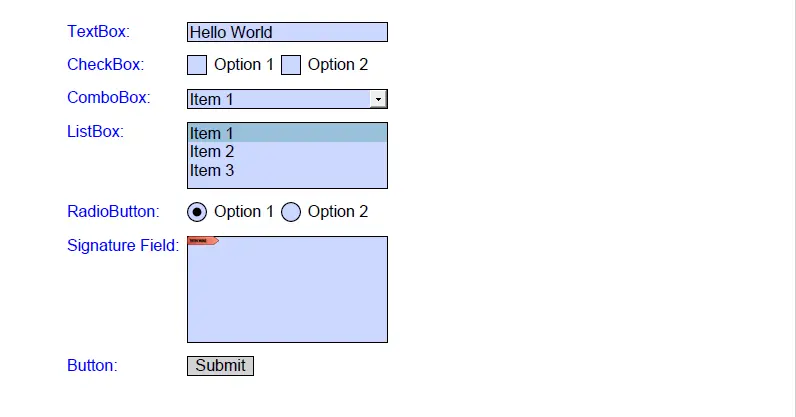
表單域類型一覽
| 表單域類型 | 説明 |
|---|---|
PdfTextBoxField |
文本輸入域,用户可鍵入任意內容 |
PdfCheckBoxField |
勾選框,可用於二選一邏輯判斷 |
PdfComboBoxField |
下拉選擇域,提供固定選項 |
PdfListBoxField |
多項列表,可啓用多選模式 |
PdfRadioButtonListField |
單選按鈕組,用户僅能選一項 |
PdfButtonField |
按鈕,可設定執行特定操作 |
通過以上方式,開發者可以快速構建結構清晰、功能完備的 PDF 表單,實現用户信息採集、文檔自動化交互等多種應用場景。
更多內容請參考:Spire.PDF 官方文檔
