

下載xdebug擴展
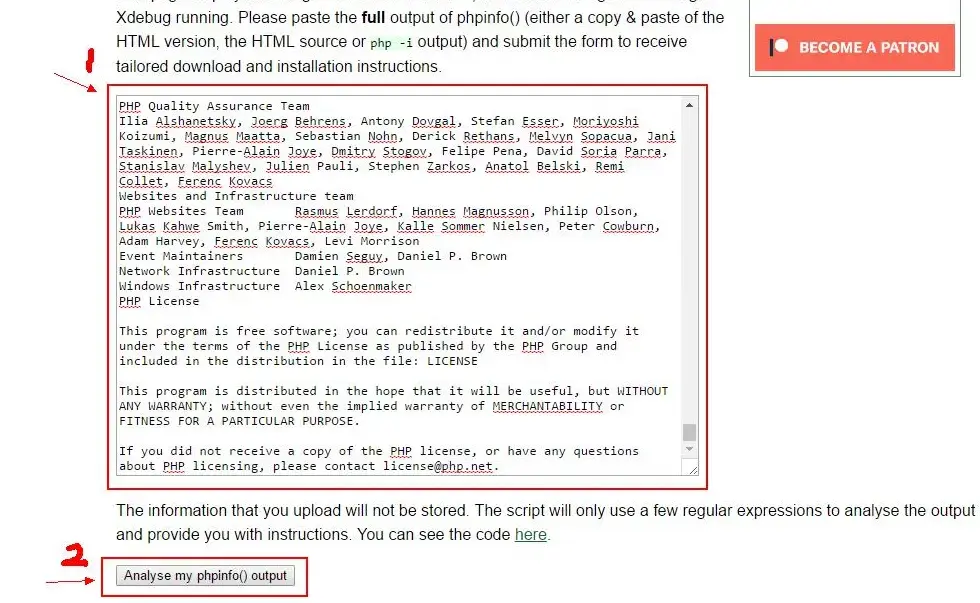
將phpinfo()中的信息全部複製到Xdebug中的文本框中,如下圖所示:點擊“Analyse my phpinfo() output”按鈕。
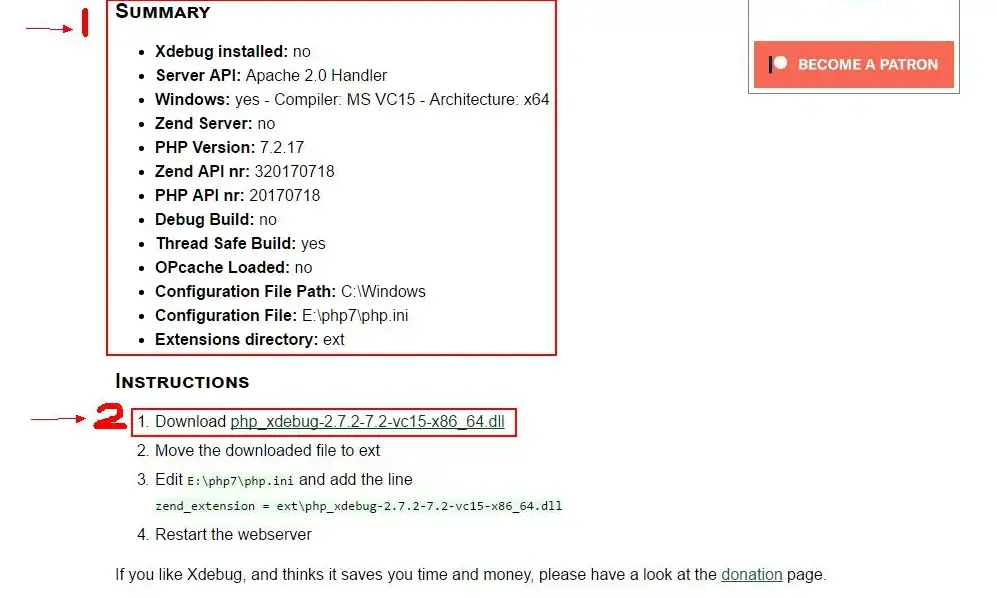
跳轉到如下圖所示頁面,會對本機中的php進行分析,點擊“Download php_xdebug-2.7.2-7.2-vc15-x86_64.dll”按鈕下載Xdebug擴展。
配置Xdebug擴展
將下載好的Xdebug擴展複製到php目錄下的ext文件夾中,並在php.ini配置的末尾添加如下配置信息:
zend_extension=E:\php7\ext\php_xdebug-2.7.2-7.2-vc15-x86_64.dll

xdebug.profiler_output_dir="E:\php\xdebug"

xdebug.trace_output_dir="E:\php\xdebug"

xdebug.remote_port=9000

xdebug.idekey=PHPSTORM

xdebug.remote_autostart=1

xdebug.remote_host=localhost

xdebug.remote_enable=1
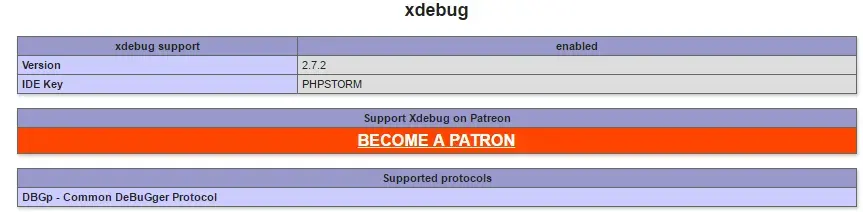
然後重啓服務,再次打開phpinfo(),出現xdebug擴展表示配置成功
phpStorm中配置Xdebug
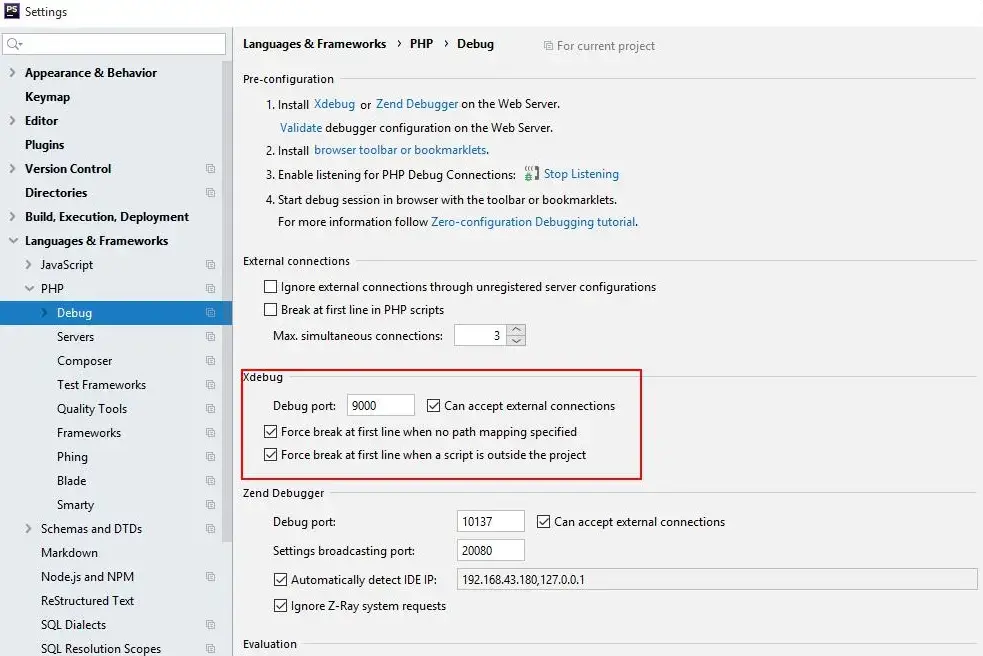
在常用的編輯器中配置xdebug,以phpstorm為例,打開“File->Settings->Languages & Development->PHP->Debug”,配置XDebug監聽端口號,需要與在php.ini配置文件中配置的端口號保持一致,如下圖所示:
打開“File->Settings->Languages & Development->PHP->Debug->DBGp Proxy”,配置DBGp協議配置信息,如下圖所示:
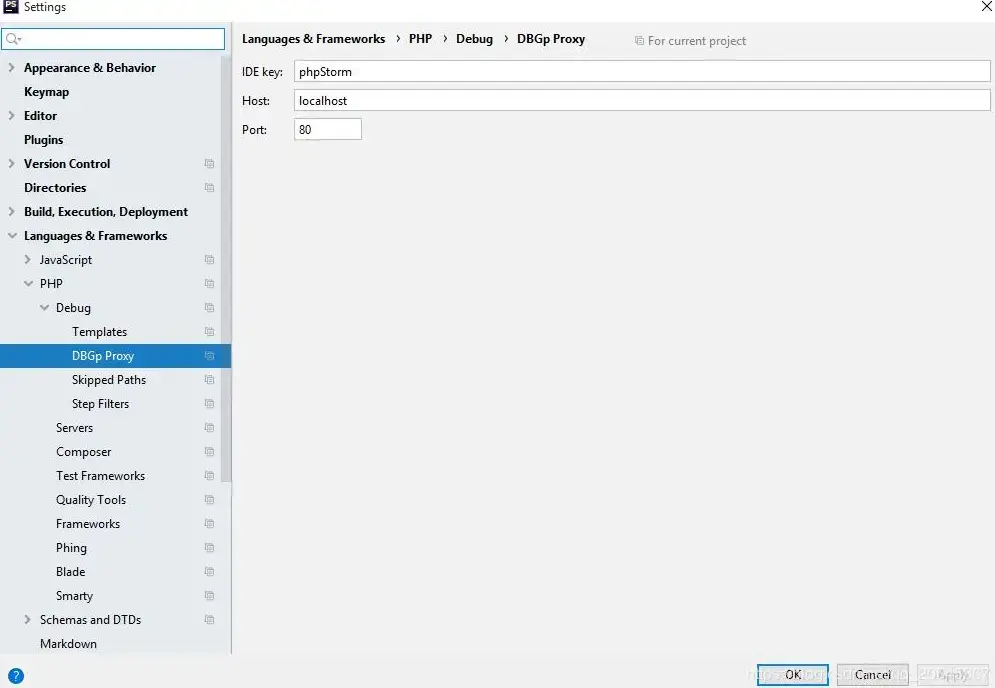
打開“File->Settings->Languages & Development->PHP->Server”,配置php運行服務器,如下圖所示:
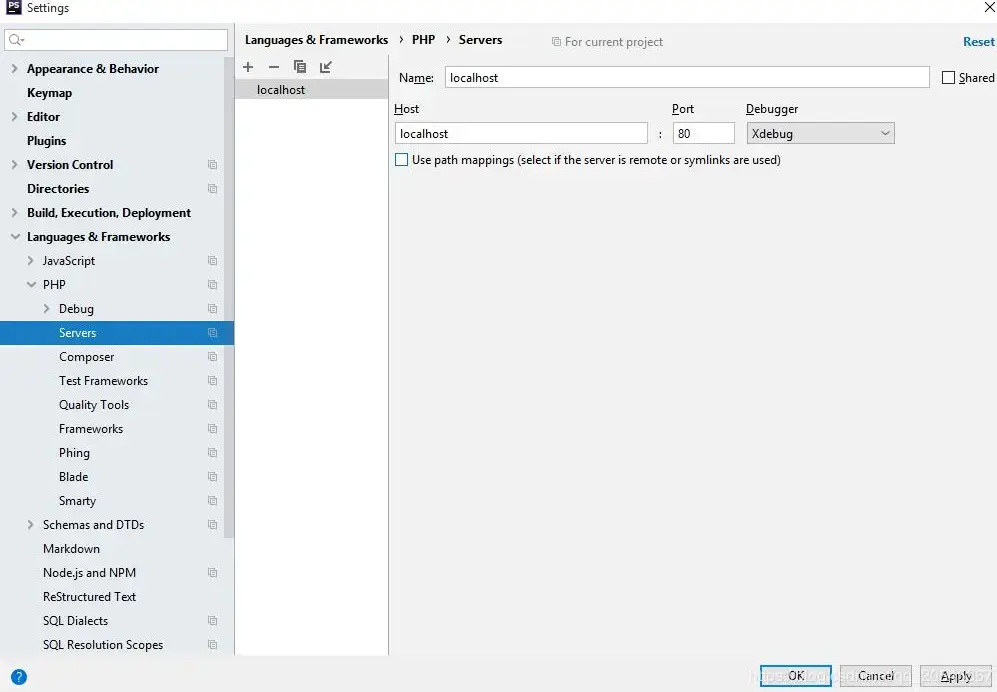
打開“Run/Debug Configurations”,添加“PHP Web Page”,如下圖所示:
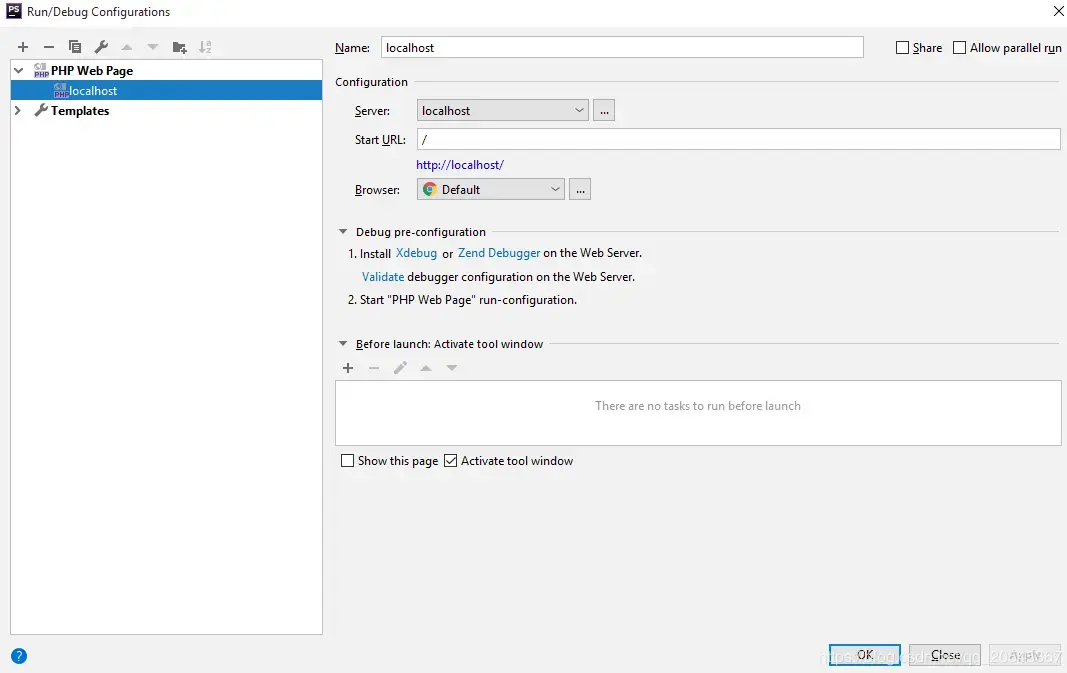
Chrome添加Xdebug helper擴展
Chrome添加完Xdebug helper擴展後,需要配置"IDE key",需要與php.ini配置文件中配置的保持一致。上面配置文件寫的是PHPSTORM
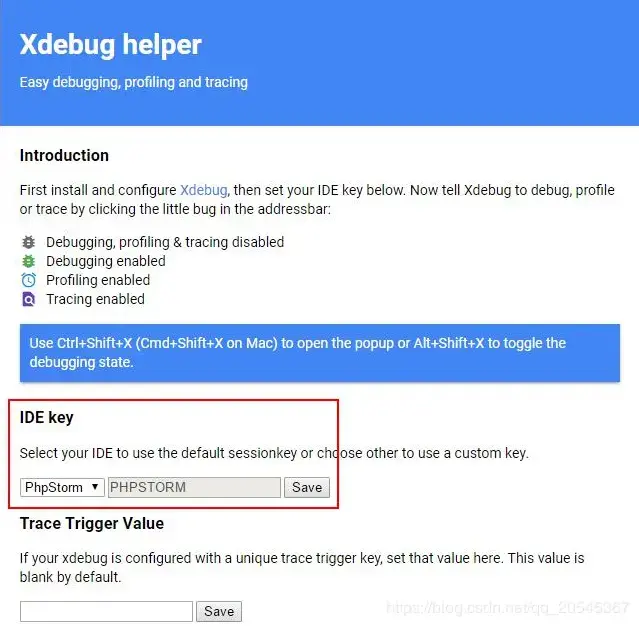
開啓phpStorm調試
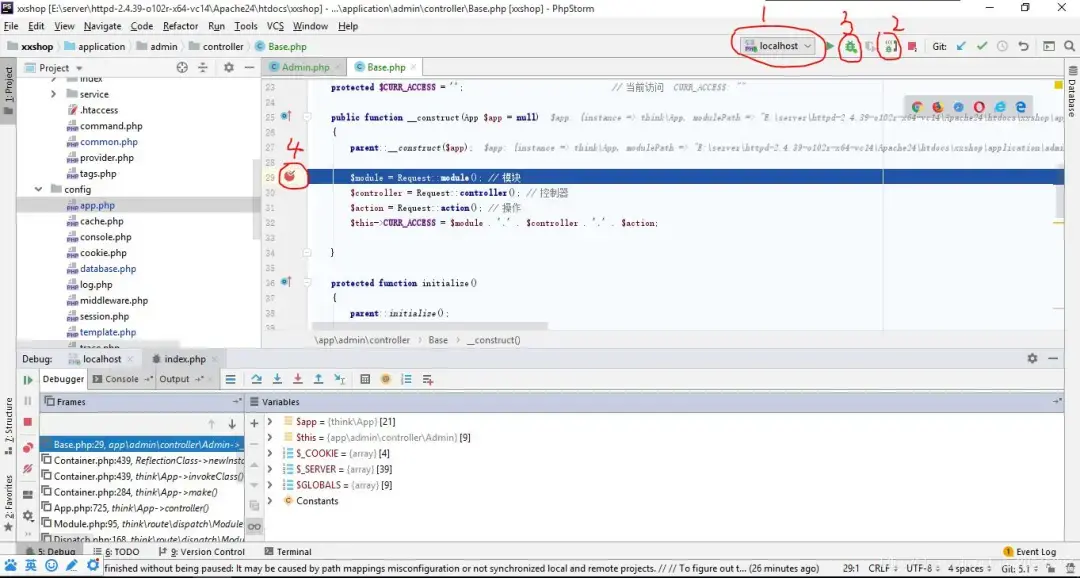
首先設置運行服務器為localhost,然後打開php debug監聽,運行debug模式,最後設置斷點,如下圖所示:
最後
如果你覺得這篇文章對你有點用的話,麻煩請給我們的開源項目點點star:http://github.crmeb.net/u/defu不勝感激 !
免費獲取源碼地址:http://www.crmeb.com
PHP學習手冊:https://doc.crmeb.com
技術交流論壇:https://q.crmeb.com