

基於 ArkTS 的 HarmonyOS 開發|響應式數據管理與跨組件通信實戰
在 HarmonyOS 時代,ArkTS 已經成為應用開發的核心語言。它不僅具備強類型與強安全特性,還融合了聲明式 UI 開發範式,使界面渲染更直觀、更高效。
本篇文章將從 創建 ArkTS 新項目 → UI 開發 → 網絡請求 → 數據展示 全流程入手,讓你迅速掌握 OpenHarmony 網絡交互的基本能力。
一、創建 ArkTS 項目與模擬器配置
新建 ArkTS 項目
環境:DevEco Studio(最新版本)
步驟如下:
1️⃣ 點擊 Create Project
2️⃣ 選擇模板:ArkTS → Empty Ability(Stage 模型)
3️⃣ 填寫應用名稱、包名及工程路徑
4️⃣ 創建完成進入工程目錄
🌟 提醒:若提示缺少 SDK,點擊 SDK 管理重新選擇即可。
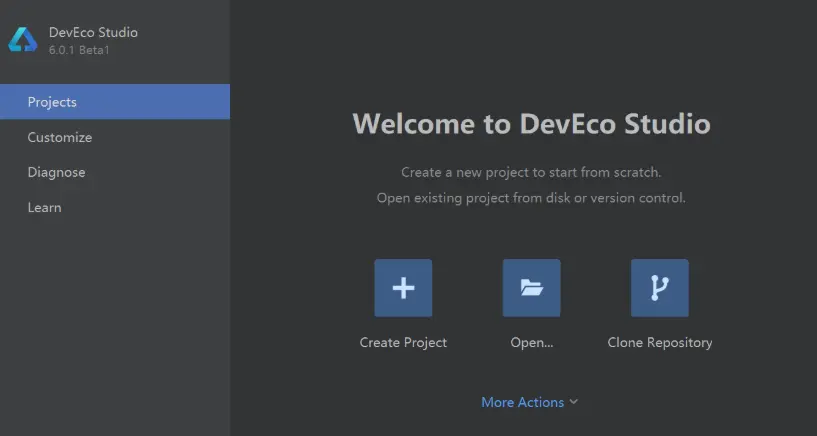
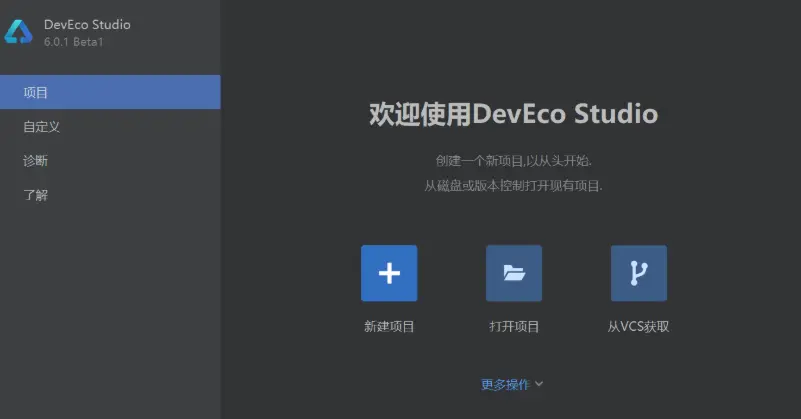
啓動模擬設備(仿真器)
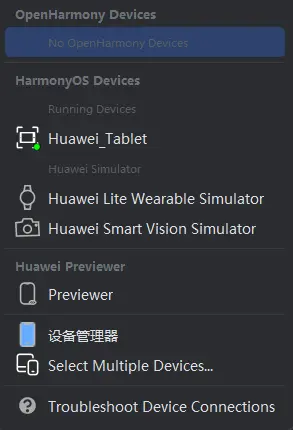
在頂部設備選擇欄中:
- 點擊 Device Manager
- 創建 OpenHarmony 虛擬設備
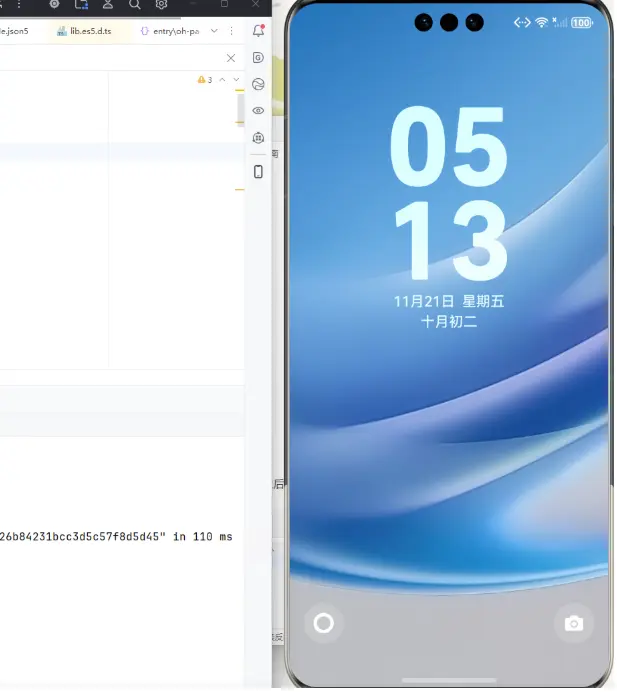
- 啓動後在設備欄即可選擇進行調試部署
到這裏,我們的項目運行環境準備就緒 🎯
二、ArkUI 聲明式 UI:快速搭建網絡請求界面
ArkUI 與 Jetpack Compose、SwiftUI 思想類似:
UI = f(State)
我們進入 entry/src/main/ets/pages/index.ets
將 build() 內默認內容刪掉,編寫自定義 UI
添加輸入框 + 按鈕 + 列表
@Entry
@Component
struct IndexPage {
  @State searchKeyword: string = ''
  @State accessToken: string = ''
  @State userList: Array<User> = []
  @State isLoading: boolean = false

  build() {
    Column({ space: 10 }) {
      // 輸入搜索關鍵詞
      TextInput({ placeholder: '輸入搜索關鍵字' })
        .width('90%')
        .onChange(v => this.searchKeyword = v)

      // 輸入 Token
      TextInput({ placeholder: '輸入訪問令牌' })
        .type(InputType.Password)
        .width('90%')
        .onChange(v => this.accessToken = v)

      // 查詢按鈕
      Button('搜索', { type: ButtonType.Capsule })
        .margin(10)
        .onClick(() => this.fetchUsers())

      // 列表展示
      if (this.isLoading) {
        Text('加載中...').fontSize(14)
      }

      if (this.userList.length > 0) {
        List({ space: 8 }) {
          ForEach(this.userList, (u: User) => {
            ListItem() {
              Text(`${u.login} (#${u.id})`)
                .fontSize(15)
            }.padding(6)
          })
        }
        .width('100%')
        .layoutWeight(1)
      }
    }
    .padding(15)
  }
}
當狀態(@State)改變時,UI 將自動刷新 ✨——聲明式範式核心!
三、網絡請求:調用 API 獲取用户數據
OpenHarmony 中使用 @kit.NetworkKit 發起 HTTP 請求:
import { http } from '@kit.NetworkKit';封裝 API 請求方法:
async fetchUsers() {
  this.isLoading = true
  const instance = http.createHttp()

  try {
    const resp = await instance.request(
      `https://api.gitcode.com/api/v5/search/users?q=${this.searchKeyword}&access_token=${this.accessToken}`,
      {
        method: http.RequestMethod.GET,
        header: { 'Content-Type': 'application/json' }
      }
    )

    if (resp.responseCode === 200) {
      const result = JSON.parse(resp.result as string)
      this.userList = result.map((item: any) => ({
        id: item.id,
        login: item.login
      }))
    } else {
      this.showError(`請求失敗:code ${resp.responseCode}`)
    }
  } catch (err) {
    this.showError('網絡異常,請稍後重試')
  } finally {
    this.isLoading = false
  }
}
補充提示框:
showError(msg: string) {
  AlertDialog.show({
    message: msg,
    confirm: { value: 'OK' }
  })
}
四、數據綁定與 UI 刷新機制説明
為什麼 UI 會自動刷新?
原因是 ArkTS 中:
@State userList: Array<User> = []@State 修飾的數據為 UI 響應式狀態
修改狀態 → 自動觸發 build() 重新渲染 UI
無需手動 notify 或 setState 🎉
✔️ 輸入搜索詞與 Token
✔️ 點擊搜索按鈕
✔️ 異步請求 GitCode API
✔️ 自動解析 JSON
✔️ 列表展示用户登錄名稱與 ID
✔️ 錯誤提示處理完善
一套代碼,UI 與數據實時聯動 —— ArkTS 的強大之處!
總結
本篇重點介紹了 ArkTS 開發從 零到一 的關鍵路徑:
- 完成 ArkTS 項目與仿真器環境的搭建
- 基於 ArkUI 聲明式範式構建頁面,掌握常用 UI 組件
- 使用
@State實現數據與界面的響應式綁定 - 調用 NetworkKit 進行異步 HTTP 接口訪問
- 解析 JSON 數據並驅動界面自動刷新展示
通過實際案例,我們可以清晰地看到 OpenHarmony 的開發體驗已全面擁抱現代化前端思維,“UI = 狀態”讓業務邏輯更加清晰、維護成本更低。再配合 ArkTS 的靜態類型體系,能大幅降低運行時錯誤風險。
